Best Gmail Client for Mac in 2026
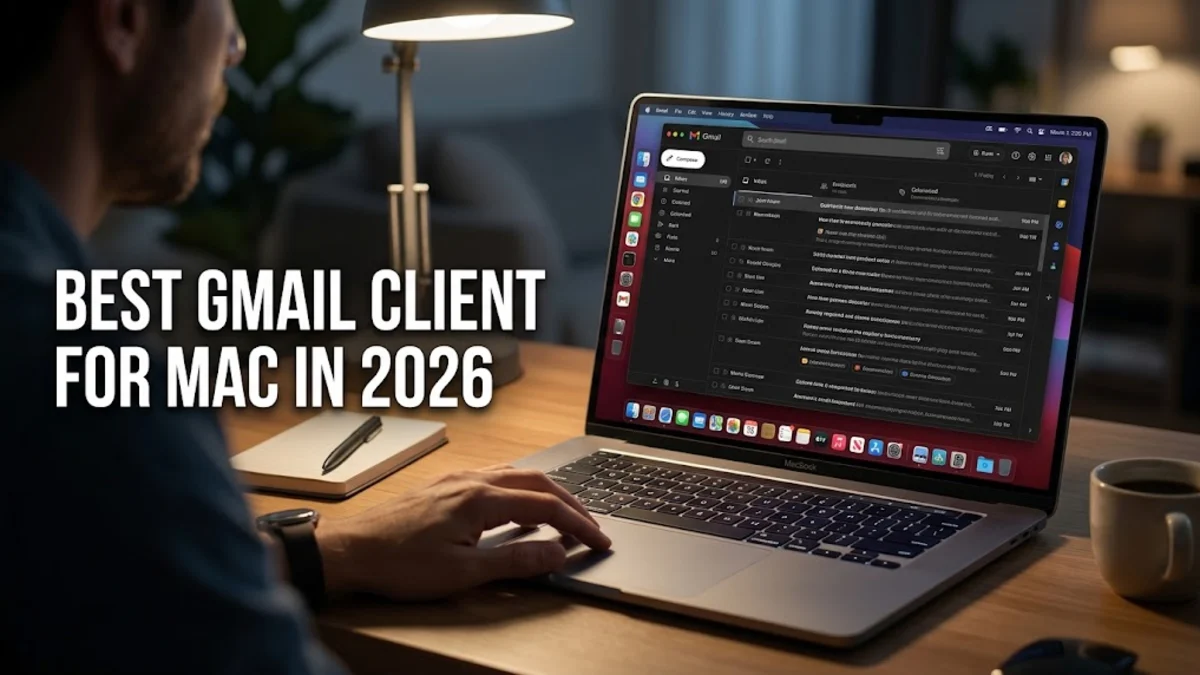
Finding the best gmail client for mac can completely transform how you handle daily correspondence, turning an overwhelming inbox into a streamlined workspace. While the default web browser and Apple Mail get the job done, specialized third-party applications offer advanced features like smart categorization, snooze functions, and deep calendar integration.
Whether you manage multiple accounts for freelance work or just want a faster, cleaner interface for your personal messages, upgrading your desktop email experience makes a massive difference. Here is a breakdown of the top options available on macOS to help you choose the right fit for your workflow.
Why Use a Third-Party Gmail Client on macOS?
While logging into Gmail through Safari or Google Chrome works fine for casual users, relying on a dedicated desktop app provides significant performance and workflow advantages. Web tabs can easily get lost among dozens of open browser windows, leading to missed messages and delayed replies. A standalone Mac application keeps your communication hub front and center, sending native desktop notifications and operating independently of your browser resource usage. Furthermore, many modern email clients leverage advanced application programming interfaces to bring Gmail-specific features—such as labels, priority inbox filtering, and powerful search capabilities—directly into a polished macOS interface.
Beyond organization, security and offline access are major benefits of using a dedicated app. Native clients often support end-to-end encryption protocols and allow you to read and draft emails even when your internet connection drops. When you reconnect, the application automatically syncs your changes without throwing synchronization errors. By shifting away from browser-based webmail, you also reduce RAM consumption, keeping your MacBook running cool and responsive throughout the workday even when handling heavy attachments and thousands of archived messages.
Spark Mail: Best Overall Gmail Experience
Spark Mail stands out as the premier choice for anyone looking for a polished, feature-rich interface to manage Gmail on macOS. Developed by Readdle, Spark uses a smart inbox system that automatically categorizes your incoming messages into personal, notifications, and newsletters, keeping important conversations from getting buried under promotional clutter. The application also includes team collaboration tools, allowing you to share drafts, discuss threads internally, and delegate emails seamlessly if you work in a shared environment.
Customization is another strong suit for Spark. You can personalize swipe gestures, snooze emails for later review, and set up follow-up reminders so you never drop the ball on important client replies. The app supports unified inboxes, meaning you can view your Gmail alongside Outlook, iCloud, and Yahoo accounts in a single, cohesive view. While Spark offers a robust free tier with plenty of storage and features, power users can upgrade to subscription plans for advanced team controls and larger attachment limits, making it a versatile tool for both individuals and growing businesses.
Canary Mail: Best for Security and Privacy Features
If data privacy and secure communication are your top priorities, Canary Mail is an exceptional Gmail client for Mac users who want peace of mind. Canary integrates robust end-to-end encryption tools, allowing you to secure your messages effortlessly without dealing with complex key exchanges. The app also features read receipts, secure templates, and automated threat detection mechanisms that warn you if an incoming email contains suspicious links or phishing attempts, helping protect your personal and professional accounts from cyber threats.
In addition to security, Canary incorporates artificial intelligence features to assist with drafting messages and summarizing lengthy email threads. Its natural language search lets you find specific attachments or messages quickly by typing conversational queries rather than remembering exact keywords. The interface is clean, fast, and adheres closely to macOS design aesthetics, ensuring it feels like a native Apple application while unlocking advanced productivity features that standard webmail simply cannot match.
Apple Mail vs. Dedicated Third-Party Clients
Deciding whether to stick with the built-in Apple Mail app or switch to a dedicated third-party client depends heavily on how deeply you rely on advanced Google ecosystem features. Apple Mail supports Gmail accounts and offers the distinct advantage of being completely free, lightweight, and pre-installed on every Mac. It integrates nicely with macOS notifications, Siri suggestions, and continuity features across your iPhone and iPad. However, Apple Mail often struggles to handle Gmail-specific labels, filters, and advanced search operators natively, sometimes resulting in delayed syncing or missing folder structures.
On the other hand, specialized clients built specifically for modern email workflows provide superior organization tools, snooze options, and lightning-fast search indexing. While some third-party apps require paid subscriptions for full feature sets, the time saved through smart categorization and automated templates easily justifies the investment for heavy email users. Reviewing your daily communication volume will help clarify whether the default macOS option suffices or if a specialized client is necessary to keep your inbox under control.
How to Choose the Right Client for Your Workflow
Selecting the ideal Gmail client requires an honest assessment of your daily email habits, budget, and security requirements. Start by listing the features you use most frequently—such as unified multi-account management, snooze capabilities, AI writing assistants, or advanced encryption. If you collaborate closely with a team, prioritize apps that offer shared drafts and internal commenting. If you primarily work solo and want a clean, minimalist interface that stays out of your way, a streamlined client with robust snooze and template options will serve you much better.
Take advantage of free trials or free tiers before committing to an annual subscription. Install one or two contenders, connect your primary Gmail account, and test them out for a few days under real-world conditions. Pay attention to how quickly the app syncs messages, how much battery power it consumes, and whether the notification system keeps you informed without causing constant distractions. Finding the right balance between automation and simplicity ensures your email client becomes a productivity asset rather than another digital chore.
The bottom line
Managing your inbox efficiently on macOS doesn't have to be a chore. By exploring dedicated applications like Spark Mail or Canary Mail, you can replace clunky browser tabs with fast, feature-rich desktop tools designed to save you time and keep your communications organized.
Frequently asked questions
Can I use multiple Gmail accounts in these Mac clients?
Yes, all major third-party email clients for Mac allow you to add and manage multiple Gmail accounts, as well as accounts from other providers like Outlook and Yahoo, in a unified inbox.
Are third-party email clients safe to use with Gmail?
Reputable email clients use secure OAuth authentication protocols, meaning they never see or store your actual Google password. Always download apps from official sources.
Do these clients support Gmail labels and filters?
Yes, dedicated Mac email clients map directly to your Gmail labels, archives, and custom folders, though some advanced rule configurations may still need to be managed via the web interface.
Is there a completely free Gmail client for Mac?
Apple Mail is free and built-in, and apps like Spark offer robust free tiers with plenty of features for individual users who do not need advanced team collaboration tools.
Will using a third-party app slow down my Mac?
Modern email clients are optimized for macOS performance, and using a dedicated app often uses less RAM than keeping multiple browser tabs open for webmail.