How to Take a Screenshot on iPhone
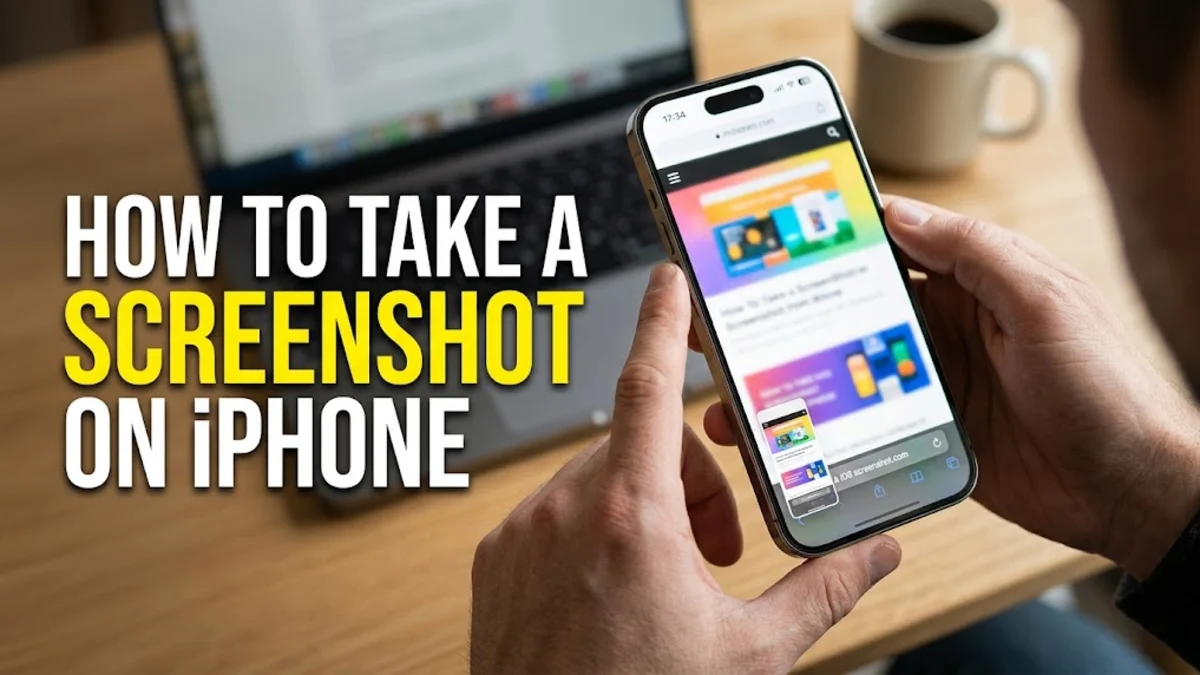
Learning how to take a screenshot on your iPhone is essential whether you want to capture a funny text message, save a receipt, or share an error code with tech support. Apple provides several built-in methods to capture your display depending on your iPhone model and personal preferences.
From traditional physical button combinations to touch-based accessibility shortcuts, this guide walks you through every reliable way to snap, edit, and share screenshots on your iOS device.
Taking a Screenshot on iPhones with Face ID
If you use a modern iPhone model equipped with Face ID—such as the iPhone 14, 15, 16, or newer iterations—the button combination to capture your screen is quick and uniform. You will need to press two physical buttons simultaneously and release them immediately to avoid triggering the power-down menu or Siri.
To capture your screen, press the Side button on the right edge of your device at the exact same time you press the Volume Up button on the left edge. A thumbnail of your screenshot will appear briefly in the bottom-left corner of your screen. If you ignore it, the thumbnail will automatically slide off the screen and save directly to your Photos app. Alternatively, you can tap the thumbnail to open the markup editor immediately.
Taking a Screenshot on iPhones with a Home Button
For older iPhone models that feature a physical Home button—such as the iPhone SE or iPhone 8 and earlier—the button combination is slightly different. Because these devices have a top power button or a side power button combined with a circular home button below the display, your hand placement will vary.
To take a screenshot on these devices, press and hold the Side button (or the Top button, depending on your exact model) simultaneously with the physical Home button. Just like with Face ID devices, a small preview thumbnail will pop up in the bottom-left corner. Tap it to crop or draw on the image, or swipe it away to save it directly to your camera roll without interruption.
Using AssistiveTouch for One-Handed Screenshots
If your physical buttons are broken, or if you prefer a one-handed navigation experience without pressing external hardware keys, you can set up AssistiveTouch. This puts a persistent floating software button on your display that can perform numerous system actions, including capturing screenshots.
To enable this feature, navigate to Settings > Accessibility > Touch > AssistiveTouch and toggle the switch to green. Next, select Top Level Menu or configure a custom action like Double-Tap or Long Press to trigger a screenshot. Once configured, simply tap your AssistiveTouch floating icon and choose Screenshot to capture your display instantly without fumbling for buttons.
Setting Up Back Tap for Instant Captures
One of the most convenient hidden features in iOS is Back Tap, which lets you trigger system functions by tapping twice or three times on the back glass panel of your iPhone. This works seamlessly through any standard protective case and offers a futuristic way to capture your screen.
To set this up, go to Settings > Accessibility > Touch > Back Tap. Choose either Double Tap or Triple Tap, scroll down to the System section, and select Screenshot. Now, whenever you tap the back of your iPhone twice or three times, the screen will flash white and save a screenshot immediately, making it ideal for fast-paced mobile gaming or capturing disappearing content.
Finding, Editing, and Organizing Your Screenshots
Once you capture a screenshot, knowing where to find it and how to modify it ensures your media library stays organized. All captured images are saved automatically inside your native Apple Photos app. To locate them quickly without scrolling through your entire camera roll, open the Photos app, tap Albums, scroll down to Media Types, and select Screenshots.
If you tap the preview thumbnail immediately after taking a screenshot, you enter the markup suite. Here, you can crop the edges, use the pen or highlighter tools to point out specific details, add text, or insert shapes. When you are finished editing, tap Done in the upper-left corner and choose Save to Photos or Copy and Delete if you only needed it temporarily for sharing.
Troubleshooting Common Screenshot Problems
Sometimes your iPhone might fail to capture a screenshot, leaving you wondering whether the hardware or software is misbehaving. The most common issue is accidentally pressing the Volume Down button instead of Volume Up on Face ID models, which triggers the device volume control rather than a screen capture. Ensure you are pressing the buttons firmly and releasing them quickly.
If your physical buttons remain completely unresponsive, check your device settings to make sure your software is up to date, or restart your iPhone to clear out temporary glitches. If hardware failure prevents button combinations from working, rely on AssistiveTouch or Back Tap as permanent workarounds until you can take your device to an authorized service provider.
The bottom line
Taking a screenshot on an iPhone is straightforward once you know the correct button combinations or software shortcuts for your specific device model. Whether you prefer the physical button presses, the floating AssistiveTouch menu, or a quick double-tap on the back of your phone, capturing and editing your screen takes only a fraction of a second.
Frequently asked questions
Where do my iPhone screenshots go?
All screenshots are saved automatically inside the native Photos app. You can find them easily by going to Albums and selecting the Screenshots media type folder.
Can I take a screenshot without using physical buttons?
Yes. You can use AssistiveTouch to place a software button on your screen or configure the Back Tap accessibility feature to take a screenshot by tapping the back of your phone.
How do I take a full-page scrolling screenshot?
When viewing a webpage in Safari or a document, take a regular screenshot, tap the preview thumbnail, and select the Full Page tab at the top before saving it as a PDF.
Why is my screenshot thumbnail not appearing?
If you swipe the preview thumbnail away quickly, it still saves to your photos. If it never appears at all, restart your iPhone to clear out minor UI glitches.
Can I record a video of my screen instead?
Yes. You can add the Screen Recording control to your Control Center via Settings and tap it whenever you want to record video instead of a static image.