How to Install Windows 10 Cleanly on Your PC
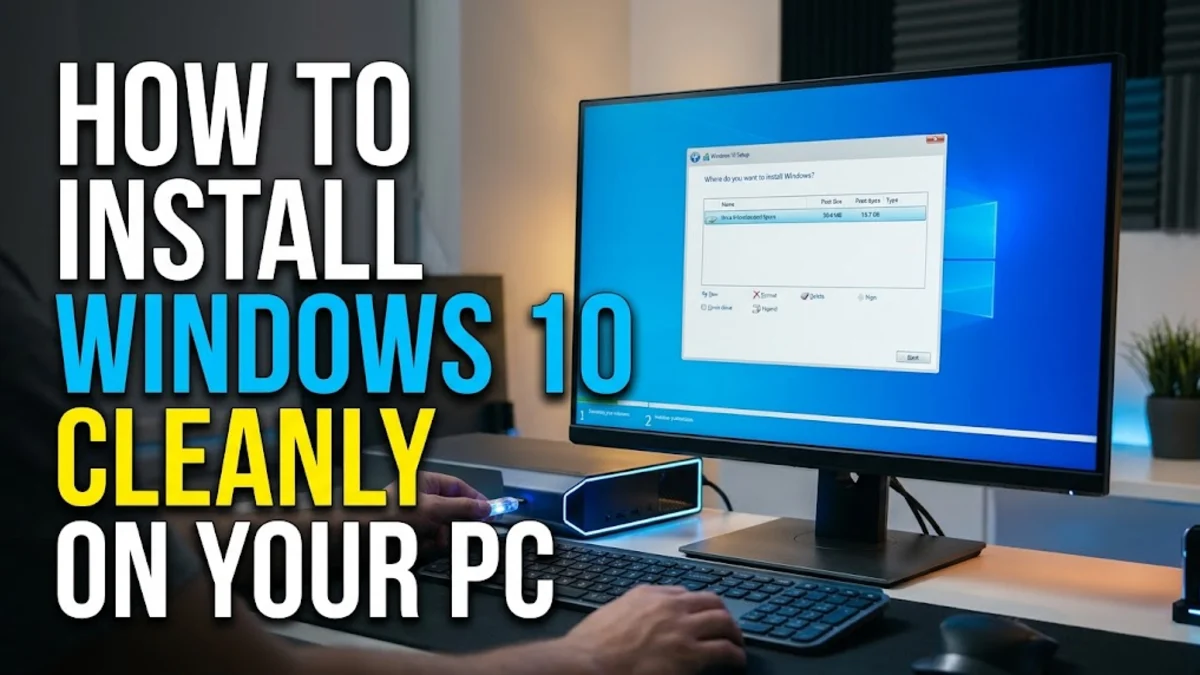
Installing Windows 10 cleanly on your computer is the most effective way to eliminate stubborn software glitches, remove bloatware, and restore your PC to peak performance. Whether you are replacing a failing hard drive or upgrading an older system, starting with a fresh operating system ensures a stable computing environment.
To complete this process successfully, you will need a blank USB flash drive with at least 8GB of storage, a working internet connection, and your Windows product key if your license is not tied to your Microsoft account or motherboard hardware.
Backing Up Important Files and Preparing Your USB Drive
Before you begin the installation process, you must back up all critical personal files, documents, and photos to an external drive or cloud storage service. Installing Windows 10 cleanly involves wiping the primary drive clean, which permanently deletes all existing data, applications, and personal settings currently stored on that partition.
Once your data is safely secured, insert a blank USB flash drive into your computer. Download the official Media Creation Tool from the Microsoft website. Run the executable file, accept the license terms, and select the option to create installation media for another PC. Choose your USB flash drive from the list, and the tool will automatically download the necessary files and make the drive bootable.
Accessing the BIOS or UEFI to Change Boot Order
With your bootable USB installation drive plugged into the target computer, restart the system and prepare to enter the BIOS or UEFI firmware settings. As soon as the computer powers on, repeatedly press the designated manufacturer key—such as F2, F12, Del, or Esc—until the BIOS utility screen appears on your monitor. Consult your motherboard or laptop manufacturer documentation if you are unsure which key corresponds to your specific hardware model.
Inside the BIOS interface, navigate to the boot priority menu using your arrow keys. Move your USB flash drive to the absolute top of the boot device order list so that the computer reads the installer files before attempting to load the existing operating system. Save your changes by pressing the designated save key, usually F10, and allow the system to restart automatically from the USB drive.
Starting the Setup Wizard and Entering Your License
After the computer reboots from the USB drive, you will see the initial Windows Setup screen. Confirm your preferred language, time and currency format, and keyboard input method, then click the Next button to proceed. On the following screen, click the prominent Install Now button to initialize the setup sequence.
When prompted to activate Windows, enter your 25-character product key. If your computer previously had an activated copy of Windows 10 tied to your hardware or Microsoft account, you can safely click the option that says I do not have a product key. Windows will automatically reactivate itself online once the installation finishes and the system connects to the internet.
Configuring Custom Partition Settings
When the setup wizard presents you with installation types, you must choose the Custom: Install Windows only (advanced) option rather than the upgrade path. This ensures a clean installation by removing residual system files. You will now see a list of existing partitions on your hard drive.
To achieve a completely clean slate, click on each existing partition on your primary drive and select the Delete option until the entire drive displays as unallocated space. Select the unallocated space and click Next. The setup utility will automatically format the drive, create the necessary system partitions, and begin copying the core installation files to your hardware.
Completing the Out-of-Box Experience and Initial Setup
After the file copying process finishes, your computer will restart automatically. During this reboot, you can safely unplug your USB flash drive to prevent the installer from launching a second time. The system will now load the Out-of-Box Experience configuration screens, where you will select your region, keyboard layout, and network connection.
Sign in using your personal Microsoft account credentials to sync your preferences and security settings. Follow the remaining on-screen prompts to configure your privacy settings, choose whether to enable virtual assistant features, and set up a secure local PIN code for daily login convenience.
Installing Drivers and Running Windows Update
Once you reach the desktop environment for the first time, your immediate priority is ensuring all hardware components have proper driver support. Open your start menu and navigate to Settings > Update & Security > Windows Update, then click Check for updates to download missing hardware drivers and critical security patches.
If certain specialized components like dedicated graphics cards or network adapters lack optimal functionality after standard updates, visit the official support page of your hardware manufacturer to download and install proprietary drivers. Restart your computer one final time to finalize all system changes and enjoy your optimized desktop.
The bottom line
Installing Windows 10 cleanly gives your computer a fresh start, resolving performance bottlenecks and software conflicts. By following these structured steps to prepare media, configure your BIOS, and complete setup, your system will run smoothly and efficiently.
Frequently asked questions
Will installing Windows 10 delete all my files?
Yes, performing a clean installation erases all data on the target drive. Always back up important files before starting.
Do I need a product key to install Windows 10?
If your PC was previously activated with Windows 10, it will reactivate automatically once connected to the internet, so you can skip entering a key during setup.
How large does the USB drive need to be?
You need a USB flash drive with a minimum capacity of 8GB to hold the installation media files.
Can I upgrade from Windows 7 or 8 using this method?
Yes, but you will need to back up your data since a clean installation wipes the drive completely during the process.
What should I do if my PC boots back into the installer?
Unplug the USB flash drive when the computer restarts during the installation process, or change your boot order back to the main hard drive in the BIOS.