How to Fix Samsung Galaxy Camera Not Working
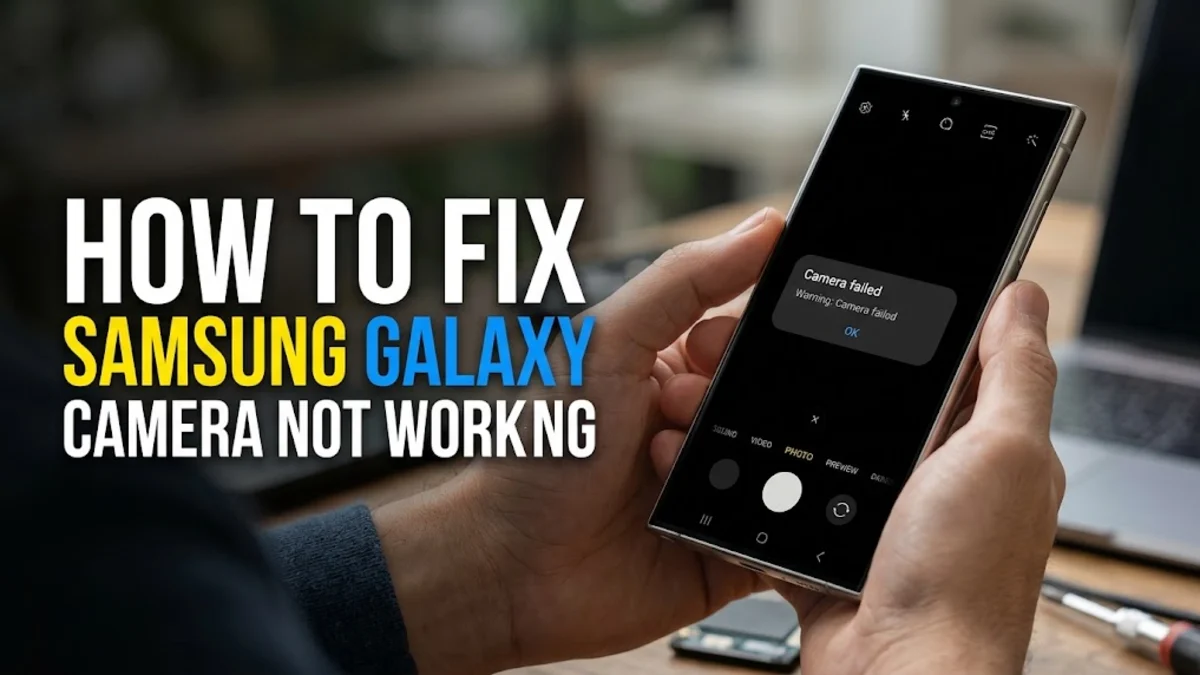
When your Samsung Galaxy camera stops working, displaying a black screen, freezing, or showing a warning error like 'Warning: Camera failed', it can instantly ruin a moment you want to capture. Fortunately, most camera issues on Samsung devices stem from minor software glitches, corrupted cache files, or permission conflicts rather than permanent hardware failure.
This troubleshooting guide walks you through the most effective, step-by-step solutions to get your Samsung Galaxy camera working again, starting with the quickest fixes and moving toward advanced troubleshooting methods.
Restart Your Phone to Clear Temporary Glitches
The absolute first thing you should try when your Samsung Galaxy camera refuses to open or freezes up is a simple system restart. Temporary software glitches in Android or One UI can occasionally freeze background processes that control camera hardware, stopping the sensor and preview display from communicating properly.
Press and hold the Side Key and the Volume Down button simultaneously for a few seconds until the power menu appears on your screen. Tap Restart and wait for your phone to boot back up completely. Once your device is back on, open the camera app immediately to see if the issue is resolved. If a temporary system conflict caused the crash, this quick reboot will usually clear it right away without requiring any deeper adjustments.
Clear the Camera App Cache and Data
Over time, the Camera app accumulates temporary cache files that can become corrupted, leading to unexpected crashes, error messages, and loading failures. Clearing the app cache and data forces the system to rebuild these files cleanly from scratch, which frequently resolves persistent software bugs affecting the camera.
To clear your camera cache, open your device settings and navigate to Settings > Apps > Camera > Storage. From this screen, tap Clear Cache at the bottom right. Test the camera app again. If the problem persists, return to the same menu and tap Clear Data. Note that clearing data will reset your camera settings back to factory defaults, but it will not delete any of your actual photos or videos stored in your phone's gallery.
Check and Reset App Permissions
Your Samsung Galaxy camera requires specific system permissions to function correctly, including access to your microphone, storage, and location. If these permissions become revoked or corrupted due to a recent system update or third-party app conflict, the camera app may fail to open or shut down immediately upon launching.
Go to Settings > Apps > Camera > Permissions and make sure that access for the camera is explicitly set to 'Allow only while using the app'. If it is already allowed, toggle the permission off and back on again to force the system to refresh the authorization state. Furthermore, check if any privacy protection apps or security tools on your device are blocking camera hardware access in the background, as these can easily interfere with standard camera operations.
Update Your Software and One UI
Running an outdated version of One UI or Android can result in unpatched bugs that directly affect hardware components like the camera sensor. Samsung frequently releases software patches and security updates specifically designed to improve camera stability, image processing, and overall system performance.
To check for pending updates, head to Settings > Software update > Download and install. If an update is available, connect your phone to a stable Wi-Fi network and follow the on-screen instructions to download and install the latest firmware. After your phone finishes updating and restarts, test the camera app to verify whether the software patch successfully resolved the underlying performance issue.
Test in Safe Mode to Rule Out Third-Party Apps
Third-party applications that utilize your camera—such as social media filters, video calling apps, or photo editors—can occasionally interfere with the native Samsung Camera app, causing unexpected freezes or error pop-ups. Booting your phone into Safe Mode disables all downloaded third-party apps temporarily, allowing you to determine if an external application is causing the interference.
Press and hold the Power button until the power off menu appears, then tap and hold the Power off icon until the Safe mode prompt pops up. Tap Safe mode to confirm. Once your phone starts up with 'Safe mode' displayed in the corner, open your camera and test it. If the camera works normally in Safe mode, a recently installed third-party app is likely causing the problem. Uninstall your most recent camera-related apps one by one until the issue stops occurring.
Reset Camera Settings to Default
Incorrect configurations, conflicting shooting modes, or corrupted custom settings inside the camera app itself can sometimes prevent the viewfinder from functioning correctly. Resetting the camera app options back to their factory defaults is a safe and effective way to clear out any bad configurations without affecting your personal files.
Open the Camera app, tap the Settings gear icon located in the corner of the screen, scroll down through the options, and tap Reset settings. Confirm your choice when prompted. This action reverts features like grid lines, location tags, and tracking auto-focus back to their original state, clearing away any hidden glitches tied to your custom shooting preferences.
The bottom line
Dealing with a non-working camera on your Samsung Galaxy can be frustrating, but working through these systematic troubleshooting steps will typically pinpoint and resolve the underlying software cause. If you have tried clearing the cache, updating your software, testing in safe mode, and resetting all configurations without success, the issue may stem from a physical hardware malfunction. In that case, visit an authorized Samsung service center to have your camera module professionally inspected and repaired.
Frequently asked questions
Why does my Samsung Galaxy keep saying camera failed?
The 'Camera failed' warning usually indicates a temporary software crash, a conflict with a third-party app, or corrupted cache files. Restarting your phone or clearing the camera app's cache and data typically resolves this error.
Will clearing camera data delete my photos?
No, clearing the camera app data or cache will not delete any photos or videos stored in your Gallery. It only resets camera preferences and temporary system files.
How do I know if my camera hardware is broken?
If you have performed a factory reset and tested the camera in Safe Mode with no success, or if you notice physical damage to the lens glass, the problem is likely a hardware failure requiring professional repair.
Can a third-party app block my Samsung camera?
Yes, apps with camera permissions can sometimes create conflicts. Booting into Safe Mode disables third-party apps and helps you verify if an external app is causing your camera to malfunction.
How do I update my Samsung camera app?
The native Samsung Camera app updates automatically alongside your system software. You can check for updates by going to Settings and selecting Software update.