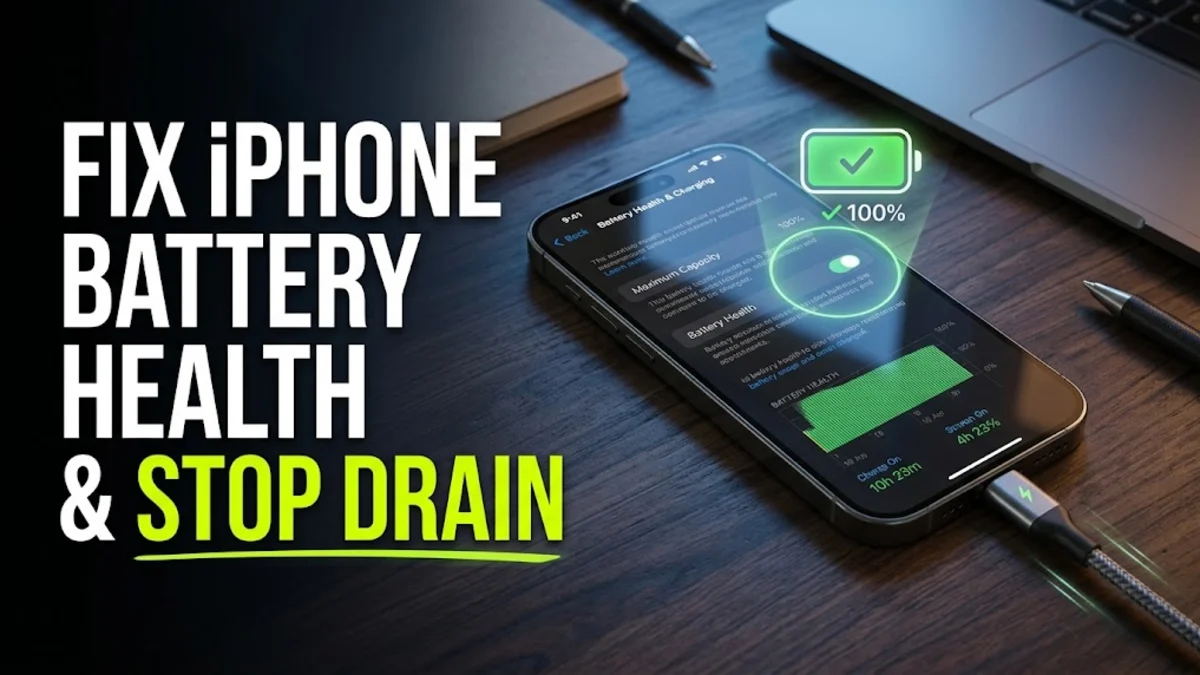
Watching your iPhone maximum capacity percentage drop can be frustrating, especially when your device struggles to hold a charge throughout the day. While chemical aging is a natural part of any lithium-ion battery's lifecycle, certain settings and charging habits can accelerate wear and cause rapid daily drain. Fortunately, you can take control of your device's power management by tweaking specific iOS settings, identifying power-hungry applications, and adjusting your daily charging routines to preserve long-term battery health.
1Understand Why iPhone Battery Health Degrades
All rechargeable lithium-ion batteries are consumable hardware components that inevitably become less effective as they chemically age. As you use your iPhone, charge cycles accumulate, and the internal resistance of the battery slowly increases, which reduces the total amount of electrical charge it can hold over time. Every time your phone drains from 100 percent to zero and charges back up, it completes one full charge cycle, and Apple designs its batteries to retain up to 80 percent of their original capacity at 500 complete charge cycles under normal conditions. Beyond normal aging, external factors like extreme ambient temperatures, heavy gaming while plugged in, and leaving your phone in direct sunlight can permanently damage the internal battery chemistry. While you cannot reverse chemical aging once it happens, you can significantly slow down the rate of degradation by changing how you manage power and heat on a daily basis. Recognizing these underlying physical limitations helps you set realistic expectations for your phone's longevity and guides you toward better daily maintenance habits.
2Turn Off Unnecessary Background App Refresh
Background App Refresh is a powerful iOS feature that allows your applications to check for new data, messages, and updates even when you are not actively looking at them. While this ensures that your email or social media feeds are instantly ready when you open the app, this constant background activity consumes both processing power and battery life, accelerating chemical wear over time. To disable or limit this feature and reduce unnecessary workload, go to Settings > General > Background App Refresh. You have the option to turn it off completely for maximum battery savings, or you can toggle it off individually for apps that do not genuinely need to update in the background, such as navigation apps, games, or retail shopping apps. Restricting these non-essential background processes immediately reduces thermal stress on your internal components and stops apps from silently draining your power while your phone rests in your pocket.
3Optimize Your Screen Brightness and Display Settings
The display is typically the single largest power consumer on any smartphone, directly impacting how fast your daily charge depletes. Running your screen at maximum brightness or keeping features like Always-On Display active continuously keeps the OLED panel drawing heavy electrical current. Head to Settings > Display & Brightness and ensure Auto-Brightness is enabled so your phone automatically adjusts to ambient lighting conditions rather than blinding you indoors. If you use a newer model featuring an Always-On Display, consider toggling it off or switching to a simpler wallpaper layout to minimize constant power draw. Additionally, switching to Dark Mode can noticeably reduce power consumption on OLED displays because dark pixels require significantly less energy to illuminate than bright white pixels. Taking control of your visual settings prevents unnecessary battery strain during everyday tasks like browsing or reading messages.
4Enable Optimized Battery Charging
Leaving your iPhone plugged into a wall charger at 100 percent capacity for extended periods puts unnecessary chemical stress on the battery cells, which speeds up long-term wear. Apple includes a built-in feature designed specifically to mitigate this exact issue and protect your hardware. Navigate to Settings > Battery > Battery Health & Charging and make sure to turn on Optimized Battery Charging. Your iPhone utilizes on-device machine learning to study your daily charging routine, recognizing when you plug it in overnight. It will charge up to 80 percent and then pause, intelligently waiting to finish charging the remaining 20 percent until just before you typically wake up or unplug it. This smart routine drastically reduces the cumulative time your battery spends sitting at maximum electrical voltage, extending its overall lifespan by months or even years.
5Identify and Restrict Rogue Apps
Sometimes a single malfunctioning application can create infinite background loops that drain your battery in a matter of hours and generate excessive device heat. To check for these culprit applications and diagnose abnormal power draw, go to Settings > Battery and scroll down to review the battery usage breakdown by app over the last 24 hours or the past 10 days. Look closely for apps that show high background activity relative to how infrequently you actually open and use them. If you spot a problematic app consuming disproportionate power, try force-closing it by swiping up from your home screen, updating it to the latest version via the App Store, or uninstalling it entirely if the battery drain persists. Regularly auditing your app usage ensures that rogue software bugs do not silently degrade your battery health or cause unexpected thermal shutdowns.
6When to Replace Your iPhone Battery
If your maximum capacity has dropped below 80 percent and you notice severe performance throttling, stuttering, or unexpected random shutdowns, software adjustments and setting tweaks will no longer restore your battery life. At this stage, the chemical components inside the battery have reached the end of their useful functional lifespan. You can check your current service status by navigating to Settings > Battery > Battery Health & Charging to view your peak performance capability. If a prominent service message appears warning you that your battery health is significantly degraded, take your device to an official Apple Store or an authorized service provider. Replacing an aged battery restores peak performance, eliminates sudden shutdowns, and breathes new life into an otherwise dependable phone without requiring an expensive upgrade.
The bottom line
Fixing and preserving your iPhone battery health comes down to adopting smarter daily charging habits, managing unnecessary background processes, and utilizing built-in iOS power features. By reducing thermal stress, auditing power-hogging apps, and protecting your device from extreme temperatures, you can keep your iPhone running efficiently and reliably for many years.