How to Mirror Your iPhone to Windows 11
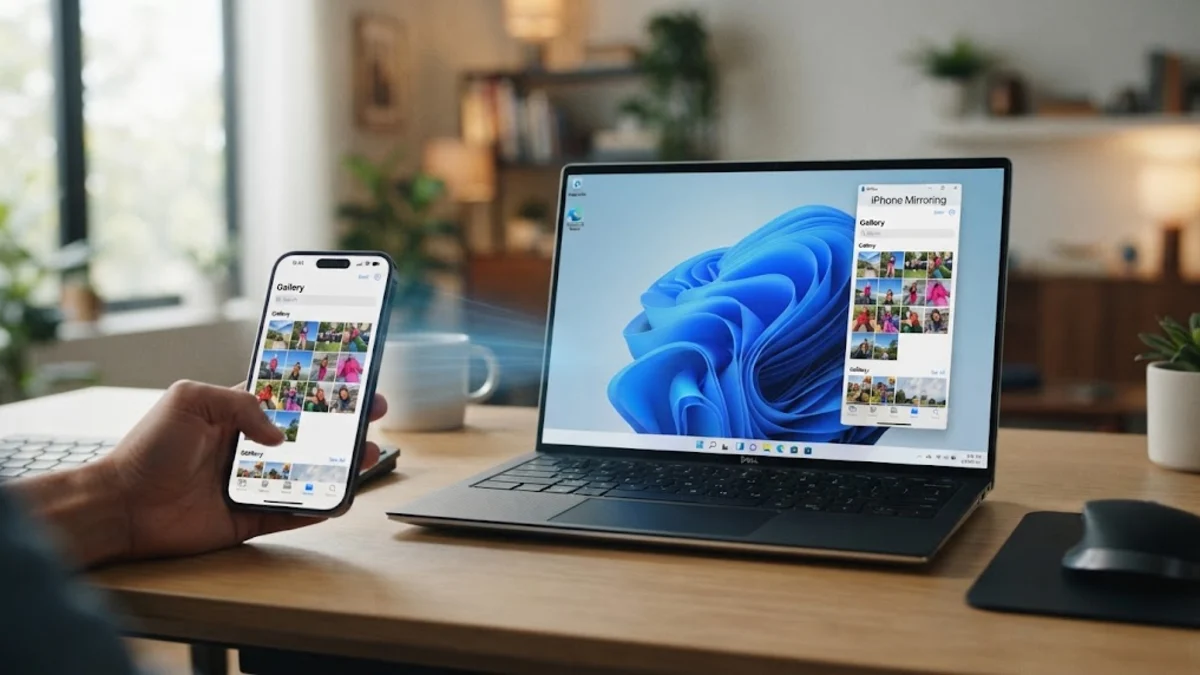
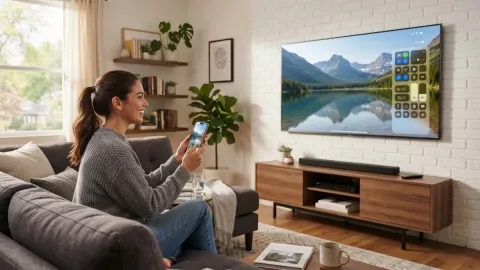
You can mirror your iPhone screen directly to a Windows 11 PC using the official Phone Link app and a Bluetooth connection. This setup lets you view your phone interface, manage notifications, and run select mobile apps right from your desktop without needing third-party tools.
Getting everything connected takes just a few minutes when your operating systems are up to date and your devices are paired correctly. Follow this step-by-step guide to set up your iPhone mirroring session smoothly on Windows.
Check System Requirements and Updates
Before attempting to mirror your iPhone to your Windows 11 PC, you must ensure that both devices meet the necessary hardware and software requirements. Your computer needs to run Windows 11 with Bluetooth capability enabled, and your iPhone must be updated to iOS 17 or a later version. Microsoft's Phone Link feature for iOS relies heavily on Bluetooth Low Energy (LE) to maintain a stable link for calls, notifications, and screen mirroring features.
To check your Windows version, press the Windows Key + R keys, type winver, and press Enter. If your build is outdated, go to Settings > Windows Update and install any pending updates. On your iPhone, open Settings > General > Software Update to confirm you are running the latest software. Restart both devices after updating to clear out temporary system caches and prepare them for pairing.
Install and Configure the Phone Link App on Windows
The core software responsible for bridging your iPhone and Windows PC is the Microsoft Phone Link application. In many modern Windows 11 installations, this app is pre-installed. However, you should verify that you have the latest version by opening the Microsoft Store, clicking on Library, and selecting Get updates. If the app is missing entirely, you can download it directly from the Microsoft Store or Microsoft official channels to ensure security and stability.
Once opened, launch the Phone Link application on your desktop and select iPhone as your device type. The app will display a unique QR code on your computer screen. You will use this code in the next step to establish the initial handshake between your iOS device and your Windows machine. Keep this window open and visible while you prepare your iPhone for the pairing process.
Pair Your iPhone and PC via Bluetooth
A reliable Bluetooth connection is mandatory for iPhone mirroring and notification syncing on Windows 11. Start by unlocking your iPhone and opening the Camera app to scan the QR code displayed inside the Phone Link desktop application. Your iPhone will prompt you to open a pairing link or download the companion app if prompted, though modern iOS versions handle this natively through setup prompts.
Next, navigate to Settings > Bluetooth on your iPhone and ensure Bluetooth is turned on. On your Windows PC, go to Settings > Bluetooth & devices and click on Add device. Select Bluetooth and look for your iPhone in the list of available hardware. Compare the PIN numbers shown on both screens to confirm they match, then tap Pair on your iPhone and Connect on your PC to complete the secure pairing sequence.
Grant Necessary Permissions on iOS
For your iPhone screen and data to interact seamlessly with Windows 11, you must grant specific privacy and sharing permissions within iOS. After the Bluetooth pairing is established, your iPhone will display a series of system prompts asking for access to your contacts, notifications, and share system state. If you skip these prompts, mirroring features and app continuity will fail to function properly.
To verify these permissions manually, go to Settings > Bluetooth on your iPhone, tap the information icon (the small 'i' in a circle) next to your connected Windows PC name, and toggle on Share System Notifications, Sync Contacts, and Show Recent. Returning to the Phone Link app on your PC should now show a fully established connection status, indicating that your device is ready for advanced tasks like mirroring and message management.
Troubleshooting Connection and Mirroring Drops
If your iPhone disconnects frequently or the mirroring session fails to start, interference or outdated Bluetooth drivers are usually the culprits. First, ensure that no other high-bandwidth Bluetooth accessories, such as multiple audio headsets, are flooding your PC adapter with signals. Toggle Bluetooth off and back on for ten seconds on both your iPhone and your Windows 11 PC to reset the handshake.
If problems persist, open the Device Manager on Windows by pressing X while holding the Windows Key and selecting Device Manager. Expand the Bluetooth category, right-click your primary Bluetooth adapter, and select Update driver. Additionally, remove the device pairing entirely from both the Windows Bluetooth settings and your iPhone's Bluetooth saved devices list, then perform the QR code pairing process from scratch to clear corrupted cache files.
The bottom line
Mirroring your iPhone to a Windows 11 PC bridges the gap between Apple and Microsoft ecosystems, letting you handle notifications and view content conveniently. By ensuring your software is up to date and maintaining a strong Bluetooth connection, you can enjoy a reliable desktop integration experience every day.
Frequently asked questions
Can I mirror my iPhone screen audio to Windows?
Yes, audio routes automatically through your PC speakers or connected headset once the Bluetooth pairing and Phone Link setup are successfully completed.
Does iPhone screen mirroring on Windows require Wi-Fi?
No, the official Phone Link feature for iOS relies primarily on Bluetooth Low Energy rather than a local Wi-Fi network connection.
Why won't my iPhone pair with my Windows 11 PC?
Pairing failures usually stem from outdated Windows Bluetooth drivers, disabled notification syncing permissions on iOS, or pending system updates on either device.
Can I use iPhone mirroring with older Windows 10 versions?
Official iOS screen mirroring and advanced integration features through Phone Link are optimized specifically for Windows 11 and later operating systems.