How to Take a Screenshot on iPad
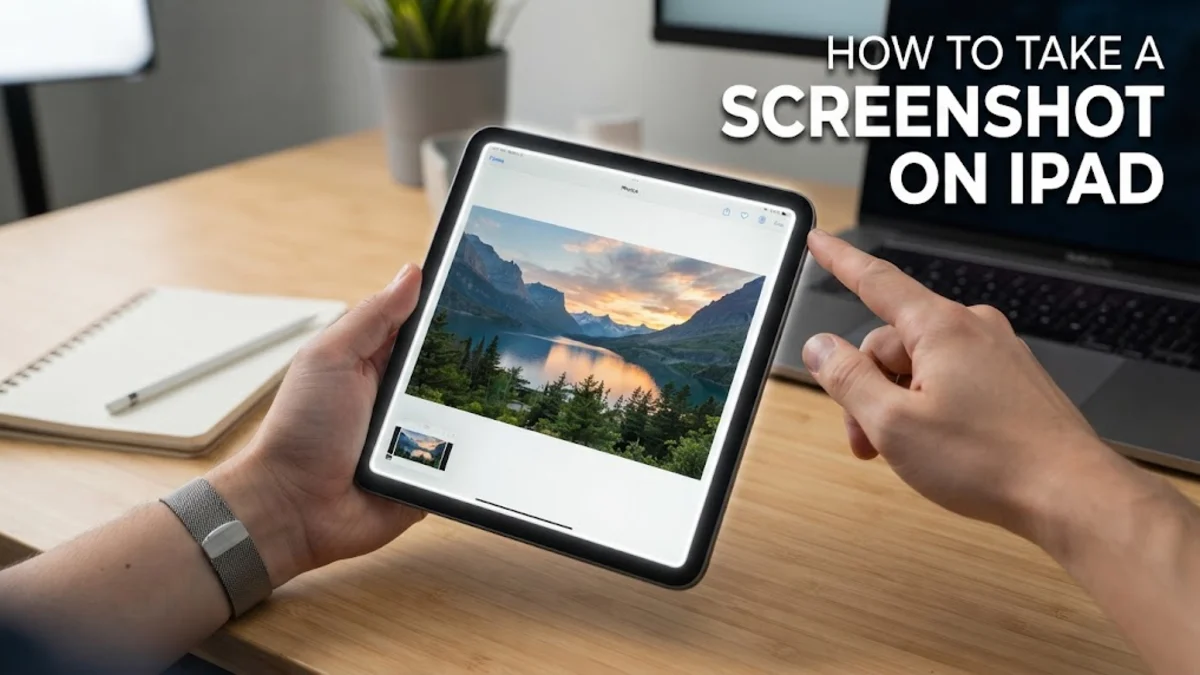
Capturing your screen on an iPad is a fundamental skill that has evolved significantly with the latest versions of iPadOS. Whether you are using the newest iPad Pro M4 or a classic iPad with a Home button, knowing how to take a screenshot on iPad allows you to quickly save information, share designs, or document bugs for troubleshooting. In 2026, Apple has refined these gestures to be more intuitive, but the variety of hardware designs means the method can change depending on which model you hold.
This guide covers every possible way to capture your screen, from the traditional hardware button combinations to advanced gestures using the Apple Pencil and the Accessibility menu. We will also dive into the "Full Page" capture feature, which is essential for saving long documents or websites that do not fit on a single screen. If you have ever struggled with the timing of button presses or wondered why your screenshots are appearing as black squares, the following steps will resolve those issues and turn you into an iPad power user.
Using Physical Buttons for Quick Captures
The most common way to take a screenshot on iPad involves using the physical hardware buttons. However, the specific buttons you need to press depend on whether your iPad features a Home button or uses Face ID/Touch ID integrated into the top button. For modern iPads without a Home button (such as the iPad Pro, iPad Air, and iPad mini models from 2024–2026), you must briefly press the Top Button (Power) and either of the Volume Buttons at the exact same time. It is a common mistake to hold these buttons for too long, which might trigger the power-off slider or Siri. A quick, decisive click-and-release is all that is required.
If you are using an older iPad model or the entry-level iPad that still features a circular Home Button below the screen, the process is slightly different. You will need to press the Top Button and the Home Button simultaneously. Upon success, you will see a white flash on the screen, and a small thumbnail will appear in the bottom-left corner. If the thumbnail does not appear, check if your iPad is in a focus mode that restricts notifications, though typically, the visual flash occurs regardless of software settings. If your buttons feel "mushy" or unresponsive, ensure your protective case is not obstructing the mechanical travel of the switches.
Capturing with Apple Pencil Gestures
For users who frequently use an Apple Pencil or Apple Pencil Pro, iPadOS offers a much faster gesture-based method that does not require reaching for the physical buttons. This is particularly useful when the iPad is mounted in a stand or a keyboard folio. To enable this, navigate to Settings > Apple Pencil > Pencil Gestures. Ensure that the Left Corner Swipe or Right Corner Swipe is set to Screenshot. Once configured, you can simply swipe your pencil tip from the bottom corner of the screen toward the center.
This gesture triggers an immediate capture and opens the markup interface instantly. One of the technical advantages of using the Apple Pencil for screenshots is the seamless transition into annotation. As soon as the capture is taken, the iPadOS tool palette appears, allowing you to highlight text, draw arrows, or add signatures before saving the file. If you find yourself accidentally triggering screenshots while drawing, you can adjust the corner swipe sensitivity in the settings or disable one of the corners to leave it dedicated to "Quick Notes" instead. This remains one of the most efficient workflows for students and digital artists in 2026.
Using AssistiveTouch for One-Tap Screenshots
If you have difficulty pressing two buttons at once, or if one of your physical buttons is broken, AssistiveTouch provides a software-based alternative. This accessibility feature places a floating virtual button on your screen that can perform complex tasks with a single tap. To set this up, go to Settings > Accessibility > Touch > AssistiveTouch and toggle the switch to On. You can then select Customize Top Level Menu to add a Screenshot icon to the main floating menu.
For even faster access, you can assign the screenshot function to a Double-Tap or Long Press action within the AssistiveTouch settings. This means you won't even have to open the menu; just double-tap the floating circle, and the iPad will capture the screen. A professional tip for those who record their screens: the AssistiveTouch button itself will not appear in your final screenshot. iPadOS is designed to hide the accessibility overlay during the capture process, ensuring you get a clean image of your content without the UI clutter. This method is the primary fallback used by technicians when diagnosing hardware button failure.
How to Take a Full Page (Scrolling) Screenshot
Sometimes a standard screenshot isn't enough, especially when you need to capture a long article, a legal document, or a full webpage in Safari. iPadOS includes a "Full Page" feature that converts the entire scrollable area into a PDF. To use this, take a normal screenshot using any of the methods mentioned above, then immediately tap the Thumbnail that appears in the bottom-left corner. At the top of the editing screen, you will see two tabs: Screen and Full Page. Tap Full Page.
Once selected, a slider will appear on the right side of the screen, allowing you to scroll through the entire document to ensure everything was captured correctly. You can still use markup tools on this long-form document. When you are finished, tap Done. It is important to note that Full Page screenshots are saved as PDF files rather than JPEG or PNG images. Consequently, the iPad will ask if you want to Save PDF to Files rather than saving it to your Photos library. This feature currently works in Safari, Mail, Pages, and Keynote, but may not be available in third-party social media apps unless the developer has specifically enabled the scrolling capture API.
Screenshotting with an External Keyboard
If you use a Magic Keyboard, Smart Keyboard Folio, or a third-party Bluetooth keyboard with your iPad, you can use macOS-style shortcuts to capture the screen. This is often the preferred method for power users who treat their iPad as a laptop replacement. To capture the entire screen and save it to your Photos library, press Command + Shift + 3. You will see the familiar flash, and the image will be stored automatically.
If you want to capture the screen and immediately open the markup and cropping tool, press Command + Shift + 4. This is slightly more efficient if you know you need to edit the image before sharing it. Using a keyboard is often more reliable than physical buttons because it eliminates the risk of accidentally locking the device or changing the volume. If these shortcuts are not working, ensure your keyboard is properly paired and that you haven't remapped the Command or Modifier Keys in Settings > General > Keyboard > Hardware Keyboard.
Troubleshooting Common Screenshot Issues
If you are trying to take a screenshot and nothing happens, the most likely culprit is a software restriction or a specific app's security policy. For example, streaming services like Netflix, Disney+, and Apple TV+ utilize Digital Rights Management (DRM) to prevent piracy. If you try to take a screenshot of a movie or show, the resulting image will be a solid black square. This is a hardware-level protection that cannot be bypassed by standard settings. If you are in a corporate or educational environment, your device might also have a Configuration Profile installed via Screen Time that disables screen captures entirely for security reasons.
Another common issue is a lack of storage space. If your iPad's internal memory is completely full, it may fail to save new image files. Check your remaining capacity in Settings > General > iPad Storage. Additionally, if the thumbnail preview isn't appearing, you might have disabled the feature in earlier versions of iPadOS, though in 2026, this is usually tied to Focus modes. Finally, if your iPad is lagging or the screen capture takes several seconds to trigger, try a Force Restart (quickly press Volume Up, then Volume Down, then hold the Top Button) to clear the system cache and restore responsiveness to the UI rendering engine.
The bottom line
Taking a screenshot on an iPad is a versatile process with multiple entry points tailored to how you use your device. Whether you prefer the tactile feedback of physical buttons, the fluid motion of an Apple Pencil swipe, or the accessibility of AssistiveTouch, iPadOS provides the tools to capture and annotate your screen with precision. By mastering the Full Page PDF capture and keyboard shortcuts, you can significantly enhance your productivity and communication on the platform. Always remember to check your Files app for scrolling captures and your Photos app for standard images to keep your digital workspace organized.
Frequently asked questions
Where are my iPad screenshots saved by default?
Standard screenshots are saved in the Photos app. You can find them in the 'All Photos' view or specifically within the 'Screenshots' album under the Media Types section. However, 'Full Page' screenshots are saved as PDFs to the Files app.
How do I stop the screenshot thumbnail from appearing?
Currently, iPadOS does not provide a direct toggle to disable the thumbnail preview. However, you can swipe the thumbnail to the left immediately after it appears to dismiss it quickly, or simply wait a few seconds for it to disappear and save automatically.
Can I take a screenshot using Siri?
Yes, in 2026, Siri is highly capable of system tasks. You can say 'Hey Siri, take a screenshot,' and the device will capture the current screen exactly as if you had pressed the hardware buttons.
Why is my screenshot showing a black screen?
This usually happens when you try to capture content from an app with DRM protection, such as a streaming video service or certain banking apps. This is a security feature to protect copyrighted content and sensitive data.
How do I change the screenshot file format from PNG to JPG?
iPadOS typically defaults to PNG for screenshots to preserve quality. To change this, you would need to use a Shortcut in the 'Shortcuts' app to convert newly added photos, as there is no direct toggle in the Camera or Photos settings.