What Is Outlook PWA and How to Use It
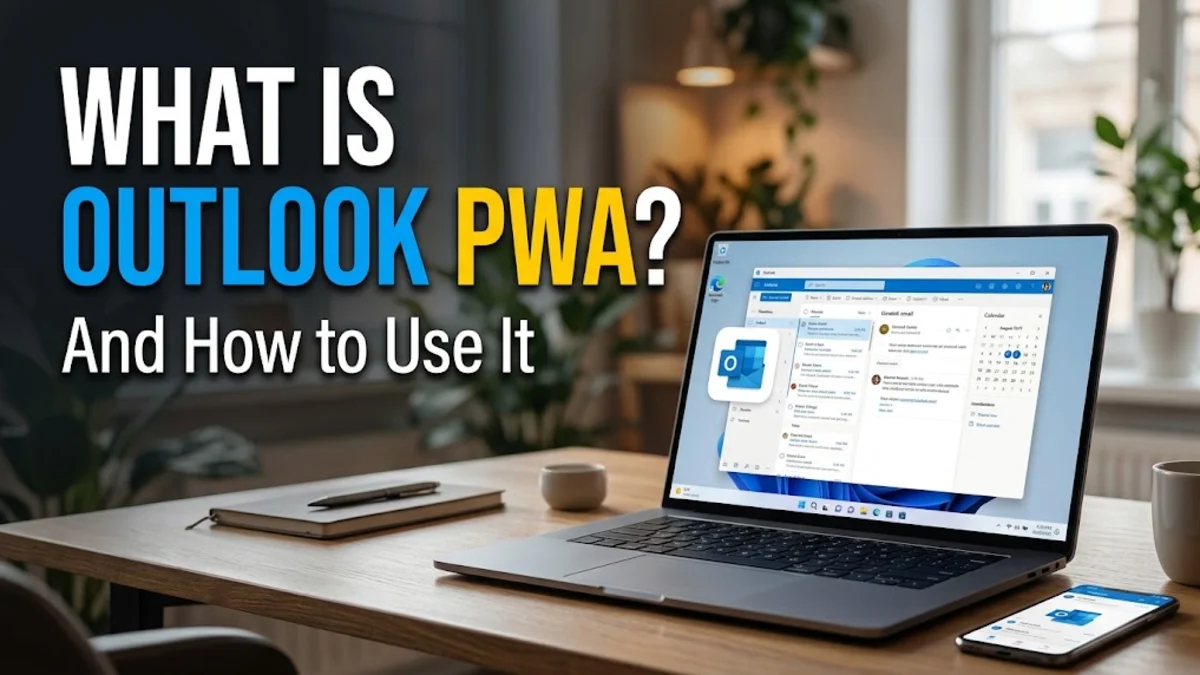
Outlook PWA, or Progressive Web App, is a lightweight version of the Microsoft Outlook web interface that runs in its own dedicated window outside of your standard web browser. It bridges the gap between traditional desktop email clients and browser tabs, offering a standalone experience.
By turning the Outlook web service into an installable application, you gain faster access, desktop notifications, and offline capabilities without dealing with the heavy resource consumption of the full desktop suite.
Understanding Outlook PWA and Progressive Web Apps
A Progressive Web App is a technology that allows websites to function like native applications installed directly on your operating system. When you use Outlook PWA, you are essentially running Outlook on the web through a dedicated container powered by your browser engine, usually Microsoft Edge or Google Chrome. This means you get the exact same interface, features, and updates as the web version, but without needing to keep a cluttered browser tab open all day.
Because it operates independently of your main browser window, closing all your browser tabs will not accidentally close your email client. It stays pinned to your taskbar or dock just like any other desktop program. This setup provides a seamless workflow for anyone who relies heavily on email, calendars, and contacts throughout the workday. It consumes significantly less RAM and processing power compared to the traditional Win32 desktop application, making it an ideal choice for older laptops or performance-conscious users.
Key Benefits of Using Outlook PWA Over the Desktop App
One of the primary advantages of switching to the Outlook PWA is its speed and resource efficiency. Traditional desktop email clients often run background sync processes that consume large amounts of memory and battery life, especially when managing multiple accounts. The PWA version loads instantly and relies on web technologies optimized for performance. Furthermore, because it mirrors the web version, you never have to wait for lengthy offline installation packages or manual software patches to download; updates happen automatically on Microsoft servers the moment you open the app.
Another major benefit is interface consistency and modern design. Microsoft updates its web interface much faster than its legacy desktop software. By using the PWA, you gain immediate access to the latest productivity features, unified calendar views, and smart search capabilities long before they roll out to legacy clients. Additionally, security management is simplified because authentication relies on modern web protocols, reducing compatibility errors with enterprise single sign-on tools.
How to Install Outlook PWA on Windows and Mac
Installing the Outlook PWA takes only a few seconds if you are using a modern browser like Microsoft Edge or Google Chrome. Open your browser and navigate to outlook.office.com or outlook.com and sign in to your Microsoft account. Once your inbox loads, look at the right side of the browser address bar for the installation icon, which usually resembles a monitor with a downward arrow or an app icon with a plus sign. Alternatively, you can click the browser menu represented by three vertical dots, navigate to Apps or Save and share, and select Install Outlook.
A prompt will appear asking you to confirm the installation. Click Install, and the application will instantly launch in its own standalone window. You can now pin the app to your taskbar on Windows or your Dock on macOS by right-clicking the running icon and selecting Pin to taskbar or Keep in Dock. From this point forward, you can launch Outlook independently of your browser whenever you turn on your computer.
Managing Notifications and Offline Access
Even though Outlook PWA runs through web technologies, it supports native operating system features like desktop push notifications. When you first launch the installed app, a prompt will ask if you want to allow notifications. Accepting this ensures that banners appear in the bottom-right corner of your screen whenever a new message or calendar reminder arrives, keeping you informed without requiring you to constantly check your inbox. You can manage these notification permissions at any time through your operating system settings menu under notifications.
In addition to alerts, Outlook PWA provides limited offline support. You can view recently synced messages, read emails, and draft replies even when your internet connection drops. Once your device reconnects to Wi-Fi or Ethernet, your outgoing drafts will send automatically. While it does not store your entire historical archive locally like a traditional desktop client, its smart caching ensures that your most critical daily messages remain accessible during unexpected network outages or travel.
Outlook PWA vs. Outlook Desktop App: A Comparison
Choosing the right email client depends heavily on your daily workload and system hardware. While both options provide robust email and calendar management, they cater to different user preferences. Below is a detailed breakdown comparing the Outlook PWA against the traditional desktop application.
| Feature | Outlook PWA | Outlook Desktop App |
|---|---|---|
| Resource Usage | Low (Lightweight web container) | High (Requires dedicated memory) |
| Installation Speed | Instant (Seconds via browser) | Slower (Large download package) |
| Updates | Automatic server-side updates | Requires manual or background patching |
| Offline Capabilities | Limited to recent synced cache | Full local storage of archive files |
| Add-in Support | Web-based add-ins only | Full support for complex COM add-ins |
As shown in the comparison table, the PWA excels in speed and ease of maintenance, whereas the desktop client remains necessary for users who require deep integration with legacy plugins or offline access to massive local mail archives spanning multiple gigabytes.
Tips for Getting the Most Out of Your Outlook PWA Experience
To maximize your productivity with Outlook PWA, take advantage of window management and keyboard shortcuts. Since the app runs in its own window, you can snap it to one side of your screen using Windows Key + Left Arrow on Windows or Mission Control on Mac to set up a dual-screen or split-screen workspace. You can also configure the app to launch automatically when your computer starts by right-clicking its taskbar icon, opening properties or startup settings, and enabling background running permissions.
Keep your experience organized by utilizing the built-in web features such as focused inbox, categories, and sweep rules. Because the PWA synchronizes instantly with mobile apps and web browsers, any rules or folders you organize will reflect across all your devices without needing manual configuration. Regularly clear your browser cache if you notice performance slowdowns, as web apps occasionally accumulate temporary data that can impact loading times during heavy usage periods.
The bottom line
Outlook PWA offers a fast, resource-efficient way to manage your emails and calendar without bogging down your computer. By combining the accessibility of the web version with the convenience of a standalone app, it stands out as an excellent choice for modern productivity.
Frequently asked questions
Is Outlook PWA completely free to use?
Yes, Outlook PWA is free to use for anyone with a Microsoft account, including Outlook.com, Hotmail, and Microsoft 365 subscribers.
Do I need a web browser open to run Outlook PWA?
No. While the app utilizes browser technology to render, it runs in its own independent window and does not require you to keep your main browser open.
Can I use multiple accounts in Outlook PWA?
You can add multiple accounts within the web interface settings, though many users install separate PWAs for different accounts using different browser profiles.
Does Outlook PWA work offline?
Yes, it offers limited offline support, allowing you to view recent emails and draft messages that will send once your internet connection is restored.
How do I uninstall Outlook PWA?
You can uninstall it easily by opening the app, clicking the three-dot menu inside the app window, and selecting Uninstall Outlook, or by removing it through your browser app settings.