What Is iPhone Handoff and How to Use It
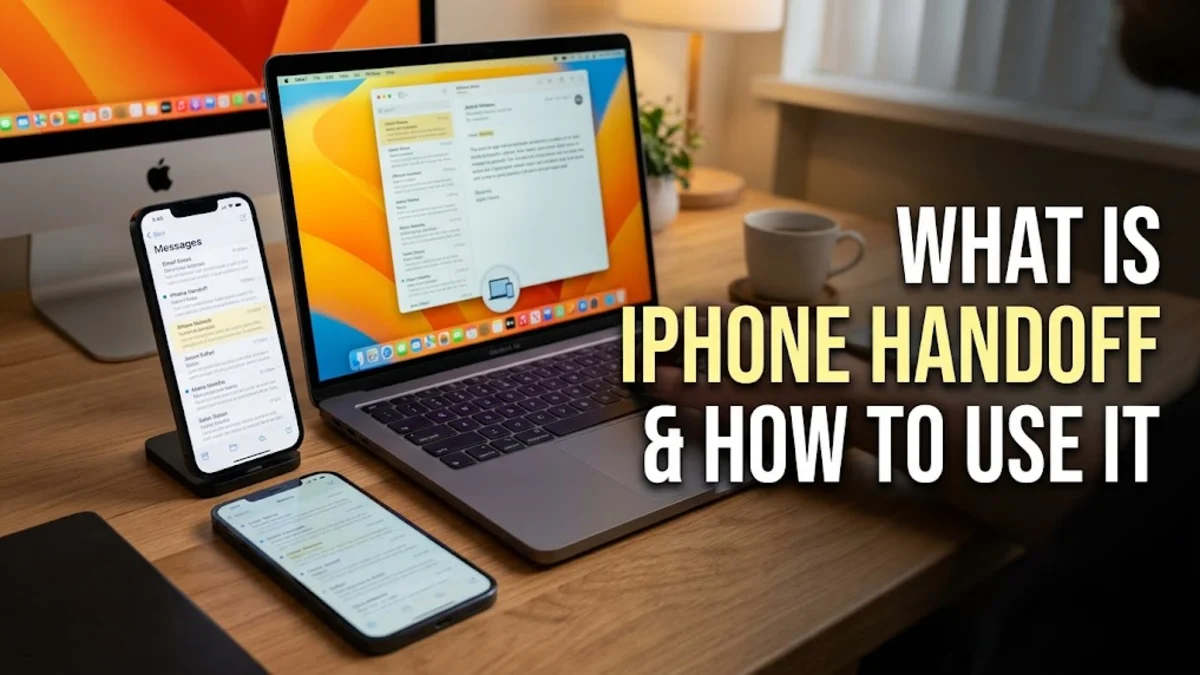
iPhone Handoff is a powerful continuity feature built into iOS and macOS that lets you start a task on one Apple device and instantly pick it up on another. Whether you are drafting an email, browsing a complex website in Safari, or typing a quick note, Handoff bridges the gap seamlessly between your iPhone, iPad, and Mac.
Understanding how this feature works can drastically improve your daily productivity by eliminating the need to manually transfer files, email links to yourself, or search for tabs across devices. In this guide, we will break down the core mechanics of Handoff, list the exact system requirements, walk you through the setup steps, and provide troubleshooting tips for common connection glitches.
How iPhone Handoff Works Behind the Scenes
iPhone Handoff operates as part of Apple's broader Continuity ecosystem, relying on a combination of Bluetooth Low Energy, peer-to-peer Wi-Fi, and your personal iCloud account. When you open a supported app on your iPhone, the device broadcasts a secure cryptographic signal indicating that an activity is active. Nearby Apple devices signed into the exact same Apple ID detect this signal if they are within approximately thirty feet.
Once a neighboring device catches the signal, it displays a small icon representing the active app on your Dock or app switcher screen. Tapping that icon automatically launches the app on the second device and loads the exact same state, web page, or document you were viewing on the first device. All data is transmitted securely over a direct local connection rather than traveling through external servers, ensuring both speed and privacy.
System Requirements and Compatibility
Before you can use iPhone Handoff, your devices must meet specific hardware and software prerequisites established by Apple. Every participating device needs to be signed in to the same iCloud account using your primary Apple ID with two-factor authentication enabled. Furthermore, Bluetooth and Wi-Fi must be turned on across all devices, even if they are not actively connected to a traditional router, because peer-to-peer communication relies on local hardware radios.
In terms of hardware compatibility, Handoff is supported on virtually all modern iPhones running iOS 10 or later, iPads running iPadOS, and Mac computers running OS X Yosemite or later. If your devices were manufactured within the last decade, they almost certainly include the necessary Bluetooth Low Energy and Wi-Fi hardware chips to support the feature without any special modifications or third-party utility downloads.
How to Enable Handoff on Your iPhone and iPad
Enabling Handoff on iOS and iPadOS devices takes only a few seconds through the main system settings app. To activate the feature, open Settings > General > AirPlay & Continuity. On this screen, locate the toggle switch labeled Handoff and tap it to turn it on. If you are using an older software version, the path may slightly differ as Settings > General > Continuity & AirPlay or simply Settings > General > Handoff.
Once toggled on, your iPhone or iPad is fully prepared to transmit and receive tasks. Keep in mind that turning off Wi-Fi or Bluetooth in the Control Center will temporarily disable Handoff functionality because the feature requires both radios to be active. If you notice that Handoff is not working later, always verify that these two wireless settings remain fully enabled in your primary configuration menus.
How to Enable Handoff on Your Mac Computer
If you plan to pass tasks between your iPhone and a Mac computer, you must also enable the feature within macOS system settings. On modern versions of macOS, click the Apple logo in the top-left corner of your screen, open System Settings, and navigate to General > AirDrop & Handoff. Locate the switch for Allow Handoff between this Mac and your iCloud devices and toggle it into the active position.
For older macOS releases, open System Preferences instead, select the General preference pane, and check the box that allows Handoff between your Mac and your iCloud devices. After checking this box, close the settings window. Your Mac will immediately begin listening for broadcast signals from your nearby iPhone or iPad whenever compatible applications are running in the foreground.
Supported Apps and Real-World Use Cases
Handoff works natively with a wide array of Apple built-in applications and is fully open to third-party developers who wish to integrate it into their software. Stock apps that support Handoff include Safari, Mail, Maps, Reminders, Calendar, Contacts, Pages, Numbers, Keynote, and Notes. For example, if you are reading an online news article in Safari on your iPhone during your morning commute, a small Safari icon will automatically appear on the left side of your Mac dock when you sit down at your desk.
Clicking that icon instantly opens Safari on your Mac and loads the exact same URL at the exact same scroll position. Similarly, if you start typing a quick shopping list in the Notes app on your iPad, you can instantly finish adding items on your iPhone without saving files or syncing manually. This eliminates friction in multi-device workflows and keeps your digital workspace completely synchronized throughout the day.
Troubleshooting Common Handoff Issues
If iPhone Handoff fails to work properly, several common culprits are usually to blame. First, verify that all participating devices are signed into the exact exact same Apple ID. A surprising number of users have secondary iCloud accounts signed into specific apps like FaceTime or Messages, which can disrupt continuity features. Toggle Bluetooth and Wi-Fi off and back on again on all devices to reset local wireless handshakes.
If toggling wireless radios does not fix the problem, try performing a standard restart on your iPhone, iPad, and Mac. In rare cases where configuration files become corrupted, signing out of iCloud on your devices and signing back in will re-establish secure cryptographic tokens required for Handoff. Always ensure your operating systems are updated to the latest available software versions to prevent software bugs from interfering with local device communication.
The bottom line
iPhone Handoff is an indispensable utility that makes switching between Apple devices effortless and efficient. By following the simple setup steps and ensuring your wireless radios and iCloud accounts are properly aligned, you can eliminate frustrating workflow bottlenecks and enjoy a truly connected device ecosystem.
Frequently asked questions
Does iPhone Handoff use cellular data?
No, Handoff relies exclusively on local Bluetooth Low Energy and peer-to-peer Wi-Fi connections between your devices. It does not consume cellular data or require an active internet connection to pass tasks locally.
Can I use Handoff between an iPhone and an Android phone?
No, Handoff is a proprietary continuity feature designed exclusively for Apple's ecosystem, meaning it only works between iOS, iPadOS, and macOS devices.
Why is the Handoff icon not showing up on my Mac?
If the icon fails to appear, ensure that Bluetooth and Wi-Fi are enabled on both devices, that you are signed into the same Apple ID, and that Handoff is toggled on in both your iOS and macOS settings menus.
Does Handoff drain iPhone battery life?
The impact on battery life is negligible. Handoff uses Bluetooth Low Energy, which is specifically engineered to consume minimal power while listening for nearby companion devices.
Which third-party apps support Handoff?
Any third-party app developer can integrate Handoff into their iOS or macOS software. Popular productivity apps, writing tools, and web browsers often include native Handoff support.