How to Fix Google Pixel Camera
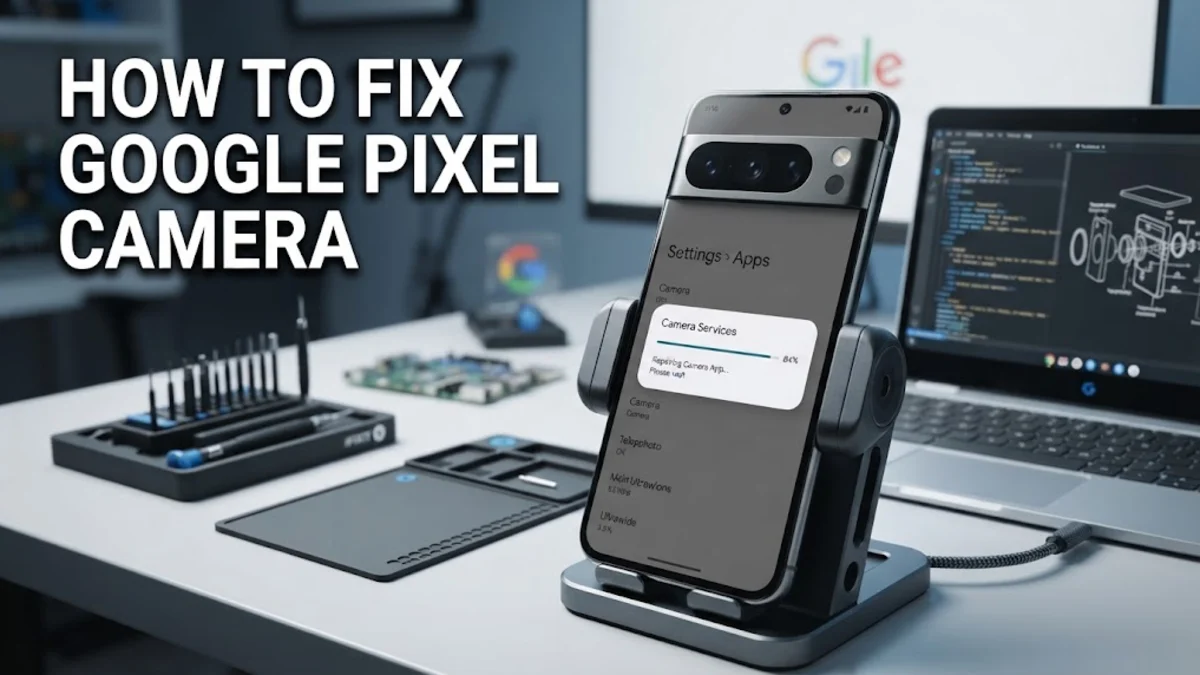
When your Google Pixel camera freezes, crashes, or shows a black screen, capturing important moments becomes impossible. This guide walks you through proven troubleshooting steps to resolve camera glitches on your Pixel phone.
Most camera failures stem from corrupted temporary cache files, outdated software versions, or conflicting third-party application permissions. Working through these solutions from the quickest fixes to deeper system checks will get your camera working smoothly again.
Understanding Common Google Pixel Camera Issues
Before diving into troubleshooting steps, it helps to understand why your Pixel camera might stop working properly. Software bugs, interrupted updates, and heavy cache accumulation are the most frequent culprits behind sudden app crashes, shutter lag, or the dreaded black screen error.
Hardware issues can also occur, though they are less common than software glitches. If your phone has recently suffered a drop or water exposure, physical camera module damage might be the underlying cause. However, ruling out software problems first ensures you do not overlook a simple configuration fix that you can resolve in minutes without visiting a repair shop.
Force Stopping and Clearing Camera Cache
The fastest and most effective first step is clearing the Pixel Camera app cache. Temporary files often become corrupted and prevent the camera interface from loading correctly. To do this, open your phone settings and navigate to Settings > Apps > See all apps > Camera.
Once you select the Camera app, tap on Storage & cache, then press Clear cache. After clearing the cache, tap Force stop to completely terminate background processes. Return to your home screen, reopen the camera application, and check whether the freezing or crashing persists.
Checking for App and System Updates
Running outdated versions of the Pixel Camera app or Android operating system frequently leads to compatibility issues and unexpected bugs. Google regularly releases patches specifically designed to address camera performance and stability problems across various Pixel models.
To check for app updates, open the Google Play Store, tap your profile icon, and go to Manage apps & device > Updates available. If an update is listed for the Pixel Camera app, download and install it immediately. Next, check for full system updates by navigating to Settings > System > System update and checking for available software packages.
Managing Storage Space and App Permissions
Your Pixel camera requires adequate internal storage space to temporarily buffer high-resolution photos and videos before saving them to your gallery. When your device storage is nearly full, the camera app may crash or refuse to capture new media. Check your available storage under Settings > Storage and free up space if your free capacity drops below ten percent.
Additionally, verify that the camera has the necessary permissions to access your hardware. Go to Settings > Apps > Camera > Permissions and ensure that permissions for your camera, microphone, and storage are explicitly set to allowed.
Testing Your Camera in Safe Mode
Third-party applications downloaded from the Play Store can sometimes interfere with your camera hardware and system services. Booting your Google Pixel into Safe Mode temporarily disables all downloaded applications, allowing you to determine if a rogue app is causing your camera malfunction.
To enter Safe Mode, press and hold the physical power button and volume up button simultaneously until the power menu appears. Press and hold the Power off option on your screen until a prompt appears asking if you want to reboot to Safe Mode, then tap OK. Test your camera while in Safe Mode; if it functions normally, uninstall your most recently added third-party camera or social media apps.
Performing a Factory Reset as a Last Resort
If you have exhausted all software troubleshooting methods and your Pixel camera still displays errors or black screens, persistent operating system corruption may be the issue. Performing a factory data reset restores your phone to its original out-of-the-box state and wipes away deep-seated software conflicts.
Before proceeding with a factory reset, ensure you back up all important photos, messages, and files to your Google Account. Navigate to Settings > System > Reset options > Erase all data (factory reset). Follow the on-screen prompts to confirm your identity and complete the reset process, then test the camera on a fresh installation.
The bottom line
Fixing a malfunctioning Google Pixel camera usually comes down to clearing corrupted cache data, updating your software, or isolating third-party app interference. By following these structured troubleshooting steps, you can quickly restore your camera functionality and avoid costly repair fees.
Frequently asked questions
Why does my Google Pixel camera show a black screen?
A black screen usually indicates a temporary glitch in the camera app cache, a conflicting third-party app permission, or an outdated operating system version. Clearing the app cache or restarting your phone in Safe Mode typically resolves this issue.
Will clearing the camera cache delete my photos?
No, clearing the camera cache only removes temporary files and app data used to run the interface. Your saved photos and videos stored in your gallery or Google Photos remain completely safe.
How do I update my Pixel Camera app?
Open the Google Play Store on your device, tap your profile icon in the top right corner, select Manage apps & device, and check the available updates list to download the newest version of the Pixel Camera app.
What should I do if Safe Mode fixes my camera issue?
If your camera works perfectly in Safe Mode, a downloaded third-party application is causing the interference. Review and uninstall recently installed social media, photo editing, or camera filter apps.
Is a camera crash sometimes caused by hardware damage?
Yes, if your phone has experienced physical impact or water damage, the internal camera sensor or ribbon cable might be damaged. If software troubleshooting fails completely, professional hardware inspection may be required.