How to Activate Windows 10
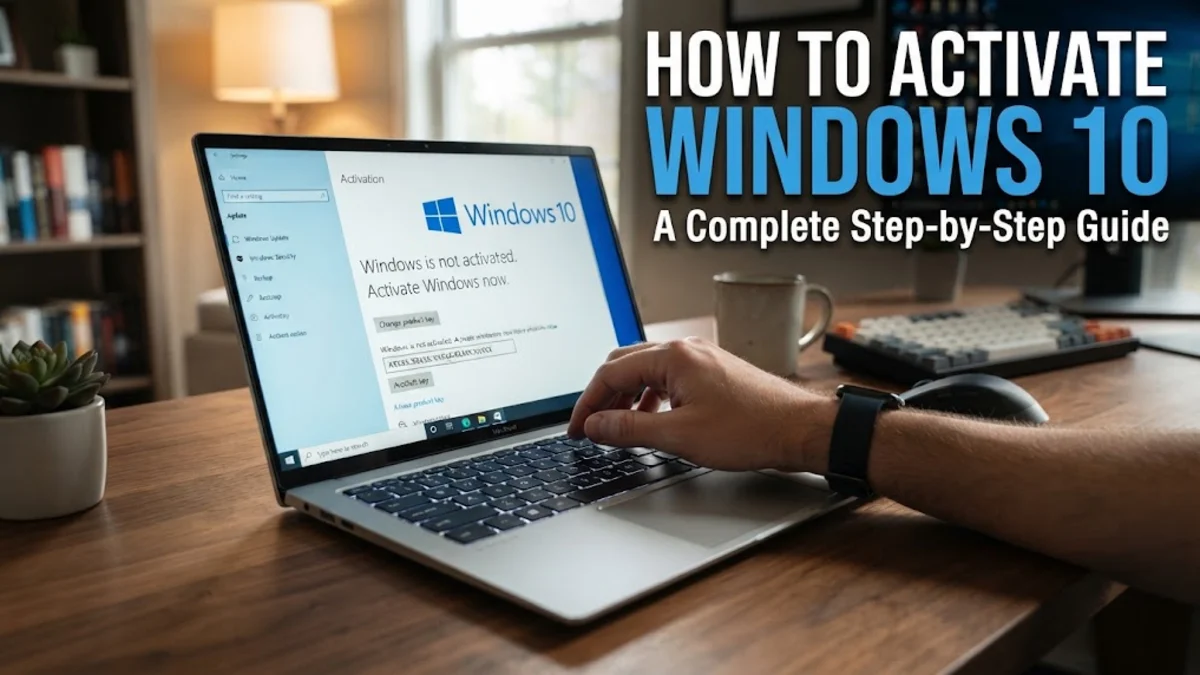
Activating Windows 10 is a critical process that ensures your operating system is genuine and allows you to customize your desktop experience fully. When a system is not activated, you may encounter restricted features, including limited personalization options and persistent watermarks on your screen.
Whether you are performing a fresh installation or upgrading your hardware, understanding the activation method relevant to your specific license is essential. This guide covers the official, secure ways to register your copy of Windows 10 and how to resolve common hurdles that users typically face.
Understanding Digital Licenses and Product Keys
Before attempting to activate your system, it is important to understand the difference between a product key and a digital license. A product key is a 25-character alphanumeric code used to verify that the software has not been used on more computers than the Microsoft Software License Terms allow. On the other hand, a digital license is a method of activation in Windows 10 that does not require you to input a physical key. Instead, your license is associated with your Microsoft account, which is linked to your hardware ID.
Most modern computers purchased with Windows pre-installed use a digital license embedded in the motherboard's firmware. This means that if you perform a clean install of Windows 10, the system will automatically detect the license and activate itself once it connects to the internet. If you are using a retail copy of Windows purchased separately, you likely have a physical product key that must be manually entered. Recognizing which method your device uses will save you significant time during the setup process.
How to Activate Windows 10 with a Product Key
Activating Windows 10 via Digital License
Troubleshooting Common Activation Errors
Activation errors can be frustrating, but most stem from simple connectivity or account issues. One common error, often cited as 0xC004C003 or 0x803F7001, usually indicates that the activation servers cannot verify your license. Before doing anything else, check your internet connection. A stable connection is required for the OS to verify your license status. You should also ensure that your date and time settings are correct, as a mismatch between your local time and server time can cause communication failures.
If you see an error code specifically related to a blocked key, verify that the version of Windows 10 currently installed matches the license version. For instance, if you have a license for Windows 10 Home but have accidentally installed the Pro edition, the activation will fail. In such cases, you will need to perform a reinstall of the correct version. Additionally, ensure you are not using a generic key intended for installation purposes only, as these cannot activate your system permanently. Always verify the source of your software to ensure it is legitimate and not counterfeit.
Using the Activation Troubleshooter
What Happens if You Don't Activate Windows 10
Failing to activate Windows 10 does not render your computer completely unusable, but it does significantly limit your control over the operating system. The most visible impact is the watermark in the bottom right corner of your screen that says Activate Windows. Additionally, you will lose access to personalization features. This means you will not be able to change your desktop wallpaper, switch to dark mode, or customize your accent colors and lock screen through the standard settings menu.
Beyond visual limitations, you may receive periodic, persistent notifications from the system urging you to activate. While your computer will continue to receive critical security updates, it is not recommended to run an unactivated system long-term. Activation provides the assurance that you are receiving an authentic product with full access to all features and support, which is vital for both home users and professional environments. To get the best out of your PC, keeping your software legitimate and fully registered is the standard practice for long-term stability and optimal performance.
The bottom line
Activating Windows 10 is an essential step to ensure your PC remains secure, customizable, and fully functional. Whether you are using a digital license or a physical product key, the process is designed to be streamlined. By using the settings menu or the built-in troubleshooter, you can easily verify your status and resolve most errors. Keep your Windows installation updated and always ensure your software comes from an official, trusted source for the best experience.
Frequently asked questions
Can I use Windows 10 without activating it?
Yes, you can use Windows 10 without activation, but you will face limitations like the activation watermark and the inability to customize personalization settings.
How do I know if my Windows 10 is activated?
You can check your activation status by going to Settings > Update & Security > Activation.
What should I do if my product key is not working?
Check that the edition of Windows matches your license version and ensure you have entered every character correctly. If the issue persists, run the Activation Troubleshooter.
Does my digital license transfer if I change my motherboard?
Yes, but you may need to use the Activation Troubleshooter to sign into your Microsoft account and verify the hardware change.
Is it possible to upgrade from an unactivated Windows 10 to Windows 11?
Generally, you should activate your Windows 10 license before attempting to upgrade to ensure a smooth transition and full feature access.