What Is Samsung Galaxy Card and How to Use It
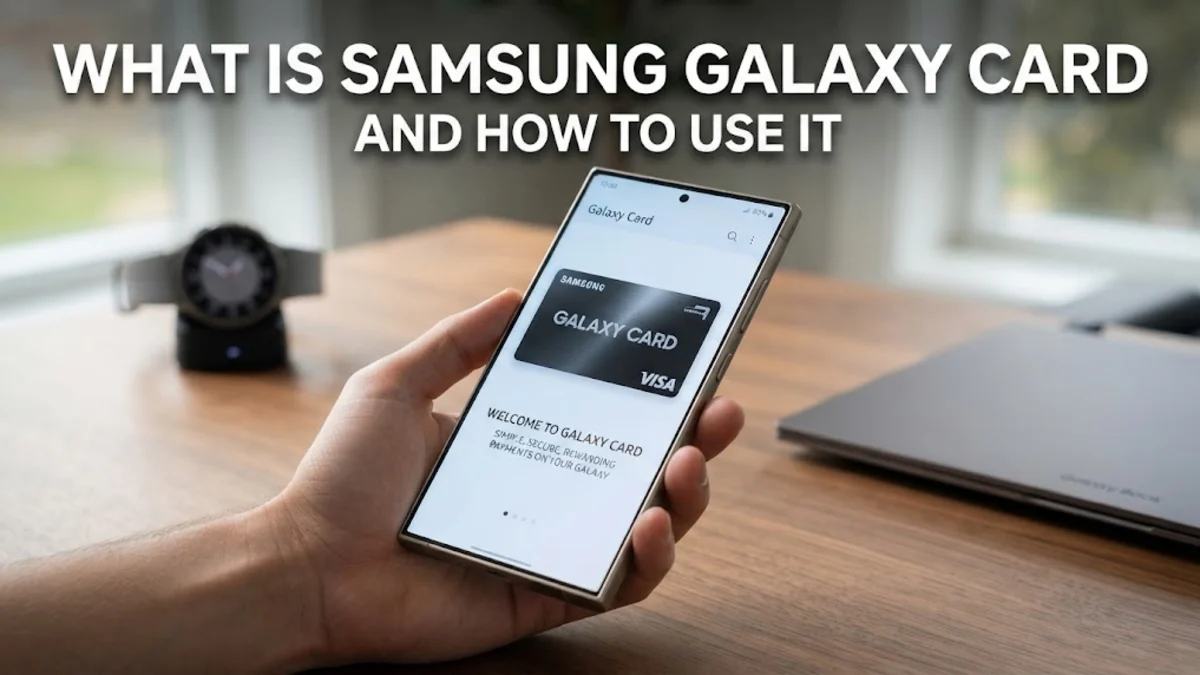
The term Samsung Galaxy card refers to the digital credit, debit, and loyalty cards stored inside Samsung Wallet on your Galaxy smartphone. Instead of carrying a bulky physical wallet, this feature allows you to securely digitize your payment methods for tap-to-pay transactions and store membership cards in one place.
By leveraging near-field communication (NFC) technology and advanced device encryption, Samsung Wallet turns your phone into a secure replacement for physical cards at millions of retail terminals worldwide. Whether you are paying for groceries or scanning a rewards barcode, your digital cards streamline everyday digital life.
Understanding Samsung Galaxy Cards and Digital Wallets
A Samsung Galaxy card is not a physical piece of plastic issued by Samsung itself; rather, it is your traditional bank or store card represented digitally within the Samsung Wallet application. When you add a card to your Samsung device, the system creates a virtual account number that represents your real payment credential, ensuring your actual card details are never shared with merchants during a transaction.
This digital evolution has transformed how people manage their finances and shopping habits. Beyond traditional banking cards, the platform accommodates transit passes, boarding passes, and gift cards. By centralizing these assets into a single interface accessible directly from your lock screen or home screen, you eliminate clutter and reduce the risk of losing physical cards while on the go.
Types of Cards Supported by Samsung Wallet
Samsung Wallet supports a wide variety of card types designed to simplify your daily routines. The most common category includes Visa, Mastercard, and American Express credit and debit cards issued by participating financial institutions. These cards enable secure contactless payments at any point-of-sale terminal that accepts tap-to-pay services.
In addition to financial cards, you can store numerous non-payment cards to maximize convenience. These include store loyalty cards, membership cards, cinema tickets, and digital transit passes for public transportation systems in supported cities. To manage these, simply open the Samsung Wallet app, tap the add icon, and select the specific category matching your physical card to digitize the barcode or QR code instantly.
How to Add a New Card to Your Device
Adding a card to your Samsung Galaxy smartphone is a straightforward process that takes only a couple of minutes. First, launch the Samsung Wallet application from your app drawer or swipe up from your home screen if you have quick access enabled. Tap on the Quick access tab, then select the plus icon located in the upper right corner to begin adding a new item.
Choose Payment cards from the menu options. You can either use your phone camera to scan the card number and expiration date automatically or enter the details manually. Once your bank details are verified, you will need to complete a security check via text message, email, or a quick phone call to your bank to activate the digital card for secure transactions.
Using Your Digital Cards at Checkout
Using your Samsung Galaxy card at a checkout counter is designed to be fast and intuitive. When you are ready to pay, swipe up from the bottom of your phone screen—even while the phone is locked—to launch your default payment card. Authenticate your identity using your fingerprint, facial recognition, or your secure PIN code.
Once authenticated, hold the back of your phone near the contactless payment reader on the terminal. A gentle vibration and a confirmation message on your screen will indicate that the transaction has gone through successfully. You do not need an active internet connection to complete a tap-to-pay purchase, making it reliable even in underground transit stations or remote retail locations.
Security and Privacy Features Protecting Your Cards
Security is a primary concern when storing financial data on a mobile device, and Samsung implements multiple layers of protection to safeguard your information. Your actual card numbers are never stored on your device or shared with merchants. Instead, the system generates a unique digital token for each transaction, rendering intercepted data completely useless to potential hackers.
Furthermore, all sensitive data is isolated within Samsung Knox, a defense-grade security platform built directly into the hardware and software of your Galaxy phone. If your phone is ever lost or stolen, you can use the remote tracking tools via your Samsung account to lock or wipe your wallet data instantly, ensuring complete peace of mind.
Comparing Samsung Wallet with Other Digital Solutions
If you are wondering how Samsung Wallet stacks up against competing mobile payment platforms, understanding their core differences helps you choose the right tool for your ecosystem. The table below outlines how Samsung Galaxy cards compare to other common digital wallet alternatives available on modern smartphones.
| Feature | Samsung Wallet | Google Wallet | Apple Wallet |
|---|---|---|---|
| Primary Ecosystem | Samsung Galaxy Devices | Android & Wear OS | iOS & watchOS |
| Quick Access Gesture | Swipe up from bottom | App shortcut / Quick settings | Double-click side button |
| Non-Payment Storage | Extensive (Transit, ID, Keys) | Good (Transit, Passes) | Extensive (ID, Keys, Transit) |
| Hardware Security | Samsung Knox | Android Security | Secure Element |
Troubleshooting Common Card and NFC Issues
Occasionally, you might encounter issues where your Samsung Galaxy card fails to register at a payment terminal. The most common cause is disabled NFC settings or an outdated app version. Navigate to Settings > Connected devices > NFC and contactless payments to ensure that NFC is turned on and set as your default payment method.
If a specific card is declined or fails to load, check with your issuing bank to confirm that your digital token is active. Sometimes banks require re-verification after a security update. Additionally, make sure your phone case is not too thick, as heavy-duty rugged cases can occasionally interfere with the NFC radio signal required for smooth contactless communication.
The bottom line
The Samsung Galaxy card feature within Samsung Wallet offers a secure, convenient, and organized way to manage your financial and loyalty cards directly from your smartphone. By replacing traditional physical clutter with encrypted digital tokens, you can shop and travel with greater peace of mind and speed.
Frequently asked questions
Are Samsung Galaxy cards safe to use?
Yes. Samsung Wallet uses tokenization and Samsung Knox hardware security, meaning your real card numbers are never shared with merchants or stored on servers.
Do I need an internet connection to pay with my phone?
No. Tap-to-pay transactions utilize NFC technology, which works offline without requiring mobile data or Wi-Fi connectivity.
Can I use Samsung Wallet on non-Samsung Android phones?
No. Samsung Wallet and the Galaxy card features are optimized specifically for Samsung Galaxy smartphones running supported versions of One UI.
How do I add a loyalty card to my Samsung Wallet?
Open Samsung Wallet, tap the plus icon in the top right corner, select loyalty cards, and scan the barcode of your physical membership card with your camera.
What should I do if my phone is lost or stolen?
You can log into your Samsung account online using the SmartThings Find service to remotely lock or wipe your Samsung Wallet data immediately.