How to Fix Microsoft Word Asking for Product Key
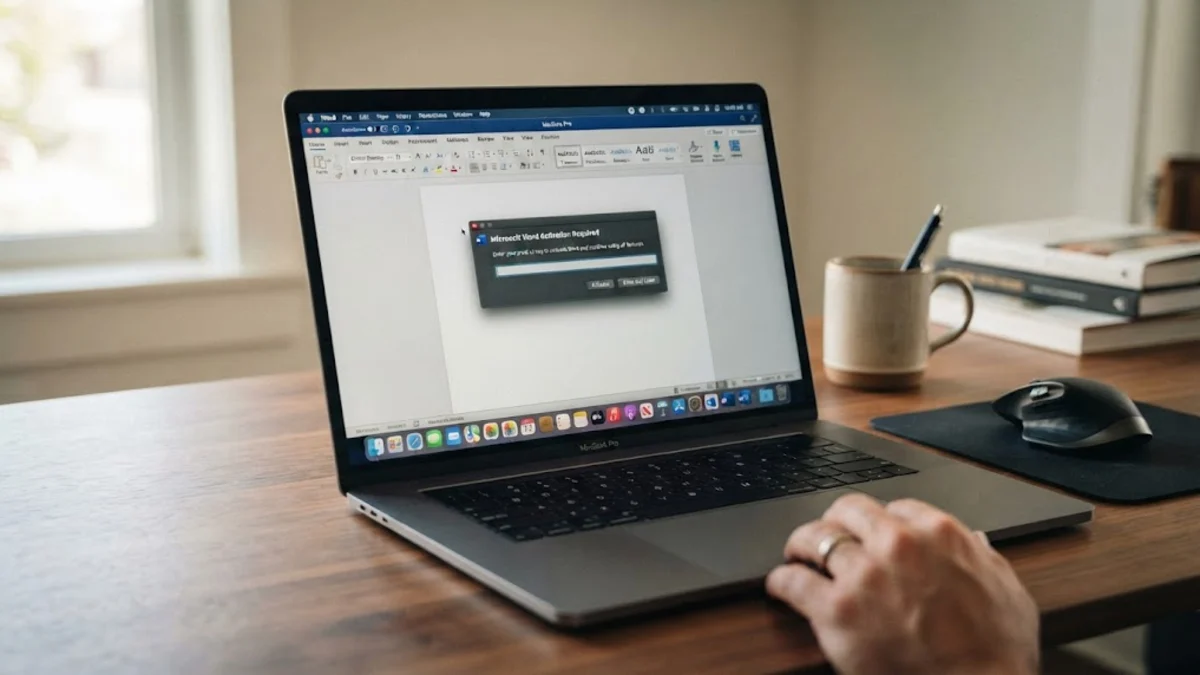
When Microsoft Word suddenly demands a product key even though you have already activated your software or active Microsoft 365 subscription, it can bring your work to an immediate halt. This frustrating prompt usually happens due to corrupted licensing tokens, conflicting pre-installed trial versions, or an expired sign-in session on your computer.
You can resolve this activation loop by clearing out bad credentials, removing old trial installs, and verifying your account status. Follow these practical troubleshooting steps to get Microsoft Word working normally again without purchasing a new license.
Why Microsoft Word Keeps Asking for a Product Key
Understanding why Microsoft Word displays the product key prompt helps you choose the most effective fix. Most often, the desktop application loses sync with your online Microsoft account subscription. When your PC fails to check in with the activation servers every thirty days, Office assumes the license has lapsed and switches into reduced functionality mode, demanding a 25-character product key.
Another common cause is the presence of residual trial software. Many new computers ship with a free trial version of Office pre-installed alongside your purchased permanent license or subscription. When Word launches, it sometimes attempts to validate against the expired trial instead of your active account, triggering continuous product key warnings and blocking your ability to edit documents.
Sign Out and Sign Back In to Your Microsoft Account
The quickest and most reliable fix for an unexpected product key prompt is refreshing your account connection inside the application. Open Microsoft Word, click on File > Account, and locate your user profile under the User Information section. If you see an error message or an option to fix your account, click on Sign Out.
Once you are signed out completely, close all open Office applications, restart your computer, and open Word again. Go back to File > Account and select Sign In. Enter the exact email address and password associated with your active Microsoft 365 subscription or Office purchase. This forces the application to pull a fresh digital license token from Microsoft servers and clears the activation error.
Remove Conflicting Office Installations
Conflicting office installations are a frequent culprit behind persistent activation loops. To check for multiple versions, open your Windows settings by pressing Windows + I on your keyboard, then navigate to Apps > Installed Apps. Scroll through the list and look for entries like Microsoft 365, Microsoft Office Desktop Apps, and any standalone Office trials.
If you spot an older trial or a duplicate installation, click the three dots next to it and select Uninstall. Having multiple Office packages installed simultaneously confuses Windows License Manager. After removing any redundant versions, restart your computer and open Microsoft Word to verify if the product key prompt has disappeared permanently.
Run the Office Activation Troubleshooter
Microsoft provides a dedicated automated tool designed to diagnose and repair licensing and activation errors across all desktop applications. Download the official Microsoft Support and Recovery Assistant tool from the official Microsoft website and run the executable file on your Windows device.
When the assistant opens, select Office from the list of programs and choose the troubleshooting scenario that matches your issue, such as Office is asking for a product key. The tool will automatically scan your system registry, clear out corrupted activation caches, and repair system files responsible for license verification. Follow any on-screen prompts provided by the tool, then reboot your PC to apply the automatic fixes.
Reset the Office License Status Using Command Prompt
If standard sign-in methods fail, you can manually reset your Office license state using the Windows Command Prompt. First, close all Office apps. Press the Windows key, type cmd, right-click on Command Prompt in the search results, and select Run as administrator.
In the command prompt window, navigate to your Office installation folder by typing the appropriate directory path depending on your system architecture, such as cd /d "C:\Program Files\Microsoft Office\Office16" or check the Program Files (x86) folder. Once inside the folder, execute the licensing script commands to view license status and clear out cached credentials. After running the commands, restart your computer, open Word, and sign back in with your account credentials.
Verify Your Subscription Status Online
Sometimes Microsoft Word asks for a product key because your subscription has genuinely expired, your payment method failed, or your Microsoft account requires security verification. Open your web browser, navigate to the official Microsoft account dashboard, and sign in using your credentials.
Go to Services & subscriptions and check the status of your Microsoft 365 or Office purchase. If your subscription shows as expired or suspended due to a billing issue, update your payment information or renew the plan directly through the web portal. Once your subscription is active online, return to Word, sign out, and sign back in to force a successful synchronization.
The bottom line
Dealing with Microsoft Word demanding a product key can be stressful, but it is almost always resolved by refreshing your account login, removing old trial versions, or clearing corrupted license caches. By following these structured troubleshooting steps, you can restore full functionality to your productivity apps and get back to work without purchasing anything new.
Frequently asked questions
Why is Microsoft Word asking for a product key when I paid for Microsoft 365?
This usually happens when your application loses connection to your account or has outdated login credentials. Signing out and signing back in under File > Account typically resolves the issue.
Do I need to buy a new product key if this error appears?
No, if you already have a valid active subscription or perpetual license, you do not need to buy a new key. The error is a software synchronization or cache problem, not a missing purchase.
How do I find my original Office product key?
If you purchased Office digitally, your product key is stored directly in your Microsoft account online rather than emailed or printed. You can view your purchased products by logging into your Microsoft account dashboard.
Can pre-installed computer trials cause activation errors?
Yes, factory-installed trial versions of Office frequently conflict with newly purchased subscriptions, causing Word to ask for a product key repeatedly until the old trial is uninstalled.
What should I do if none of the troubleshooting steps work?
If standard fixes fail, completely uninstall all Office products using the official Microsoft Support and Recovery Assistant tool, then download a fresh installation package from your Microsoft account page.