Why Is My Google Pixel Dying So Fast and How to Fix It
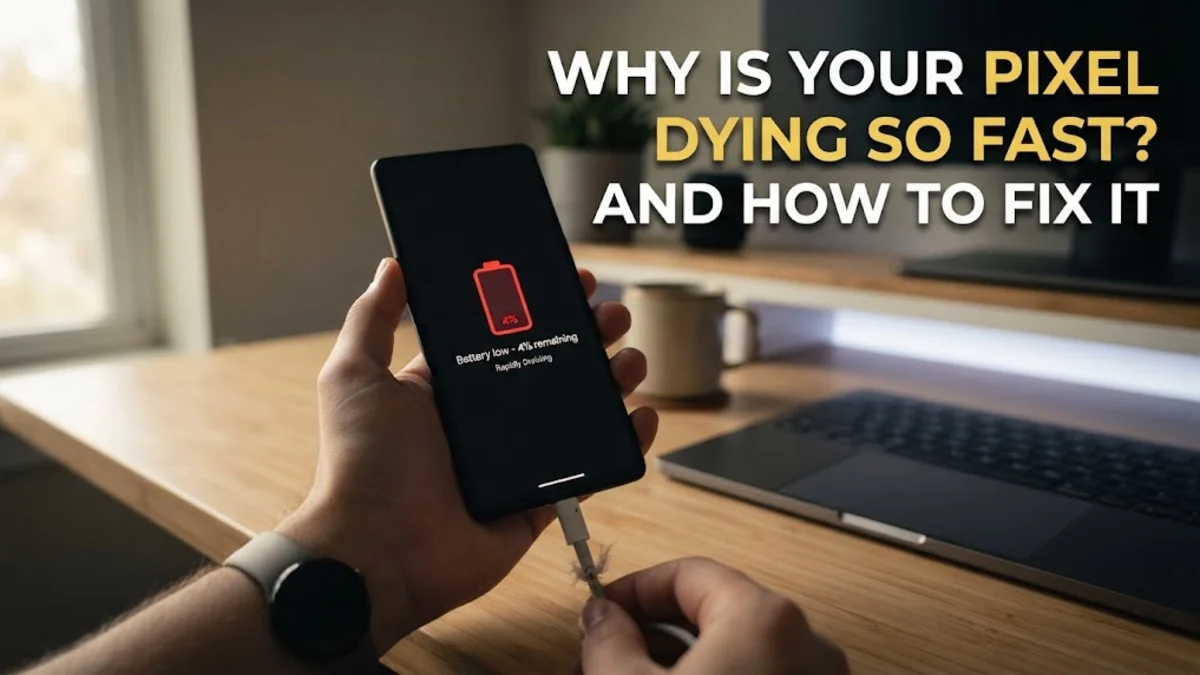
If your Google Pixel phone seems to be losing charge long before the day is over, you are not alone. Rapid battery drain on modern Pixel devices is usually caused by rogue background applications, high screen refresh rates, or temporary software bugs affecting power management.
Fortunately, you can diagnose and fix these power drains by adjusting a few key settings and identifying which apps consume the most energy. In this guide, we will walk you through the most effective troubleshooting steps to restore your Pixel battery life and keep your phone running smoothly all day long.
Understanding Why Your Google Pixel Battery Drains Quickly
When you notice your Google Pixel dying so fast, the first step is to pinpoint the root cause of the power drain. Modern smartphones handle numerous background processes simultaneously, ranging from cloud backups and location tracking to app updates and push notifications. When one of these processes gets stuck in a continuous loop, it prevents your phone's processor from entering a low-power sleep state, causing the battery to deplete rapidly even when the screen is turned off.
To get a clear picture of what is happening, navigate to Settings > Battery > Battery usage. This screen breaks down your power consumption over the last twenty-four hours, showing you exact percentages for both system components and individual applications. Reviewing this list is essential because it reveals whether your battery drain is driven by heavy screen-on time or hidden background tasks that require your immediate intervention.
Identifying and Restricting Rogue Apps
Third-party applications are the most frequent culprits behind sudden battery drain. Social media apps, poorly coded games, and utility tools often run background services that continuously ping servers or track your location. If you see an app consuming an unusually high percentage of battery in your usage list, you need to restrict its background activity immediately to prevent further power loss.
Tap on the offending application within Settings > Battery > Battery usage and look for background restriction options. You can toggle background usage to restricted so the app only runs when you actively have it open on your screen. Additionally, consider clearing the app cache or uninstalling the program entirely if it continues to misbehave after a system reboot. Keeping your installed applications updated through the Google Play Store also resolves known power bugs introduced in older app versions.
Optimizing Display Settings and Refresh Rates
The display is consistently the single largest power consumer on any smartphone. Google Pixel phones feature bright, high-resolution screens with high refresh rates that make scrolling fluid, but this smoothness comes at a significant cost to your battery life. If your phone is discharging too quickly, lowering your display energy demands is one of the fastest ways to recover lost hours of usage.
Head over to Settings > Display to review your options. You can turn off Smooth Display to limit the screen refresh rate from a dynamic ninety or one hundred twenty hertz down to a standard sixty hertz. Furthermore, enabling Dark Theme can dramatically reduce power consumption on Pixel devices equipped with OLED panels, since black pixels require zero power to illuminate. Lowering your overall screen brightness slider or turning on Adaptive Brightness will also yield immediate improvements.
Managing Connectivity and Location Services
Constant communication with cell towers, Wi-Fi routers, and GPS satellites demands heavy energy from your Pixel's internal modem. If you live or work in an area with poor cellular reception, your phone will continuously boost its transmission power to search for a stable signal, which drains the battery at an alarming rate even when sitting idle in your pocket.
To mitigate connectivity drain, review your location permissions under Settings > Location > App location permission, and restrict apps from accessing your location when you are not actively using them. If you experience poor service, switching your network preference temporarily or utilizing Wi-Fi calling can reduce modem strain. You should also turn off Bluetooth or nearby device scanning under Settings > Google > Devices if you do not regularly use accessories like smartwatches or trackers.
Leveraging Adaptive Battery and Saver Modes
Google builds powerful machine learning features directly into Android to help manage power distribution intelligently. Ensuring these native features are fully enabled will allow your Pixel to learn your daily habits and automatically starve power from apps you rarely use, keeping your overall consumption low throughout the day.
Verify your power settings by navigating to Settings > Battery > Adaptive preferences and make sure Adaptive Battery is toggled on. This feature learns which apps you use at specific times and limits power to the rest. When you find yourself in a pinch with critically low percentage remaining, activate Battery Saver or Extreme Battery Saver. These modes turn off background activity, darkens non-essential visuals, and pauses most notifications until you can plug your phone into a charger.
Checking for System Updates and Bugs
Sometimes rapid battery drain is not caused by your personal app usage or settings, but rather by an operating system bug introduced during a recent security patch or feature drop. Google frequently releases monthly updates that address power management regressions and kernel efficiency issues on Pixel hardware.
Check for available patches by going to Settings > System > System update and tapping on Check for update. Installing the latest software version ensures that any known power leaks are patched. If your phone continues to drain rapidly after a system update, performing a simple restart or clearing the system cache can clear out temporary glitches holding your hardware in a high-power state.
The bottom line
Fixing a Google Pixel that is dying too fast usually comes down to identifying background power hogs, optimizing your display settings, and letting Android's smart features manage your resources. By following these practical troubleshooting steps, you can significantly extend your daily battery runtime and ensure your phone lasts through your busiest days.
Frequently asked questions
Why is my brand new Google Pixel battery draining fast?
New Pixel phones often drain quickly during the first few days of use because the operating system is actively learning your usage patterns, downloading background updates, and syncing your data. Battery life typically stabilizes after a week of regular use.
Does 5G cause a Google Pixel to die faster than 4G?
Yes. 5G signals consume significantly more power than 4G LTE connections, especially if you have weak reception. You can switch your preferred network type to LTE in your mobile network settings to save battery.
How do I find out which app is draining my Pixel battery?
Go to Settings, tap Battery, and select Battery usage. This screen lists every application and its specific power consumption percentage over the past 24 hours.
Does turning on battery saver hurt my Google Pixel?
No, Battery Saver is designed to protect your device experience by cutting down background tasks and non-essential visual effects without harming your hardware or data.
Should I factory reset my Pixel if battery drain continues?
A factory reset should be treated as a last resort if software updates and app restrictions fail to resolve severe battery drain caused by corrupted system files.