عربي
Android

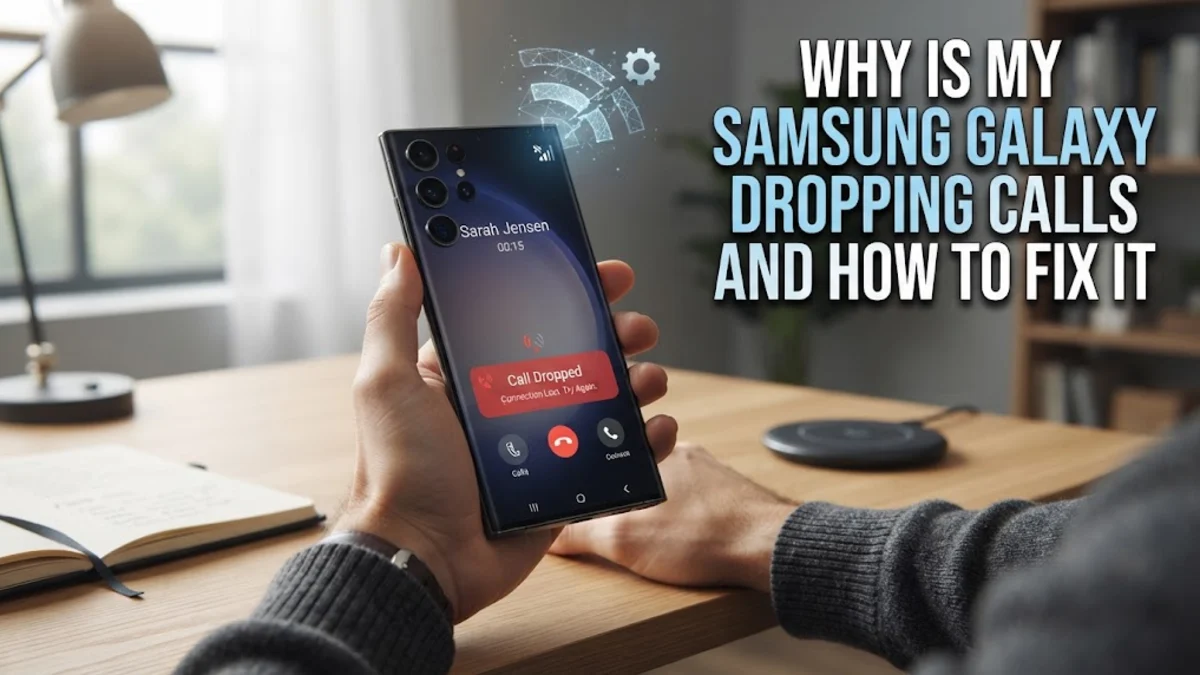
Why Is My Samsung Galaxy Dropping Calls and How to Fix It
Why Is My Samsung Galaxy Dropping Calls and How to Fix It

Experiencing dropped calls on your Samsung Galaxy can be frustrating, especially when you are in the middle of an important conversation. This issue usually stems from poor signal reception, temporary network glitches, outdated carrier settings, or misconfigured SIM cards. Fortunately, most call-dropping problems can be resolved directly from your device without needing a replacement. In this guide, you will learn practical, step-by-step troubleshooting methods ranging from quick network toggles to advanced system resets to keep your calls stable.

Check Network Connection and Physical SIM Card

A weak cellular signal is the most common reason your Samsung Galaxy drops calls abruptly. When your phone struggles to maintain a connection with the nearest cell tower, the audio packets drop, leading to disconnected calls. Start by checking the signal strength indicator in the top right corner of your screen. If you notice fluctuating bars or a No Service warning, your location or local carrier coverage is likely the primary culprit. Moving closer to a window or stepping outside often restores stable connectivity immediately. If the signal is consistently poor everywhere you go, the problem might lie within the physical SIM card itself. Over time, dust buildup or slight shifting inside the tray can cause intermittent connection loss. To fix this, power down your device completely using the side key and volume down button. Use the SIM ejection tool included in your phone box to pop out the SIM tray. Inspect the gold contact points for any visible dirt or damage, gently wipe the card with a clean microfiber cloth, and reinsert it securely. Once your Galaxy boots back up, place a test call to see if the connection remains stable. If your phone uses an eSIM instead of a physical card, you will need to contact your carrier to re-profile your digital SIM data remotely, as corrupted eSIM profiles frequently cause persistent call drops on modern Samsung models.

Reset Your Network Settings

Corrupted network cache data often causes your Samsung Galaxy to misbehave when handing off calls between cell towers. Over months of usage, saved Wi-Fi networks, Bluetooth pairings, and cellular configuration files can become cluttered, leading to unexpected disconnections. Resetting your network settings clears out this corrupted cache and restores default factory configurations for all cellular, Wi-Fi, and Bluetooth connections without deleting your personal photos, messages, or apps. To perform this reset, open your app drawer and tap on Settings. Scroll down and select General management, then tap on Reset. From the options displayed on your screen, select Reset mobile network settings or Reset network settings depending on your exact One UI version. Tap the blue Reset settings button to confirm your choice. Your phone may ask you to enter your PIN, pattern, or password for security verification before proceeding. Once the process completes, your device will restart automatically. Keep in mind that you will need to reconnect to your home Wi-Fi networks and re-pair your Bluetooth accessories afterward, but your cellular connection will now operate on a completely fresh slate, eliminating background conflicts that previously caused your calls to drop unexpectedly.

Manage VoLTE and Network Mode Settings

Voice over LTE (VoLTE) allows your Samsung Galaxy to transmit voice calls over high-speed 4G LTE or 5G networks instead of older 2G or 3G infrastructures. While VoLTE provides significantly clearer audio quality, an unstable transition between LTE and 5G can occasionally terminate your calls prematurely. To troubleshoot this, you can adjust your preferred network type or temporarily toggle VoLTE off to test call stability. Navigate to Settings > Connections > Mobile networks. Look for the Network mode option and verify that it is set to the recommended automatic selection, such as 5G/4G/3G/2G auto connect. If your local area suffers from poor 5G deployment where towers frequently hand off your connection, try switching the network mode strictly to 4G/3G/2G to maintain a more consistent connection. Additionally, some carriers allow you to toggle VoLTE calls on or off directly within this menu. If toggling VoLTE resolves the issue, your carrier may need to provision your account correctly for advanced calling features. Always remember that turning off VoLTE completely may force your phone onto older networks for calls, which can reduce data speeds while you are actively talking on the phone, so use this setting primarily as a diagnostic tool.

Install System and Carrier Settings Updates

Running outdated software on your Samsung Galaxy can create software bugs that interfere with modem communication and call handling. Samsung and major mobile carriers frequently push out software patches specifically designed to address connectivity drops, radio frequency stability, and network compatibility issues. Ensuring your device is fully updated is crucial for maintaining reliable call performance. To check for available system updates, go to Settings > Software update > Download and install. If a new One UI or security patch is available, connect your phone to a stable Wi-Fi network and proceed with the installation. Your phone will download the update packages and restart automatically, which can take several minutes. Beyond standard Android updates, your carrier often pushes silent carrier configuration updates in the background. You can manually check for carrier updates by navigating to Settings > About phone > Software information and looking for your carrier software version. If your carrier recently updated their network towers or rolled out new roaming protocols, having outdated modem firmware will guarantee intermittent call failures until you apply the latest patches provided by your specific mobile service provider.

Test Call Stability Using Safe Mode

Third-party applications downloaded from the Google Play Store can sometimes interfere with core system functions, including your phone dialer and audio routing. Call recording apps, custom dialers, aggressive battery savers, and VoIP applications frequently conflict with native cellular services, causing calls to drop without warning. To determine whether a rogue third-party app is causing your call drops, you need to boot your Samsung Galaxy into Safe Mode. Safe Mode temporarily disables all downloaded applications, running only the pre-installed system software. To enter Safe Mode, press and hold the side power key until the power off menu appears on your screen. Tap and hold the Power off icon until the Safe mode prompt pops up. Tap Safe mode to confirm, and your phone will restart with Safe mode displayed in the bottom left corner. Once in Safe Mode, place a few test calls to people you know. If your calls no longer drop while operating in Safe Mode, a recently installed application is definitely the root cause. Restart your phone normally to exit Safe Mode, then systematically uninstall any suspicious or recently added dialer, security, or utility apps until the problem completely disappears.

When to Contact Your Carrier for Support

If you have exhausted all software troubleshooting steps, reset your network settings, and verified your SIM card without success, the issue likely resides outside of your Samsung Galaxy. Network congestion, damaged local cell towers, account provisioning errors, or hardware failures in the phone's internal radio frequency transceiver require professional intervention. Start by reaching out to your mobile carrier's customer support hotline or visiting a corporate retail store in person. Explain that your phone continues to drop calls despite performing a complete network reset, testing the physical SIM card in another device, and updating all software. Ask the support representative to check your account provisioning status on their end. Sometimes, carrier systems glitch and fail to register your specific IMEI number correctly, leading to authentication drops during calls. If the carrier confirms their network and your account are functioning normally, your Samsung Galaxy may have a hardware defect affecting its internal antenna or modem chip. If your device is still covered under manufacturer warranty or an extended protection plan, request a repair or device replacement to permanently resolve the persistent call-dropping behavior.

The bottom line

Dealing with a Samsung Galaxy that constantly drops calls can disrupt your day, but working through systematic fixes usually brings quick relief. By checking your physical SIM card, resetting network settings, adjusting VoLTE preferences, installing pending updates, and ruling out rogue third-party apps, you can restore stable and reliable cellular connectivity to your phone.

Frequently asked questions

Why does my Samsung Galaxy drop calls only in specific locations?

This usually indicates poor local carrier coverage, signal obstruction from buildings, or congestion at a nearby cell tower rather than a hardware defect on your phone.

Will resetting network settings delete my photos and messages?

No. Resetting network settings only clears saved Wi-Fi passwords, Bluetooth connections, and cellular configurations. Your personal photos, videos, and text messages remain completely safe.

Can a bad phone case cause my Samsung Galaxy to drop calls?

Yes. Thick metal cases or cases containing magnetic components can interfere with your phone's internal antennas, weakening signal strength and causing dropped calls.

How do I know if my SIM card is damaged?

If your phone frequently displays No SIM warnings, switches to emergency-only mode, or continues dropping calls after being inserted into a completely different phone, your SIM card is likely damaged and needs replacement.

Should I turn off 5G to stop my calls from dropping?

If your area has unstable 5G coverage, switching your network mode to 4G LTE can often stabilize your connection and prevent frequent call drops.