How to Fix Google Account Not Working on TV

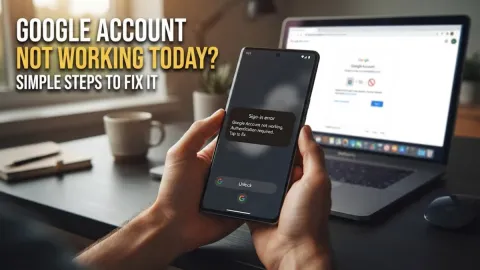
When your Google account fails to work on your TV, it can completely disrupt your daily streaming habits, app access, and personalized recommendations. Whether you are trying to stream movies on YouTube, access your Google Photos library on the big screen, or manage subscriptions through Google Play, sudden account sign-in errors can be intensely frustrating for the entire household.
Fixing this issue typically requires diagnosing underlying communication blocks, clearing corrupted cache files, correcting system date settings, or re-authenticating your user profile with fresh security credentials. This comprehensive guide walks you through proven troubleshooting steps to restore your Google account functionality on smart televisions and media streaming devices, ensuring seamless connectivity.
Understanding Why Your Google Account Fails on TV
Google account authentication issues on modern smart televisions typically stem from a variety of technical triggers, including outdated system firmware, corrupted temporary app data, or network handshake failures. When your television attempts to authenticate your credentials, it relies on secure OAuth protocols to communicate with remote Google servers. If network firewalls, strict router configurations, or temporary server outages interfere with this data exchange, sign-in loops or persistent authentication error codes will appear on your screen immediately.
Another extremely common culprit behind a malfunctioning TV account is a subtle mismatch in your device date and time settings. Because secure web authentication protocols rely heavily on exact timestamp synchronization for SSL certificates, even a minor time variance of just a few minutes between your smart television clock and Google authentication servers will block your account from connecting properly. Recognizing these foundational causes allows you to apply the correct fix right away without wasting time on ineffective trial and error.
Check Your Internet Connection and Date Settings
Before making deep changes to your profile or clearing system application data, you should verify that your home network connection is fully stable and that your television clock is accurate down to the minute. Start by navigating to Settings > System > Date & time on your television interface and ensure that the toggle for Automatic date & time is firmly enabled. This pulls accurate network time directly from global time servers rather than relying on manual input which is prone to human error.
If you notice that your clock was displaying the incorrect time, toggle the automatic setting off and back on again, perform a complete system restart on your television, and attempt to log into your Google account once more. Additionally, a poor Wi-Fi signal can cause authentication timeouts during the handshaking phase, so consider moving your wireless router closer to the entertainment center or plugging an Ethernet cable directly into your television for maximum network stability.
Clear Cache and Data on Google Play Services
Corrupted cache files within Google Play Services often prevent your Google account from maintaining a valid active session or syncing preferences across apps. Google Play Services operates as the vital background engine that powers authentication for almost all Google applications on smart platforms. To resolve this, navigate to your television system settings menu by selecting Settings > Apps > See all apps and scrolling down until you locate Google Play Services in the complete application directory.
Once you open the app info panel, select Clear cache first, and test your account login again. If the issue persists, return to the menu and select Clear data. This drastic action forces the television operating system to rebuild necessary temporary files and authorization tokens from scratch without permanently deleting your personal television configurations, user installed media apps, or saved streaming preferences.
Remove and Re-Add Your Google Account
If clearing the system cache and resetting Google Play Services data does not successfully resolve your persistent sign-in error, removing and re-add your account entirely is the next logical step. This process flushes out old, invalid, or expired authorization tokens that might be trapped in a loop. Navigate directly to Settings > Accounts & sign-in, highlight your specific Google profile name, and choose the option to Remove account from the television.
Once the profile has been successfully unlinked, perform a complete power cycle on your television by unplugging the power cord from the wall outlet for at least sixty seconds to drain residual electrical charge. Plug the TV back in, navigate back to the account management menu, select Add account, and sign back in carefully using your secure credentials, making sure to approve any two-factor authentication prompts on your trusted mobile device.
Update Your TV Firmware and System Software
Running outdated firmware creates dangerous software fragmentation and severe compatibility conflicts with modern Google security requirements. Smart television manufacturers frequently push out patches specifically designed to fix broken API calls and expired security certificates. Check for any pending system updates by going to Settings > System > About > System update.
Download and install any available updates for your television operating system immediately. Keep in mind that system updates can take several minutes to download and install, and your TV may reboot multiple times during the process. Once the system firmware is fully up to date, your television will be equipped with the latest security protocols needed to communicate effortlessly with Google servers.
Practical Tips for Managing TV Account Security
Keeping your Google account secure on shared household entertainment devices requires smart configuration choices and disciplined digital habits. Because smart TVs are often accessible by family members, guests, or children, taking extra precautions ensures your personal data remains private. Here are several practical tips to protect your account security:
- Always enable a strict purchase verification PIN or password for digital rentals and purchases made through Google Play.
- Sign out of your personal Google account entirely if you are setting up or using a television in a hotel, rental property, or temporary housing location.
- Regularly review your connected devices through your main phone or computer browser security dashboard to revoke access from older TVs you no longer own.
- Disable automatic profile syncing for unfamiliar streaming applications that request deep access to your personal Google Drive or Gmail data.
Comparison of TV Sign-In Methods
Different smart television platforms and media streaming boxes handle Google account authentication through varied user interfaces and technical approaches. Understanding these alternative methods helps you choose the most reliable and efficient login strategy for your specific hardware setup, especially if your physical remote control makes typing cumbersome and error-prone.
| Platform | Primary Login Method | Backup Method |
|---|---|---|
| Google TV / Android TV | Direct on-screen remote entry | Web browser authorization via mobile phone |
| Roku / Amazon Fire TV | External companion app sync | Direct web link authentication |
| LG webOS / Samsung Tizen | Companion mobile app scan | Manual remote credential entry |
As outlined in the comparison table, utilizing web-based authorization or companion apps via your smartphone is often much faster and less prone to typing typos than using a standard TV remote control. If remote typing keeps causing login failures, look for the option to sign in using a secondary browser link.
The bottom line
Troubleshooting a Google account that refuses to work on your TV ultimately comes down to a systematic elimination of potential bottlenecks: verifying correct system clock settings, clearing corrupted app caches, updating firmware, and re-authenticating your credentials. By methodically following these troubleshooting steps, you can eliminate sign-in errors and enjoy seamless access to your favorite media.
Frequently asked questions
Why does my Google account keep signing out on my smart TV?
This recurring issue typically happens due to corrupted background app cache files, incorrect system time synchronization, or security token expirations triggered by changing your primary account password on another trusted device.
Can I log into my Google account on a TV using my smartphone?
Yes, many modern smart TVs and streaming boxes allow you to sign in safely by visiting a designated secure URL on your smartphone or scanning an on-screen QR code, which eliminates tedious typing with a physical remote control.
Will clearing Google Play Services data delete my downloaded television apps?
No, clearing cache and app data for Google Play Services only resets system-level authentication tokens and background synchronization files, leaving your installed apps and personal streaming configurations completely intact.
What should I do if my TV says my password is incorrect even though I know it is right?
First, ensure that your television date and time settings are configured to update automatically. If the issue persists, check your main Google account on a computer browser for unresolved security alerts, suspicious activity flags, or pending verification prompts.