How to Fix Google Pixel Keyboard Freezing or Crashing
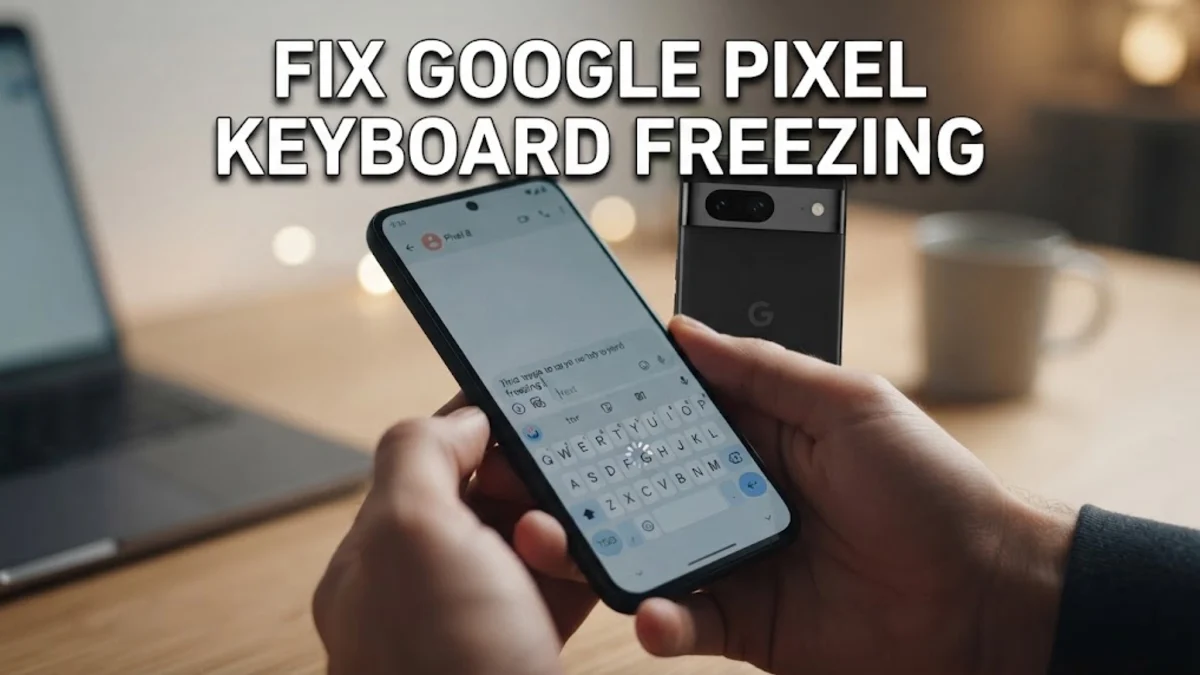
Is your Google Pixel keyboard freezing, lagging, or crashing right in the middle of typing a message? This frustrating issue usually stems from temporary software glitches, corrupted app caches, or conflicts with recent system updates on your device.
Fortunately, fixing your Pixel keyboard is usually straightforward and rarely requires a full factory reset. By following a few targeted troubleshooting steps, you can quickly restore smooth typing performance and prevent the virtual keyboard from locking up again.
Clear Gboard Cache and Data
Over time, your keyboard accumulates temporary files that can become corrupted and cause sudden crashes or severe lag. Clearing the cache and data forces Gboard to rebuild these files from scratch without deleting your personal custom dictionary. To do this, open your device settings and navigate to Settings > Apps > See all apps. Scroll down until you find Gboard in the list and tap on it to open its application info page. Next, select Storage & cache and tap on Clear cache. If the freezing persists, return to this menu and tap Clear storage or Clear data.
Keep in mind that clearing storage will reset your custom keyboard themes and preferences back to their factory defaults, but it is one of the most reliable methods for stopping persistent typing glitches on Pixel phones. When you clear data, Gboard clears out corrupted configurations that often build up after major Android system patches, making it a vital first resort for anyone experiencing unresponsive typing prompts. Once you complete this step, restart your phone and open any messaging app to test whether the keyboard responds normally.
Update Gboard via the Play Store
Running an outdated version of the virtual keyboard can lead to compatibility bugs, especially after your Pixel receives a monthly security patch or a major Android version upgrade. Software developers constantly push patches to resolve known memory leaks and crashing bugs, so making sure you have the latest release installed is essential. Open the Google Play Store on your Pixel and tap your profile icon in the top right corner. Select Manage apps & device, then look under the Updates available section to see if Gboard is listed. If an update is waiting, tap Update right next to Gboard to download and install the newest version immediately.
Alternatively, you can search directly for Gboard in the Play Store search bar and tap the update button from its official store page. After the installation finishes, give your phone a quick reboot to let the new files integrate properly with your system UI. Many users find that a simple app update completely resolves input lag and unexpected force closures. If your app is already fully up to date and the issue persists, the problem might be tied to conflicting custom themes or third-party settings rather than the core application itself.
Disable Third-Party Themes and Clipboard Apps
Gboard offers extensive customization options, including custom background photos, high-contrast colors, and synchronized clipboard history tools. However, heavily customized themes or third-party clipboard manager applications running in the background can sometimes consume excessive RAM or interfere with the text input field rendering. To check if your customization is causing the crash, open any app where you can type, bring up the keyboard, and tap the gear icon to open Gboard settings. Navigate to Theme and switch back to a simple default system theme or a solid color option instead of a high-resolution personal photo.
Additionally, if you use third-party clipboard monitors or alternative text-expansion apps, try disabling them temporarily to see if the keyboard stops freezing. These external utilities often hook into the Android accessibility services or input method engines, occasionally creating race conditions that crash the primary keyboard framework. Simplifying your keyboard layout and stripping away heavy visual elements will often instantly restore reliable, snappy performance on your Pixel device without needing further intervention.
Test Your Keyboard in Safe Mode
If your Pixel keyboard continues to freeze or disappear randomly, a newly installed third-party app might be conflicting with the system input method. Safe Mode temporarily disables all downloaded applications, allowing you to run your phone with only the factory pre-installed software active. To enter Safe Mode, press and hold the Power button and the Volume Up button simultaneously until the power menu appears on your screen. Next, tap and hold the Power off option on the screen until a prompt appears asking if you want to reboot to Safe Mode. Tap OK, and your Pixel will restart with a safe mode badge displayed at the corner of the screen.
Open an app like Messages or Keep and test typing for a few minutes. If the keyboard works perfectly in Safe Mode, you know for certain that a recently downloaded app is causing the interference. To exit Safe Mode, simply restart your phone normally, and then review your recently installed applications to uninstall any suspicious or unneeded tools that might be triggering the typing failures.
Reset All App Preferences
When individual app troubleshooting fails to resolve underlying system input service conflicts, resetting all app preferences on your Pixel can restore order. This action does not delete your personal files, photos, or messages, but it does reset disabled apps, notification permissions, default app associations, and background data restrictions back to their default states. To perform this reset, open your device menu and go to Settings > System > Reset options. Tap on Reset app preferences, read through the confirmation prompt explaining what will be affected, and then tap Reset apps to confirm your choice.
This process clears out tangled system flags that sometimes prevent the text input framework from communicating properly with the operating system. After the reset completes, give your phone a thorough reboot, open Gboard, and reconfigure your preferred language and layout settings. While this step requires you to re-enable notifications and default choices for a few of your favorite apps, it is an exceptionally powerful remedy for persistent system-level bugs that disrupt daily typing tasks.
The bottom line
Fixing an unresponsive or crashing Google Pixel keyboard usually comes down to clearing corrupted cache files, updating the app, or eliminating software conflicts. By systematically working through these troubleshooting steps, you can get your Pixel typing smoothly again in no time.
Frequently asked questions
Why does my Google Pixel keyboard keep freezing?
Keyboard freezing is usually caused by corrupted app cache files, outdated software versions, or interference from resource-heavy custom themes and background applications.
Will clearing Gboard cache delete my saved words?
No, clearing the cache only deletes temporary files. However, clearing the app storage or data may reset your custom dictionary and personalized keyboard preferences.
How do I update Gboard on my Pixel phone?
Open the Google Play Store, tap your profile icon, go to Manage apps & device, and check for available updates next to Gboard.
What should I do if the keyboard completely disappears while typing?
Try switching back and forth between open apps, restarting your phone, or clearing the Gboard cache via your device settings menu.
Can third-party apps cause keyboard crashes?
Yes, customized clipboard managers, accessibility tools, or newly downloaded apps can sometimes conflict with the Android input method framework and trigger crashes.