Why Is My Gemini Not Responding? Quick Fixes
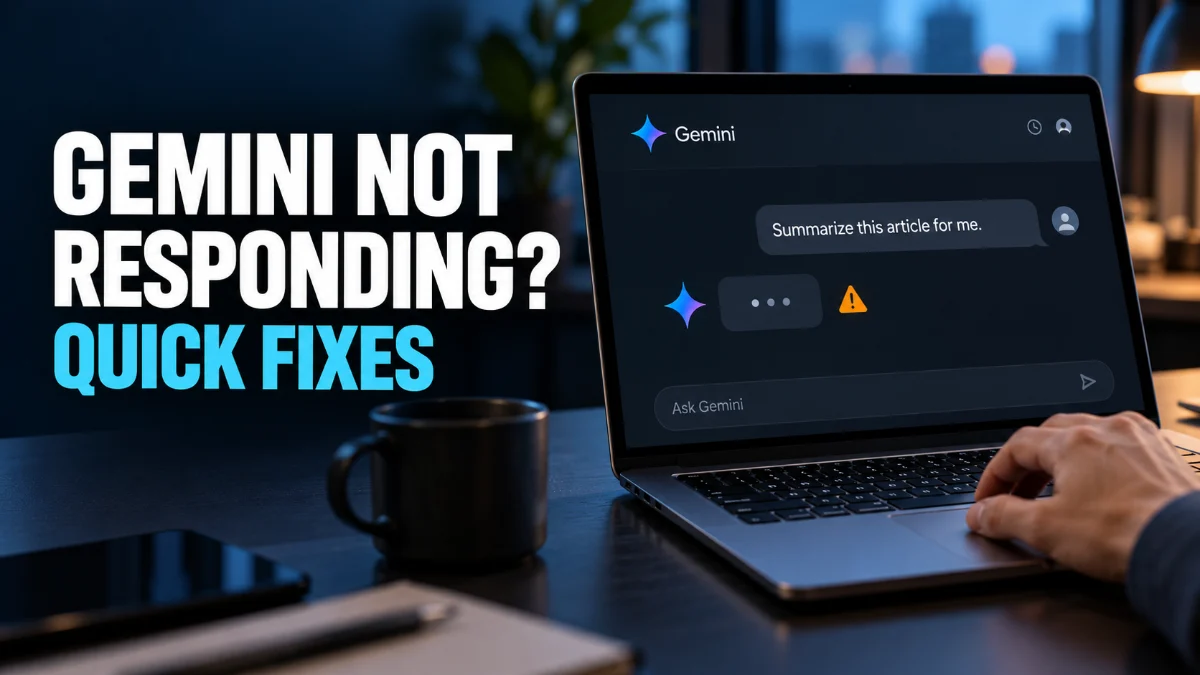
When Google Gemini suddenly stops responding to your prompts, it usually points to a temporary server interruption, a corrupted local cache, or an unstable internet connection. Addressing these potential roadblocks helps restore full functionality to your AI assistant without delay.
This guide outlines the practical steps required to diagnose why your AI assistant is freezing up, ranging from simple network checks to clearing application data across web and mobile platforms.
Check Your Internet Connection and Network Settings
An unstable or sluggish internet connection is one of the most common reasons your AI assistant fails to load responses. Because Gemini relies entirely on cloud servers to process complex natural language queries, even a momentary drop in bandwidth can cause prompts to time out or freeze completely.
To troubleshoot this, try loading another web page or streaming a short video to confirm your connection stability. If you are using Wi-Fi, toggle your connection off and back on, or switch to mobile data if available. Restarting your home router can also clear up hidden packet loss issues that disrupt API communication between your device and Google servers. Always ensure your device has a strong signal before submitting long or multi-part prompts to prevent data transmission errors.
Clear App Cache and Browser Data
Verify Google Account and Workspace Status
Account authorization errors or temporary permission conflicts can cause your AI queries to fail silently in the background. If your Google account session has expired or encountered a security flag, Gemini may accept your input but refuse to return an answer.
First, check the top right corner of your screen to ensure you are actively signed into your primary Google account. If your profile picture appears grayed out or shows an error indicator, sign out completely and log back in with your credentials. For users accessing Gemini through a corporate or educational Google Workspace account, verify with your system administrator that AI features have not been temporarily restricted or disabled by organizational policy updates.
Check Google Service Outages and Server Status
Sometimes the issue has nothing to do with your personal device or network configuration. Google servers handling artificial intelligence workloads occasionally experience high traffic volume, routine maintenance, or unexpected outages that temporarily take the service offline.
You can verify the operational status of Google services by checking independent outage tracking platforms or official status dashboards. If a widespread server outage is confirmed, no amount of troubleshooting on your end will fix the problem. In such cases, the best approach is to wait patiently while Google engineers resolve the backend infrastructure issue, which typically takes anywhere from a few minutes to an hour.
Update the Google App or Browser Version
Running outdated software versions can create compatibility gaps between your client application and updated backend AI models. If Google has pushed new API protocols that require updated code, older versions of apps or web browsers may hang or fail to process incoming responses.
For mobile users, open the Google Play Store or Apple App Store, search for the Google app, and tap update if a newer version is available. If you are browsing on a computer, ensure your web browser is fully updated by navigating to the browser settings menu and checking for pending updates. Restarting your device entirely after completing an update ensures that all background services load fresh configurations.
Disable Browser Extensions and VPNs
Overzealous ad blockers, privacy extensions, and virtual private networks can inadvertently block the specific scripts and secure websocket connections that Gemini needs to stream text back to your screen. These security tools sometimes misidentify AI data streams as tracking elements or intrusive scripts.
Temporarily disable any active ad blockers, script blockers, or VPN services, then reload your browser tab to see if responses start appearing normally. If disabling a specific extension fixes the problem, you can whitelist the Google domain within your extension settings so you do not have to turn protection off entirely every time you want to use your AI assistant.
The bottom line
Fixing an unresponsive AI assistant usually involves ruling out network drops, clearing corrupted cache files, or waiting out temporary server downtime. By working through these practical troubleshooting steps methodically, you can quickly restore your workflow and get back to generating content or answering questions.
Frequently asked questions
Why is Gemini stuck generating a response?
This usually happens due to a temporary network interruption or heavy server traffic causing your prompt to time out. Refreshing the page or switching your network connection typically resolves the freeze.
Does clearing my browser cache delete my Gemini chat history?
No, clearing your cache only removes temporary files stored locally on your device. Your saved chat history remains safely stored in your Google account cloud storage.
Can a VPN cause Gemini to stop working?
Yes, some VPN servers can trigger security flags or block necessary WebSocket connections, preventing Gemini from transmitting responses to your browser.
Why does Gemini work on my phone but not my computer?
This disparity usually points to browser-specific issues, such as an aggressive ad blocker, outdated browser version, or corrupted site cookies on your computer.
How do I know if Google Gemini is down globally?
You can check online server status trackers or social media channels to see if other users are reporting similar service interruptions.