How to Fix Gemini Not Available in Your Country

If you are trying to access Google’s AI and seeing the message that Gemini is not available in your country, it is usually due to regional licensing restrictions, local data privacy laws, or an incorrectly configured Google account. Google rollouts are often staggered, meaning even if your neighbor has access, your specific account or network might still be flagged as being in an unsupported region.
You can typically resolve this error by verifying your Google account’s home region, adjusting your system language settings, or using a virtual private network (VPN) to route your traffic through a supported territory like the United States or Australia. In this guide, we will walk through the most effective methods to bypass these regional blocks and get Gemini working on your desktop, Android, or iOS device in 2026.
Verify Your Google Account Region and Age Settings
One of the most common reasons for the gemini not available in your country error is a mismatch between your physical location and your Google account settings. Google uses your account's home address to determine which services you are eligible for. If you created your account in a country where Gemini was restricted years ago and have since moved, or if your payment profile is still linked to an old address, the AI will remain blocked. To fix this, you need to check your Google Pay profile and ensure your home address is set to a supported region. Go to Google Account > Payments & subscriptions > Manage payment methods and verify your address in the Settings tab.
Age restrictions also play a significant role in Gemini's availability. As of 2026, Google requires users to be at least 18 years old to access the full suite of Gemini Advanced features in many jurisdictions. If your account is managed via Family Link or if your birth date is not verified, Google may default to a restricted mode that displays the 'not available' message. Ensure your birth date is correctly set by navigating to Personal Info in your Google Account dashboard. If you are using a workspace account provided by an employer or school, the administrator must explicitly enable Gemini in the Admin console, or it will appear as unavailable regardless of your geographic location.
Switch to a Supported System Language
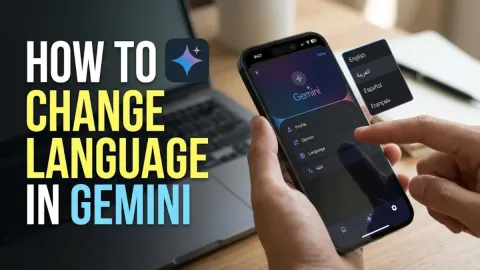
Google Gemini often prioritizes specific languages during its rollout phases. Even if you are physically located in a supported country, having your browser or operating system set to a language that Gemini does not yet fully support can trigger the availability error. This is especially common for users in multilingual regions. To resolve this, you should set your primary language to English (United States) or English (United Kingdom). This signals to Google's servers that you are seeking the standard global version of the AI tool.
- Open your Google Account settings and go to Personal info.
- Scroll down to General preferences for the web and select Language.
- Ensure English (United States) is at the top of the list.
- Restart your browser and clear your cookies for the changes to take effect.
On mobile devices, the Gemini app checks the system-level language settings. If your phone is set to a regional dialect that hasn't been indexed by Google for AI interactions, the app may refuse to launch. Go to Settings > System > Languages on Android or Settings > General > Language & Region on iPhone. After switching to English, force-close the Gemini app and try opening it again. This often clears the 'not available' cache and allows the interface to load correctly.
Use a VPN to Change Your Virtual Location
If you are in a region where Gemini has not yet launched due to local regulations, such as certain parts of the European Union or specific Asian territories, a VPN is the most reliable tool to fix the gemini not available in your country error. A VPN masks your actual IP address and replaces it with one from a supported country. When you connect to a server in the United States, Google's servers perceive your request as originating from within the US, granting you access to the AI interface. It is important to use a high-quality VPN service, as free proxies are often detected and blacklisted by Google’s security filters.
When using a VPN for Gemini, follow these specific steps to ensure success: first, close all browser windows and clear your browser's cache and cookies. This is vital because Google often stores your previous location in 'cookies' even after you turn on a VPN. Once cleared, connect your VPN to a New York or Los Angeles server. Open an Incognito or Private window and navigate to the Gemini website. If you are on a mobile device, you may need to disable Location Services or GPS in your phone settings, as mobile apps can sometimes bypass VPN IP addresses by looking at your phone's internal GPS data. This combination of IP masking and data clearing is usually enough to bypass the availability check.
Troubleshoot Mobile App Availability on Android and iOS
The Gemini mobile app has stricter geographic checks than the web version. If you find that the web version works but the app still says it is unavailable, the issue likely lies with your App Store or Play Store region. Google Play and the Apple App Store lock your account to a specific country to manage currency and app licensing. If your store is set to a country where Gemini is restricted, you won't even see the app in search results, or it will refuse to update. To fix this on Android, you can try clearing the cache of the Play Store app by going to Settings > Apps > Google Play Store > Storage > Clear Cache. If that fails, you may need to side-load the official APK from a trusted source, though this is only recommended for advanced users who understand the security risks.
For iOS users, the process involves changing your Apple ID region or creating a secondary Apple ID based in a supported country like Australia or the United States. Navigate to Settings > [Your Name] > Media & Purchases > View Account > Country/Region. Note that you cannot change your region if you have active subscriptions or store credit. Many users find it easier to simply use the Gemini web interface via Safari, which bypasses the App Store's regional locks entirely. The web version in 2026 is highly optimized for mobile and provides nearly the same experience as the native application without the installation headaches.
Enable Gemini for Google Workspace Accounts
For many professionals and students, the gemini not available in your country error is actually a permissions error disguised as a regional one. If you are logged into a Google Workspace account (an email ending in @yourcompany.com or @yourschool.edu), Gemini is disabled by default unless your IT administrator has turned it on. Even if you are in the heart of a supported country, you will see a 'not available' message if the service is toggled off in the Admin console. This is a common point of confusion because personal Gmail accounts on the same device might work perfectly while the work account fails.
| Account Type | Availability Fix | Requirement |
|---|---|---|
| Personal Gmail | Check Region/VPN | User Control |
| Workspace (Business) | Admin Console Toggle | Admin Approval |
| Workspace (Education) | Education AI License | School Policy |
| Family Link Account | Parental Permission | Age Verification |
To fix this, the administrator must log into the Google Admin Console, navigate to Apps > Google Workspace > Gemini, and set the service status to ON. In some cases, organizations must also opt-in to 'Early Access Apps' to see Gemini features. If you are the administrator and still see availability issues, ensure that your billing address for the Workspace subscription is located in a supported region. Workspace accounts in 2026 often require a specific 'Gemini for Workspace' add-on for advanced features, so check your subscription tier if the basic version is missing.
Check for Browser Extensions and DNS Interference
Sometimes the cause of the gemini not available in your country error isn't your location at all, but rather the software running on your computer. Certain privacy-focused browser extensions or custom DNS settings can interfere with how Google detects your location. For example, if you are using a 'Secure DNS' or 'DNS over HTTPS' (DoH) service that routes your requests through a server in a restricted country, Google may misidentify your origin. To test this, go to your browser settings (e.g., Settings > Privacy and security > Security in Chrome) and temporarily disable Use secure DNS.
Similarly, ad-blockers or 'anti-tracking' extensions can sometimes block the specific scripts Google uses to verify your account's eligibility. If you encounter the error, try opening Gemini in a 'Clean' browser profile or a different browser altogether (like switching from Chrome to Edge). If Gemini works in one browser but not the other, an extension is the culprit. Disable your extensions one by one to identify which one is triggering the geographic block. Furthermore, ensure your system clock is set to Set time automatically. A significant mismatch between your system time and the time associated with your IP address can cause security certificates to fail, leading Google to block access to AI services as a precautionary measure.
The bottom line
Fixing the Gemini availability error usually comes down to aligning your Google account settings with a supported region or using a VPN to bypass local restrictions. By verifying your account age, updating your language preferences, and ensuring your Workspace admin has granted the necessary permissions, you can regain access to Google's AI tools. If all else fails, using a dedicated VPN server in the United States remains the most effective workaround for users in restricted territories in 2026.
Frequently asked questions
Can I use Gemini in the EU in 2026?
Yes, while some features may be delayed due to the EU AI Act, Gemini is generally available in most European countries. If you still see a 'not available' message, it is likely due to your specific account settings or local data privacy choices you have made in your Google profile.
Do I need a paid VPN to access Gemini?
While some free VPNs might work, Google often blocks known free proxy IP addresses. A reputable paid VPN is recommended for a stable connection and to ensure your data remains private while using AI tools.
Why does Gemini work on my desktop but not my phone?
This is usually because your phone's GPS or App Store region is still set to an unsupported country, whereas your desktop browser is only using your IP address (which may be masked by a VPN) or has a different Google account logged in.
Does changing my Google account country affect my other services?
Yes, changing your Google Play or Google Pay country can affect your ability to use local payment methods, access region-specific apps, and can only be done once every 12 months. Using a VPN is often a safer alternative.