How to Set Up Two-Factor Authentication on Your Google Account
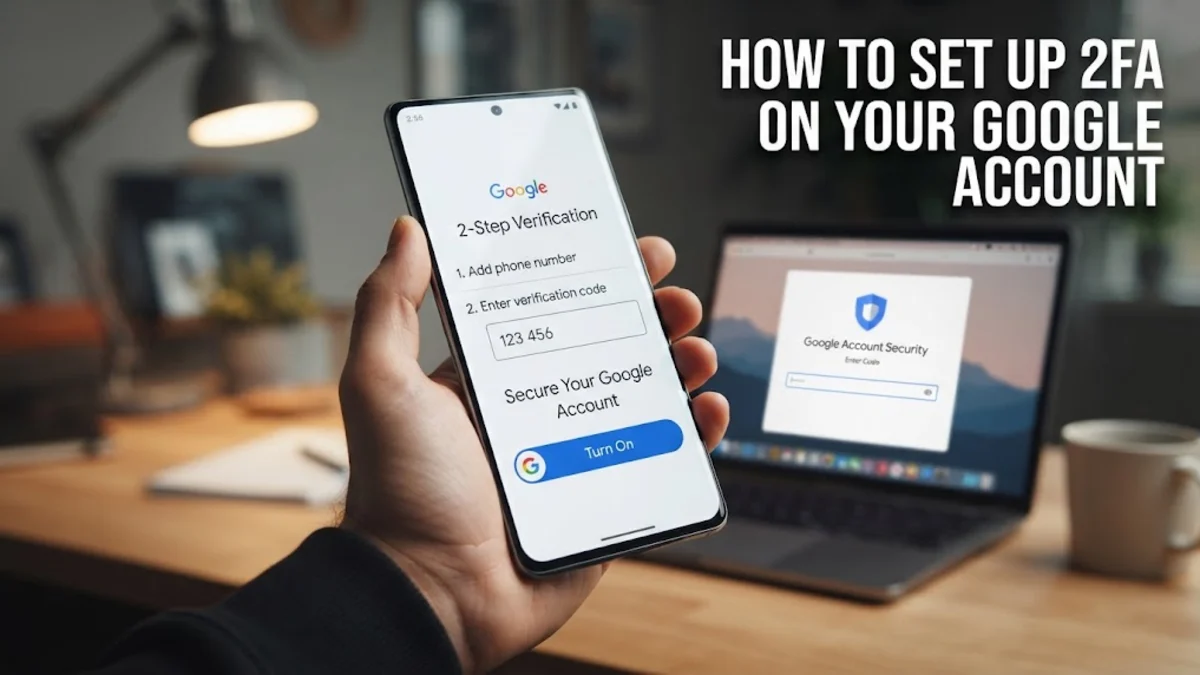
Protecting your personal data starts with securing your Google account against unauthorized access and credential theft. Setting up two-factor authentication adds a vital layer of defense beyond just a password.
This guide walks you through enabling robust verification methods, configuring backup options, and managing trusted devices safely.
Understanding Google Account Two-Factor Authentication
Two-factor authentication, commonly known as 2FA, is one of the most effective security measures you can implement to protect your digital identity. When you rely solely on a password to secure your Google account, you expose yourself to risks like credential stuffing attacks, data breaches on third-party websites, and phishing scams. If a malicious actor manages to guess or steal your password, they gain unrestricted access to your emails, photos, documents, and connected services.
Adding a second factor means that even if someone discovers your password, they cannot log in without a physical device or a specialized code that only you possess. Google offers multiple types of verification methods, ranging from instant push notifications sent to your trusted smartphone to time-based one-time passwords generated by authenticator apps. Taking a few minutes to configure these security features transforms your account from an easy target into a highly secure vault.
Accessing Your Google Security Dashboard
Before you begin configuring your verification methods, you need to access the central security dashboard of your Google profile. Open your preferred web browser on your computer or mobile device and navigate to the official Google Account management page. Sign in using your current email address and password to reach your main dashboard. Once you arrive at the home screen, look at the left-hand navigation menu or the main security card to locate the dedicated settings area.
Click or tap on Security from the menu options to view a comprehensive overview of your current security status, recent sign-in activity, and active devices. Scroll down until you find the section labeled How you sign in to Google. Here, you will see the 2-Step Verification option, which is likely turned off by default. Click on this option to begin the setup wizard and follow the initial prompts to verify your identity before making changes.
Setting Up Google Prompts as Your Primary Method
Google allows you to choose from several verification methods, with the Google prompt being the most seamless and user-friendly option available. When enabled, a Google prompt sends an instant push notification directly to any smartphone where you are signed in with your account. Instead of typing out long numeric codes, you simply unlock your phone, review the login attempt details such as the location and device type, and tap Yes, it's me to approve access instantly.
To set up this method during the 2-Step Verification configuration process, select the smartphone option when prompted by the setup wizard. Google will send a test prompt to your registered phone to confirm that the connection works properly. Make sure your phone has an active internet connection and that notifications are enabled for the Google app or Gmail app. Once the test succeeds, this becomes your primary and fastest method for approving future sign-in requests across different computers and browsers.
Adding an Authenticator App for Alternative Access
While Google prompts are convenient, having alternative verification methods is essential in case your phone loses internet connectivity, runs out of battery, or is replaced. Authenticator apps generate time-based one-time passwords (TOTP) that refresh every thirty seconds and work completely offline. Popular and secure options include apps like Google Authenticator, Authy, or Microsoft Authenticator, which you can download directly from your mobile device's official app store before starting this step.
During the 2-Step Verification setup, choose the option to add an authenticator app. Your computer screen will display a unique QR code. Open your chosen authenticator app on your smartphone, select the option to add a new account, and use your phone's camera to scan the QR code on your screen. The app will immediately begin generating six-digit codes linked to your Google account. Enter the current code displayed on your phone into the verification field on your computer to complete the linkage process.
Generating and Storing Emergency Backup Codes
Even with multiple verification methods configured, unexpected situations can still occur, such as losing your smartphone or accidentally deleting your authenticator app data. To prevent getting permanently locked out of your account, Google provides a set of one-time backup codes. These emergency codes are designed to be printed out or stored securely in a trusted password manager, allowing you to bypass standard two-factor authentication prompts when no other options are available.
To generate and save your backup codes, return to the 2-Step Verification settings page within your Google Account dashboard and locate the Backup codes section. Click on setup or view codes to generate a list of ten unique alphanumeric codes. Each code can only be used once, so it is crucial to keep them in a safe location rather than saving them in an unencrypted text file on your desktop. Cross-verify that you have stored them properly before finishing the setup process.
Managing Trusted Devices and Security Logs
Maintaining account security is an ongoing process rather than a one-time task. Once two-factor authentication is fully active, you should regularly review your security settings, trusted devices, and recent account activity to ensure no unauthorized access has occurred. Navigate back to your Google Account > Security dashboard and scroll down to the Your devices section. Here, you will see a complete list of every computer, tablet, and smartphone that currently has active access to your account.
If you spot an unfamiliar device or a gadget you no longer use, click on it and select the Sign out option immediately to revoke its access. Additionally, check your recent security activity log to see if any login attempts triggered security warnings or alerts. By performing this quick audit every few months, you can catch potential security issues early and keep your personal information completely secure.
The bottom line
Enabling two-factor authentication on your Google account significantly reduces the risk of unauthorized access. By combining secure verification prompts, authenticator apps, and offline backup codes, you ensure your personal data remains protected against modern security threats.
Frequently asked questions
What happens if I lose my phone and cannot receive Google prompts?
You can use your alternative verification methods, such as a pre-configured authenticator app or one of your emergency backup codes, to sign in.
Are authenticator apps safer than SMS text messages?
Yes, authenticator apps are significantly more secure because SMS codes can be intercepted through SIM swapping attacks, whereas TOTP codes are generated locally on your device.
Can I use a hardware security key with my Google account?
Yes, Google fully supports physical security keys like YubiKey as a high-security option under the 2-Step Verification settings.
How many backup codes does Google provide?
Google generates ten backup codes at a time, and each individual code can only be used once for emergency verification.
Do I need to enter a 2FA code every time I sign in?
No, you can check the box on trusted personal devices to remember your browser, meaning you will only need to verify your identity periodically or when logging in from a new device.