How to Set Up PCVR on Quest 3
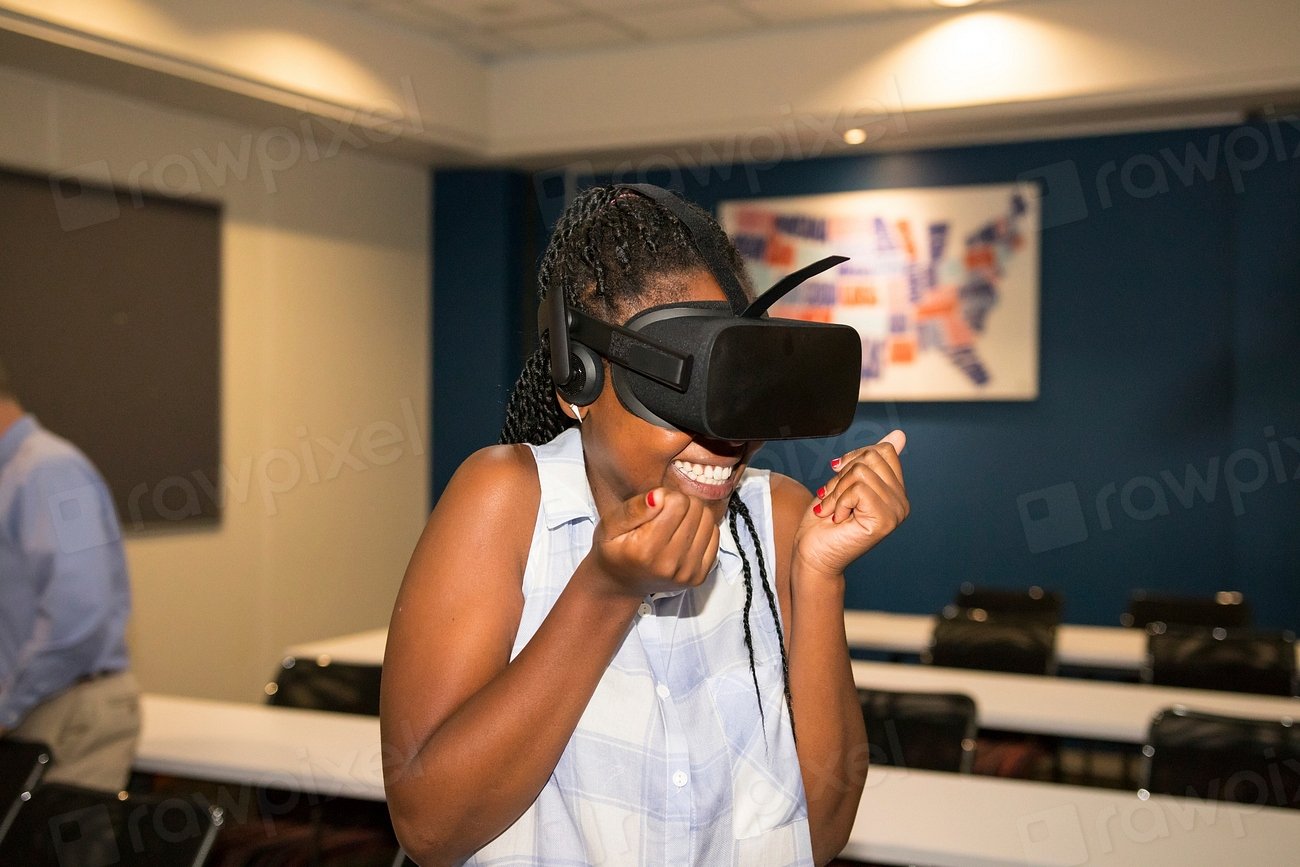
Virtual reality enthusiasts often want to know how to pcvr quest 3 to unlock high-end PC games on their headset. Connecting your Meta Quest 3 to a Windows computer lets you experience visually stunning titles that exceed standalone hardware limitations.
Whether you choose a tethered USB-C cable or a high-speed wireless network, setting up PCVR requires compatible hardware and precise configuration. This guide walks you through every step of the process to get you into your games quickly.
Checking PC Requirements for Quest 3 PCVR
Before attempting to connect your headset, you must verify that your Windows PC meets the minimum hardware specifications required for virtual reality gaming. Running PCVR demands significant graphical and processing power because the computer has to render two high-resolution images simultaneously at high refresh rates. Check your system details by opening Settings > System > About and comparing your graphics card and processor against current standards.
At a minimum, you need a dedicated graphics card such as an NVIDIA RTX 3060 or AMD equivalent, an Intel Core i5 or Ryzen 5 processor, and at least 16GB of RAM. If your hardware falls below these specs, you will experience stuttering, frame drops, and severe motion sickness. Ensure your Windows 10 or 11 operating system is fully updated and that your graphics card drivers are running the latest version available from the manufacturer.
Setting Up Wired PC Link Connection
A wired connection using a high-speed USB-C cable provides the most stable data transfer rate and charges your headset while you play. To get started, download and install the official Meta Quest Link app on your Windows computer. Plug one end of a compatible USB 3.0 cable into a USB 3.0 port on your motherboard or graphics card, and connect the other end to your Quest 3 headset.
Put on your headset and turn it on. You will see a prompt asking to allow access to data; select Allow. Next, a prompt will ask if you want to enable Meta Quest Link. Select Enable to launch the PCVR interface. If the connection fails or runs slowly, use the USB test feature in the desktop app to verify your cable speed, and make sure you are plugged into a high-bandwidth port rather than an older USB 2.0 slot.
Setting Up Wireless Air Link Connection
Wireless PCVR via Air Link gives you complete freedom of movement without cables tethering you to your desk. To use Air Link, your PC must be connected to your Wi-Fi router via an Ethernet cable, and your Quest 3 must be on a dedicated 5GHz or 6GHz Wi-Fi band in the same room. Open the Meta Quest Link app on your PC, navigate to Settings > General, and toggle on the Air Link feature.
Put on your headset, press the Meta button on your controller, and select the Quick Settings panel. Click on Air Link, locate your computer from the list of available devices, and click Pair. Match the pairing code shown in your headset with the code on your monitor, then click Launch to enter the virtual desktop environment. If you notice high latency, move closer to your router or disconnect other heavy bandwidth devices from your network.
Configuring SteamVR and Quest Link App
Once your headset is successfully linked to your computer, you will need to configure your gaming runtime environments. Most PCVR games run through Steam, which requires the installation of Steam and the free SteamVR tool. Open Steam on your computer, search for SteamVR in your library, and install it. When you launch SteamVR inside your headset, it will use your Quest Link boundary and controller mapping automatically.
To ensure games run smoothly, open the Meta Quest Link desktop app and adjust your device settings. Navigate to Devices > Quest 3 > Graphics Preferences. Set your refresh rate to 90Hz or 120Hz depending on your system capability, and adjust the render resolution slider to match your GPU performance. Finding the right balance between visual clarity and frame rate is essential for a comfortable gaming session.
Optimizing Graphics and Performance Settings
Fine-tuning your performance settings prevents frustrating stutters and ensures a high-fidelity visual experience. Start by disabling unnecessary background applications on Windows that consume CPU and GPU resources. You can press Ctrl + Shift + Esc to open Task Manager and close heavy programs before launching your VR games. Additionally, check your graphics control panel software to ensure power management mode is set to maximum performance.
Inside individual games, start with medium graphics presets and increase settings gradually. Many games feature dynamic resolution scaling, which automatically lowers graphics fidelity during intense action sequences to maintain a steady frame rate. Keeping your headset and PC software updated guarantees you benefit from the latest performance patches and bug fixes released by developers.
Troubleshooting Common Connection Issues
Even with proper setup, you may occasionally encounter connection drops, black screens, or audio glitches. If your headset fails to connect via Air Link, restart both your PC and your Quest 3, and ensure both devices are on the exact same Wi-Fi network. For wired connections, unplug the USB cable from both ends, inspect the connectors for dust, and plug it back into a different USB 3.0 port.
If audio fails to route to your headset, click the speaker icon in your Windows taskbar and manually select Headset Earphones (Oculus Virtual Audio Device) as your default playback device. If games crash upon launch, verify your integrity of game files through Steam or reinstall the Meta Quest Link desktop application to repair corrupted driver files.
The bottom line
Mastering how to pcvr quest 3 opens up an incredible library of high-end virtual reality games on your Windows computer. Whether you prefer the raw stability of a wired USB connection or the untethered freedom of Air Link, proper hardware preparation and setting optimization ensure a seamless gaming experience.
Frequently asked questions
Do I need a powerful graphics card for Quest 3 PCVR?
Yes, PCVR renders two high-resolution screens simultaneously, requiring a dedicated GPU like an NVIDIA RTX 3060 or better.
Can I use any USB-C cable for wired PC Link?
No, you need a high-speed USB 3.0 cable capable of fast data transfer, such as an official Link cable or a certified third-party alternative.
Why is my wireless Air Link lagging?
Wireless lag is usually caused by network congestion, lack of an Ethernet connection to your PC, or being too far from your Wi-Fi router.
Do I need SteamVR to play PC games on Quest 3?
Most PC games purchased through Steam require SteamVR, though some standalone PCVR titles use native Oculus runtimes.
How do I fix audio not working in PCVR?
Check your Windows sound settings and manually set your default playback device to the Oculus Virtual Audio Device.