Best PC Controllers in 2026
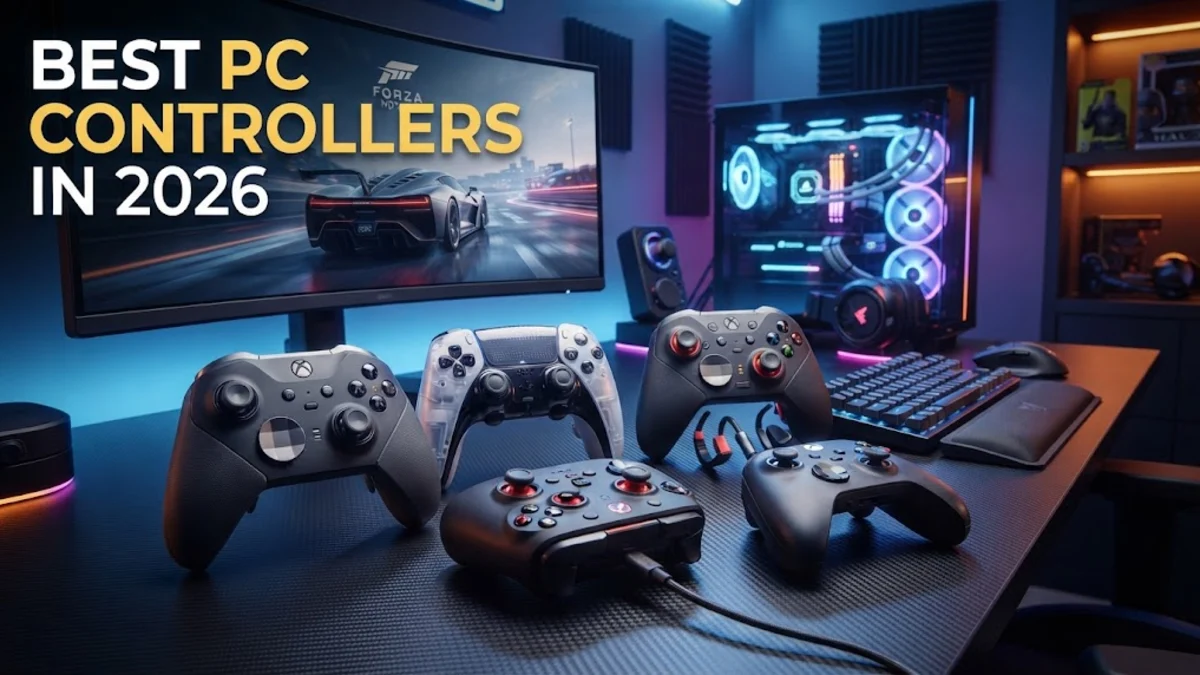
Finding the best PC controller can completely transform your Windows gaming experience, offering precise control, ergonomic comfort, and seamless compatibility across Steam, Xbox Game Pass, and Epic Games Store. Whether you prefer fast-paced action titles, racing sims, or cozy RPGs, having a reliable gamepad is essential for modern PC setups.
What to Look for in a PC Controller
When shopping for the best PC controller, compatibility and connection type are your primary considerations. Native XInput support ensures that Windows recognizes your gamepad immediately without requiring complicated third-party driver mapping software. Most modern controllers connect via Bluetooth, a dedicated 2.4GHz wireless USB dongle, or a reliable wired USB-C connection.
Ergonomics and stick technology also play a massive role in long-term comfort and durability. Look for textured grips, responsive triggers, and modern Hall effect magnetic joysticks, which completely eliminate stick drift over years of heavy use. Extra back buttons or paddles are another great feature if you play competitive shooters or fast-paced platformers where fractions of a second matter.
Xbox Wireless Controller: The Gold Standard
The official Xbox Wireless Controller remains the ultimate choice for Windows users due to its flawless plug-and-play compatibility. Because Microsoft develops both Windows and the Xbox ecosystem, every PC game featuring gamepad support is designed specifically around this layout. Its asymmetrical thumbstick placement, textured grip, and tactile D-pad offer a familiar, reliable feel that suits almost any genre.
You can connect the Xbox Wireless Controller via Bluetooth or use the official Xbox Wireless Adapter for Windows for a latency-free, robust connection. It runs on standard AA batteries or a rechargeable Play and Charge kit, giving you the flexibility to swap power sources instantly if your battery dies mid-game without needing to tether your controller to a charging cable.
Sony DualSense Controller: Best for Immersion
If you want cutting-edge immersion, the Sony DualSense Wireless Controller is an exceptional PC gamepad. While it connects easily via Bluetooth or USB-C, an increasing number of modern PC games natively support its advanced haptic feedback and adaptive triggers. These features provide dynamic resistance in trigger pulls and incredibly detailed physical feedback that mirrors in-game environments like rain, rough terrain, or weapon recoil.
To get the most out of a DualSense controller on Windows, you will want to play games that support Steam Input or native Sony integrations. Keep in mind that while standard Bluetooth connection works well, you may need a wired connection or specific software configuration to unlock the full suite of adaptive trigger and advanced haptic features in supported titles.
Premium Pro Controllers for Competitive Play
For competitive gamers and enthusiasts who demand maximum performance and customization, premium pro controllers like the Xbox Elite Series 2 or third-party tournament pads are unmatched. These gamepads feature adjustable thumbstick tension, interchangeable paddle buttons on the rear, wrap-around rubberized grips, and hair-trigger locks that shorten the distance required to actuate the triggers.
Using companion apps such as the Xbox Accessories app on Windows, you can completely remap buttons, adjust trigger deadzones, customize thumbstick sensitivity curves, and save multiple profile configurations directly to the controller's onboard memory. While they carry a steeper price tag, their build quality and competitive edge make them worthwhile investments for dedicated players.
Budget and Hall Effect Stick Alternatives
You do not need to spend a fortune to get a high-performing gamepad for Windows. Third-party manufacturers offer incredible value with controllers that often outperform stock gamepads in durability. Many modern budget and mid-range controllers feature Hall effect magnetic sensors in their joysticks and triggers, utilizing magnets instead of physical carbon-film potentiometers to prevent mechanical wear and tear.
Brands like 8BitDo, GameSir, and Thrustmaster provide excellent layout options ranging from classic retro designs to modern ergonomic shapes. These affordable options frequently include extra features like mechanical face buttons, clicky D-pads, and customizable back buttons that rival controllers twice their price, making them a fantastic choice for budget-conscious gamers.
How to Set Up and Optimize Your Controller on Windows
Connecting your new controller to a Windows 10 or Windows 11 PC is straightforward, but taking a few extra steps ensures optimal performance. For Bluetooth gamepads, open your system settings by navigating to Settings > Bluetooth & devices > Add device, put your controller into pairing mode, and select it from the available list.
Once connected, it is crucial to test and calibrate your inputs. Open the Xbox Accessories app or utilize the controller configuration menu in Steam by going to Steam > Settings > Controller. Here you can check for firmware updates, test button responsiveness, adjust stick deadzones, and ensure your triggers register full actuation before jumping into your favorite games.
Comparing the Top PC Controllers
Choosing the right gamepad depends entirely on your budget, preferred layout, and feature requirements. The following comparison highlights how the primary controller categories stack up against each other for Windows gaming in 2026.
| Controller Type | Best For | Connection | Standout Feature |
|---|---|---|---|
| Xbox Wireless | Universal Compatibility | Bluetooth / Wireless Dongle / USB-C | Flawless Windows integration |
| Sony DualSense | Immersion & Haptics | Bluetooth / USB-C | Advanced haptics and adaptive triggers |
| Xbox Elite Series 2 | Competitive Customization | Bluetooth / USB-C | Adjustable tension and rear paddles |
| Hall Effect Budget Pads | Long-Term Durability | 2.4GHz Dongle / USB-C | Drift-free magnetic thumbsticks |
The bottom line
Selecting the best PC controller ultimately comes down to your personal budget and gaming preferences. Whether you choose the seamless compatibility of the standard Xbox gamepad, the immersive haptics of the DualSense, or a rugged third-party controller with Hall effect sticks, upgrading your hardware will greatly enhance your Windows gaming setup.
Frequently asked questions
Do I need special software to use an Xbox controller on Windows?
No. Windows includes native XInput support for official Xbox controllers, meaning they work instantly via plug-and-play without extra software.
Can I use a PlayStation DualSense controller on a Windows PC?
Yes. You can connect a DualSense controller via Bluetooth or USB-C. Many PC games and platforms like Steam offer native support for its features.
What are Hall effect sticks and why do they matter?
Hall effect sticks use magnets to measure joystick position instead of physical contact parts. This completely prevents stick drift and greatly extends controller lifespan.
Is a wired or wireless controller better for PC gaming?
Modern 2.4GHz wireless and Bluetooth connections offer virtually zero noticeable input lag while providing freedom of movement. Wired connections are best if you want zero battery anxiety.
Why is my PC not recognizing my wireless controller?
Ensure your controller has a fresh battery or charge, verify that Bluetooth is enabled in Windows settings, and check for pending controller firmware updates.