Fix Gmail Not Working on iPhone Mail App
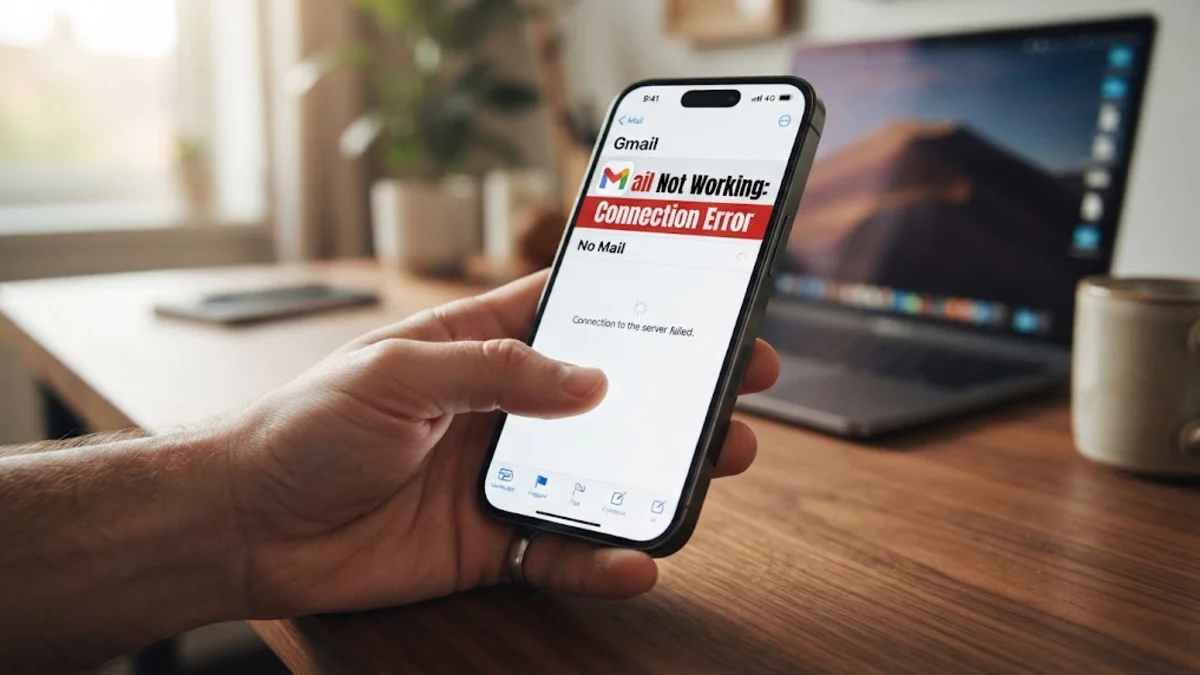
When your incoming messages stop loading or you encounter a persistent server error, dealing with Gmail not working on iPhone Mail app can interrupt your entire day. This breakdown usually stems from expired OAuth authentication tokens, background fetch limits, IMAP sync misconfigurations, or temporary security holds placed by Google on new device sessions.
Rather than deleting your account right away or switching to an unwanted client, you can resolve the underlying synchronization problem with a few targeted adjustments. Here is a technician-tested sequence of fixes, ordered from the simplest diagnostic checks to complete account re-authorizations.
Why Gmail Fails to Sync with Apple Mail
Google and Apple handle email communication through standardized IMAP protocols, but modern security standards rely heavily on OAuth 2.0 web tokens instead of plain passwords. When Apple Mail requests new data from Google's servers, it presents this encrypted authorization token. If you changed your Google password on another computer, activated two-factor authentication, or experienced a security audit prompt, iOS loses its connection silently, leaving your inbox stuck on its last updated state.
Network interruptions and background energy-saving features also cause widespread sync failures. If your iPhone enters Low Power Mode or restricts background data, iOS suspends background email polling to save battery. In other scenarios, Google's automated security algorithms flag an IP address shift, such as switching from home Wi-Fi to a cellular tower or VPN, temporarily blocking IMAP traffic until you verify your identity in a browser.
Check Network Connections and Google Workspace Status
Before tampering with deep account settings, verify that your iPhone can reach Google's mail servers. Open Safari and navigate to a standard webpage, or access your inbox directly through mail.google.com. If the web version loads without incident, you have confirmed that both your internet connection and Google credentials are functioning correctly.
If you connect through a mobile virtual private network or custom DNS profile, disconnect it temporarily. Aggressive ad blockers and corporate VPN tunnels frequently intercept ports 993 (IMAP) and 465 or 587 (SMTP), causing the native Mail app to display perpetual spinning wheels or offline alerts. Review these common network blockers:
- Active VPN apps: Toggle VPN off under Settings > General > VPN & Device Management.
- Captive Wi-Fi portals: Hotel and coffee shop Wi-Fi networks block mail syncing until you accept terms in a browser window.
- Google server outages: Check the official Google Workspace Status Dashboard to verify that Gmail is not experiencing an active service disruption.
Verify Fetch New Data and Push Schedules
Unlike Apple's iCloud Mail, which pushes incoming messages instantly, free personal Gmail accounts do not support direct push notifications through the native Apple Mail app. Personal Gmail relies on Apple's Fetch schedule, which checks for mail at predefined intervals. If your Fetch schedule is misconfigured or set to manual, your iPhone will never show new emails until you open the app and manually pull down to refresh.
To verify your fetch schedule on modern iOS, navigate to Settings > Apps > Mail > Mail Accounts > Fetch New Data (or Settings > Mail > Accounts > Fetch New Data depending on your software build). Scroll to the bottom and ensure the schedule is set to Automatically or Every 15 Minutes rather than Manually.
Next, tap your Gmail account within that same screen. Ensure the account retrieval method is explicitly set to Fetch. If it is set to Manual, background syncing remains dormant, and notifications will fail to trigger while your iPhone is locked in your pocket.
Disable and Re-enable Mail in Account Settings
A quick way to clear cached sync errors without wiping your entire profile is to restart the IMAP sync toggle. This forces the local iOS mail index to clear temporary locks and re-establish a fresh handshake with Gmail's remote database.
Follow these steps to toggle your synchronization toggle:
- Open the Settings app on your iPhone.
- Navigate to Apps > Mail > Mail Accounts (or Settings > Mail > Accounts).
- Tap your Gmail account from the accounts list.
- Locate the Mail toggle switch and slide it to the off position.
- When prompted, tap Delete from My iPhone to remove the local mailbox cache. Your emails remain completely safe on Google's cloud servers.
- Restart your iPhone using Volume Up + Side Button to flush active memory.
- Return to the same settings menu and toggle Mail back to the on position.
Open Apple Mail and allow the client two to three minutes to index your folders. A progress bar reading "Downloading messages" should appear at the bottom of your inbox.
Re-authenticate with Google Web Login
When authentication tokens expire, Apple Mail frequently fails to display an explicit password error dialog, leaving users wondering why no new messages arrive. To generate a fresh token, you must trigger Google's native OAuth modal inside iOS settings.
Go to Settings > Apps > Mail > Mail Accounts, select your Gmail account, and inspect the screen for a message reading Re-enter Password. If this alert appears, tapping it launches a secure Safari pop-up directly to Google's sign-in screen. Enter your full Gmail address, account password, and complete two-factor authentication using your security key or Google prompt.
If no prompt appears but sync remains dead, open Safari, log into your Google Account, and visit the Security section at myaccount.google.com. Check Recent security activity to see if Google blocked a sign-in attempt from Apple Internet Accounts. Approving the device session clears the lock and allows Apple Mail to resume communication immediately.
Delete and Re-add the Gmail Account
If cached profile corruption persists, completely removing the account and re-linking it provides the most dependable resolution. This cleans out broken folder structures, stale database pointers, and invalid tokens.
Follow this exact procedure to avoid duplicate profile issues:
- Go to Settings > Apps > Mail > Mail Accounts.
- Tap your affected Gmail entry.
- Select the red Delete Account button at the bottom of the screen.
- Confirm by selecting Delete from My iPhone.
- Restart your device to clear residual credential caches.
- Head back to Settings > Apps > Mail > Mail Accounts and tap Add Account.
- Choose Google from the list of providers. Never select "Other" for standard Gmail accounts, as manual IMAP setup bypasses OAuth security.
- Complete the web login form, approve two-factor authentication, and ensure the Mail toggle is enabled on the final save screen.
Troubleshooting Comparison: Apple Mail vs. Dedicated Apps
While Apple Mail offers a consolidated unified inbox for multiple services, personal Gmail operates with distinct technical limitations when paired with third-party IMAP clients. Review the structural differences below to determine whether your usage pattern requires the native client or a dedicated application.
| Feature | Apple Mail (Gmail Account) | Official Gmail iOS App |
|---|---|---|
| Delivery Method | Fetch (Scheduled or Manual) | Real-time Instant Push |
| Authentication | OAuth 2.0 Web Token | Direct Google Account API |
| Search Speed | Local Device Indexing | Server-side Instant Search |
| Battery Consumption | Low to Moderate | Low (Optimized Push) |
| Category Tabs | Unified (No Primary/Social tabs) | Native Tabs (Promotions, Social) |
If instant message delivery is essential for your workflow, running the dedicated Gmail app alongside Apple Mail ensures you receive immediate push alerts even when Apple's background fetch cycle is paused by iOS power optimization.
The bottom line
Fixing an uncooperative Gmail account on Apple Mail comes down to refreshing authorization tokens and aligning your iOS fetch settings with Google's sync infrastructure. In most situations, toggling the Mail sync switch or completing a clean account re-link resolves the block in under five minutes. If persistent delays continue, switching your fetch schedule to shorter intervals ensures you never miss critical correspondence.
Frequently asked questions
Why does my Gmail work on my computer but not on my iPhone Mail app?
Computers typically access Gmail through a web browser using active browser cookies, whereas your iPhone relies on stored OAuth tokens and IMAP protocols. If your iPhone token expires, security checks trigger, or local cache becomes corrupted, the app fails even though your Google password remains valid everywhere else.
Does personal Gmail support instant push notifications in Apple Mail?
No. Google discontinued free Exchange ActiveSync support for consumer accounts years ago. Personal Gmail accounts in Apple Mail rely on Fetch schedules (such as every 15 or 30 minutes) or manual retrieval. Only paid Google Workspace accounts configured through enterprise profiles support push in native iOS mail.
Will deleting my Gmail account from iPhone Mail delete my emails?
No. Gmail uses IMAP cloud storage, meaning all your messages, folders, and archives reside permanently on Google's servers. Deleting the account from your iPhone only removes the local offline cache stored on your physical device.
Why does Apple Mail say 'Cannot Get Mail - The connection to the server failed'?
This error occurs when iOS cannot reach Google's IMAP mail servers on ports 993 or 587. It is usually caused by unstable Wi-Fi connections, active VPN apps, security firewalls, or Google placing a temporary security hold on the device connection.