How to Fix Zoom Video Not Working
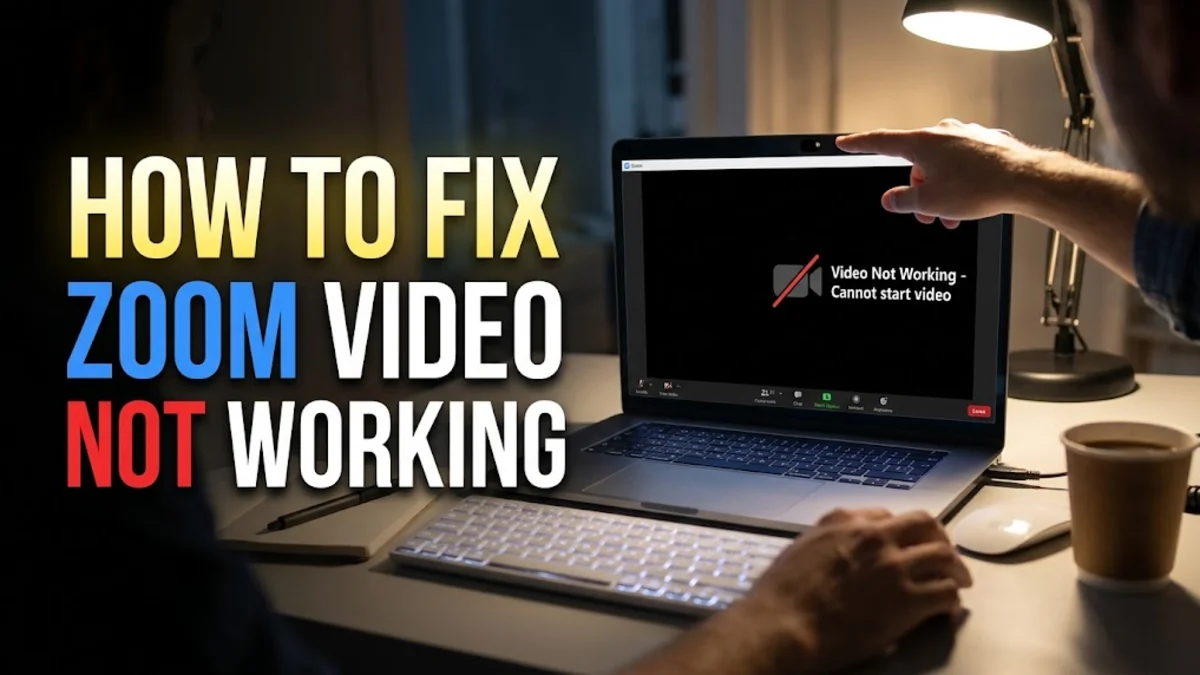
When your video fails to show up during a meeting, it can instantly disrupt your workflow and cause unnecessary stress. Usually, Zoom video issues happen due to incorrect camera settings, conflicting background applications, or disabled operating system permissions.
This troubleshooting guide walks you through the most effective methods to diagnose and resolve camera problems on Zoom, helping you get your video back online in just a few minutes.
Check Physical Connections and Privacy Shutters
Before diving into software settings, you should always rule out physical hardware issues. Many modern webcams and laptops come equipped with manual privacy shutters or physical kill switches that block the camera lens entirely. Make sure your physical lens cover is open and that any external USB webcam is securely plugged into a working port on your computer.
If you are using an external USB camera, unplug it and plug it back in, preferably into a different USB port. Avoid using unpowered USB hubs, as they may not supply enough power for the camera sensor to function properly. Once reconnected, check if an LED indicator light next to your camera lens turns on, which usually indicates that the hardware is receiving power and active.
Verify Camera Selection in Zoom Settings
A very common reason for a missing video feed is that Zoom is trying to use the wrong camera device, or your camera is disabled by default when joining meetings. To fix this, open your Zoom desktop client, click on your profile picture in the top-right corner, and select Settings > Video. Look at the camera drop-down menu and ensure your correct webcam is selected instead of a virtual camera or a disconnected device.
Additionally, review your meeting join preferences in the same menu. Uncheck the box that says Turn off my video when joining meetings if you prefer your video to start automatically. You can also click the preview window in this settings menu to test whether your camera feed appears properly before entering your next live call.
Close Conflicting Background Applications
Your computer camera can generally only be used by one application at a time. If another program like FaceTime, Skype, Microsoft Teams, or a browser tab is currently using your webcam, Zoom will not be able to access the feed, resulting in a black screen or an error message. Close all other video-conferencing software completely before launching Zoom to prevent hardware conflicts.
On Windows, you can press Ctrl + Shift + Esc to open the Task Manager, check for any background apps that might be utilizing your camera, and end their tasks. On macOS, check your Mac menu bar or use the Force Quit menu by pressing Command + Option + Escape to shut down competing applications.
Check Operating System Camera Permissions
Modern operating systems like Windows 11 and macOS maintain strict privacy controls that require explicit permission before any app can access your hardware. If your operating system is blocking Zoom from accessing your webcam, your video will not work inside the app regardless of your in-app settings. You must verify these permissions directly within your system settings.
On Windows, go to Settings > Privacy & security > Camera and ensure that Let apps access your camera is turned on, and that Zoom is toggled on in the app list below. On macOS, open System Settings > Privacy & Security > Camera and make sure the switch next to Zoom is enabled.
Update Graphics Drivers and the Zoom App
Outdated graphics drivers or an obsolete Zoom desktop application can cause video rendering failures and unexpected crashes. Hardware acceleration and video decoding rely heavily on up-to-date graphics drivers. Visit your computer manufacturer's website or use Windows Update to ensure your display drivers are running the latest version available.
To update Zoom, click your profile picture in the desktop client and select Check for Updates. Installing the latest version ensures that you have all bug fixes, security patches, and compatibility updates required for stable video performance across all supported operating systems.
Test Your Camera in Another App or Browser
If you have gone through all the steps above and your video still fails to work, you need to determine whether the issue is isolated to the Zoom desktop application or if your webcam is failing system-wide. Open a built-in application such as the Camera app on Windows or Photo Booth on macOS to see if the camera sensor responds normally.
Alternatively, you can open Zoom in a web browser like Google Chrome or Microsoft Edge and join a test meeting via the web client. If the camera works fine in the browser or built-in app, but not in the desktop application, consider uninstalling and reinstalling the Zoom desktop client to clear out corrupted cache files.
The bottom line
Troubleshooting Zoom video issues is usually straightforward once you systematically check your physical hardware, application settings, and operating system permissions. By following these structured steps, you can quickly identify the root cause and get your camera working smoothly for your next virtual meeting.
Frequently asked questions
Why does my Zoom video show a black screen?
A black screen usually happens when another application is currently using your webcam, your physical privacy shutter is closed, or the wrong camera is selected in your Zoom video settings.
How do I test my camera before a Zoom meeting?
You can test your camera by going to Zoom Settings > Video, where a live preview of your webcam feed will display automatically if your hardware and permissions are correctly configured.
Can I use Zoom without giving camera permission in Windows?
No, your operating system must grant permission for Zoom to access your webcam. If camera access is blocked in your system privacy settings, your video will not transmit.
What should I do if my webcam light is on but Zoom shows no video?
If your webcam indicator light is active, it means the hardware is powered on and in use. This typically indicates that another app is holding the camera feed or Zoom is pointing to a virtual background device.
Does updating the Zoom app fix video glitches?
Yes, updating the Zoom desktop client ensures you have the latest bug fixes and compatibility improvements, which frequently resolve video rendering and driver conflict errors.