Why Is My Password Manager in German and How to Fix It
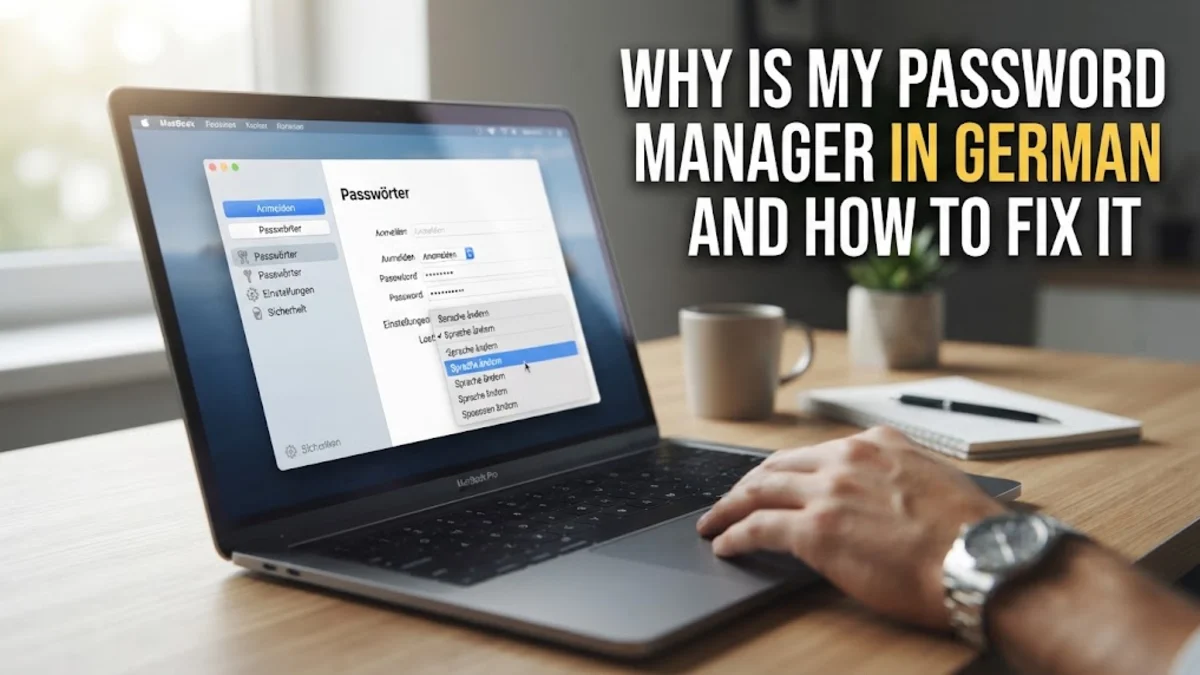
Your password manager is likely displaying in German because of a localized browser language preference, an active VPN server connected to Germany, or an incorrect account display language setting. When your web browser sends a language header indicating German support or your IP address originates from a German location, cloud-based password vaults automatically adjust their display language to match.
This issue frequently affects popular tools like Google Password Manager, Bitwarden, 1Password, Dashlane, and NordPass on Windows, macOS, Android, and iOS. Fortunately, you can quickly restore your password manager to English by adjusting your browser language hierarchy, clearing stale localization cookies, or changing your vault profile preferences.
Common Reasons Password Managers Switch to German
Password managers rely on multiple environmental signals to decide which language to display in their browser extensions, desktop apps, and web vaults. When an app unexpectedly renders interface elements in German (Deutsch), it is almost always responding to one of four specific triggers in your system environment.
Understanding these underlying triggers makes troubleshooting much faster and prevents the problem from recurring across your devices:
- Browser Accept-Language Headers: Browsers send an HTTP header specifying preferred languages to websites and extensions. If German (
deorde-DE) appears above English in your browser settings list, web vaults prioritize German rendering. - Active VPN Connection: Connecting your VPN to a server in Germany, Austria, or Switzerland assigns you a German IP address. Cloud vaults like Bitwarden, Dashlane, or 1Password detect this geographic location and default to localized German pages.
- Accidental Auto-Translation: Browser translation tools in Google Chrome or Microsoft Edge can automatically translate extension popups or web vault pages if the browser misidentifies localized UI strings.
- Account-Level Preferences: Profile settings saved within your password manager account (such as Google Account preferences or Bitwarden Web Vault settings) may have been set to German during initial setup or account sync.
Update Language Settings in Your Password Manager Vault
Many password managers maintain an independent language setting stored in your cloud profile settings. Even if your browser operating system is configured in English, an internal vault override can force the interface to display in German.
To fix the display language inside your specific password manager account, follow the platform-specific instructions below:
Bitwarden Web Vault and Extension
Log in to your vault in a web browser. Navigate to Settings > Account Settings > Options. Under the Language dropdown menu, change the selection from Deutsch or Default back to English (US) or English (UK), then click Save.
Google Password Manager
Google Password Manager derives its display language directly from your main Google Account. Visit myaccount.google.com/language in your browser. Look for Preferred Language. If German is listed, click the pencil edit icon, select English, choose your preferred region, and click Select. Delete German from your Other Languages list if it appears there.
1Password Web App
Sign in to your account on 1Password.com. Click your account name in the top right corner and select My Profile. Choose Edit Profile, change the Language option to English, and save your changes. Sign out and log back in to refresh the vault state.
Adjust Your Web Browser Preferred Languages
Browser extensions and web-based password vaults frequently query your web browser language order rather than your desktop operating system settings. If German was added to your browser during a software installation or language pack update, extensions may adopt German automatically.
Adjust your primary browser language preferences depending on the web browser you use:
Google Chrome
- Click the three vertical dots menu in the top right corner and select Settings.
- In the left sidebar, click Languages.
- Under Preferred languages, check if German (Deutsch) is listed at the top.
- Click the three dots next to English (United States) or English (United Kingdom) and choose Move to the top.
- If German is present, click the three dots next to German and select Remove.
- Relaunch Google Chrome by clicking Relaunch next to your language settings.
Microsoft Edge
- Click the three dots menu icon and select Settings.
- Select Languages from the left sidebar menu.
- If German is listed above English, click the three dots next to English and select Move to the top.
- Ensure the toggle for Offer to translate pages that are not in a language I read is properly configured.
- Restart Microsoft Edge completely.
Disconnect German VPN Locations and Fix Geolocation
Virtual Private Networks (VPNs) alter your visible IP address, which causes web applications to detect your location as Germany. When you visit a password manager web vault while connected to a Frankfurt, Munich, or Berlin server, the web server serves localized German code files to your browser.
To verify whether your VPN is causing your password manager to load in German, temporarily turn off your VPN client. Disconnect the VPN connection, close your password manager browser tab, and reopen your password manager vault. If the page loads in English immediately, your VPN server location was the source of the language change.
If you need to keep your VPN active for security or remote work, open your VPN application settings and change your server destination to your local country, such as the United States, Canada, the United Kingdom, or Australia. Alternatively, enable Split Tunneling within your VPN software and exclude your password manager application or browser executable from the VPN tunnel.
Turn Off Built-In Browser Auto-Translation for Extensions
Modern web browsers like Google Chrome, Microsoft Edge, and Brave include machine translation tools that automatically detect non-native text. Sometimes, these translation engines misinterpret English text or extension code elements and automatically translate your password manager UI into German.
If your password manager extension popup appears in English for a fraction of a second before suddenly shifting into German, an auto-translate feature is actively converting the interface.
To disable auto-translation in Google Chrome, navigate to Settings > Languages > Google Translate. Toggle off Automatically translate these languages or remove German from the target language list. In Microsoft Edge, go to Settings > Languages and turn off Offer to translate pages that are not in a language I read for your password vault domain. You can also right-click anywhere inside the password manager web page, click Translate to English, and choose Never translate this site from the options menu.
Clear Local Storage, Cookies, and Reinstall the Extension
Password manager browser extensions save localization preferences, cached UI strings, and temporary tokens in your browser local storage. Even after correcting your account language and browser preferences, stale German cache files can remain stored locally.
Clearing your browser cache and reinstalling the extension ensures a completely clean installation configured to your newly updated language settings:
- Right-click your password manager extension icon in your browser toolbar and click Remove from Chrome (or Remove Extension).
- Open your browser settings and clear site data. In Chrome or Edge, press Ctrl + Shift + Delete (or Cmd + Shift + Delete on macOS).
- Select Cached images and files and Cookies and other site data, set the time range to All time, and click Clear data.
- Close and re-open your browser.
- Visit the official browser web store or developer website to download and install the password manager extension fresh.
- Log back into your account to access your vault in English.
Verify System Region and Input Language Settings
Desktop password manager applications, such as the standalone 1Password, Bitwarden, or Dashlane desktop apps for Windows and macOS, read system locale settings directly from your operating system. If you recently added a German keyboard layout or adjusted system regional formats, the application may default to German UI strings.
Check your desktop system language configuration to ensure proper app behavior:
Windows 11
Open Settings by pressing Win + I. Navigate to Time & language > Language & region. Ensure Windows display language is set to English (United States) or your preferred English dialect. Under Preferred languages, make sure English is positioned at the top of the list above any secondary input languages.
macOS
Open System Settings from the Apple menu. Click General in the sidebar, then choose Language & Region. Under Preferred Languages, confirm that English is listed at the top. If German is present in the list, drag English above it or remove German by selecting it and clicking the minus icon. Restart your Mac to apply system-wide locale updates.
The bottom line
When a password manager displays in German, the issue is almost always triggered by browser language hierarchy, VPN IP geolocation, account localization preferences, or cached translation data. By updating your browser language order, setting your vault profile to English, and clearing stale extension cache, you can quickly fix the language display.
Always make sure to download password manager extensions and updates directly from official developer sites or web stores. Maintaining updated browser and security app configurations ensures your credentials stay protected without unexpected language switches.
Frequently asked questions
Why did my password manager suddenly switch to German without me changing settings?
It usually happens after a browser update, an automatic translation trigger, connecting to a European VPN server, or when a secondary language setting in your browser moves to top priority position.
Will changing the language settings in my password manager affect my stored passwords?
No. Changing the language only alters the user interface labels and buttons. Your stored usernames, passwords, passkeys, and encrypted vault data remain completely safe and unchanged.
How do I fix Google Password Manager showing in German on Android or iPhone?
On mobile devices, Google Password Manager uses your Google Account preferred language or your mobile OS display language. Go to myaccount.google.com/language on your mobile browser, select English as your preferred language, and restart your device or Google app.
Why is my desktop password manager app in German while my browser extension is in English?
Desktop apps read system regional formats and installed OS display languages, whereas browser extensions follow browser Accept-Language headers. Updating your system language preferences in Windows or macOS fixes the desktop app language.
Can using a VPN in Germany permanently lock my password vault in German?
No. VPNs only affect language detection dynamically while connected. Once you disconnect or switch to a local server and clear your browser cookies, your password vault will revert to English.