Why Is My Gmail Queued and How to Fix It
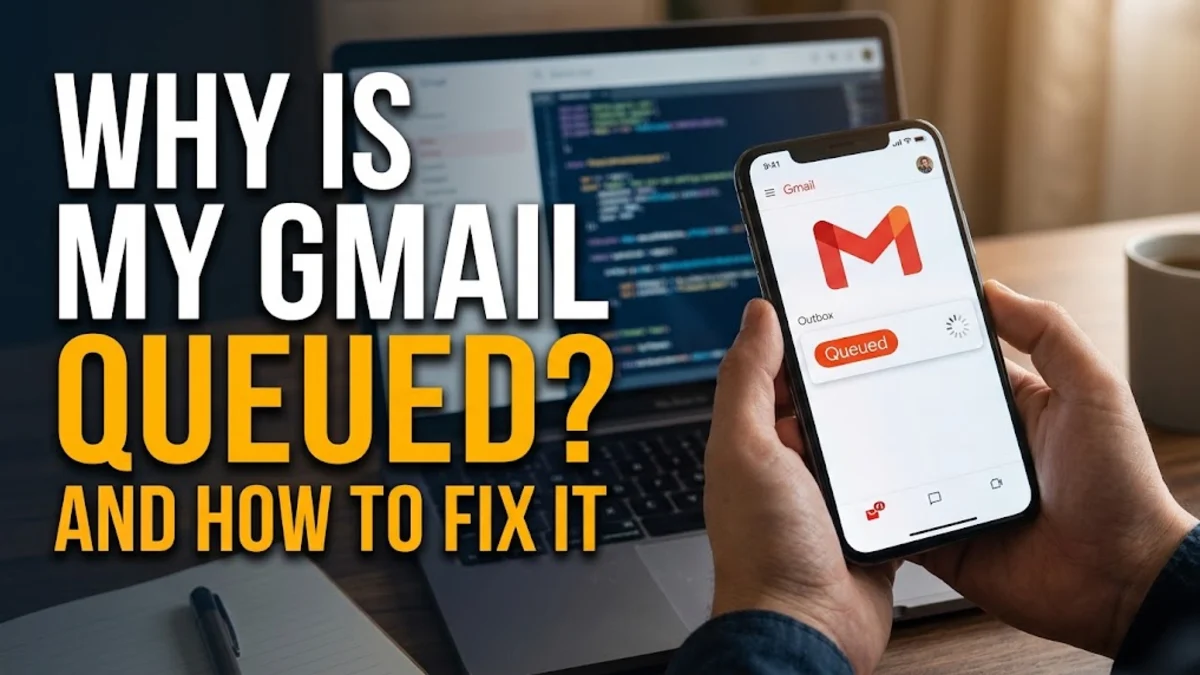
When your Gmail messages get stuck with a 'Queued' status, it usually means your device is struggling to establish a stable connection with Google servers or a large attachment is blocking transmission. This frustrating delay prevents your emails from leaving the outbox.
Understanding Why Gmail Messages Get Queued
When you see the word queued next to an outgoing message in your Gmail app, your email has not actually been sent yet. Instead, it is sitting locally on your device waiting for the right conditions to upload. This common hiccup typically happens due to sudden network drops, restricted background data permissions, corrupted app cache files, or attachments that exceed server size limits.
Diagnosing the root cause starts with checking whether your internet connection can handle large uploads rather than just basic web browsing. In many cases, switching from a weak cellular data network to a stable Wi-Fi connection resolves the queue instantly. If the problem persists even with strong internet, the issue usually points to software settings or app-level glitches that require targeted troubleshooting.
Check and Reset Your Network Connection
An unstable internet connection is the number one reason emails get stuck in your Gmail outbox. Packet loss or temporary drops in signal quality can prevent the Gmail app from completing the handshake required to upload your message data to Google's servers. To rule this out, open a web browser on your device and load a heavy website to verify your actual connection speed.
If your connection is lagging, try toggling Airplane mode on and off to force your device to reconnect to the nearest cell tower or router. Go to Settings > Network & internet and ensure Wi-Fi or mobile data is operating normally. Restarting your home router or switching to a completely different Wi-Fi network often clears out lingering routing issues that keep your emails queued.
Clear Gmail App Cache and Temporary Files
Over time, accumulated cache files within the Gmail app can become corrupted, leading to sync errors and queued messages that refuse to send. Clearing these temporary files forces the application to rebuild a clean state without deleting your important emails, drafts, or account login credentials.
To clear your cache on Android devices, navigate to Settings > Apps > Gmail > Storage & cache, and then tap Clear Cache. On iOS devices, you may need to offload or completely reinstall the app if clearing internal cache isn't accessible directly. After clearing the cache, restart your phone and check your Gmail outbox to see if the queued message begins uploading.
Check for Large Attachments and File Limits
Gmail enforces a strict 25 MB limit on total email size, including all attached photos, videos, and documents. If your outgoing message contains high-resolution media that exceeds this threshold, the app will queue the email indefinitely because Google servers will reject the incoming upload.
If you suspect a large file is causing the jam, tap on the queued email, remove the heavy attachment, and check if it sends immediately. For files larger than 25 MB, the best workaround is to upload your document to Google Drive and instead insert a sharing link into your email body. This bypasses attachment restrictions entirely and ensures your message leaves the outbox right away.
Enable Background Data and Disable Battery Saver
Modern operating systems use aggressive power-saving features to shut down background tasks and preserve battery life. If your phone's battery saver mode is active, it may restrict Gmail from syncing or uploading messages while the app is minimized or closed, leaving your emails permanently queued.
To fix this, go to Settings > Battery > Battery Saver and make sure it is turned off. Next, navigate to Settings > Apps > Gmail > Mobile data & Wi-Fi and verify that Background data is enabled. Allowing unrestricted data usage ensures Gmail can process outgoing mail smoothly even when you are multitasking in other applications.
Update or Reinstall the Gmail App
Running an outdated version of the Gmail app can introduce compatibility bugs with newer operating system updates, resulting in persistent outbox queue errors. Developers frequently patch synchronization bugs in regular app updates, making software maintenance a crucial troubleshooting step.
Open your device's app store, search for Gmail, and tap Update if a newer version is available. If your app is already up to date but still malfunctioning, uninstall Gmail completely, restart your device, and download a fresh copy from the official app store. This eliminates any deeply embedded software corruption causing your emails to stall.
The bottom line
Fixing a queued Gmail message is usually a matter of restoring a stable internet connection, adjusting background data restrictions, or removing oversized attachments. By following these practical troubleshooting steps, you can clear your outbox and ensure your important emails are delivered without further delay.
Frequently asked questions
Why does Gmail say queued instead of sending?
A queued status means the email is saved on your device but cannot upload to Google servers due to a weak internet connection, app cache corruption, background data restrictions, or an attachment that exceeds the 25 MB size limit.
How do I force a queued email to send in Gmail?
First check your internet connection. Tap on the queued message in your outbox, verify that any attachments are under 25 MB, and try toggling your Wi-Fi or mobile data off and back on to force a reconnection.
Can battery saver mode cause Gmail messages to stay queued?
Yes. Aggressive power-saving modes often restrict background data usage and prevent apps like Gmail from uploading or syncing messages when running in the background.
What is the maximum attachment size allowed in Gmail?
Gmail allows a maximum total message size of 25 MB. For larger files, you should upload them to Google Drive and share a link instead.
Will clearing the Gmail app cache delete my emails?
No. Clearing your app cache only removes temporary files. Your emails, drafts, and account information remain safely stored on Google's cloud servers.