What Is Copilot in Windows and How to Use It
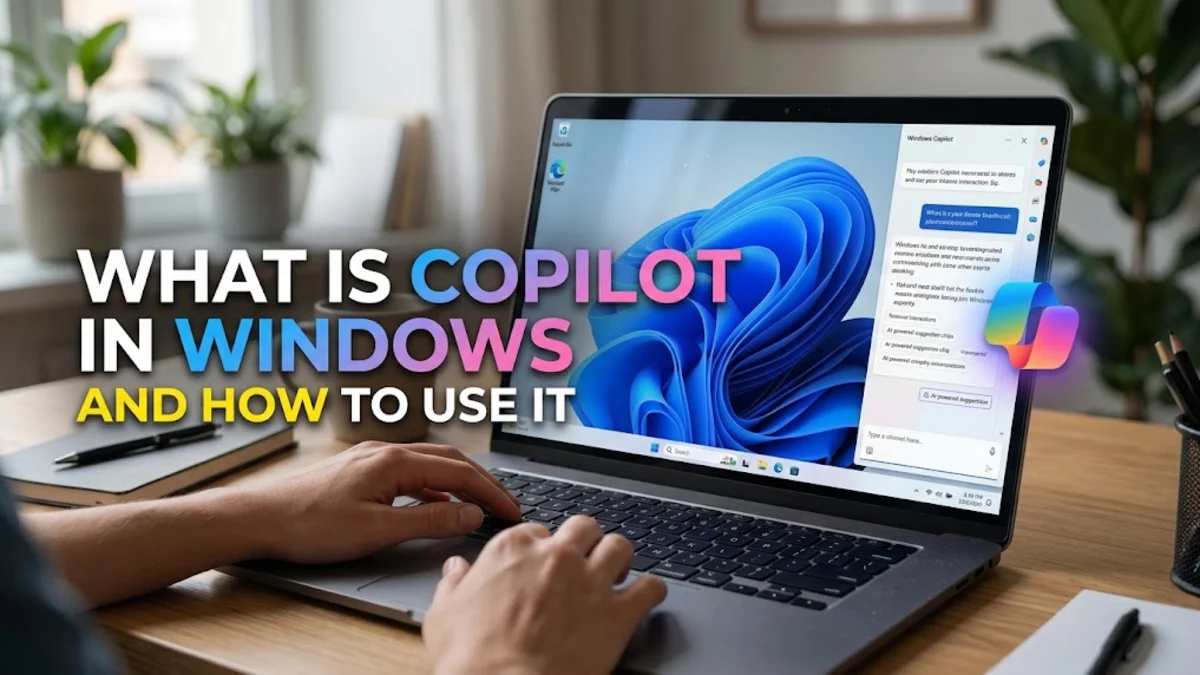
Copilot in Windows is Microsoft's centralized artificial intelligence assistant built directly into the operating system. It brings generative AI capabilities, contextual system controls, and smart productivity tools to your desktop without requiring separate browser windows.
By leveraging advanced large language models, this assistant helps you draft documents, summarize long articles, adjust system settings, and streamline complex tasks across your daily work and study routines.
Understanding Copilot in Windows and Its Core Architecture
At its core, Copilot in Windows acts as an intelligent companion layer running across the Microsoft ecosystem. Unlike traditional standalone chatbots that require you to copy and paste text between different applications, this operating system integration allows the AI to understand your current screen context. It connects directly with Windows application programming interfaces to execute commands, retrieve local files, and interact with installed software seamlessly.
The system relies on cloud-based processing powered by advanced language models while maintaining tight security guardrails managed by Microsoft. When you submit a prompt or ask the assistant to perform a task, the underlying architecture evaluates whether the request requires web-based information retrieval or local system interaction. This dual capability makes it much more versatile than standard web-based chat interfaces, bridging the gap between raw web knowledge and practical desktop automation.
How Copilot Integrates with Windows 11 Features and Apps
One of the primary benefits of having an assistant built straight into the operating system is deep application integration. You can invoke the sidebar using a simple keyboard shortcut or by clicking the dedicated taskbar icon while using apps like Microsoft Word, Notepad, or even third-party media players. The assistant can analyze open windows, extract relevant text, and help you organize your workspace efficiently.
Furthermore, Copilot connects directly with native Windows 11 settings panels. Instead of navigating through multiple nested menus to change your display brightness, toggle dark mode, or capture a screenshot, you can simply type or speak your request into the assistant prompt box. The AI translates your natural language input into system commands, saving you valuable time and simplifying routine troubleshooting tasks.
Key Productivity Use Cases for Work and Study
For professionals and students alike, Copilot serves as a powerful productivity multiplier. If you are conducting research for a lengthy report, you can ask the assistant to summarize dense PDF documents or web pages in seconds. It can also generate bullet-point outlines, draft professional emails, or translate foreign language documents while preserving your formatting choices.
Beyond writing assistance, the tool excels at brainstorming and problem-solving. You can use it to outline study schedules, explain complex mathematical concepts step by step, or write and debug computer code snippets. Because it retains context from your ongoing conversation, you can refine outputs iteratively until they match your exact requirements, acting essentially as a 24-hour virtual tutor or research assistant.
System Requirements and How to Access Copilot on Your PC
To run Copilot in Windows effectively, your computer must meet specific hardware and software benchmarks. Your system needs to be running an updated version of Windows 11 with the latest security patches installed. While many standard processors can handle the cloud-driven features, modern PCs equipped with dedicated Neural Processing Units offer enhanced local AI performance for specialized features.
Accessing the assistant is straightforward once your system is updated. You can launch the interface by pressing the Windows + C keys or by clicking the multicolored Copilot icon located on your taskbar. If the icon is missing, you can usually enable it by navigating to Settings > Personalization > Taskbar and toggling the Copilot visibility switch to the on position.
Privacy, Data Security, and Managing AI Settings
Using an AI assistant integrated deeply into your operating system naturally raises valid questions regarding data privacy and security. Microsoft handles user interactions under strict enterprise-grade compliance standards, ensuring that personal prompts and generated content are not used to train foundational AI models without explicit user consent. Your local files and personal documents remain private unless you actively upload or reference them within a chat session.
You maintain full control over your privacy preferences through the system settings menu. You can clear your chat history, manage plugin access, and restrict the assistant's ability to read screen content or interact with specific apps. Reviewing these settings periodically ensures that your AI experience aligns with your personal comfort level regarding data sharing and digital surveillance.
The bottom line
Copilot in Windows transforms your computer from a static tool into an active, intelligent collaborator. By understanding system context and streamlining everyday tasks, it helps you work smarter and faster across all your daily activities.
Frequently asked questions
Is Copilot in Windows free to use?
Yes, the standard version of Copilot in Windows is included at no additional cost for eligible Windows 11 users, though advanced enterprise or professional subscriptions offer extra features.
Can I use Copilot without an internet connection?
Most advanced features require an active internet connection because the underlying language models process requests in the cloud.
How do I open Copilot using my keyboard?
You can quickly launch the assistant by pressing the Windows + C keys on your keyboard.
Does Copilot share my personal data with third parties?
No, Microsoft operates under strict privacy guidelines and does not sell your personal data or use your private prompt history to train public models without consent.
Can I disable Copilot if I do not want to use it?
Yes, you can easily hide the taskbar icon and disable the shortcut keys through your Windows personalization settings.