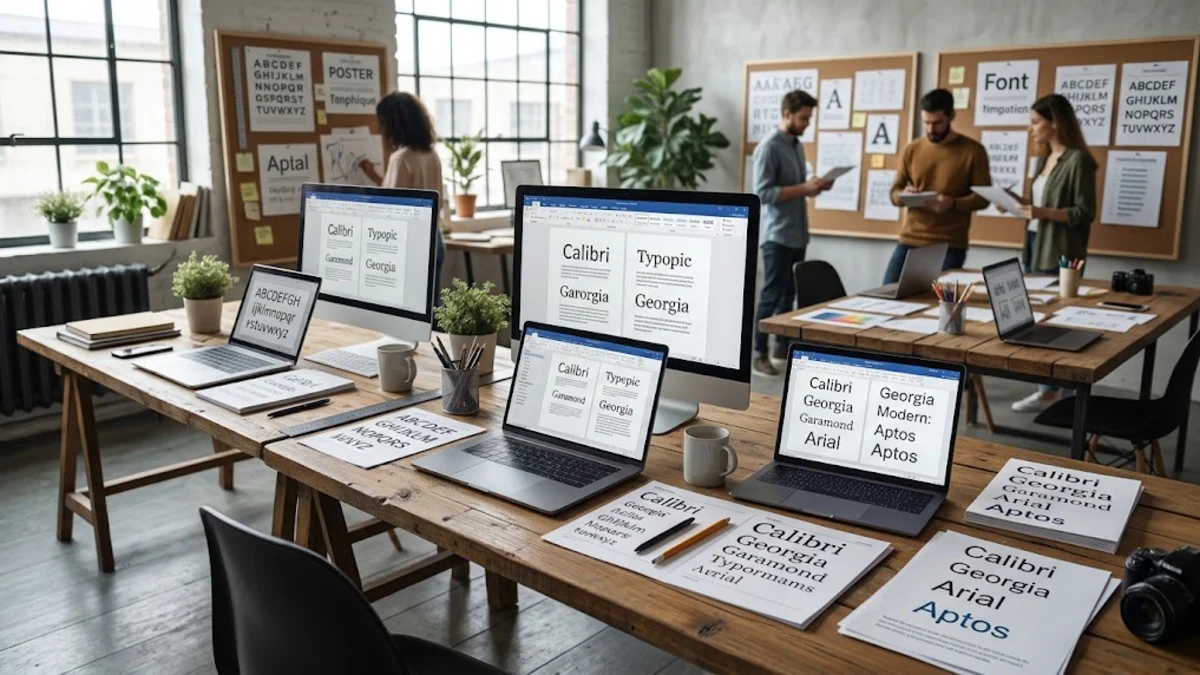
Selecting the best Microsoft Word fonts is no longer just about personal preference; it is a strategic decision that affects how your readers perceive your message, your professionalism, and your brand. In 2026, with high-resolution displays being the standard across both mobile and desktop platforms, the fonts we choose must balance aesthetic appeal with technical legibility. Whether you are drafting a formal legal contract, a creative pitch deck, or a modern resume, the typeface you select acts as the digital voice of your document. In this guide, we will break down the top-performing fonts currently available in Microsoft 365 and how to apply them effectively to your work.By 2026, Microsoft has fully transitioned its default typeface to Aptos, moving away from the long-standing Calibri era. This shift reflects a broader trend toward more geometric and versatile sans-serif designs that maintain clarity at various zoom levels. However, a single font cannot fit every scenario. Understanding the nuances between serif and sans-serif options, as well as knowing when to use modern cloud fonts versus classic system staples, is essential for any professional user. We will explore the best choices for different document types, providing you with the technical insight needed to make your text stand out for the right reasons.
The Rise of Aptos and Modern Default Fonts
As of 2026, Aptos has solidified its position as the king of default Microsoft Word fonts. Designed specifically to replace Calibri, Aptos is a sans-serif typeface that features higher stroke contrast and more distinct character shapes, which makes it significantly easier to read on 4K and 8K monitors. When you open a new document in Microsoft 365, you will notice its clean, professional look. It is built to be a 'workhorse' font, meaning it performs equally well in large headings and small body text. Unlike previous defaults, Aptos offers a variety of weights, including Narrow and Serif variants, allowing for a cohesive design language within a single document without needing to hunt for secondary typefaces.Technicians often recommend sticking with Aptos for internal memos or quick drafts because it is optimized for the Microsoft rendering engine. One common mistake users make is reverting to Calibri out of habit; however, Calibri can appear slightly dated on modern high-DPI screens due to its softer, more rounded edges. If you find Aptos too clinical, you can explore its variants by going to Home > Font and selecting the drop-down menu. Look for the 'Cloud Fonts' section, indicated by a small cloud icon next to the name. These fonts are downloaded on demand and ensure that your document looks identical on any device running a modern version of Word, provided they have an internet connection during the initial open.
Best Professional Fonts for Business Reports
For formal business reports and white papers in 2026, the goal is to project authority and reliability. While many still reach for Times New Roman, it can often feel uninspired or 'default' in a bad way. A superior alternative for modern reports is Georgia or its more contemporary cousin, Sitka. These are serif fonts designed specifically for screen readability. Sitka, in particular, is unique because it is a 'optical size' font family. This means Microsoft Word automatically adjusts the spacing and stroke thickness based on the font size you select, ensuring that a 12-point body paragraph is just as legible as a 24-point heading.Another excellent choice for professional environments is Segoe UI. This font is the backbone of the Windows interface and is designed for maximum clarity. When used in a Word document, it provides a sleek, corporate feel that is less academic than a serif font but more structured than a generic sans-serif. When formatting a report, a professional tip is to use a serif font like Sitka for the body text to facilitate long-form reading, while using a bold sans-serif like Segoe UI Black for the headings. This creates a clear visual hierarchy that helps the reader navigate complex data. You can quickly apply these styles using the Styles gallery on the Home tab to maintain consistency across thirty or forty pages.
Top Fonts for Resumes and CVs in 2026
When it comes to resumes, the best Microsoft Word fonts are those that satisfy both human recruiters and Applicant Tracking Systems (ATS). In 2026, ATS algorithms are more sophisticated than ever, but they still prefer clean, standard character paths. Roboto and Lato have emerged as the top choices for modern CVs. Roboto, originally developed by Google but widely available in Word via cloud fonts, offers a mechanical yet friendly skeleton that allows for tight line spacing without sacrificing readability. This is crucial if you are trying to fit a wealth of experience onto a single page. Lato, on the other hand, provides a more 'humanist' feel with warmer curves, which can make a resume feel more approachable.If you prefer a more traditional look for a resume in a field like law or academia, Garamond remains the gold standard. It is an elegant serif font that is significantly thinner than Times New Roman, allowing you to fit more text on a page without it looking cluttered. However, be careful with font size; Garamond runs small, so you may need to set it to 11.5 or 12 points to ensure it is readable. A common technician's trick for resumes is to use Ctrl + D to open the advanced Font dialog and slightly increase the character spacing (kerning) by 0.1 or 0.2 points. This subtle change can make a dense resume feel much more airy and professional without the recruiter being able to pinpoint exactly why.
Serif vs Sans-Serif: Making the Right Choice
Understanding the technical difference between serif and sans-serif fonts is key to choosing the right one for your specific project. Serif fonts, like Book Antiqua and Cambria, have small decorative 'feet' at the ends of their character strokes. Historically, these serifs were thought to lead the eye along the line of text, making them the preferred choice for printed books and long essays. In 2026, serif fonts are often used in Word to convey tradition, elegance, or intellectual depth. If your document is intended to be printed and read physically, a serif font is usually the safest bet for the main body of the text.Sans-serif fonts, such as Arial, Verdana, and the newer Franklin Gothic, lack these decorative strokes. They are generally seen as more modern, clean, and efficient. Because they have simpler shapes, they tend to perform better on lower-resolution screens or in very small sizes, such as footnotes or captions. In modern document design, a 'mixed' approach is frequently the most effective.
| Document Type | Recommended Serif | Recommended Sans-Serif |
|---|
| Formal Letter | Garamond | Aptos |
| Creative Portfolio | Playfair Display | Montserrat |
| Technical Manual | Cambria | Consolas |
| Presentation Notes | Georgia | Verdana |
By using a table like the one above, you can see how pairing a serif for the body and a sans-serif for the headers creates a balanced look.
Specialty Fonts for Titles and Signatures
Sometimes a document needs a bit of personality, particularly in titles, cover pages, or digital signatures. While you should avoid 'gimmick' fonts like Comic Sans or Jokerman in a professional setting, 2026 offers several sophisticated decorative options. For high-impact titles, fonts like Montserrat or Bebas Neue (available through Microsoft's expanded cloud library) provide a bold, cinematic feel. These fonts are best used sparingly; if you use a heavy display font for more than a few words, it becomes exhausting for the reader. Always reserve these for the main title of a proposal or the name on a letterhead.For digital signatures or 'handwritten' notes within a document, Lucida Handwriting or Brush Script MT are the standard system inclusions, but they can look a bit dated. Instead, look for 'Bahnschrift' which, while not a script font, offers a highly customizable 'variable' weight system. You can adjust the boldness of Bahnschrift on a granular level by clicking Font > Advanced. This allows you to create a unique, stylized look for your name or branding that feels custom-made. Remember, if you use a non-standard font that is not a Cloud Font, you must embed it before sending the file. Go to File > Options > Save and check the box for Embed fonts in the file. This ensures the recipient sees exactly what you designed, even if they don't have that specific font installed.
Formatting Tips for Maximum Readability
Choosing the best Microsoft Word fonts is only half the battle; how you format them is just as important. In 2026, the standard for professional documents has moved toward slightly larger line spacing and wider margins to accommodate digital reading habits. A line spacing of 1.15 or 1.2 is generally preferred over the old 'Single' spacing, as it prevents lines of text from blurring together. You can adjust this quickly by selecting your text and using the Ctrl + 2 shortcut for double spacing or Ctrl + 5 for 1.5 spacing, though 1.15 usually requires the Paragraph settings menu.Another technical detail to watch is 'Color Contrast.' In 2026, many users view documents in Dark Mode. Fonts with very thin strokes, like some versions of Helvetica or light weights of Segoe UI, can 'wash out' or appear blurry against a dark background. To prevent this, aim for 'Regular' or 'Medium' weights rather than 'Light' or 'Thin' for your body text. Additionally, avoid justified alignment (where the text is flush on both left and right sides) unless you are working on a multi-column newsletter. Left-aligned text, also known as 'ragged right,' is significantly easier for the human eye to track, especially for readers with dyslexia or visual impairments. By combining a top-tier font like Aptos or Georgia with these formatting principles, you ensure your document is accessible to every reader.
Frequently asked questions
What is the default font in Microsoft Word 2026?
The default font is Aptos. It replaced Calibri as the primary typeface for Microsoft 365 applications to provide better legibility on high-resolution screens.
Is Times New Roman still professional in 2026?
While still acceptable in legal and academic circles, Times New Roman is often considered outdated for general business. Modern alternatives like Georgia or Sitka are preferred for better screen readability.
How do I get more fonts for Microsoft Word?
You can access hundreds of additional fonts through the 'Cloud Fonts' feature in the font drop-down menu. Look for the cloud icon; clicking these will automatically download and install them for use in your document.
Which font is best for an ATS-friendly resume?
Sans-serif fonts like Roboto, Lato, and Arial are generally best for ATS. They have clean lines that are easily scanned by software while remaining professional for human recruiters.
How do I make my font look better in a PDF?
To ensure your fonts look crisp in a PDF, go to File > Options > Save and select 'Embed fonts in the file.' This prevents the PDF from substituting your chosen font with a generic one on the recipient's computer.