How to Fix AirPods Making Static or Cracking Noise
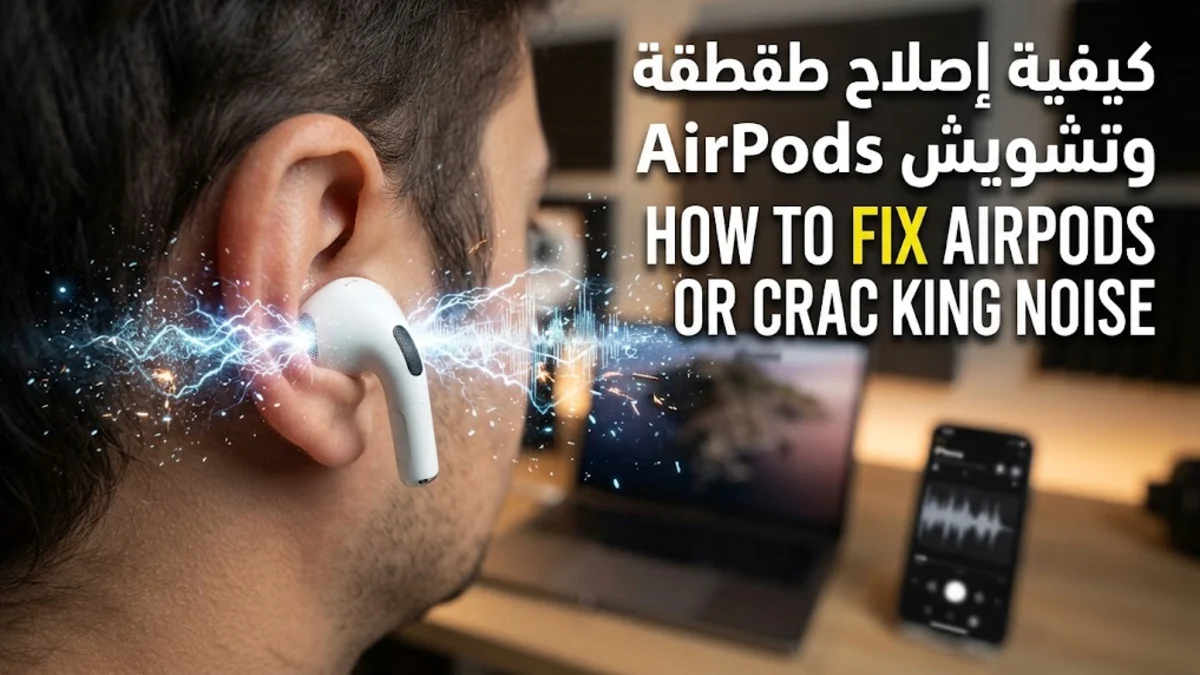
If you notice a strange static, crackling, or buzzing sound coming from your earbuds, you are likely wondering why your AirPods are making noise. This annoying audio glitch can ruin your music, podcasts, and calls, but it is usually caused by firmware bugs, Bluetooth interference, or physical debris.
In this guide, you will learn the exact troubleshooting steps to resolve these audio issues quickly, from basic cleaning techniques to resetting your connection.
Understanding Why AirPods Make Static Noises
Before diving into fixes, it helps to understand why AirPods start making crackling, popping, or whining sounds during normal playback. Most audio distortion issues stem from a combination of software synchronization errors between your Apple device and the internal Apple H1 or H2 chips, or from acoustic feedback loops. When tiny dust particles, sweat, or earwax obstruct the sensitive outward and inward-facing microphones used for Active Noise Cancellation, the audio processing algorithms miscalculate ambient sound waves. This miscalculation creates an audio loop that manifests directly in your ear as high-pitched static or a buzzing sound.
Another frequent contributor is low-level hardware degradation or physical impact, such as accidentally dropping an earbud onto a hard surface. When the internal acoustic mesh or speaker driver gets slightly dislodged, any movement can cause mechanical friction, generating crackling whenever bass frequencies play. Identifying whether the noise occurs continuously or only when moving helps pinpoint whether the root cause is a software glitch, wireless interference, or a physical hardware fault.
Clean Your AirPods and Grilles Thoroughly
Physical buildup is one of the primary reasons wireless earbuds start malfunctioning or producing muffled static. Over weeks of daily wear, microscopic layers of earwax, lint from pockets, and dried sweat accumulate on the delicate metal mesh grilles. To address this safely without pushing debris further inside, technicians recommend using a clean, dry, soft-bristled toothbrush to gently sweep away loose particles across the speaker mesh and microphone openings.
For stubborn wax, a small ball of clean adhesive putty, often called Blu-Tack, can be gently pressed against the grille and lifted away to pull out trapped debris cleanly. Never insert sharp metallic objects, sewing needles, or compressed air canisters into your AirPods, as high-pressure air or metal punctures will permanently ruin the internal acoustic seals. Additionally, wipe down the metallic charging contacts located at the bottom of the stem using a lint-free microfiber cloth slightly dampened with isopropyl alcohol, ensuring they are completely dry before placing them back into the charging case to maintain stable power and data transmission.
Reset Your AirPods to Factory Settings
When physical cleaning does not eliminate the static noise, corrupt firmware states stored within the AirPods' memory are often to blame. Performing a complete factory reset forces the earbuds to wipe their current connection profiles, reinstall fresh firmware sequences, and re-establish a clean handshake with your iCloud account. To initiate this process, place both of your AirPods inside their charging case, snap the lid shut, and wait approximately 30 seconds for them to enter a low-power sleep state.
Next, grab your iPhone and navigate to Settings > Bluetooth, locate your AirPods in the list of connected accessories, tap the blue info icon beside their name, and select Forget This Device. With the charging case lid open, locate the small physical setup button on the back of the case. Press and hold that button continuously for roughly 15 seconds until the status indicator light flashes amber and then transitions to a steady blinking white light. Bring your AirPods close to your iPhone while they are in pairing mode, open the lid, and follow the on-screen configuration animation to complete the fresh setup.
Adjust Noise Cancellation and Transparency Modes
AirPods Pro and AirPods Max models depend heavily on sophisticated multi-microphone arrays to power features like Active Noise Cancellation and Transparency mode. When these external microphones become partially obstructed or suffer from internal software calibration errors, you may hear a wind-like howling sound, sudden pops, or sustained buzzing bursts. Testing how the earbuds behave across different listening modes is a reliable diagnostic step to isolate the exact source of failure.
You can quickly cycle through these listening profiles by opening the Control Center on your iPhone via a downward swipe from the top-right corner, pressing and holding the volume control slider, and toggling between Noise Cancellation, Transparency, and Off. If the static noise vanishes entirely when you select Off, your hardware microphones are likely struggling with debris interference or internal calibration drift. In some cases, units exhibiting persistent static exclusively in noise control modes may qualify for hardware diagnostic evaluation under Apple's authorized service programs.
Check for Environmental and Bluetooth Interference
Wireless audio devices operate within crowded radio frequency spectrums, and environmental interference can severely disrupt the data stream flowing between your iPhone and your earbuds. Dense concrete walls, active microwave ovens, heavy industrial machinery, and congested 2.4GHz Wi-Fi networks in densely populated apartment buildings can easily overwhelm the Bluetooth connection, dropping audio packets and translating them into harsh digital static.
To verify if your environment is causing the issue, step away from heavy electronic equipment or move to an open area outdoors. Furthermore, temporarily disable Bluetooth on secondary nearby devices like iPads, MacBooks, or Windows laptops that might be actively trying to claim an audio connection with your AirPods simultaneously. If the crackling persists across multiple independent source devices and locations, the internal Bluetooth transmitter module inside your specific AirPods pair is likely experiencing permanent hardware degradation.
The bottom line
Resolving noisy AirPods requires a systematic approach, starting with safe physical cleaning and progressing through software resets and environmental checks. By working through these practical troubleshooting steps, you can eliminate annoying static and restore crisp audio performance.
Frequently asked questions
Why are my AirPods making static only when I move around?
Physical movement can cause internal components or earwax buildup to shift against the microphone mesh, triggering acoustic feedback loops and crackling sounds in Active Noise Cancellation mode.
Can I fix a blown AirPods speaker driver myself?
No, AirPods are tightly sealed electronic devices that cannot be disassembled without destroying the outer shell. If a speaker driver is physically blown, you must contact Apple Support for hardware replacement options.
Does Apple replace noisy AirPods under warranty?
Yes, if your AirPods are covered by the standard one-year limited warranty or an active AppleCare+ plan and suffer from documented manufacturing defects or audio component failure, Apple typically replaces them at no cost.
Why is only one of my AirPods making a buzzing sound?
A single noisy earbud usually points to localized debris clogging that specific microphone grille, partial water damage inside that individual unit, or battery degradation isolated to that specific hardware component.