How to Fix Microsoft Word Not Working on a Laptop
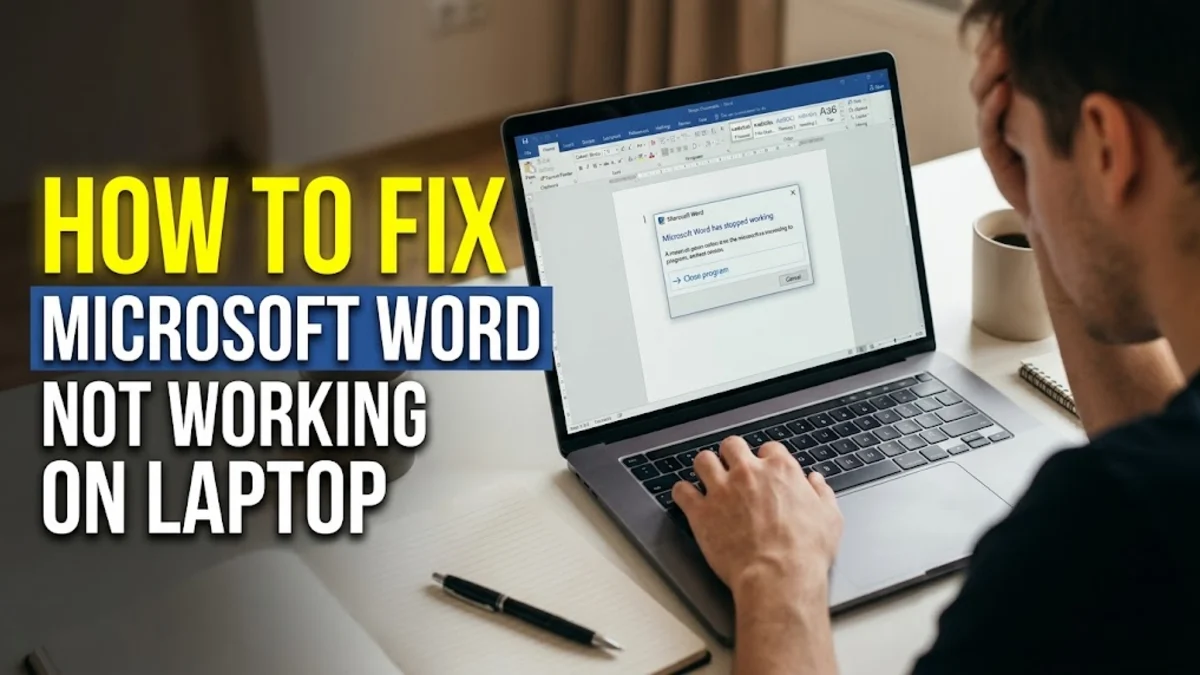
When Microsoft Word refuses to open, freezes on the startup splash screen, or crashes while loading a critical document, it halts your entire workflow. This issue is common on Windows laptops and typically stems from conflicting third-party add-ins, a corrupted default template, background process hangs, or outdated software components within Microsoft 365.
Fixing Word does not require a full system wipe or expensive technical assistance. By systematically troubleshooting the root cause—starting with quick process terminations and progressing to Safe Mode diagnostics and built-in Office repair utilities—you can get Microsoft Word functioning smoothly again without losing your saved documents.
Why Microsoft Word Stops Working on Laptops
Understanding why Microsoft Word stops responding helps you choose the correct fix without wasting time. In most laptop environments, Word crashes or fails to launch due to resource contention or damaged application configuration files. If your laptop went to sleep while Word was autosaving, or if an unexpected battery shutdown interrupted disk write operations, key configuration files can become unreadable.
The most common culprits behind Word failures include:
- Corrupted add-ins: Third-party plugins for bibliography managers (like Zotero or EndNote), PDF converters, or grammar checkers often fail to initialize properly after Office updates.
- Damaged Normal.dotm template: Word relies on this global template for default margins, styles, and macros. If this file corrupts, Word will crash immediately upon launching.
- Lingering background processes: A previous Word session may still be hanging in the system memory, preventing a new instance from acquiring file locks.
- Antivirus or permission locks: Overly aggressive security software can block Word from writing temporary cache files to your laptop's local drive.
Step 1: End Background Word Processes and Restart
Before tweaking system files or reinstalling software, ensure that an unresponsive hidden instance of Word is not blocking the application. When Word closes unexpectedly, its background process (WINWORD.EXE) frequently remains active in memory. Attempting to launch Word while a ghost process holds access locks will cause the app to hang indefinitely on the loading screen.
To clear stuck processes completely:
- Press Ctrl + Shift + Esc on your keyboard to open the Task Manager.
- Ensure you are on the Processes tab, then scroll down to the Apps and Background processes sections.
- Look for any entry labeled Microsoft Word or WINWORD.EXE.
- Right-click the entry and select End task. Repeat this for any duplicate instances you see.
- Restart your laptop by navigating to Start > Power > Restart to flush volatile system cache.
After rebooting, launch Word directly from the Start menu rather than double-clicking a specific document. If Word opens to the home screen normally, the problem was simply a hung process.
Step 2: Launch Word in Safe Mode to Isolate Faulty Add-ins
If terminating processes does not resolve the issue, third-party add-ins are the most probable cause. Running Microsoft Word in Safe Mode launches the application in a stripped-down state with all plugins, custom templates, and toolbar customizations bypassed. If Word launches instantly in Safe Mode, you have confirmed that an add-in is triggering the crash.
To open Word in Safe Mode, press Win + R to summon the Run dialog box. Type winword /safe into the field and press Enter. Alternatively, hold down the Ctrl key on your keyboard and double-click the Word desktop icon, keeping the key held until a prompt asks if you want to start Word in Safe Mode. Click Yes.
Once inside Safe Mode, disable the problematic extensions by following these steps:
- Click File in the top-left corner and choose Options at the bottom of the sidebar.
- In the Word Options window, select Add-ins from the left navigation rail.
- At the bottom of the dialog, set the Manage dropdown menu to COM Add-ins and click Go.
- Clear the checkboxes next to all active add-ins, then click OK.
- Close Word completely and relaunch it normally.
If Word starts without problems, re-enable your add-ins one by one to pinpoint the exact plugin causing the conflict, then update or remove it.
Step 3: Rebuild the Corrupted Normal.dotm Template
Every time you create a blank document, Microsoft Word references a global template file named Normal.dotm. This file stores default fonts, spacing preferences, and custom macros. When Word experiences an improper shutdown or a disk write error, Normal.dotm can become damaged. A damaged template causes Word to crash before the user interface can even render.
Forcing Word to generate a fresh, factory-default template often permanently fixes startup crashes. To do this, close all instances of Office, then press Win + R to open the Run prompt. Paste the following directory path into the field and press Enter:
%appdata%\Microsoft\Templates
In the folder that opens, locate the file named Normal.dotm. Right-click the file and rename it to Normal.old. Do not delete it yet; renaming it ensures you retain a backup of any custom macros you previously configured. Once renamed, open Microsoft Word. Detecting that the default template is missing, Word will automatically construct a clean, error-free Normal.dotm file from scratch.
Step 4: Run the Microsoft Office Repair Tool
If Word continues to freeze or display license and execution errors, critical installation binaries or registry associations may be corrupted. Windows includes a built-in diagnostic and repair utility specifically for Microsoft 365 and Office suites that automatically scans program files and replaces missing or damaged components.
To execute the repair process on Windows 11:
- Right-click the Start button and select Installed apps (or navigate to Settings > Apps > Installed apps).
- Scroll through the list or use the search bar to find Microsoft 365 or your specific edition of Microsoft Office.
- Click the three dots (...) next to the installation entry and select Modify.
- When prompted by User Account Control, click Yes.
- Choose Quick Repair first. This scans local files and resolves common errors within three to five minutes without requiring an internet connection.
If Quick Repair finishes and Word still fails to run, reopen the repair menu and choose Online Repair. Online Repair performs a thorough reinstallation of the Office suite while preserving your personal settings and stored documents. Keep your laptop plugged into power and connected to reliable Wi-Fi, as this process downloads fresh application files directly from Microsoft servers.
Step 5: Disable Hardware Acceleration and Reset Word Registry Keys
Laptops with dedicated or hybrid graphics chips (such as Intel Iris paired with NVIDIA or AMD GPUs) occasionally suffer from display driver conflicts. When Word tries to leverage hardware graphics acceleration to render page layouts, it can trigger severe stuttering, white screens, or total application freezes.
If Word opens briefly before crashing, click File > Options > Advanced, scroll down to the Display section, and check the box for Disable hardware graphics acceleration. If Word will not stay open long enough to reach this menu, you can reset Word's configuration keys via the Windows Registry.
Note: Modifying the registry requires caution. Always export a backup of the key before making changes.
- Press Win + R, type
regedit, and press Enter. - Navigate to the following path:
HKEY_CURRENT_USER\Software\Microsoft\Office\16.0\Word. - Right-click the Data subkey under Word and select Rename. Change its name to Data.old.
- Close the Registry Editor and relaunch Word.
Renaming this key forces Word to rebuild its primary operational settings, resolving deep-seated configuration errors without affecting your personal documents.
The bottom line
Getting Microsoft Word running reliably on your laptop comes down to identifying whether the fault lies with background process locks, faulty third-party add-ins, a corrupted Normal.dotm template, or damaged program files. By working through these troubleshooting steps sequentially, you can eliminate software conflicts and restore full functionality. To prevent future crashes, ensure Windows 11 and Microsoft 365 updates install regularly, and keep add-ins limited to tools you actively trust and use.
Frequently asked questions
Will repairing Microsoft Word delete my saved documents?
No. Running either Quick Repair or Online Repair only inspects, replaces, and updates the core application binaries and program settings. Your local document files, OneDrive synchronized folders, and personal templates remain completely untouched.
Why does Word freeze only when opening specific documents?
If Word runs fine until you open a particular file, the document itself is likely corrupted, contains bloated embedded media, or relies on an unsupported macro. Open Word first, select Open, browse to the file, click the arrow next to the Open button, and choose Open and Repair.
What should I do if Word displays an Unlicensed Product error and locks editing?
Sign out of your account inside Word by clicking your profile name in the upper-right corner. Close all Office apps, reopen Word, and sign back in using the exact Microsoft account associated with your active Microsoft 365 subscription. Also verify your laptop's system date and time under Windows Settings, as incorrect clock settings disrupt licensing handshakes.
Can laptop battery saver mode cause Microsoft Word to crash?
Aggressive battery saver profiles can limit CPU performance and suspend background disk write tasks, causing Word to freeze during auto-recovery saves. If Word lags heavily on battery power, switch your Windows power mode to Balanced or Best Performance under Settings > System > Power & battery.