How to Stop Your Android Phone From Downloading Apps
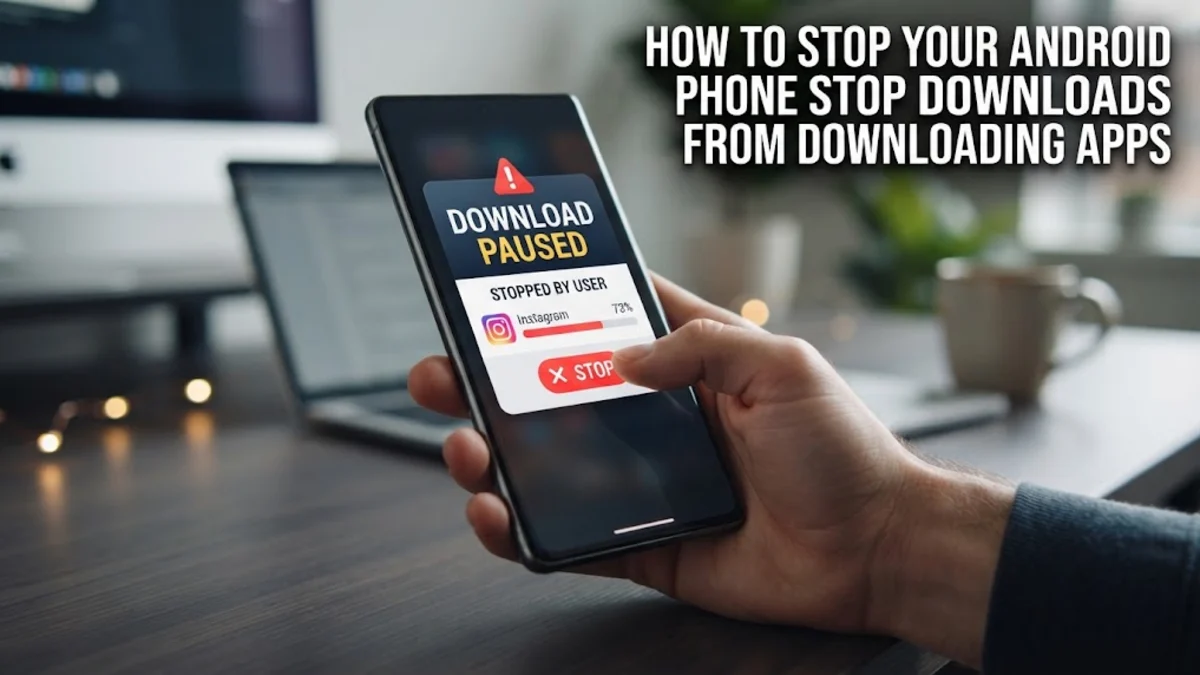
If you notice random apps appearing on your home screen or storage alerts warning you of unknown installations, your Android phone is downloading apps by itself. This frustrating behavior is usually caused by automated app updates, carrier bloatware, aggressive advertising networks, or unauthorized access to your Google account. Fixing this issue requires investigating your Google Play Store settings, checking recently installed packages, and revoking permissions for suspicious third-party apps. Follow this step-by-step troubleshooting guide to regain control of your device and secure it against unwanted downloads.
Check Google Play Store Auto-Update and Promo Settings
The most common reason for unexpected app installations on Android is the Google Play Store automatically downloading promotional content, game recommendations, or pending app updates without your active supervision. When you link a new account or restore a backup, Google often queues up previously installed apps or sponsored titles to populate your device memory. To prevent this, you need to adjust your Google Play Store preferences manually.
Open the Google Play Store app on your device, tap your profile icon in the top right corner, and select Settings > Network preferences > Auto-update apps. Change this setting to Don't auto-update apps so that no software downloads can happen in the background without your explicit confirmation. Additionally, go back to the main Settings menu under your profile, tap General > Notifications, and toggle off promotional offers to stop Google from pushing recommended apps directly to your notification shade.
Disable Carrier Bloatware and Pre-Installed App Managers
If you purchased your smartphone directly through a network provider in the United States, United Kingdom, Canada, or Australia, your device likely came pre-loaded with carrier software. Apps like AT&T App Select, T-Mobile AppManager, or Vodafone Services are notorious for silently downloading sponsored games and utility tools in the background without notifying the user. These system-level managers operate with elevated privileges, allowing them to push unwanted software updates and third-party apps directly to your home screen.
To stop these carrier managers from downloading apps, navigate to Settings > Apps > See all apps. Scroll down to locate your carrier's app manager or app select tool. Tap on the application and select Disable or Force stop. If the disable button is greyed out, check if there is an option to uninstall updates or revoke background data usage by tapping Mobile data & Wi-Fi and disabling Background data. This prevents the carrier service from connecting to remote servers to fetch new app packages.
Identify and Remove Rogue Third-Party Apps
Malicious or poorly coded third-party applications downloaded from outside the official Google Play Store often use hidden background services to download additional adware or secondary apps. These rogue applications typically disguise themselves as simple flashlights, QR code scanners, or PDF readers. If you recently downloaded a free utility app from an untrusted source and noticed random downloads starting shortly after, that application is likely the root cause of your problem.
Review your recent app installations by going to Settings > Apps > See all apps and sorting by recently used or installed. Look for any unfamiliar applications, especially those that lack a proper developer name or icon. Tap on the suspicious app and select Uninstall. If the uninstall option is restricted, check Settings > Security & privacy > Device admin apps to ensure the rogue app has not granted itself administrative privileges. If it is listed there, uncheck it first, and then proceed to uninstall the application from your main app list.
Revoke Install Unknown Apps Permissions
Android features a powerful security mechanism that restricts applications from sideloading packages or downloading installation files from outside sources. However, if you previously granted permission to a web browser, file manager, or messaging app to install unknown apps, those programs can pull executable files from the internet and initiate silent installations without prompting you for permission every time.
To review and restrict these dangerous permissions, go to Settings > Apps > Special app access > Install unknown apps. Here, you will see a list of every application on your phone that has the technical capability to install software packages. Tap on trusted browsers like Google Chrome or file managers and verify that the toggle is switched to Not allowed. Revoking this permission ensures that even if a browser downloads an APK file by accident, it cannot execute or install the package onto your storage system.
Scan Your Device and Secure Your Google Account
If unauthorized app downloads persist after removing suspicious applications and adjusting your system settings, your device may be affected by persistent adware, or someone else might be remotely installing apps via your connected Google account. When multiple devices share a single Google account, downloading an app on one device can sometimes trigger an automatic download on linked phones or tablets through the remote installation feature in the web-based Play Store.
Open the Google Play Store, tap your profile icon, and select Play Protect, then tap Scan to check your device for hidden malware or harmful behavior. Next, go to your Google Account management page via a web browser to check active sign-in sessions and remove any unrecognized devices linked to your profile. Changing your Google account password and enabling two-factor authentication will immediately cut off any unauthorized remote access, stopping external entities from pushing apps to your phone.
The bottom line
Dealing with an Android phone that downloads apps by itself can be stressful, but systematically addressing your Play Store configurations, carrier bloatware, and app permissions will resolve the issue. By keeping unknown installation rights disabled and monitoring your app list, you can keep your phone secure and completely free of unwanted software.
Frequently asked questions
Why are random apps appearing on my Android phone?
Random apps usually appear due to automatic promotional downloads from the Google Play Store, background updates pushed by carrier bloatware managers, or adware hidden inside low-quality third-party applications.
How do I stop apps from installing automatically on Android?
Open the Google Play Store, go to your profile settings, select Network preferences, and set Auto-update apps to Don't auto-update apps. You should also disable carrier app managers in your phone system settings.
Can a virus make my phone download apps?
Yes, aggressive adware or trojan malware can force your phone to open web browser links and download secondary apps in the background to generate ad revenue for cybercriminals.
How do I find out which app is downloading other apps?
Check your battery usage and mobile data consumption in your phone settings to see which background applications are consuming unusual amounts of data or running continuously.
How do I turn off unknown app installations?
Go to Settings, select Apps, tap Special app access, choose Install unknown apps, and ensure that browsers and file managers are set to Not allowed.