How to Fix Google Account Not Signing In
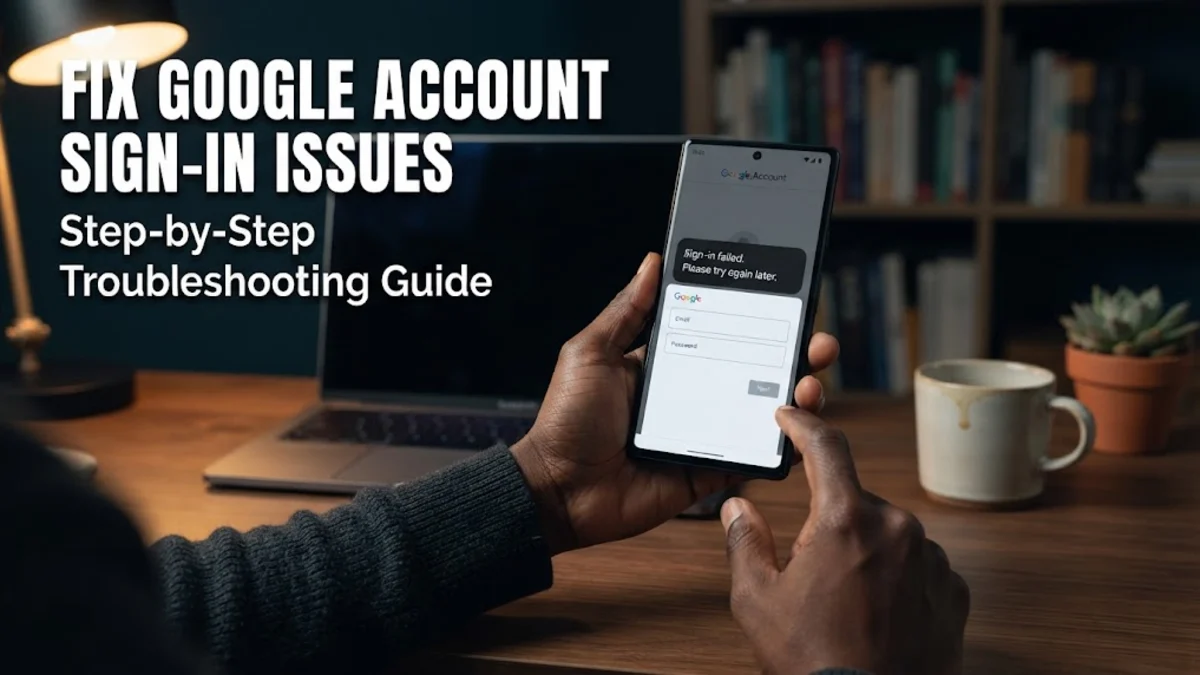
When you find that your Google account is not signing in, it usually stems from incorrect password entries, outdated browser data, network connectivity issues, or pending security verifications. Addressing these login blocks quickly ensures you do not lose access to your email, documents, and connected applications.
Check Your Internet Connection and Device Date
A weak or unstable internet connection is one of the most common reasons your Google account fails to authenticate. Before changing passwords or altering settings, verify that your browser or device can load standard web pages without interruption. If you are using a cellular network, try switching to a stable Wi-Fi connection, or vice versa.
Additionally, incorrect system dates and times frequently break secure authentication protocols used by Google servers. If your computer or smartphone displays the wrong date or time, security certificates will fail to validate. Go to your device settings, enable automatic date and time synchronization, and then restart your device before attempting to sign in again.
Verify Your Username and Password Accurately
Typos in your email address or password account for a large percentage of login failures. Make sure you are typing your complete Gmail address or recovery email accurately without accidental spaces at the beginning or end. If you use a password manager, ensure it is not autofilling an outdated credential saved from a previous change.
If you suspect your password is incorrect, avoid guessing repeatedly to prevent temporary account lockouts. Instead, click on the recovery link on the login page to reset your credentials securely. Follow the prompts sent to your recovery phone number or secondary email address to establish a fresh password and regain access to your profile.
Clear Browser Cache and Corrupted Cookies
Corrupted browser cache and outdated cookies can interfere with authentication tokens, preventing Google from recognizing your active session. If you are trying to sign in through a web browser like Google Chrome, you should clear your browsing data to eliminate these conflicts. Press Ctrl + Shift + Delete on Windows or Cmd + Shift + Delete on Mac to open the clearing menu.
Select cached images and files along with cookies, choose a time range covering all time, and click clear data. Once completed, restart your browser entirely and navigate back to the login page. Alternatively, test the login process by opening an incognito or private browsing window to see if browser extensions are blocking your sign-in attempt.
Approve Two-Factor Authentication Prompts
If you have two-factor authentication enabled, your sign-in attempt requires a secondary verification step that might be failing or delayed. Check your primary smartphone for an official Google prompt asking you to tap the matching number shown on your computer screen. Ensure your phone has an active internet connection so it can receive these push notifications instantly.
If push notifications fail to arrive, use alternative verification methods such as getting an SMS text code, generating a code through an authenticator app, or using one of your printed backup codes. Never ignore security alerts if you did not initiate the login, as unauthorized attempts can sometimes trigger temporary protective locks on your profile.
Remove and Re-add Your Account on Your Device
On mobile operating systems like Android or iOS, operating system glitches can cause native applications to lose synchronization with your Google profile. When your account refuses to sync or sign in across system apps, removing and re-adding the account often resolves the underlying database error. Navigate to Settings > Accounts on Android or Settings > Mail > Accounts on iPhone.
Select your Google account from the list and tap the option to remove it from the device. After the account is completely removed, restart your phone, return to the same menu, and select the option to add a new account. Sign back in with your verified credentials to re-establish a healthy sync connection with Google services.
Check Google Service Status and Restrictions
Occasionally, the issue is not on your end, but rather a temporary outage on Google servers. During widespread service disruptions, authentication portals may reject valid credentials or display unexpected error messages. You can check official status dashboards or independent monitoring sites to see if Google login services are currently experiencing downtime.
If servers are operational, check whether network restrictions imposed by corporate firewalls, school networks, or strict VPNs are blocking Google authentication domains. Temporarily disabling your VPN or switching to a different network environment can clarify whether network filtering is the root cause of your sign-in failure.
The bottom line
Fixing a Google account sign-in issue requires a methodical approach, starting with basic network checks and moving toward clearing cache, verifying security prompts, and resetting credentials when necessary. By following these structured troubleshooting steps, you can safely restore access to your account and protect your personal data.
Frequently asked questions
Why does Google keep asking me to verify my identity when signing in?
Google triggers additional verification steps when you log in from an unfamiliar device, a new location, a different network, or after clearing your browser cookies.
What should I do if I forgot my Google account password completely?
Click the Forgot Password link on the login screen, enter your recovery phone number or email address, and follow the verification prompts to create a new password.
Can browser extensions prevent me from signing into my Google account?
Yes, aggressive ad blockers, privacy extensions, or script blockers can interfere with authentication tokens and prevent login scripts from executing properly.
How do I know if Google services are down?
You can check online server status dashboards or visit public outage trackers to see if other users are reporting similar authentication failures.