عربي
Software

What Is Microsoft Word Safe Mode and How to Use It
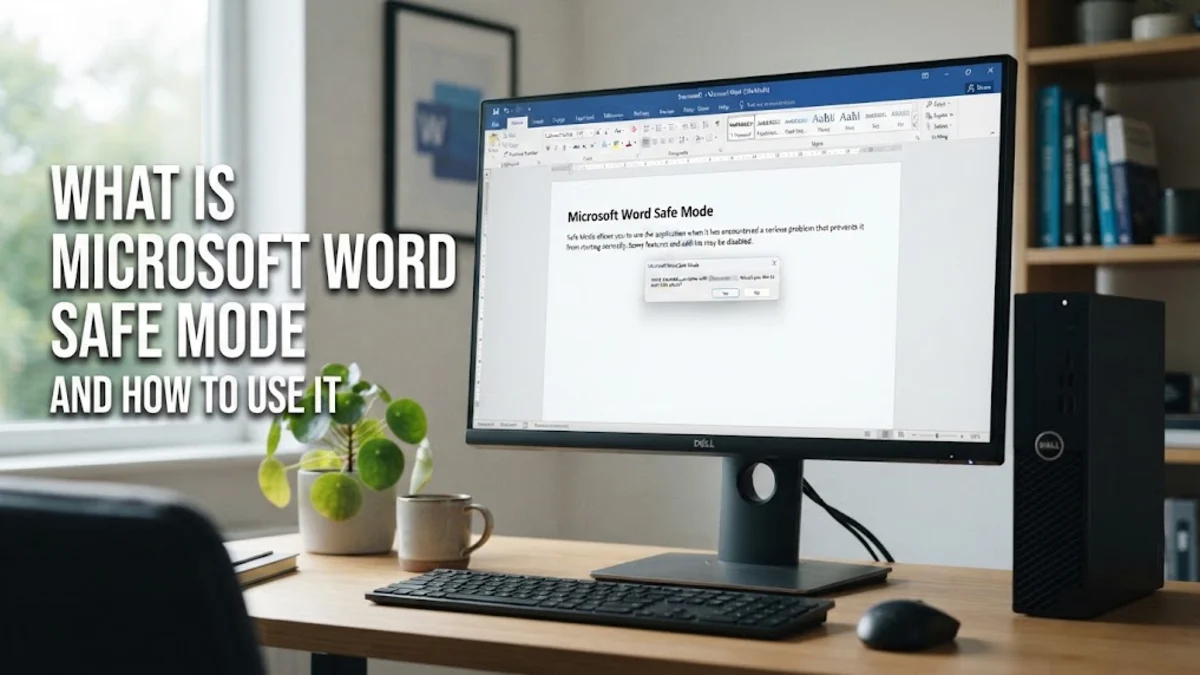
What Is Microsoft Word Safe Mode and How to Use It

Microsoft Word Safe Mode is a specialized troubleshooting state that lets you run the application without loading custom templates, add-ins, or startup extensions. When Word crashes repeatedly or fails to open normally, Safe Mode bypasses problematic elements so you can recover your files and diagnose the underlying issue.

Understanding Microsoft Word Safe Mode

Microsoft Word Safe Mode is a built-in diagnostic feature designed to help you bypass common startup crashes and software conflicts within your office environment. When you launch Word normally, it automatically loads various extensions, custom templates, building blocks, and COM add-ins installed by you or third-party programs. While these enhancements improve productivity, they are also the primary culprits behind unexpected application freezes and startup loops. Safe Mode strips away all these auxiliary files, starting the application with a clean, default configuration. This isolated environment ensures that even if a corrupted add-in or damaged preference file prevents normal operation, you can still access the core word processor. Understanding this state helps you realize that your documents and core installation are likely safe, even when the software refuses to cooperate under normal conditions. It serves as your absolute first line of defense when troubleshooting persistent error codes, unusual layout distortions, or unexplained application shutdowns that disrupt your daily workflow.

How to Open Microsoft Word in Safe Mode

Opening Microsoft Word in Safe Mode is a straightforward process that does not require advanced technical skills or complicated command-line scripts. The most universal method involves using your computer keyboard while launching the application icon. First, locate your Word shortcut on your desktop, taskbar, or Start menu. Press and hold down the Ctrl key on your keyboard, and while holding it down, click once on the Word icon to open the program. A small prompt box will appear on your screen asking if you want to start in Safe Mode. Simply click the Yes button to proceed. Alternatively, you can use the Windows Run dialog box by pressing the Win + R keys simultaneously to open the execution prompt. Type winword /safe into the input field and press Enter. Both methods instantly bypass your standard startup routines and open a blank document in the protected diagnostic mode, allowing you to begin troubleshooting immediately without further delay or configuration headaches.

Identifying Symptoms That Require Safe Mode

Recognizing when you need to activate Microsoft Word Safe Mode can save you hours of frustration and prevent unnecessary reinstallation of your entire office suite. The most common indicator is an immediate crash or freeze the exact moment you double-click a document or open the standalone application. If Word repeatedly displays an error message during initialization or hangs on the splash screen before loading your profile, a conflicting add-in is almost always to blame. Another frequent scenario involves sudden document corruption where opening a specific file causes the program to shut down abruptly. By launching Safe Mode first and then navigating to File > Open to select your file, you can bypass automatic macros embedded in the document that might be triggering the crash. Paying attention to these behavioral patterns allows you to deploy diagnostic tools precisely when your workflow gets interrupted by stubborn software glitches and unexpected program behavior.

Troubleshooting Add-Ins and Extensions

Once you have successfully entered Microsoft Word Safe Mode, your primary objective is identifying and disabling the specific component causing the instability. COM add-ins and Word add-ins are notorious for breaking compatibility after a sudden software update or system patch. To investigate your add-ins, click on File in the top-left corner, select Options at the bottom of the sidebar, and then click on the Add-ins tab in the Word Options window. At the bottom of this menu, locate the Manage dropdown box, select COM Add-ins, and click the Go button next to it. Uncheck any third-party add-ins listed in the dialog box and click OK. Close Word completely and relaunch it normally without holding any keys. If the application opens successfully without crashing, you can re-enable your add-ins one by one to pinpoint the exact culprit. This systematic elimination process ensures you only remove the problematic extension while keeping your favorite productivity tools fully functional.

Fixing Corrupted Normal Templates

If disabling your add-ins does not resolve the startup crash, a corrupted Normal.dotm template is likely the underlying source of the problem. Word relies on this global template file to store default styles, custom macros, and formatting preferences for all new documents. Over time, improper shutdowns or software glitches can corrupt this file, causing persistent errors upon startup. To fix this, you must locate and rename or delete the template while Word is completely closed. Open File Explorer, type %appdata%\Microsoft\Templates into the address bar, and press Enter. Locate the file named Normal.dotm or simply Normal. Right-click the file and select Rename, changing its name to Normal.old. When you restart Word normally, the application will automatically generate a fresh, uncorrupted Normal template with default factory settings. This simple fix instantly resolves deep-seated configuration errors that prevent the word processor from functioning correctly during your daily tasks.

Comparing Normal Mode and Safe Mode

Understanding the distinct differences between standard operation and diagnostic isolation helps you utilize each state effectively during your daily workflow. The table below outlines the core functional variances between Microsoft Word Normal Mode and Safe Mode, detailing what features remain active or disabled in each environment.
FeatureNormal ModeSafe Mode
COM Add-insLoaded automaticallyDisabled
Custom TemplatesLoaded (Normal.dotm)Bypassed
Custom ToolbarsLoadedDefault settings only
AutoRecoverActiveDisabled
Reviewing this comparison table clarifies why Safe Mode is so effective at isolating software issues. Because it strips away all user customizations, third-party add-ins, and complex macro integrations, it provides a pristine environment to test whether your core Microsoft Office installation is operating correctly. If Word runs smoothly in Safe Mode, you can confidently conclude that the issue stems from an installed extension or corrupted template rather than a damaged system file.

The bottom line

Microsoft Word Safe Mode is an indispensable tool for diagnosing and resolving stubborn software crashes, template corruptions, and add-in conflicts. By understanding how to bypass standard startup routines, you can quickly recover your critical documents and restore your office suite to full working order without resorting to drastic troubleshooting measures.

Frequently asked questions

Does Microsoft Word Safe Mode delete my documents?

No, Safe Mode does not delete or modify your saved documents. It only restricts the application from loading extensions, macros, and custom templates during startup.

Can I edit and save files while in Safe Mode?

Yes, you can open, edit, and save documents while in Safe Mode, but certain features like AutoRecover and customized toolbars will be temporarily disabled.

Why won't Word open even in Safe Mode?

If Word fails to open in Safe Mode, your Microsoft Office installation files may be severely corrupted. You should run an online repair via Windows settings.

How do I exit Microsoft Word Safe Mode?

To exit Safe Mode, simply close the application completely and relaunch it normally by clicking its standard shortcut without holding any keys.