What Is Zoom Scheduler and How to Use It
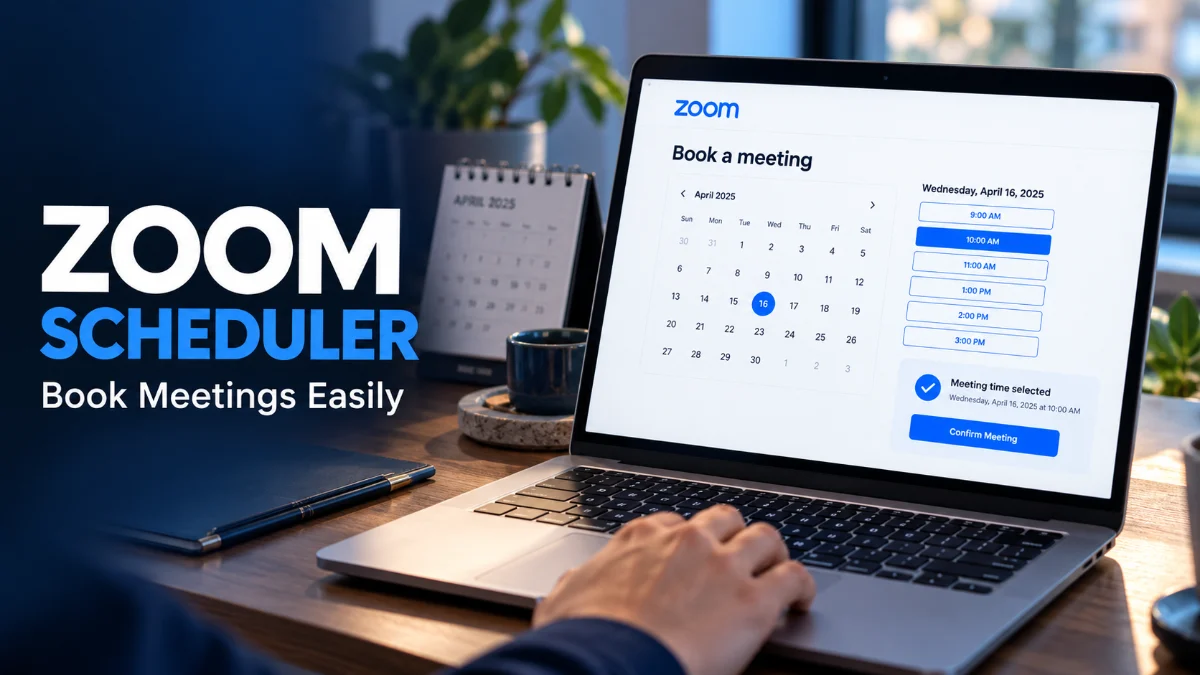
Zoom Scheduler is a browser extension and productivity tool designed to bridge your web calendar with Zoom, letting you schedule, start, and manage video meetings directly from platforms like Google Calendar or Outlook without opening the main desktop app.
By embedding quick-action buttons right into your calendar interface, it eliminates the tedious back-and-forth of copying links and manually setting up meeting rooms, making it an essential utility for modern remote professionals.
Understanding Zoom Scheduler and Its Core Purpose
Zoom Scheduler functions primarily as a browser extension for Google Chrome, Microsoft Edge, and Firefox, serving as a direct bridge between your email provider's calendar and your Zoom account. When you manage a busy schedule, jumping between different applications just to create a video link wastes valuable time. This tool places the entire scheduling mechanism right inside your existing calendar views.
Instead of launching the standalone Zoom desktop client, logging in, and generating a new meeting ID manually, the extension embeds intuitive controls directly into your browser calendar page. Whether you are coordinating client calls, team standups, or one-on-one interviews, you can add a secure video link with a single click, ensuring your workflow remains uninterrupted and efficient throughout the workday.
Key Features and Benefits for Daily Productivity
One of the standout features of Zoom Scheduler is its ability to instantly convert any standard calendar event into a fully configured video conference. When you click to create an event in your web calendar, a dedicated button appears allowing you to make it a Zoom meeting immediately. This automatically populates the location and description fields with your unique meeting URL, passcode, and one-tap mobile dial-in details.
Furthermore, the extension respects your default user settings, meaning any personal waiting rooms, security passcodes, or host controls you have configured in your main account automatically apply to these calendar-generated sessions. This ensures consistent security across all your communications without requiring you to manually adjust settings every single time you spin up a new virtual room.
How to Install and Set Up Zoom Scheduler
Getting started with Zoom Scheduler requires only a few minutes and begins directly within your preferred web browser. You can navigate to the official Chrome Web Store or Microsoft Edge Add-ons page to find the official extension published by Zoom Video Communications. Once you locate the extension page, click the install or add button to integrate it into your browser toolbar.
After installation, a small Zoom icon will appear in your browser extension menu. Clicking this icon prompts you to sign in using your standard account credentials, single sign-on (SSO), or Google or Apple login options. Once authenticated, the extension links your browser session securely to your cloud profile, granting it permission to interact with supported web mail and calendar services seamlessly.
Scheduling Meetings Directly from Your Calendar
Once installed and configured, using the tool within your daily calendar view becomes second nature. When you open your web calendar to book a new appointment, you will notice a prominent button labeled Make it a Zoom Meeting inside the event creation window. Clicking this button instantaneously updates the meeting details with all necessary connection parameters.
If you need to change specific parameters, you can access additional configuration options right from the extension menu or calendar overlay. You can toggle options such as enabling host video upon entry, muting participants upon arrival, or switching between personal meeting IDs and randomly generated session links before sending out your calendar invitations to colleagues or external guests.
Managing and Customizing Your Meeting Preferences
Customization is a major advantage of using this browser integration for your professional communications. By clicking the extension icon in your toolbar, you can open a preferences panel that dictates how every new video session behaves by default. Here, you can pre-set whether participants enter a waiting room, choose your preferred audio settings, and manage alternative hosts for your organization.
Keeping these preferences updated saves considerable time when scheduling high volumes of back-to-back meetings. Instead of adjusting security settings or recording permissions for individual links, your baseline preferences apply automatically, reducing human error and ensuring compliance with your organization's internal communication policies.
Zoom Scheduler vs. Traditional Calendar Invites
Comparing this extension to traditional methods reveals why many professionals prefer browser-based scheduling over manual workflows. Traditionally, users had to open the app, copy the URL, switch tabs to the calendar, paste the link, and format the text manually. This multi-step process introduces friction and increases the likelihood of broken links or missing passwords.
| Feature | Traditional Method | Zoom Scheduler |
|---|---|---|
| Speed | Multiple app switches | One-click integration |
| Setup | Manual copy and paste | Automatic link generation |
| Security | Requires manual checks | Applies default profile rules |
| Convenience | High cognitive load | Seamless browser workflow |
As shown in the comparison above, utilizing a dedicated browser tool streamlines the administrative overhead of remote collaboration, allowing you to focus more on your core tasks rather than struggling with software logistics.
The bottom line
Zoom Scheduler transforms how you manage daily video communications by bridging your web calendar with your account profile. By eliminating repetitive manual steps and centralizing core settings, it keeps your remote workday organized and efficient.
Frequently asked questions
Is Zoom Scheduler free to use?
Yes, the browser extension itself is free to download and use with both free and paid accounts, though certain advanced host features may require a licensed plan.
Which web browsers support Zoom Scheduler?
The extension is officially supported on major browsers including Google Chrome, Microsoft Edge, and Mozilla Firefox.
Can I use it with Outlook and Google Calendar?
Yes, it integrates smoothly with popular web-based calendar services, including Google Calendar and Outlook on the web.
Do participants need the extension to join my meetings?
No, attendees only need the meeting link or code provided in the calendar invite to join through any standard browser or app.