How to Zoom In on Mac Using Keyboard and Trackpad
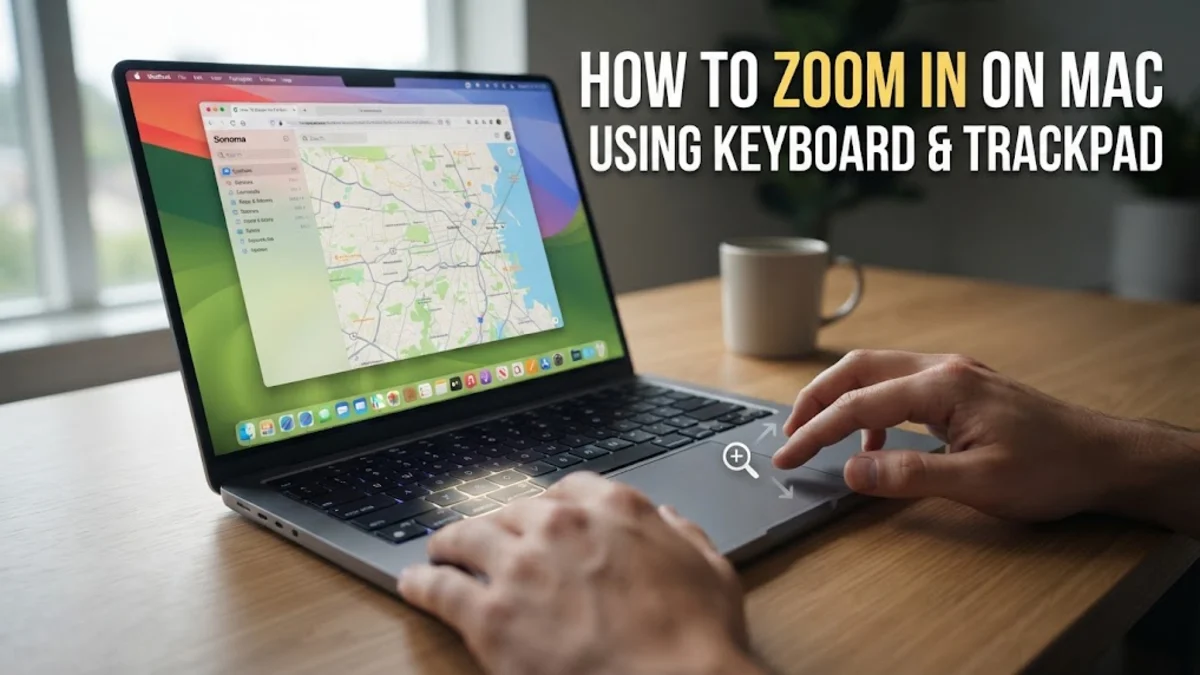
To zoom in on a Mac, you can use the keyboard shortcut Command + + to enlarge content within specific apps like Safari or Chrome. For a system-wide zoom that enlarges the entire screen, you must enable Accessibility features by going to System Settings > Accessibility > Zoom and toggling on the keyboard shortcuts or scroll gestures options.
Whether you are trying to read small text on a high-resolution Retina display or you need to present a specific portion of your screen during a video call, macOS offers several built-in tools to manage magnification. In this guide, we will cover everything from basic application zooming to advanced accessibility features like Picture-in-Picture and Hover Text, updated for the latest version of macOS in 2026.
Using Universal Keyboard Shortcuts for Quick Zoom
The fastest way to zoom in on Mac within most applications is using the Command and + (plus) keys. This works natively in web browsers, PDF viewers, and word processors. To zoom out, simply press Command and - (minus). If you have zoomed in too far and want to return to the standard 100% view immediately, use the shortcut Command + 0. This method is application-specific, meaning it only changes the size of the content within that window without affecting the rest of the macOS interface.
For a system-wide zoom that magnifies the entire desktop, including the Menu Bar and Dock, you must use the Accessibility shortcuts. These are typically disabled by default to prevent accidental activation. Once enabled in settings, you can press Option + Command + 8 to toggle the zoom feature on and off. While active, use Option + Command + = to increase magnification and Option + Command + - to decrease it. This is particularly useful for users with visual impairments or those using ultra-wide monitors where UI elements appear too small.
Mastering Trackpad and Mouse Gestures
If you are using a MacBook or a Magic Trackpad, gestures provide a fluid way to zoom in on Mac. The 'Pinch-to-Zoom' gesture works exactly like it does on an iPhone; place two fingers on the trackpad and spread them apart to zoom in, or pinch them together to zoom out. This gesture is highly responsive and allows for granular control over the magnification level in apps like Photos, Maps, and Safari.
Another powerful tool is 'Smart Zoom.' By double-tapping the trackpad with two fingers, macOS will automatically zoom in on a specific column of text or an image that the cursor is hovering over. To ensure these are active, navigate to System Settings > Trackpad > Scroll & Zoom and verify that Smart zoom is checked. If you use a Magic Mouse, you can perform a similar action by double-tapping the mouse surface with one finger. These gestures are often preferred by designers and editors who need to jump between a bird's-eye view and fine details quickly without reaching for the keyboard.
Configuring Advanced Accessibility Zoom Settings
For more robust control, macOS includes specialized zoom styles found in the Accessibility menu. Navigate to System Settings > Accessibility > Zoom to find three distinct modes: Full Screen, Split Screen, and Picture-in-Picture. Full Screen zoom moves the entire display as you move your mouse. Split Screen keeps your original desktop on one half and a magnified view on the other. Picture-in-Picture (PiP) creates a floating 'magnifying glass' window that follows your cursor.
Within these settings, you can also enable 'Use scroll gesture with modifier keys to zoom.' This allows you to hold a key (like Control) and scroll up or down on your mouse or trackpad to zoom in or out. Many power users prefer this method because it provides the fastest transition between magnification levels across the entire operating system.
| Zoom Style | Best For | Primary Benefit |
|---|---|---|
| Full Screen | General Visibility | Enlarges everything including the Dock and Menu Bar. |
| Picture-in-Picture | Detail Work | Magnifies only the area around the cursor; keeps context. |
| Split Screen | Reference | Allows you to see the original layout while reading details. |
How to Use Hover Text for Instant Magnification
Hover Text is a hidden gem in macOS accessibility settings that allows you to see a high-resolution, enlarged version of any text, button, or menu item. When enabled, you can simply hover your cursor over an item and hold the Command key. A dedicated window will pop up showing the text in a large, clear font. This is incredibly helpful when dealing with 'fine print' in system dialogues or small labels in complex software like Logic Pro or Final Cut Pro.
To customize this, go to System Settings > Accessibility > Zoom and click the i icon next to Hover Text. You can change the font size, font style, and even the colors of the text box to suit your visual needs. This feature is superior to standard zooming for many users because it doesn't displace other windows or require you to navigate a magnified screen; it simply provides clarity on demand.
Adjusting Display Scaling as a Permanent Solution
If you find yourself needing to zoom in on Mac constantly, your display resolution might be set too high for your comfort. Instead of using temporary zoom tools, you can adjust the system scaling to make everything appear larger by default. Go to System Settings > Displays. Here, you will see a row of icons ranging from 'Larger Text' to 'More Space.'
Selecting Larger Text tells macOS to render the UI at a lower logical resolution while maintaining the sharpness of the Retina display. This makes icons, text, and windows larger throughout the entire OS. This is often the best solution for users with 4K or 5K external monitors where the default text size can be straining. Note that choosing 'Larger Text' reduces the amount of screen real estate available for windows, so you may need to find a balance that works for your specific workflow. In 2026, macOS offers even more granular scaling steps for modern OLED and mini-LED displays.
Troubleshooting Common Zoom Problems
Occasionally, you may find your Mac 'stuck' in a zoomed-in state, or the shortcuts may stop responding. If the screen is stuck, try the toggle shortcut Option + Command + 8 to reset the view. If that fails, move your mouse to the edges of the screen; in Full Screen zoom mode, the view follows the cursor, and you might simply be scrolled into a corner. If the keyboard shortcuts aren't working at all, ensure they haven't been overridden by another app by checking System Settings > Keyboard > Keyboard Shortcuts > Accessibility.
Another common issue occurs when third-party apps (like some video games or full-screen remote desktop tools) disable macOS accessibility overlays. In such cases, the system-wide zoom will not function. If you experience 'blurry' text while zoomed, this is often a result of 'Smooth Images' being turned off in the Accessibility settings. Ensure Smooth images is enabled in the Zoom options to maintain legibility at high magnification levels. If all else fails, restarting the 'WindowServer' process via Activity Monitor or simply rebooting your Mac will reset the display parameters.
The bottom line
Zooming in on a Mac is a versatile process that ranges from simple browser shortcuts to deep accessibility integrations. By mastering the combination of Command shortcuts, trackpad pinches, and system-wide scaling, you can ensure that your workspace is always legible and efficient. Whether you need a temporary magnifying glass or a permanent change to your display's resolution, macOS provides the tools necessary to tailor the visual experience to your exact needs.Frequently asked questions
How do I zoom out on a Mac when the screen is stuck?
If your screen is stuck zoomed in, press Option + Command + 8 to toggle the Accessibility zoom off. If you are in a web browser, press Command + 0 to reset the zoom level to 100%.
Can I zoom in on only one part of the screen?
Yes, by using the 'Picture-in-Picture' zoom style. Enable this under System Settings > Accessibility > Zoom > Zoom Style. This creates a floating magnifying window that follows your cursor.
Why is pinch-to-zoom not working on my MacBook?
Check System Settings > Trackpad > Scroll & Zoom and ensure that Zoom in or out is toggled on. Also, ensure your fingers are making clear contact with the trackpad.
Does zooming in affect the quality of my screenshots?
Standard application zoom (Command + +) will result in larger elements in your screenshot. However, using Accessibility system zoom usually captures the native resolution of the screen, not the magnified view you see.