How to Fix Zoom Bluetooth Headphones Issues on Android
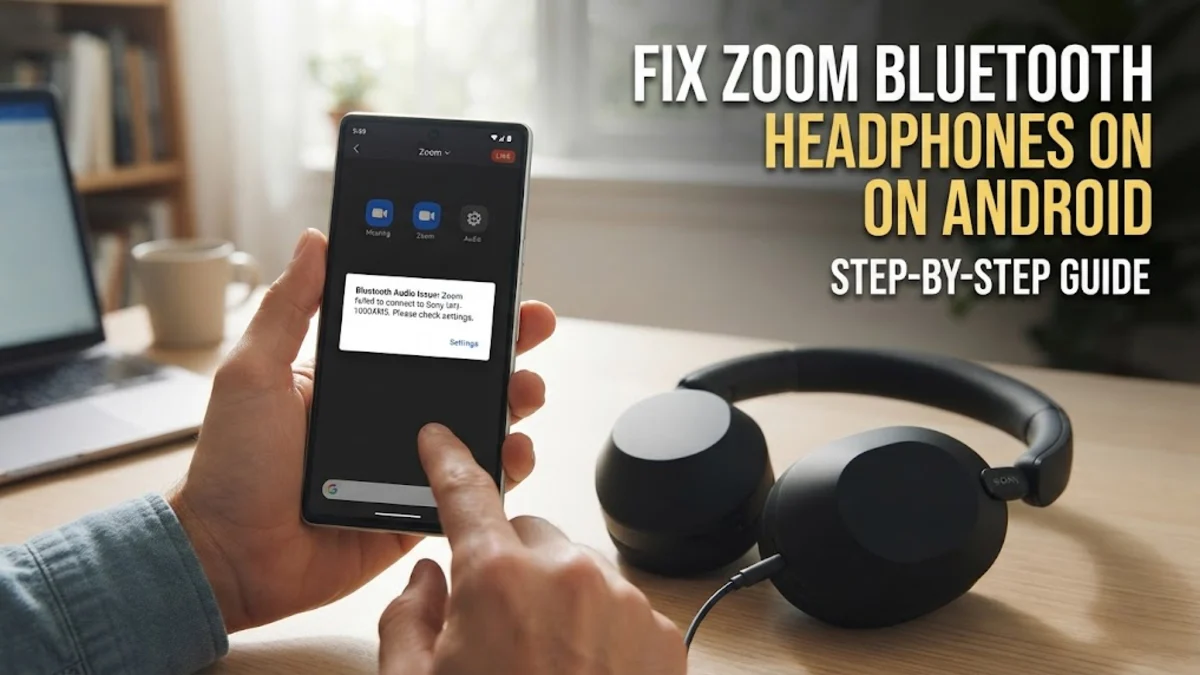
If your Bluetooth headphones are not working with Zoom on your Android device, you are likely facing an audio routing conflict or a permission issue within the operating system. To fix this, you generally need to verify the in-meeting audio source, grant Zoom access to nearby devices in your Android settings, or reset the Bluetooth connection profile between your phone and headset.
Nothing is more frustrating than joining an important meeting only to realize you cannot hear the participants or they cannot hear you. In 2026, Android's audio management is more sophisticated than ever, but this complexity can sometimes lead to 'audio focus' errors where the Zoom app fails to take control of your Bluetooth hardware. This guide will walk you through the most effective fixes, starting with the simplest toggles and moving to deeper system repairs.
Switch the Audio Source Inside the Zoom App
Before diving into system-level menus, you must ensure that Zoom is actually told to use the Bluetooth headset rather than the phone's earpiece or internal speaker. Even if your headphones are connected to your phone, Zoom sometimes defaults to the last used audio output. When you are in a meeting, look at the top left or top right of the screen for a speaker icon. If it shows a small Bluetooth symbol, it is already trying to use your headset. If it shows a standard speaker icon, tap it once to cycle through the available outputs until it recognizes the Bluetooth device.
Another common mistake occurs before the meeting even starts. If you see a **Join Audio** icon (a pair of headphones with a green arrow) at the bottom left of your screen, you haven't actually connected your audio to the meeting yet. Tap **Join Audio** and then select **Wifi or Cellular Data**. Once connected, tap the **Mute** button arrow or the speaker icon mentioned above to verify the Bluetooth routing. If you have multiple Bluetooth devices saved, such as a smartwatch and headphones, Android 15 and 16 may sometimes prioritize the wrong device. Temporarily disconnecting other wearables can force Zoom to pick the correct audio path.
Update Android Permissions for Nearby Devices
One of the most frequent causes of Bluetooth failure in Zoom is missing permissions. Modern versions of Android require apps to have specific permission to 'find, connect to, and determine the relative position of nearby devices' to use Bluetooth. If you denied this prompt when you first installed Zoom, the app will be unable to communicate with your wireless headphones even if they are paired correctly with your phone.
To fix this, go to **Settings** > **Apps** > **See all apps** > **Zoom**. Tap on **Permissions** and look for **Nearby devices**. Ensure this is set to **Allow**. While you are in this menu, also verify that the **Microphone** permission is set to **Allow only while using the app**. Without both of these permissions active, Zoom cannot bridge the connection to your headset. If you recently updated your Android system software in 2026, these permissions may have been reset for security reasons, so it is always worth double-checking this menu first.
Configure Bluetooth Profiles for Calls and Media
Android treats 'Media' (like Spotify) and 'Calls' (like Zoom or phone calls) as two different streams. Sometimes a headset will connect for music but fail to activate the 'Hands-free' or 'Headset' profile required for two-way communication in Zoom. This leads to a situation where you can hear others but your microphone does not work, or the audio doesn't come through at all during a meeting.
To resolve this, go to **Settings** > **Connected devices** and find your headphones in the list. Tap the **Settings (gear icon)** next to the device name. You will see a list of toggles. Ensure that both **Phone calls** and **Media audio** are turned on. If the **Phone calls** toggle is off, Zoom will not be able to use the headphones for meeting audio. If it is already on, try toggling it off and then back on again. This refreshes the handshake between the Android Bluetooth stack and the Zoom app's audio engine. If you see a toggle for **HD Audio (AAC or LDAC)**, try disabling it temporarily, as some high-bitrate codecs can cause latency or sync issues during VoIP calls.
Clear Zoom App Cache and Reset Audio Focus
If the settings above are correct but the problem persists, the Zoom app may have a corrupted cache or a stuck 'audio focus' session. Audio focus is a system-wide mechanism that prevents two apps from playing audio at the same time. If a previous app (like a YouTube video or a notification sound) didn't properly release the audio focus, Zoom might be blocked from using the Bluetooth channel.
To clear the cache, navigate to **Settings** > **Apps** > **Zoom** > **Storage & cache**. Tap **Clear cache**. Do not tap 'Clear storage' unless you are prepared to log back into your account, as this will delete your saved settings. After clearing the cache, force-stop the app by tapping **Force stop** on the same screen. This completely kills any background processes. Re-open Zoom and join a test meeting. This 'cold start' often fixes internal software glitches where the app is confused about which hardware driver to initialize.
Compare Bluetooth Troubleshooting Steps
| Issue | Most Likely Cause | Primary Fix |
|---|---|---|
| Can hear audio, mic fails | Permission/Profile | Check 'Nearby Devices' permission |
| No audio, mic works | In-App Routing | Tap the Speaker icon in Zoom meeting |
| Bluetooth keeps disconnecting | Interference/Battery | Disable 'Battery Optimization' for Zoom |
| Audio sounds robotic | Codec Mismatch | Turn off HD Audio in Bluetooth settings |
Advanced System Fixes and Reset Options
If you have tried all the above and Zoom still won't play ball with your Bluetooth gear, you may need to reset the network and Bluetooth stack of the Android OS. This is a more drastic step because it will delete all your saved Wi-Fi passwords and paired Bluetooth devices, but it is often the only way to clear deep-seated configuration errors.
Go to **Settings** > **System** > **Reset options** > **Reset Bluetooth & Wi-Fi**. Confirm the action and your phone will restart the wireless services. Once finished, you will need to pair your headphones again from scratch. This process clears the system's internal hardware map and forces a clean connection. Additionally, check if your headphones have a companion app (like those from Sony, Bose, or Jabra). In 2026, many headsets require firmware updates to remain compatible with the latest Android 16 features. A firmware update for the headphones themselves can often solve persistent 'Zoom not working' bugs that software settings cannot fix.
The bottom line
Fixing Zoom Bluetooth issues on Android usually comes down to a simple permission check or an in-app toggle. By ensuring 'Nearby Devices' is allowed and the 'Phone calls' profile is active, you can solve 90% of connectivity problems. If these fail, clearing the app cache or performing a Bluetooth reset will usually get your meeting audio back on track.
Frequently asked questions
Why can I hear music but Zoom won't use my Bluetooth headphones?
This happens because music uses the A2DP (Media) profile, while Zoom requires the HFP (Hands-Free) profile for two-way audio. Ensure 'Phone calls' is enabled in your Bluetooth device settings on Android.
Does Zoom support all Bluetooth headsets on Android?
While Zoom supports most standard Bluetooth devices, some high-end gaming headsets or specialized buds require specific codecs. In your Bluetooth settings, disabling 'HD Audio' can improve compatibility with the Zoom app.
Why is the Zoom audio coming out of the phone speaker instead of my buds?
Check the top-left speaker icon in the Zoom meeting interface. If it shows a speaker rather than a Bluetooth logo, tap it to manually switch the audio source to your connected headset.
How do I fix low microphone volume on Bluetooth during Zoom calls?
This is often caused by 'Bluetooth Absolute Volume' settings. You can find 'Disable Absolute Volume' in Android's Developer Options, which allows you to control the headphone volume independently from the phone system.