How to Fix Google Sheets Not Working on Android

When Google Sheets stops working on your Android phone, it usually stems from a corrupted app cache, an outdated version, or a temporary synchronization glitch with your Google account. Resolving these issues quickly gets your spreadsheets back up and running without losing your data.
Check Your Internet Connection and Account Sync
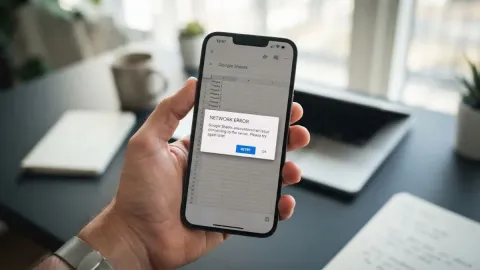
The most common reason Google Sheets fails to load or save changes on Android is a disrupted internet connection or a stalled background synchronization with your Google account. If your mobile data or Wi-Fi drops intermittently, Sheets may freeze or display an offline error message.
To fix this, toggle your connection by opening your Quick Settings panel, turning on Airplane Mode for ten seconds, and turning it back off. Next, ensure your Google account is syncing properly. Go to Settings > Users & accounts > Google and verify that your account sync is up to date. If you see a sync error icon next to your email address, tap it to force a manual synchronization, then reopen Google Sheets to see if normal functionality returns.
Clear the Google Sheets App Cache and Data
Over time, temporary cached files stored by the Google Sheets app can become corrupted, leading to sudden crashes, infinite loading screens, or unresponsive spreadsheets. Clearing this cache safely removes damaged temporary files without deleting any of your actual cloud-stored documents.
To clear the cache, open your phone settings and navigate to Settings > Apps > Google Sheets > Storage & cache. Tap Clear cache first. If the app still fails to open, return to the same menu and tap Clear storage or Clear data. Note that clearing storage will sign you out of the app and remove offline files, but your spreadsheets remain safe in your Google Drive cloud account. Log back in with your credentials and check if the app operates normally.
Update Google Sheets and Android System Software
Running an outdated version of the Google Sheets app on a newer Android operating system version can cause compatibility bugs, layout glitches, and unexpected application shutdowns. Developers frequently release patches to fix these exact stability problems.
Open the Google Play Store, tap your profile icon, and select Manage apps & device. Look for available updates and tap Update all, or search specifically for Google Sheets and tap Update. Additionally, ensure your phone operating system is fully updated by going to Settings > System > System update. Installing pending software updates ensures all underlying system web views and framework components required by Google apps are functioning correctly.
Verify Google Workspace Service Status
Sometimes the issue is not on your Android device at all, but rather a temporary server-side outage affecting Google Workspace services globally or regionally. When Google servers experience disruptions, mobile apps may fail to load documents or save recent edits.
You can check the operational status of Google Sheets by visiting the official Google Workspace Status Dashboard in any mobile web browser. If you notice an active incident or service disruption reported for Google Sheets, you will need to wait patiently for Google engineers to restore server functionality. Once the service outage is resolved, restart your Android phone and open the app again to resume your work without making any further changes on your device.
Reinstall the Google Sheets App Completely
If clearing the cache and updating the software fail to resolve the freezing or crashing behavior, core installation files on your device may be damaged. A clean reinstall removes all corrupted application components and installs a fresh copy from the app store.
To reinstall, press and hold the Google Sheets icon on your home screen or app drawer, and drag it to Uninstall. Once removed, open the Google Play Store, search for Google Sheets, and tap Install. Log back into your Google account when prompted. This fresh installation resolves deep-seated software conflicts and provides a clean slate for managing your spreadsheets on the go.
Use Google Sheets in Your Mobile Browser as a Workaround
If you are facing an urgent deadline and the Android app continues to malfunction despite trying the troubleshooting steps above, you can bypass the application entirely by using your mobile web browser.
Open Chrome or your preferred mobile browser, navigate to drive.google.com or sheets.google.com, and sign in with your Google account. If your browser opens the mobile view by default, tap your browser menu icon and select Desktop site to access the full editing interface. While typing and formatting might feel slightly less optimized on a smaller screen compared to the dedicated app, this reliable workaround allows you to view, edit, and create spreadsheets immediately while you troubleshoot your app issues later.
The bottom line
Fixing Google Sheets on Android usually comes down to clearing corrupted cache files, updating your software, or checking your account connection. By following these structured steps, you can quickly restore full functionality to your mobile spreadsheets and prevent future unexpected crashes.
Frequently asked questions
Will I lose my spreadsheets if I clear Google Sheets data on Android?
No. Google Sheets stores all your spreadsheets securely in the cloud via Google Drive. Clearing app data only removes temporary files, local sign-in information, and offline copies from your device.
Why does Google Sheets keep crashing when I open a large file?
Large spreadsheets with complex formulas, heavy formatting, and thousands of rows can overwhelm mobile memory and processing power, causing the app to crash. Try opening the file on a desktop computer or using your mobile browser in desktop mode.
Do I need an active internet connection to use Google Sheets on Android?
Not necessarily. If you enable offline access for specific files beforehand, you can view and edit them without internet. However, syncing changes requires a stable connection.
How do I know if Google Sheets is down for everyone?
You can check the official Google Workspace Status Dashboard online to see if there are ongoing server outages affecting Google Sheets globally.
What should I do if none of these fixes work?
If troubleshooting fails, restart your phone into Safe Mode temporarily to check if a third-party app is interfering, or contact Google Workspace support for further assistance.