How to Fix Google Sheets Not Working on iPhone
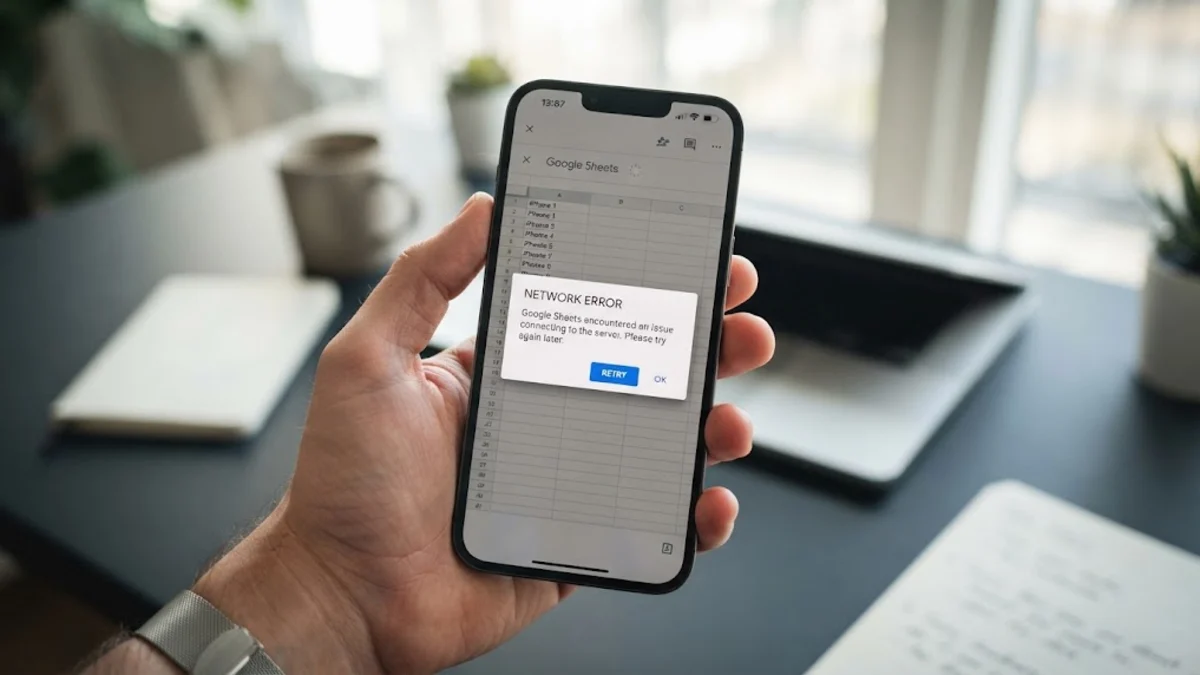
When you rely on Google Sheets to check inventory, track budgets, or edit project schedules on the go, having the app crash or refuse to load on your iPhone brings productivity to a sudden halt. In most situations, the problem stems from corrupted local cache, restricted cellular data permissions, account authentication desynchronization, or memory spikes caused by heavy formulas.
Why Google Sheets Stops Working on iOS
Google Sheets relies on real-time background sync, cloud servers, and local caching to keep spreadsheets responsive on iOS. When the mobile app fails to open, freezes on a loading spinner, or throws an offline warning despite an active connection, a breakdown has occurred in one of several key layers.
Understanding what triggers the failure helps you avoid guessing during the repair process:
- Restricted Cellular Permissions: iOS allows granular data controls, and a previous data-saving toggle may have blocked Sheets from connecting over mobile data.
- Corrupted Local Cache: When files are modified across multiple devices, stale offline cached data on your iPhone can cause the app to crash upon opening.
- Expired Authentication Tokens: Google account sessions occasionally desynchronize after security updates or password changes, blocking read and write permissions silently.
- Resource Exhaustion: Sheets containing thousands of rows, external
IMPORTRANGEfunctions, or custom Apps Scripts can exceed the memory headroom allocated to the iOS app.
Check Cellular Permissions and Service Availability
The quickest culprit to rule out is restricted mobile network access. If Google Sheets works fine when connected to Wi-Fi at home or the office but refuses to open or sync while you are commuting, iOS has likely disabled cellular access specifically for the app.
To verify and restore network access:
- Open the Settings app on your iPhone.
- Tap Cellular (or Mobile Data depending on your region).
- Scroll down to the Cellular Data app list and locate Sheets.
- Ensure the green toggle switch beside Sheets is turned on.
- If you are running iOS 18 or newer, you can also navigate to Settings > Apps > Sheets and verify that Cellular Data and Background App Refresh are both toggled active.
Before moving deeper into device diagnostics, visit the official Google Workspace Status Dashboard in Safari to confirm that Google Drive and Google Sheets are not experiencing a widespread regional outage.
Force Close Sheets and Perform a Force Restart
Temporary memory leaks within iOS can lock the Google Sheets rendering engine, producing an unresponsive white screen or immediate crash back to the home screen. A standard swipe-away force close clears active RAM, while a hardware restart purges system-level daemon locks.
First, close the application completely:
- Swipe up from the bottom of the screen and pause in the middle to enter the App Switcher (or double-click the Home button on older models).
- Locate the Google Sheets preview card.
- Flick the card firmly upward toward the top of the screen to terminate the process.
Next, force restart your iPhone to clear volatile system cache without deleting any personal files. For modern iPhone models without a physical Home button, press and quickly release the Volume Up button, press and quickly release the Volume Down button, and then press and hold the Side button. Keep holding the Side button until the Apple logo appears on the display, then release it and let the device boot normally.
Clear In-App Offline Cache and Rebuild Sync
Google Sheets stores offline versions of spreadsheets locally so you can continue editing during flight mode or network dropouts. However, when an offline file conflicts with an edit made on desktop, the local database can become stuck in an endless synchronization loop that freezes the entire mobile interface.
You can flush this cache directly from within the app settings:
- Launch the Google Sheets app on your iPhone.
- Tap the Menu icon (three horizontal lines) in the top-left corner of the screen.
- Tap Settings > Clear cache.
- Confirm the prompt when asked to clear temporary files.
If a specific workbook continues to freeze while other files open without incident, tap the three dots (...) next to that specific spreadsheet on the main screen, toggle Available offline off, wait thirty seconds, and toggle it back on. This forces the app to discard the corrupt local snapshot and download a fresh copy from Google Drive.
Remove and Re-add Your Google Account
Authentication desynchronization between iOS credential storage and Google identity servers frequently causes silent authorization failures. When this happens, Sheets cannot verify your identity to access Drive files, resulting in infinite loading indicators or unexpected permission denied errors.
Refreshing your account session resolves this without affecting your cloud data:
- Open Google Sheets and tap your profile avatar in the upper-right corner.
- Tap Manage accounts on this device.
- Tap Remove from this device next to your active Google account.
- Confirm the removal when prompted.
- Close the app completely, reopen it, and tap Sign In to re-enter your Google email and password along with any required two-factor authentication prompt.
This re-establishes a fresh security token, ensuring all cloud spreadsheets, shared drives, and organizational permissions load correctly on your device.
Offload or Reinstall the Google Sheets App
If the application continues to crash upon launch despite clearing settings and restarting, the app installation binary itself may be damaged or conflicting with an incremental iOS system update. Rather than a basic deletion, using the iOS Offload feature clears system bloat while preserving your configuration.
Follow these steps to clean and refresh the app container:
- Open Settings on your iPhone.
- Go to General > iPhone Storage.
- Scroll down the list and tap Sheets.
- Tap Offload App and confirm. This uninstalls the core application package while keeping your local preferences intact.
- Tap Reinstall App directly on the same screen once the offloading finishes.
If offloading does not resolve the failure, return to the same menu and select Delete App. After deletion, open the App Store, search for Google Sheets, and install a fresh build. A full reinstall gives the app an entirely new directory structure, eradicating any corrupted database files.
Use Mobile Safari as an Emergency Workaround
When you are in an urgent meeting or facing an immediate deadline and troubleshooting steps take too long, you can bypass the native iOS application entirely by using your iPhone web browser.
To access your spreadsheets through Safari:
- Open Safari and navigate to
sheets.google.com. - If prompted by a banner to open the native app, ignore or dismiss it.
- Tap the Page Settings icon (the aA icon in the address bar) and select Request Desktop Website.
- Sign in with your Google Workspace or personal credentials.
The desktop web view provides full access to cell editing, calculation history, sharing controls, and formulas. While touch navigation is less fluid than the mobile app, the browser version bypasses native app crashes and ensures you never lose access to mission-critical spreadsheets during emergencies.
The bottom line
Getting Google Sheets running reliably on your iPhone usually comes down to toggling off network restrictions, clearing corrupted local caches, or re-authenticating your Google account. By following these steps in order, you can quickly eliminate sync bottlenecks and keep your spreadsheets accessible wherever you work.
Frequently asked questions
Why won't Google Sheets open a specific spreadsheet on my iPhone?
If other files open normally, the problematic spreadsheet likely contains complex array formulas, large external data imports, or hundreds of thousands of cells that exceed the mobile app processing limits. Try opening the sheet on a computer or through Safari using the desktop site option.
Does uninstalling the Google Sheets app delete my spreadsheets?
No. Your spreadsheets are stored securely in Google Drive in the cloud. Deleting or reinstalling the app on your iPhone only removes locally cached files and application binaries; your documents will reload once you log back into your Google account.
Why does Google Sheets say I am offline when my Wi-Fi is working?
This usually indicates an expired authentication token or a background sync loop in the app cache. Clear the in-app cache under Sheets Settings, or remove and re-add your Google account inside the app to restore synchronization.
Can I edit Google Sheets on iPhone without downloading the app?
Yes. You can open Safari, navigate to sheets.google.com, request the desktop version of the website via the address bar menu, and edit your spreadsheets directly in the browser without installing the native iOS app.