How to Enable Outlook Dark Mode
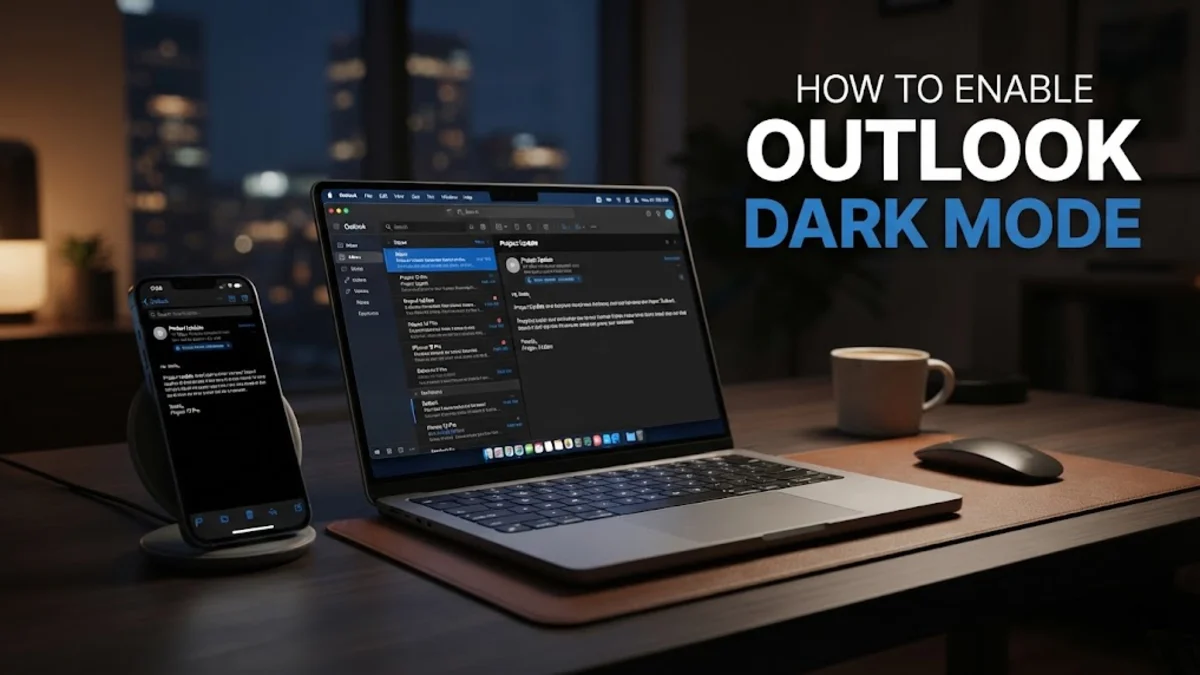
Turning on Outlook dark mode reduces eye strain during long workdays, cuts screen glare in low-light environments, and extends battery life on portable devices with OLED displays. Whether you manage your inbox through desktop software, a web browser, or your smartphone, Microsoft provides built-in theme controls to darken the entire workspace.
Because Microsoft maintains both the classic desktop version and the updated modern Outlook app, the exact menu options can vary depending on your installation. This guide walks you through enabling dark mode across Windows, macOS, the web app, and mobile devices, including how to toggle individual emails back to light mode when reading complex formatting.
Enable Dark Mode in the New Outlook for Windows
The modern Outlook app for Windows aligns its visual interface directly with your operating system preferences or lets you lock in dark mode permanently. If your entire operating system already uses a dark theme, Outlook typically switches automatically. However, you can force the app to stay dark regardless of your overall Windows theme settings.
To configure your display preferences in the modern desktop client, follow these steps:
- Open the Outlook app and select the Settings gear icon located in the upper-right corner of the window.
- In the settings window that appears, navigate to General > Appearance.
- Under the Theme section, choose Dark. Alternatively, select Use system settings if you want Outlook to switch themes automatically when Windows transitions between day and night modes.
- Click Save at the bottom of the pane to apply your changes immediately.
If the application does not update its color scheme right away, close and restart Outlook to refresh the cached theme files. When active, all folder lists, message previews, and composition windows adopt a neutral dark gray palette.
Turn On Dark Mode in Classic Outlook for Windows
If your organization still runs classic Outlook (part of Microsoft 365 or standalone Office installations), your theme settings are managed through Office Account controls. Unlike modern web-based apps, classic Outlook uses designated Office themes that influence the ribbon, sidebar, and reading panes across your entire desktop suite.
You can switch classic Outlook to dark mode by modifying the backstage office theme:
- Click the File menu in the top-left corner of the main window.
- Select Options near the bottom of the left sidebar. If you prefer a faster route, click Office Account instead.
- In the Outlook Options window, verify that you are on the General tab.
- Scroll down to the Personalize your copy of Microsoft Office heading.
- Locate the Office Theme dropdown menu and select Black. The "Dark Gray" theme offers lower contrast, but "Black" provides true dark mode with an inverted reading pane.
- Check the box labeled Never change the message background color only if you want incoming emails to always remain white while keeping the surrounding app chrome dark. Leave it unchecked for full dark mode.
- Click OK to confirm.
Switch to Dark Mode in Outlook on the Web
Outlook on the web (accessed through outlook.office.com or personal Outlook.com) offers instant theme adjustments directly inside any modern desktop browser. Browser-based themes synchronize with your user profile across sessions, meaning you will not lose your preferences when clearing cookies or switching between different work computers.
Adjusting web interface themes requires only a few clicks:
- Sign in to your account at outlook.office.com or outlook.live.com using Microsoft Edge, Google Chrome, or Safari.
- Click the Settings gear icon in the top navigation banner.
- Select General in the left column and click Appearance in the secondary column.
- Under Theme, select the Dark option. The change applies dynamically across your reading pane, ribbon, and message list without reloading the web page.
- Click Save to lock the setting to your cloud profile.
If you prefer a higher contrast look or want custom accent highlights, scroll down to the bottom of the Appearance panel to pick an accent color while keeping the base workspace dark.
Set Up Dark Mode in Outlook for Mac
Outlook for Mac is built to integrate seamlessly with macOS appearance settings, adhering to system-wide dark mode schedules. However, you can override system automation and enforce dark mode inside the email client even if the rest of your Mac remains in light mode.
To adjust your visual preferences on macOS:
- Launch Outlook on your Mac.
- Click the Outlook menu in the upper macOS menu bar and select Settings (or press Command + ,).
- Click the General icon under the system preferences panel.
- In the Appearance section, choose Dark to keep Outlook dark at all times, or select System if you want it to match your macOS schedule set under System Settings > Appearance.
Once applied, the reading pane and navigation bars invert to dark tones. If a message contains custom HTML styling that does not render legibly against a dark canvas, Mac users can quickly toggle the message background using the canvas icon next to the reply controls.
Enable Dark Theme on Outlook Mobile for iOS and Android
The Outlook mobile app features an independent dark theme designed to minimize battery consumption on smartphones while checking messages on the move. Both iOS and Android versions can mirror your operating system's global dark theme or run dark mode independently inside the app.
Here is how to switch themes on your smartphone or tablet:
- Open the Outlook app on your device.
- Tap your profile avatar or the inbox icon in the top-left corner to reveal the folder navigation drawer.
- Tap the Settings gear icon located at the bottom-left corner of the sidebar.
- Scroll down to the Preferences section and tap Appearance.
- Select Dark to lock dark mode on, or select System to let your phone control the switch during evening hours.
On Android devices running battery saver profiles, selecting Set by Battery Saver allows Outlook to switch to dark mode automatically whenever your device drops below your defined power threshold.
How to Toggle the Message Canvas Between Light and Dark
A common issue with reading emails in dark mode is that marketing newsletters, embedded HTML graphics, and colored fonts can become hard to read against a dark background. Microsoft includes a quick toggle button right inside every message window so you can flip individual emails to a light canvas without disabling dark mode across the entire app.
To toggle an individual message canvas:
- New Outlook and Web: Open the email. Look above the message body near the Reply and Forward buttons for a small Sun or Moon icon. Click the sun icon to turn the message background white. Click the moon icon to restore dark mode.
- Classic Outlook: When viewing an email in the reading pane, click the Sun icon positioned in the upper-right corner of the message body. If you open the email in its own window, the toggle sits in the ribbon under the Message tab.
- Outlook for Mac: Click the canvas toggle button located near the subject line to switch between light and dark backgrounds for that specific message.
Toggling the canvas on an individual email does not alter your global application theme. The moment you click to another message in your list, Outlook immediately returns to your standard dark display.
The bottom line
Configuring Outlook dark mode takes under a minute on any device and substantially improves reading comfort during long stretches in front of the screen. With flexible canvas toggles built right into the reading pane, you can enjoy a glare-free interface without sacrificing the legibility of heavily styled emails.
Frequently asked questions
Why did my Outlook dark mode turn off automatically?
If Outlook switches back to light mode unexpectedly, your theme setting is likely set to Use system settings. When your operating system (Windows, macOS, iOS, or Android) switches from day to night mode according to an automated schedule, Outlook mirrors that change. To prevent this, go to Settings > General > Appearance in Outlook and choose Dark instead of System.
Why are some emails still white when Outlook is in dark mode?
Some complex promotional emails and HTML newsletters use hard-coded white background tags in their source code that override client-side CSS. Additionally, you may have clicked the sun icon above the reading pane, which temporarily illuminates the message canvas. Click the moon icon to return the background to dark gray.
Does Outlook dark mode save battery life?
Yes, especially on devices featuring OLED or AMOLED screens, such as modern smartphones, tablets, and high-end laptops. On these displays, dark and black pixels draw substantially less power than bright white backgrounds.
Can I compose emails in dark mode without sending them with a dark background?
Yes. When you compose a message in dark mode, Outlook displays the canvas as dark for your personal viewing comfort. However, the recipient will receive standard email text on whatever background their own email software uses, unless you intentionally specify custom background colors in the formatting toolbar.