How to Convert Microsoft Word to PDF
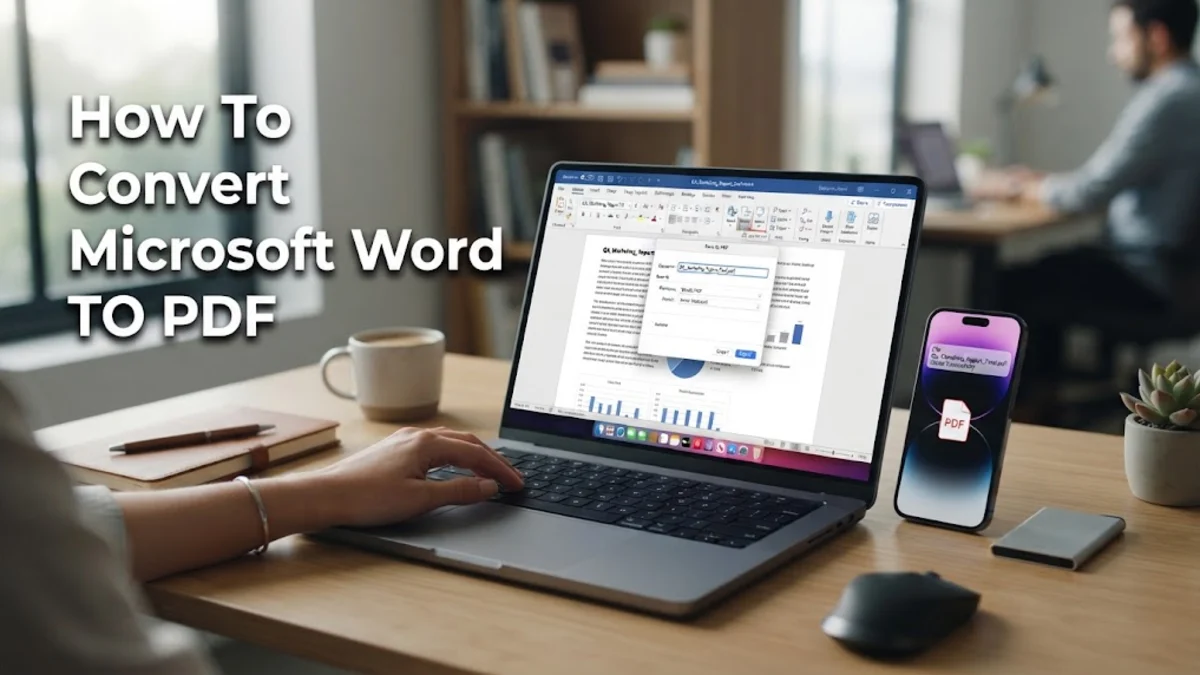
Converting your Microsoft Word document to a PDF is the most reliable way to ensure your formatting, fonts, and images stay locked in place no matter who opens the file. Whether you are submitting an academic paper, sharing a resume, or locking down a business contract, a Portable Document Format file prevents accidental edits and guarantees professional rendering across all operating systems.
Using the Built-In Save As Feature in Desktop Word
The quickest method to convert your document without installing third-party tools is using the native Save As function inside the desktop application. This process retains all hyperlinks, bookmarks, and structural layouts embedded in your document.
To begin, open your document in Microsoft Word on Windows or macOS. Click on File in the top left corner, then select Save As from the sidebar menu. Choose your desired destination folder on your computer storage. In the dialogue box that appears, look for the dropdown menu labeled Save as type on Windows or the File Format dropdown on macOS. Click this menu and select PDF from the available file formats. Finally, click the Save button to generate your new document. If you need to adjust publishing options for print quality or accessibility, click the Options or More Options button before saving to configure page ranges and document properties to your exact specifications.
Exporting Directly via the Export Menu
Another direct path built right into Microsoft Word is the Export tool. This option is particularly useful when you want to optimize your file size for email attachments or ensure strict compliance with PDF publishing standards.
Open your file in Microsoft Word and navigate to File > Export. From the export options panel, select Create PDF/XPS Document and click the accompanying button. A window will pop up allowing you to choose where to save the file. Before hitting publish, check the optimization radio buttons located near the bottom of the dialogue window. Choose Standard (publishing online and printing) if image clarity and high resolution are your primary goals. Alternatively, select Minimum size (publishing online) if you need a lightweight file that uploads quickly to web portals or email servers. Once your preferences are set, click Publish to complete the conversion.
Converting Files Using Microsoft Word for Web
If you are working inside a web browser using Microsoft 365 online rather than the desktop application, you can still convert your files to PDF format directly through cloud storage and browser rendering tools.
First, open your document in Microsoft Word for the web. Click on File in the top menu ribbon, navigate to Save As, and select the Download as PDF option. The cloud service will process your document layout instantly and trigger a secure download through your browser. Depending on your browser settings, the converted PDF will either save directly to your default Downloads folder or prompt you to choose a destination directory. This web-based method is especially convenient when working on public computers, Chromebooks, or devices where you do not have administrative rights to install desktop applications.
Using the System Print to PDF Shortcut
When standard export features encounter rendering snags or custom formatting glitches, utilizing your operating system's virtual print driver is a foolproof alternative for generating a clean PDF file.
With your document open in Microsoft Word, press Ctrl + P on Windows or Cmd + P on macOS to open the Print menu. In the printer selection dropdown list, choose Microsoft Print to PDF on Windows or click the PDF dropdown menu in the bottom corner of the macOS print dialog and select Save as PDF. Click the Print or Save button, which will prompt a secondary window asking you to name your file and choose a destination folder. Confirm your selection, and your operating system will compile the document into a crisp, standardized PDF file without altering your original Word document.
Optimizing Document Quality and Security
After successfully generating your PDF, it is essential to verify that fonts rendered correctly and images did not experience compression artifacts. Common mistakes include forgetting to embed custom fonts, which causes text substitution errors on recipient devices.
To prevent font substitution, return to your Word document options via File > Options > Save, and check the box that says Embed fonts in the file before creating your PDF. Additionally, if your document contains sensitive financial or personal information, you can password-protect the PDF before sharing. While advanced encryption requires dedicated editing software, reviewing your document permissions during the export stage ensures that layout layers remain uneditable and professional. Always open your newly created PDF in a dedicated reader to inspect pagination, header alignments, and table borders before sending it to clients or colleagues.
Comparison of Word to PDF Methods
Different conversion methods offer varying degrees of control over formatting, file size, and accessibility features. Reviewing the comparison table below helps you select the ideal technique for your specific workflow.
| Method | Platform | Best Used For | Formatting Accuracy |
|---|---|---|---|
| Save As | Windows & macOS | General everyday documents | Very High |
| Export Menu | Windows | Optimizing file size or print quality | Highest |
| Word for Web | Cloud / Browser | Quick cloud conversions | High |
| Print to PDF | All Systems | Troubleshooting stubborn layouts | Moderate to High |
The bottom line
Converting your Microsoft Word documents to PDF format is a straightforward process that safeguards your layout and elevates professionalism. Whether you use the native Save As feature, the export menu, or the print driver shortcut, taking a moment to verify your settings ensures your files look pristine on every screen.
Frequently asked questions
Will converting my Word document to a PDF change my fonts?
No, converting to PDF locks your fonts in place. However, if you used unique custom fonts, make sure to embed them in your Word settings before conversion to prevent substitution errors on computers that do not have those fonts installed.
Can I convert a Word document to a PDF on my smartphone?
Yes. Open the Microsoft Word app on iOS or Android, tap the three dots icon in the upper corner, select Share or Export, and choose PDF to generate and save the file to your mobile device.
How do I make the PDF file smaller for email?
When using the Export menu in Word, select the Minimum size (publishing online) option before publishing, which compresses embedded images and reduces overall file weight.
Can I edit a PDF after converting it from Word?
Standard PDF readers only allow viewing and commenting. To edit text within the PDF itself, you will need dedicated PDF editing software or you can edit your original Word file and re-export.
Why do my hyperlinks stop working in the PDF?
Hyperlinks usually break if you use the Print to PDF driver because print drivers strip interactive metadata. Always use the Save As or Export method to preserve clickable web links and bookmarks.