How to Fix Laptop Not Working Unless Plugged In
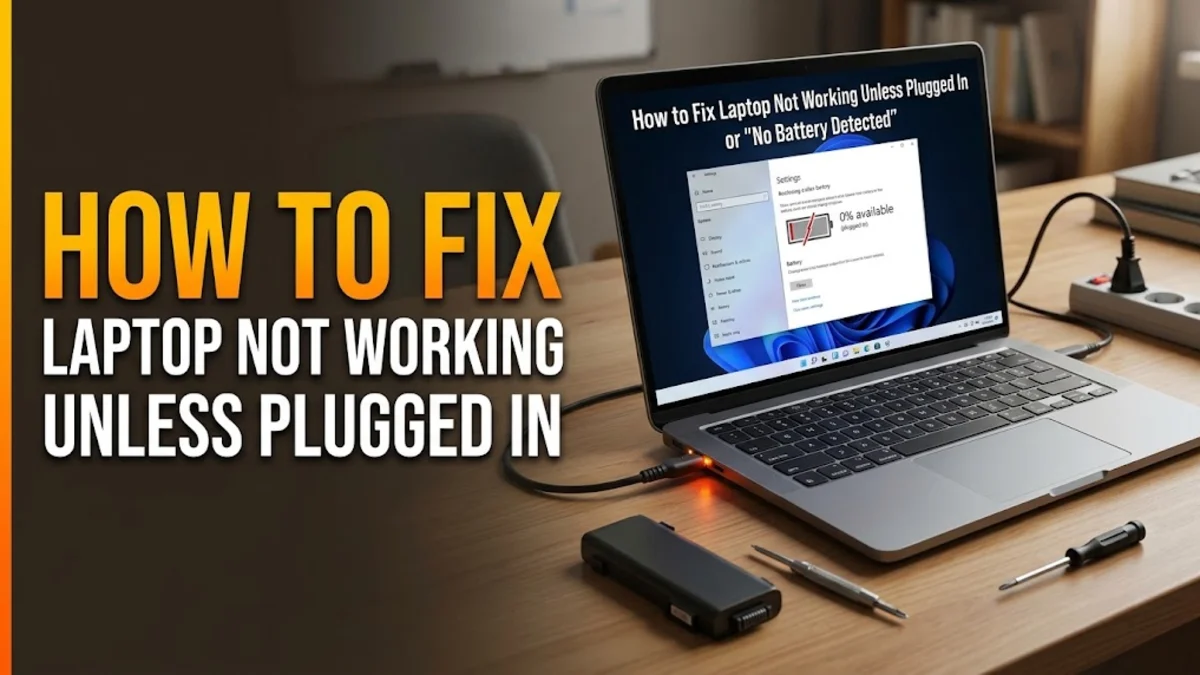
Finding that your laptop shuts down the moment you pull out the charger is frustrating, especially when you need to work on the go or rely on battery backup during power fluctuations. This common hardware and software issue usually points to a failing battery, a corrupted power management driver, an exhausted motherboard circuit, or a loose internal connection.
Fortunately, you can often diagnose and fix this problem yourself without immediately rushing to a repair shop or spending money on unnecessary replacement parts. Follow these comprehensive, step-by-step troubleshooting methods to accurately identify the culprit, restore your laptop battery life, and get your device running independently once again.
Understanding Why Your Laptop Shuts Down When Unplugged
Before diving into complex technical fixes, it helps to understand the underlying mechanics of how laptops manage power between the AC adapter and the internal battery. When your laptop is plugged into the wall, the power adapter supplies direct current to run the motherboard and simultaneously trickles charge into the lithium-ion battery cells. When you unplug the charging cable, a tiny component called the power MOSFET or charging IC is supposed to instantly switch the system's power source over to the battery without any interruption in voltage.
If your laptop dies instantly upon unplugging, it means this seamless handoff is failing. Common causes include a completely dead battery cell group that can no longer retain an electric charge, a corrupted power driver in Windows that fails to report accurate battery status, or a physical motherboard malfunction where the charging circuit cannot bridge power from the battery terminals to the core system components. Identifying whether the issue is software or hardware is the first critical step toward a successful repair.
Perform a Hard Power Reset to Clear Residual Motherboard Power
Over time, static electricity and residual electrical charge can accumulate in your laptop motherboard's capacitors, causing the embedded controller to lock up and mismanage power signals. Performing a hard power reset forces the system to completely drain all stored electricity and resets the power management routines back to their factory defaults.
To perform a hard reset correctly, shut down your laptop completely through the Windows start menu and unplug the charging adapter from the side or back of the chassis. Next, disconnect all external accessories, including USB flash drives, wireless mouse dongles, external hard drives, and docking stations. Open the laptop lid and press and hold down the power button continuously for at least 40 to 60 seconds. This extended press drains every last micro-amp of static charge from the motherboard circuits. Once the time has passed, reconnect only the official power adapter and attempt to turn the laptop back on. Check the battery indicator LED light to see if it now registers active charging.
Update, Uninstall, and Reinstall ACPI Battery Drivers
Windows relies on specific software drivers to monitor and communicate with your hardware components. If the Advanced Configuration and Power Interface (ACPI) battery driver becomes corrupted due to a faulty update, sudden shutdown, or malware, Windows may fail to recognize your physical battery entirely, causing the operating system to panic and cut power the moment AC input is lost.
To fix driver corruption, right-click the Start button on your taskbar and select Device Manager from the pop-up menu. Expand the category labeled Batteries, where you will typically see two entries: Microsoft AC Adapter and Microsoft ACPI-Compliant Control Method Battery. Right-click the Microsoft ACPI-Compliant Control Method Battery and select Uninstall device. Do not worry about permanent deletion; Windows will automatically reinstall this driver when you restart your computer. Next, right-click the Microsoft AC Adapter and uninstall it as well. Once both are removed, leave your charger connected, close Device Manager, and restart your laptop normally to allow Windows to build a clean driver configuration.
Run the Built-in Windows Power Troubleshooter
Windows includes several built-in automated troubleshooters designed to scan your system registry, background services, and power schemes for anomalies. Running the dedicated power diagnostic utility can automatically detect and repair hidden configuration errors that prevent your laptop from utilizing battery power properly.
Open your system configuration menu by navigating to Settings > System > Troubleshoot > Other troubleshooters. Scroll down the list until you locate the Power troubleshooter, then click the Run button next to it. The diagnostic utility will begin scanning your power plan settings, sleep timers, and display timeout configurations. Follow any on-screen prompts if the utility identifies incorrect power states or misconfigured registry values. Once the troubleshooting wizard completes its sweep, restart your computer to ensure all applied corrections take full effect.
Generate and Analyze a Detailed Battery Health Report
All lithium-ion and lithium-polymer laptop batteries degrade naturally over the course of their lifecycle due to chemical aging, charge cycles, and operating temperatures. If your battery has reached the end of its functional life, no software fix will restore its ability to hold energy, and a physical battery replacement is the only viable solution.
You can check the exact health status of your battery by utilizing a hidden command line utility in Windows. Press the Windows Key + X shortcut and select Terminal (Admin) or Command Prompt (Admin). Type the exact command powercfg /batteryreport and press Enter. Open File Explorer, navigate to your user profile folder (usually located at C:\Users\YourUsername), and double-click the newly generated HTML file named battery-report.html. Inside the report, compare the Design Capacity (how much charge the battery was built to hold) against the Full Charge Capacity (how much charge it can currently hold). If the full charge capacity is close to zero or drastically lower than the design capacity, your battery is exhausted and must be replaced.
Inspect Physical Hardware Connections and Charging Ports
If software troubleshooting and battery reports indicate healthy cells but your laptop still dies immediately when unplugged, the issue is likely physical. Over time, laptop charging ports can accumulate lint, dust, or experience internal solder joint fractures due to accidental drops or cable tugs. Furthermore, if you own a laptop with a removable external battery, the metal contact pins can oxidize or become loose.
Inspect the external charging port with a flashlight to ensure no debris is blocking the pins. If your laptop features a removable external battery, slide the release latches, take the battery out completely, and inspect the gold contact pins for dirt or corrosion. Clean the contacts gently with a dry microfiber cloth and snap the battery back into place, ensuring you hear a distinct click confirming it is locked securely. For modern laptops with internal batteries, loose ribbon cables or damaged power management chips on the motherboard will require professional repair by a certified technician.
The bottom line
A laptop that shuts down the moment it is unplugged can severely disrupt your workflow, but working through these diagnostic steps helps isolate the root cause with precision. Whether the problem stems from a temporary power state glitch, corrupted ACPI drivers, or an exhausted battery cell that requires physical replacement, addressing the issue methodically ensures your portable computer regains its mobility.
Frequently asked questions
Why does my laptop die immediately when I unplug it?
This usually happens because the physical battery cells are completely dead, Windows has lost communication with the battery due to a driver glitch, or the internal motherboard charging circuit has failed.
Can a software update fix a battery that won't hold a charge?
If the issue is caused by a corrupted ACPI battery driver or a misconfigured power profile, reinstalling drivers can fix it. However, if the battery hardware has chemically degraded, software cannot restore its physical capacity.
How do I check my laptop battery health in Windows?
Open Command Prompt as an administrator, type 'powercfg /batteryreport' and press Enter. Open the generated HTML file in your user folder to compare your design capacity with your full charge capacity.
Is it safe to keep my laptop plugged in all the time?
Yes, modern laptops use smart battery management systems that stop charging once full, though occasional discharging helps maintain overall battery longevity.
What should I do if my battery report shows zero capacity?
A zero capacity reading means the battery cells have failed permanently or the internal battery management system has tripped a permanent safety fuse, requiring a physical battery replacement.