Microsoft Word vs Excel: Key Differences Explained

Microsoft Word and Excel are two foundational applications in the Microsoft 365 suite, designed for entirely different core tasks. Word is a word processor built for creating text documents like reports and letters, while Excel is a spreadsheet program engineered for organizing, calculating, and analyzing numerical data. Understanding their core functions ensures you choose the right tool for your daily workflow.
Core Purpose and Primary Uses
Microsoft Word serves as a dedicated word processor optimized for writing, editing, and formatting text-heavy documents. You rely on Word when crafting resumes, academic essays, business reports, newsletters, or legal contracts. Its interface mimics a blank sheet of paper, allowing you to focus on paragraphs, headings, bullet points, and page layouts. The primary goal is readability, narrative flow, and professional typography. In contrast, Microsoft Excel is built specifically for data management, financial modeling, and numerical analysis. Instead of a blank page, Excel opens a grid composed of rows and columns intersecting into individual cells. You use Excel to track budgets, manage inventory, analyze sales trends, or build complex mathematical models. While you can type text into Excel cells, its underlying architecture prioritizes data structure, formulas, and quantitative insights rather than paragraph storytelling.
Interface and Workspace Comparison
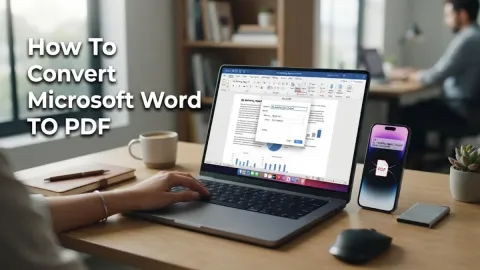
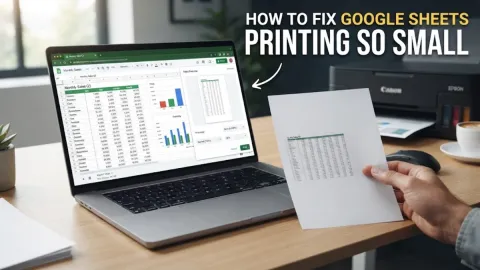
The visual workspace of Microsoft Word centers around continuous pages separated by margins, headers, and footers. As you type, text flows naturally from one page to the next, mirroring a physical printed document. The top ribbon provides access to typography styles, paragraph alignment, margins, and page breaks. This page-centric layout makes it easy to visualize how your finished report will look when printed or exported as a PDF file. Excel abandons the page layout entirely in favor of an infinite spreadsheet grid organized by alphabetical column headers and numerical row headers. The workspace emphasizes tables, charts, and data arrays. You navigate through sheets using tabs at the bottom, allowing you to organize massive datasets across multiple interconnected pages. While you can adjust print settings, the working environment is designed for scrolling through rows of data rather than reading sequential paragraphs.
Data Management and Calculations
When it comes to handling numbers and performing calculations, Excel is infinitely more powerful than Word. Excel features thousands of built-in functions ranging from basic arithmetic like SUM and AVERAGE to complex financial, statistical, and logical formulas. You can reference individual cells, create dynamic charts, sort columns alphabetically or numerically, and filter large datasets instantly with just a few clicks. Microsoft Word does include a basic table feature that supports simple calculations, such as summing a column of numbers, but it lacks advanced data analysis tools. If you attempt to manage a large financial ledger or inventory list inside a Word table, you will quickly encounter limitations in sorting, filtering, and automated updating. Word treats tables primarily as visual aids to structure text rather than dynamic calculation engines.
Formatting and Visual Layout
Formatting in Microsoft Word revolves around typographic hierarchy, paragraph spacing, page breaks, and visual themes. You can apply styles like Heading 1 or Heading 2 to generate automated tables of contents, insert professional cover pages, and customize headers and footers for different sections. Word gives you absolute control over page orientation, margins, and columns, making it the superior choice for document design and desktop publishing tasks. Excel formatting focuses on cell styling, conditional formatting, data bars, and chart creation. You can format cells to display currency, percentages, dates, or custom numeric patterns. Conditional formatting allows cells to change color automatically based on their values, helping you spot trends or anomalies instantly. While Excel includes drawing tools and shapes, its graphical capabilities are tailored for data visualization through bar charts, pie charts, and scatter plots rather than artistic layout design.
Collaboration and Sharing Features
Both Microsoft Word and Excel offer robust cloud integration through Microsoft 365, allowing multiple users to co-author documents in real time. In Word, collaborators can leave comments, track changes made to paragraphs, and accept or reject edits individually. This makes Word ideal for editorial teams, co-authors, and corporate legal departments reviewing contracts line by line. Real-time collaboration in Excel functions similarly but focuses on data integrity. Multiple users can view and edit the same spreadsheet simultaneously, with color-coded indicators showing which cell each collaborator is currently selecting. Excel also allows you to protect specific sheets or ranges, ensuring that unauthorized users cannot accidentally overwrite crucial formulas or financial data while working on shared company projects.
Summary Comparison and Choosing the Right Tool
| Feature | Microsoft Word | Microsoft Excel |
|---|---|---|
| Primary Purpose | Word processing and text documents | Data analysis and spreadsheets |
| Workspace Layout | Sequential pages | Grid of rows and columns |
| Calculations | Basic table math | Advanced formulas and functions |
| Data Visualization | Images, shapes, and SmartArt | Charts, graphs, and conditional formatting |
The bottom line
Understanding the core differences between Microsoft Word and Excel allows you to streamline your daily tasks. Use Word when your focus is writing text and formatting readable pages, and choose Excel when you need to crunch numbers, track budgets, and organize structured data.
Frequently asked questions
Can I do math in Microsoft Word?
Yes, Word has a basic table formula feature for simple calculations like addition, but it cannot handle complex financial models or large datasets.
Can I write paragraphs inside Microsoft Excel?
Yes, you can type text into any cell and use wrap text, but Excel is not designed for continuous reading or long-form document creation.
Which application is better for creating invoices?
Excel is typically better for automated invoice calculations and totals, while Word is preferred if you want a heavily customized, text-heavy design.
Do I need a Microsoft 365 subscription to use both?
Yes, Microsoft Word and Excel are core components of the Microsoft 365 productivity suite available across desktop, mobile, and web platforms.