How to Fix Laptop Not Working Without Charger
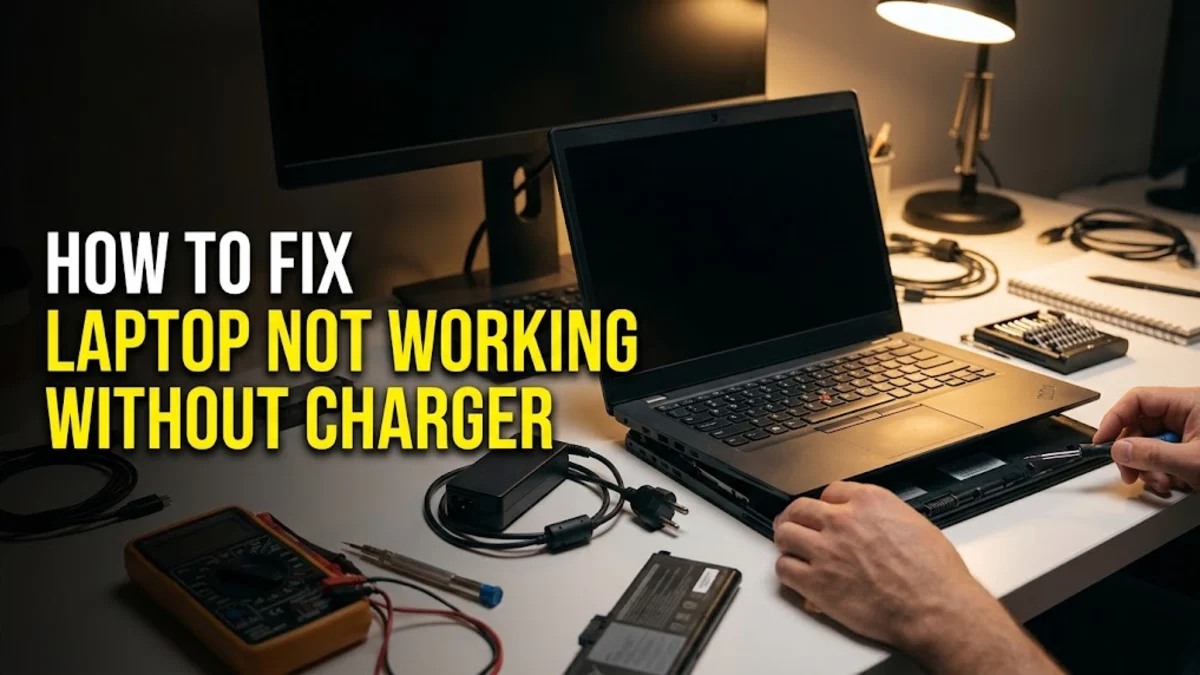
Dealing with a laptop that instantly shuts down the moment you unplug the power cord can be incredibly frustrating. This issue usually indicates a communication breakdown between your operating system and hardware, a corrupted power profile, or a failing battery.
Fortunately, you can often resolve this problem at home by performing a power drain, reinstalling system battery drivers, or adjusting your Windows power settings. Follow this step-by-step troubleshooting guide to get your laptop running independently on battery power again.
Check Physical Connections and Power Outlets
When your laptop refuses to turn on unless it is plugged into the wall, the issue often traces back to a simple physical disconnection or a failing power source. Start by inspecting the entire length of your power cord for any visible fraying, bends, or exposed wires. A damaged cable can transmit just enough trickle charge to keep a machine alive while plugged in, but it will fail to supply the steady current required to charge a depleted battery. Next, examine the charging port on the laptop itself. Dust, lint, and debris frequently accumulate inside the USB-C or barrel jack port, preventing the charging pin from making full electrical contact.
To clean the port safely, power down your device completely, disconnect it from the wall, and use a wooden toothpick to gently sweep away any trapped pocket lint. Avoid using metal needles or paperclips, as these can easily short out the motherboard contacts. Furthermore, test the wall outlet by plugging a lamp or phone charger into the same socket to verify that it is delivering active power. If the outlet is connected to a wall switch, ensure that the switch is flipped to the on position. Moving to a different wall outlet or bypassing a faulty power strip can immediately resolve a deceptive power delivery failure.
Perform a Hard Reset to Clear Static Charge
Static electricity and corrupted power states on the motherboard can trick your laptop into thinking the battery is completely dead or missing, preventing it from functioning independently. Performing a hard reset, often called a power drain, forces the embedded controller to clear its temporary memory and recalibrate its power management system. To perform this procedure safely on modern Windows laptops, begin by shutting down your device completely and unplugging the AC adapter. Disconnect all external USB peripherals, external monitors, docking stations, and media cards, as these accessories can sometimes maintain a tiny parasitic electrical draw.
Once the machine is entirely bare, press and hold down the laptop power button continuously for a full 40 to 60 seconds. This action discharges any residual electrical energy stored within the capacitors on the motherboard. After releasing the power button, reconnect only the official AC adapter without plugging in the battery if your model features a removable external battery. Try powering on the device. If the laptop boots successfully, reconnect your battery and other peripherals one by one to isolate any hardware components that might be causing a short circuit or power conflict.
Reinstall and Update Battery Drivers in Windows
Software communication errors between the Windows operating system and the hardware battery management system can cause your device to ignore the battery entirely. When the battery driver becomes corrupted, Windows fails to recognize the energy storage module, leaving the laptop dependent on direct AC power. To fix this, you need to reinstall the Microsoft ACPI-Compliant Control Method Battery driver through the Device Manager interface. Right-click the Windows Start button on your taskbar and select Device Manager from the quick link menu. Scroll down the hardware tree list and click the arrow next to the Batteries category to expand its drop-down contents.
Right-click on the Microsoft ACPI-Compliant Control Method Battery entry and choose Uninstall device from the context menu. Confirm the uninstallation prompt if Windows asks you to verify the action. Do the same for the Microsoft AC Adapter entry if it is listed. Do not panic when your system tray battery icon temporarily disappears or changes appearance. Once uninstalled, click on the Action menu at the top of the Device Manager window and select Scan for hardware changes. Windows will automatically detect the missing hardware controllers and reinstall fresh, uncorrupted default drivers, restoring normal battery communication.
Calibrate Windows Power Plan Settings
Incorrect power management configurations within the Windows operating system can sometimes interfere with proper battery charging and discharging thresholds. Advanced power plans dictate how much energy is allocated to hardware components, and custom manufacturer software utilities often override these settings with aggressive battery preservation modes. To check your system configurations, open the Windows search bar, type Control Panel, and open the classic utility window. Navigate to Hardware and Sound and then select Power Options. Ensure that your active power plan is set to Balanced or the manufacturer-recommended profile rather than a restrictive custom scheme that might restrict battery draw.
If you are using a branded laptop from manufacturers like Lenovo, Dell, or HP, check for pre-installed companion software such as Lenovo Vantage or MyASUS. These utility applications frequently feature battery charge limit thresholds designed to protect battery longevity by stopping charging at 60 percent or preventing standalone operation under certain thermal conditions. Open these utility programs, navigate to the hardware power section, and verify that battery protection modes are temporarily disabled or configured correctly. Resetting these power profiles ensures that Windows permits the battery to discharge and charge without software-imposed restrictions.
Inspect Battery Health and Check Wear Levels
If software troubleshooting and hard resets fail to make your laptop run without a charger, the root cause is frequently physical battery degradation or complete cell failure. Rechargeable lithium-ion batteries have a finite lifespan measured in charge cycles, and older batteries eventually lose their chemical capacity to hold an electrical charge. You can easily check the real-time health of your Windows laptop battery without installing third-party tools by generating a built-in diagnostic report. Open the Windows search bar, type cmd, right-click on the Command Prompt application, and select Run as administrator to open an elevated terminal window.
Type the command powercfg /batteryreport into the command prompt window and press Enter. Windows will generate an HTML file detailing your battery metrics and save it in your user profile folder, typically located at C:\Users\YourUsername\battery-report.html. Open this file in any web browser and compare the Design Capacity against the Full Charge Capacity. If the full charge capacity has dropped close to zero or represents a tiny fraction of the original design capacity, the chemical cells inside the battery pack are dead. Replacing the aging battery with a genuine OEM replacement part will restore your laptop's ability to run cord-free.
The bottom line
Fixing a laptop that only works when plugged in requires a methodical approach, starting with simple physical checks and moving toward driver reinstalls and hardware diagnostics. By clearing static charge, refreshing your Windows battery drivers, and checking your battery wear report, you can pinpoint the exact cause of the failure and restore portable freedom to your device.
Frequently asked questions
Why does my laptop turn off immediately when I unplug the charger?
This typically happens because the battery is completely dead, worn out beyond its usable life cycle, or failing to communicate with the Windows operating system due to a corrupted driver.
Can a bad charger cause my laptop not to work without it?
Yes. If a charger is damaged or providing insufficient wattage, it may supply enough trickle current to keep the motherboard alive while plugged in, but it will fail to charge the battery or support standalone use.
How do I know if my laptop battery needs to be replaced?
You can generate a system battery report in Windows using the command prompt. If the full charge capacity is extremely low compared to the original design capacity, the battery hardware is worn out.
Will resetting my BIOS fix laptop battery recognition issues?
Resetting your BIOS or UEFI settings to default can resolve low-level hardware configuration errors that prevent the motherboard from recognizing the battery hardware correctly.
Is it safe to use my laptop with the battery removed?
Most modern laptops with internal batteries should not be operated with the battery physically disconnected, as the battery acts as a crucial power buffer against electrical surges.