How to Fix Samsung Galaxy Stuck on Samsung Logo
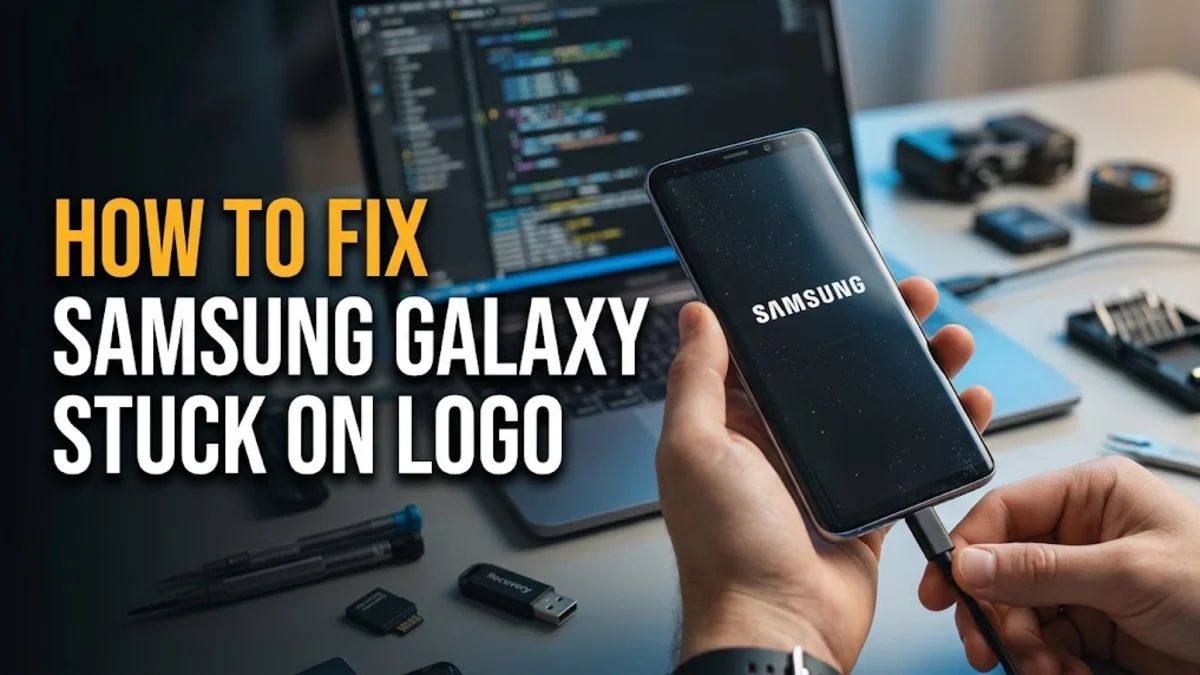
Finding your Samsung Galaxy frozen on the startup screen can be an alarming experience, especially when you need your device for daily communication or work. This common boot loop issue usually happens due to a corrupted system cache, a failing application, or an incomplete software update that disrupted the normal boot sequence.
Fortunately, you can often resolve this problem at home without losing your personal data by following a specific sequence of troubleshooting steps. From simple forced reboots to clearing the system cache partition, here is how to get your phone working again.
Force Restart Your Samsung Galaxy
When your phone refuses to move past the initial boot logo, the very first thing you should try is a forced restart. This action cuts power to the hardware instantly and forces the motherboard to cycle completely, clearing out temporary glitches that might be hanging up the startup routine.
To perform a force restart on most modern Samsung Galaxy devices, press and hold both the Power button and the Volume Down button simultaneously. You need to keep holding both physical buttons down continuously for at least 10 to 15 seconds. Do not let go when the screen flashes or when the logo appears again; keep holding until the phone's screen goes completely black and the Samsung logo reappears from a fresh boot state. If your phone was simply caught in a minor software loop, it will now proceed past the logo and load your lock screen normally. If this fails on the first try, plug the phone into a wall charger for 15 minutes and repeat the button combination in case a depleted battery was the root cause of the freezing loop.
Boot Into Safe Mode to Bypass Third-Party Apps
If a forced restart does not solve the problem, a newly installed application or a misbehaving background service might be crashing the system right as it tries to load user configurations. Safe Mode temporarily disables all third-party apps, allowing you to isolate whether an external program is causing your phone to hang.
Start by turning your phone off completely using a forced restart. As soon as the screen goes black, press and hold the Volume Down button. While holding the volume key, press and hold the Power button until the Samsung logo appears on screen. Immediately release the Power button while continuing to hold the Volume Down button until the device boots up entirely. You will see a small text label reading Safe Mode in the bottom-left corner of your screen. If your phone successfully boots into Safe Mode, a downloaded application is definitely the culprit. Navigate to Settings > Apps, locate any recently installed or suspicious apps, and uninstall them immediately. Afterward, restart your phone normally to exit Safe Mode and check if your normal boot sequence has been restored.
Clear Cache Partition via Recovery Mode
Over time, temporary system files stored in the cache partition can become corrupted or outdated. When the operating system tries to read these damaged files during startup, the device freezes or gets permanently stuck on the boot animation logo.
To clear the cache partition, you need to enter the Android Recovery environment. First, power off your phone completely. Next, connect your Samsung Galaxy to a computer using a USB-C cable (Samsung phones require an active USB data connection to a PC or a connected wired headset to enter recovery mode on recent firmware versions). Press and hold the Power button and the Volume Up button at the same time. Keep holding both buttons until the Android recovery menu appears with yellow and blue text. Use the Volume Down button to scroll through the menu options until you highlight Wipe cache partition. Press the Power button to select it. Confirm your choice by selecting Yes when prompted. Once the process finishes, make sure Reboot system now is highlighted and press the Power button. Your phone will clear out the bad cache data and attempt a clean startup.
Remove MicroSD Card and SIM Card
Hardware accessories and external storage media can occasionally cause persistent boot loops on Android devices. If a microSD card has corrupted sector data or bad file allocations, the phone's operating system will continuously attempt to mount the storage during boot and freeze indefinitely.
Power down your Samsung Galaxy using a forced restart. Locate the SIM tray pinhole on the top or side edge of your device, insert a SIM ejector tool or a straightened paperclip, and pull the tray out completely. Take out both your physical SIM card and your microSD memory card if your specific Galaxy model supports expandable storage. Inspect the cards for any physical damage, dust, or moisture. Leave both cards completely removed from the device, and try to turn your phone back on. If the device boots up successfully without the cards installed, one of the storage sectors on your microSD card was likely corrupted. You can format the card using a computer card reader or replace it entirely before inserting it back into your phone.
Factory Reset via Recovery Mode as a Last Resort
If you have exhausted all other troubleshooting methods and your Samsung Galaxy remains stuck on the logo screen, the operating system files may be severely corrupted. In this scenario, performing a factory reset through the recovery environment is your final option to restore functionality.
Be aware that a factory reset will erase all personal data, photos, and messages stored on your internal phone memory that have not been backed up to cloud services. To proceed, turn off the phone, connect it to a computer via USB, and enter Recovery Mode by holding the Power and Volume Up buttons simultaneously. Once the recovery menu appears, use the Volume Down button to navigate to Wipe data / factory reset. Press the Power button to select it, then scroll down and confirm by selecting Factory data reset. The phone will wipe all internal user data, which takes a few minutes. When the wipe is complete, select Reboot system now. Your phone will boot up as if it were brand new out of the box, letting you log back into your Google and Samsung accounts to restore your cloud backups.
When to Seek Professional Repair Support
Sometimes a phone stuck on the startup logo is not caused by software corruption or bad apps at all. Physical hardware damage, such as a failing internal flash storage chip (NAND memory), liquid damage, or a motherboard defect from a recent drop, can permanently damage the bootloader.
If you have successfully performed a factory reset and the phone still hangs on the logo or crashes repeatedly during the setup wizard, you are likely dealing with a hardware failure. Continuing to try software workarounds or flashing unofficial firmware packages can brick your device permanently and void any remaining warranty coverage. Take your phone to an authorized Samsung service center or a certified repair technician. They can run diagnostic tests on the motherboard components, evaluate the health of the internal storage modules, and provide a definitive assessment of whether the hardware can be repaired or if the device needs to be replaced.
The bottom line
Getting stuck on the Samsung logo can be stressful, but working methodically through force restarts, safe mode checks, cache wipes, and storage removals usually resolves the problem. By addressing potential software conflicts and clearing out corrupt data, you can restore your phone to full working order safely.
Frequently asked questions
Why is my Samsung Galaxy stuck on the logo screen?
It typically happens due to a corrupted system cache, a failing application, a bad microSD card, or system files damaged during an interrupted software update.
Will clearing the cache partition delete my photos?
No. Wiping the cache partition only removes temporary system data and residual app files. Your personal photos, videos, and messages remain completely safe.
How long should a forced restart take?
You need to hold the Power and Volume Down buttons for 10 to 15 seconds continuously until the screen turns black and the device initiates a fresh boot.
What should I do if Safe Mode doesn't work?
If Safe Mode is inaccessible or the phone still freezes, try clearing the cache partition or performing a factory reset through the Android recovery menu.
Can a bad battery cause a boot loop on Samsung phones?
Yes. A severely degraded battery may fail to supply stable voltage to the processor when the system draws peak power during startup, causing repeated reboots.