How to Fix an iPad Keyboard Not Working
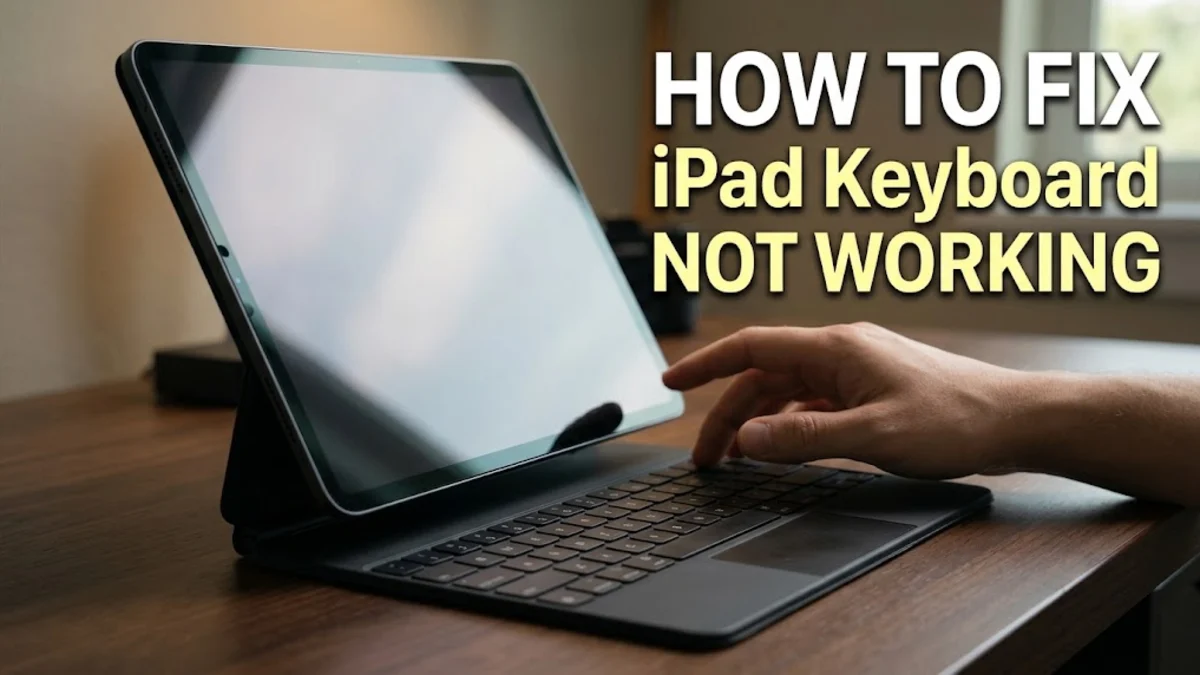
When your iPad keyboard stops responding, freezes, or completely disappears, it can bring your workflow to a grinding halt. Whether you are using the built-in software keyboard or an attached physical accessory, fixing the issue usually comes down to isolating whether it is a temporary software glitch or a hardware connection failure.
Restart Your iPad and Clear System Memory
A temporary system glitch is the most common reason an iPad keyboard freezes or fails to pop up. When background processes clash or system memory gets choked, the input manager responsible for rendering the keyboard can crash. Your very first troubleshooting step should always be a simple restart, which flushes out corrupt cache files and resets the active user interface.
To restart an iPad without a home button, press and quickly release the Volume Up button, press and quickly release the Volume Down button, and then press and hold the Top button until the Apple logo appears. If you have an iPad with a home button, press and hold both the Top (or Side) button and the Home button simultaneously until the screen goes black and the Apple logo shows up. Once the device boots back up, open an app like Notes and tap a text field to check if the keyboard responds normally.
Reset Your iOS Keyboard Dictionary and Settings
Over time, cached dictionary data, custom shortcuts, and corrupted preference files can cause the virtual keyboard to lag severely or crash altogether. Resetting your keyboard dictionary to factory defaults clears out these lingering software conflicts without wiping your personal photos, apps, or documents. This forces the iPad to rebuild its text prediction database from scratch.
Open Settings > General > Transfer or Reset iPad > Reset > Reset Keyboard Dictionary. You will be prompted to enter your device passcode to confirm the action. If the keyboard continues to misbehave after this reset, go back into the settings menu and choose Reset All Settings, which refreshes all system configurations, network settings, and display preferences back to their factory defaults.
Fix Split and Floating Keyboard Modes
Many users accidentally trigger the split or floating keyboard gestures without realizing it, making the keyboard look distorted, miniature, or split into two halves positioned on opposite sides of the screen. This layout confusion often tricks users into thinking the keyboard is broken when it is simply operating in an alternate viewing mode designed for thumb typing or multitasking.
If your keyboard is split into two halves on the left and right edges of the screen, place two fingers on both halves and pinch them together toward the center of the screen to merge them back into a single panel. Alternatively, tap the keyboard icon in the bottom right corner and select Merge Keyboard. If the keyboard is stuck floating as a small phone-sized box, place two fingers on the bottom indicator bar of the floating keyboard and drag it downward to the bottom edge of the screen until it snaps back into full-width mode.
Troubleshoot Smart Keyboards and Magic Keyboards
If you are using a physical accessory like the Apple Magic Keyboard or Smart Keyboard Folio and it refuses to type or track gestures, the issue is usually related to dirty Smart Connector pins or a poor magnetic alignment. Debris, dust, or moisture buildup on the metal connector dots can interrupt the data and power transmission between the iPad and the keyboard case.
Detach the iPad from the keyboard case and inspect the three small magnetic connector pins on the iPad and the matching contact pads on the keyboard accessory. Wipe them gently using a clean, dry, lint-free microfiber cloth. If stubborn grime is present, lightly dampen the cloth with isopropyl alcohol and let the surface dry completely before reattaching the device. Once clean, snap the iPad firmly back into place and ensure the magnetic alignment is secure. If the physical keyboard still fails, toggle Bluetooth off and on if it is a wireless model, or forget the device in Settings > Bluetooth and pair it again as a new accessory.
Manage and Remove Buggy Third-Party Keyboards
Installing third-party keyboards from the App Store, such as custom emoji keyboards or multilingual input tools, can sometimes conflict with the native iOS input system. If a third-party app crashes in the background, it can drag down the entire system text engine, causing the default Apple keyboard to disappear or stall.
To test if a third-party keyboard is causing the conflict, navigate to Settings > General > Keyboard > Keyboards. Swipe left on any third-party keyboard listed and tap Delete to remove it temporarily. Return to a text input field to see if the standard Apple keyboard functions smoothly. If stability returns, check the App Store for updates to that specific keyboard app or keep it uninstalled to prevent future system conflicts.
Update iPadOS to Patch Known Keyboard Bugs
Software bugs in older iterations of iPadOS frequently cause input lag, unresponsive text fields, and sudden keyboard crashes. Apple regularly releases point updates that specifically address system-level interface bugs and accessory communication errors. Running an outdated operating system leaves your device vulnerable to known software glitches that have already been resolved.
Connect your iPad to a stable Wi-Fi network, plug it into a power source, and open Settings > General > Software Update. If an update is available, tap Update Now or Install Now and enter your passcode when prompted. Ensure your device stays powered on and connected to the internet throughout the download and installation process. Once the iPad reboots with the latest software installed, test the keyboard performance across multiple native and downloaded applications.
The bottom line
Fixing an iPad keyboard issue rarely requires professional repair. By methodically clearing software glitches, resetting system preferences, cleaning physical connectors, and keeping your operating system up to date, you can restore smooth typing performance in no time.
Frequently asked questions
Why did my iPad keyboard suddenly disappear?
A disappearing keyboard is usually caused by a temporary software glitch in the active app or a conflict with an attached physical keyboard accessory. Restarting your iPad or toggling Bluetooth usually brings it back.
How do I un-split my iPad keyboard?
Place two fingers on the split keyboard halves and pinch them together toward the center of the screen, or tap the keyboard icon and select Merge Keyboard.
Why won't my Apple Magic Keyboard type anything?
This is often caused by dirty Smart Connector contacts. Clean the magnetic pins on both the iPad and the keyboard case with a dry microfiber cloth and reattach them securely.
Will resetting my keyboard dictionary delete my photos?
No. Resetting the keyboard dictionary only clears custom words and cached prediction data. Your personal files, apps, and photos remain completely safe.
What should I do if third-party keyboards keep crashing?
Go to Settings > General > Keyboard > Keyboards and delete the third-party keyboard causing the issue, then check the App Store for developer updates.