How to Change Your Router Password
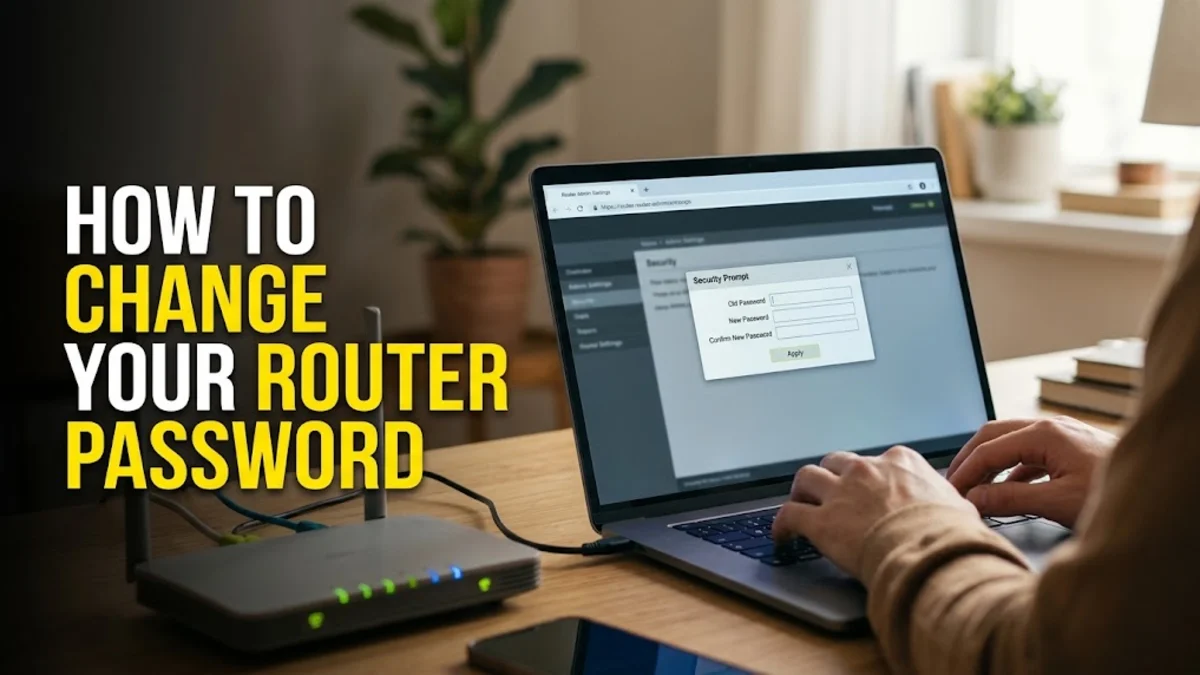
Securing your home network starts with keeping unauthorized users away from your Wi-Fi. Regularly updating your router credentials prevents neighbors or unwanted guests from slowing down your connection.
Find Your Router IP Address and Default Credentials
Before you can change your router password, you need to access its management console. To do this, you must find your router IP address, which is typically a standard gateway address like 192.168.1.1 or 192.168.0.1. You can easily locate this on Windows by opening the Command Prompt, typing ipconfig, and looking for the Default Gateway entry. On a Mac, you can check your network settings under System Settings to find the router IP. Once you have the IP address, look at the physical sticker on the back or bottom of your router. This sticker contains essential information, including the default gateway address, the default username, and the initial administrator password required for your first login. Make sure to note these down before moving to the next step. If the sticker is missing or the credentials have been changed previously, you may need to perform a factory reset using a paperclip in the reset hole, though this will temporarily disconnect all devices. Taking a moment to gather this information ensures a smooth login process and prevents frustrating connection errors during the setup phase.
Always verify that your device is actively connected to the router network via Ethernet or Wi-Fi before attempting to load the management page. If you encounter timeout errors, double-check that you are using the correct subnet gateway address corresponding to your primary router rather than a secondary range extender.
Log In to Your Router Admin Panel
With your router IP address and credentials ready, open any web browser on a device connected to your home network, whether via Wi-Fi or an Ethernet cable. Type the IP address directly into the browser URL bar and press Enter. You will likely encounter a security warning stating that the connection is not private or secure. This is completely normal for local router login pages because they use self-signed security certificates. Simply click on the advanced options and proceed to the page anyway. Next, you will be prompted to enter a username and password. Enter the default credentials found on your router physical sticker. If these credentials do not work, someone may have previously altered them. In that case, you will need to reset the router to factory defaults. Once successfully authenticated, you will land on the main dashboard of your router management console, where you can view connected devices, check firmware updates, and manage your network settings.
Remember that browser autofill can sometimes insert incorrect legacy passwords into these login fields. If your login attempt fails repeatedly, clear the fields manually and type the credentials character by character to avoid authentication locks.
Navigate to the Wireless Security Settings
After logging into the admin dashboard, you need to locate the section that controls your wireless network settings. Router interfaces vary significantly depending on the manufacturer, such as TP-Link, Netgear, Asus, or Linksys, but the terminology remains relatively consistent. Look for tabs or menus labeled Wireless, Wi-Fi Settings, Wireless Security, or WLAN. In some modern router firmware versions, these settings might be nested under an advanced settings menu or a basic home network overview panel. Click on the Wi-Fi configuration tab and look for fields related to your network name, which is often called the SSID, and your security key or password. Avoid changing network modes or channel widths unless you are troubleshooting specific performance issues. Your primary goal here is to locate the current wireless password field so you can prepare to replace it with a secure, unique combination that protects your bandwidth from unauthorized users.
Take note of whether your router utilizes dual-band technology. If you see separate configurations for 2.4 GHz and 5 GHz networks, you may need to update the password for both bands individually or ensure they share the same key depending on your network preference.
Enter a Strong New Password and Save Changes
Once you have located the password field, it is time to create and enter your new Wi-Fi key. A secure password should be at least twelve characters long and include a mix of uppercase letters, lowercase letters, numbers, and special symbols. Avoid using easily guessable information such as your phone number, address, or common dictionary words. Type your new password carefully into the designated field. Many routers include a show password checkbox or an eye icon that lets you verify what you are typing before saving, which helps prevent accidental lockouts due to typos. After entering the new password, look for a Save, Apply, or Submit button, usually located at the bottom of the page. Click this button to write the changes to the router memory. Your router will typically take a few moments to apply the new settings, during which time your current Wi-Fi connection will temporarily drop as the router restarts its wireless radio.
Do not close the browser tab immediately after clicking save. Wait for a confirmation message or a progress bar indicating that the router has successfully processed the new configuration parameters.
Reconnect Your Devices to the New Wi-Fi Network
Because you have successfully changed your router password, all existing wireless devices connected to your home network will be disconnected automatically. This is expected behavior since your phones, laptops, smart TVs, and tablets are still trying to authenticate with the old password. To restore connectivity, go to each device network settings menu, select your Wi-Fi network name, and choose the option to forget or remove the network if it fails to prompt for a password immediately. Then, select the network again and enter your brand-new, secure password. If you have numerous smart home devices or IoT gadgets, updating each one can take a little time, but it is a necessary step to ensure your entire household operates smoothly under the new security parameters. Keep a secure record of the new password in a password manager so you do not forget it when adding new guests or devices to your network in the future.
If a specific device refuses to connect after updating the password, try restarting that device entirely to clear out any cached network configurations that might be interfering with the new handshake process.
Update Admin Login Credentials for Extra Security
Changing your Wi-Fi password protects your internet bandwidth, but you should also change the administrator login password for the router dashboard itself. Many routers ship with weak default admin credentials like admin for both the username and password, leaving them vulnerable to local network attacks. While still logged into your router admin panel, navigate to the Administration, System Tools, or Management section. Look for options to change the router password or modify administrator credentials. Enter the current default admin password followed by your strong new admin password. Make sure this administrator password is different from your Wi-Fi network password to maintain optimal security hygiene. Saving these changes ensures that even if someone manages to connect to your guest network or physical ports, they cannot gain administrative control over your entire network infrastructure.
Store your administrator credentials securely separate from your Wi-Fi key. Losing access to the router admin panel will make future troubleshooting or network configuration changes significantly more difficult.
The bottom line
By following these straightforward steps, you can successfully update your router and Wi-Fi passwords to ensure a secure, private home network. Regular updates keep your connection safe from unauthorized access and maintain optimal performance across all your household devices.
Frequently asked questions
Will changing my router password disconnect my devices?
Yes, changing your Wi-Fi password will immediately disconnect all wireless devices. You will need to reconnect them manually using the new password.
What should I do if I forget my new router password?
If you forget your Wi-Fi or admin password, you can reset your router to factory settings by pressing the physical reset button on the back for about ten seconds using a pin or paperclip.
Do I need an internet connection to change my router password?
No, you do not need active internet access to change your router password. You only need a local connection to the router via Wi-Fi or an Ethernet cable to access the admin panel.
How often should I change my router password?
It is generally recommended to change your Wi-Fi password once a year, or immediately if you suspect unauthorized users have gained access to your network.