Why Is My iPad Dying So Fast? 6 Ways to Fix Battery Drain
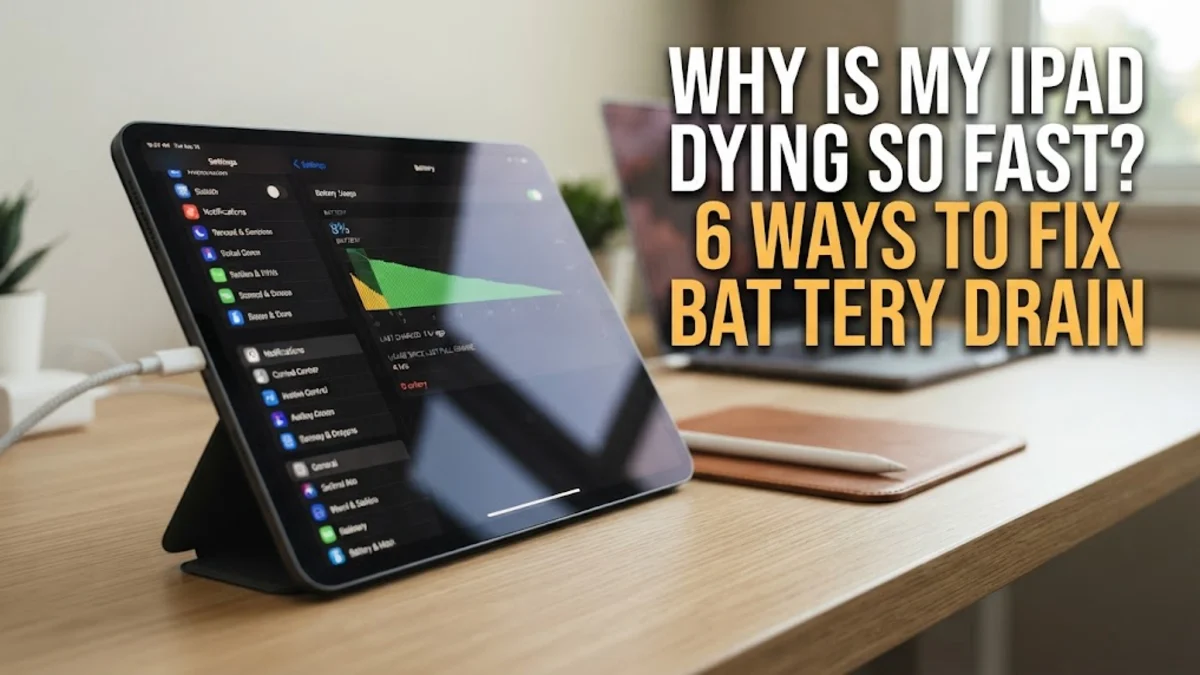
Your iPad is likely dying fast because of high screen brightness, power-hungry background apps, or a degrading physical battery that can no longer hold a full charge. In many cases, recent iPadOS updates or unoptimized location services are the silent culprits that drain your percentage even when you are not actively using the device.
To fix a fast-draining iPad, you need to identify whether the issue is software-based or hardware-related. Software issues can usually be resolved by adjusting settings or performing a clean install, while hardware issues might require a trip to the Apple Store. This guide walks you through the diagnostic steps to reclaim your battery life in 2026.
Identify Power-Hungry Apps in Battery Settings
The first step in solving battery drain is finding the specific apps responsible for the consumption. iPadOS provides a detailed breakdown of power usage over the last 24 hours and the last 10 days. To view this, go to Settings > Battery and wait for the graphs to populate. Look at the list below the chart; it displays apps by the percentage of battery they have used. If you see an app like a social media platform or a mobile game using 40% of your battery despite only a few minutes of use, that app is likely malfunctioning or poorly optimized for the current version of iPadOS.
- Check Screen Off activity: Some apps consume power while the iPad is in your bag. If an app shows significant battery use with 'Background' activity, it is a prime candidate for restriction.
- Monitor System Services: If 'Siri' or 'Find My' is at the top of the list, your device might be struggling with connectivity or constant indexing.
A common mistake is ignoring the 'Last 10 Days' view. While the 24-hour view shows immediate problems, the 10-day view helps identify long-term trends. If a specific app consistently appears at the top even though you rarely use it, you should consider deleting and reinstalling it to clear its cache and reset its permissions. In 2026, many AI-enhanced apps require significant processing power, so ensure these are closed when not in use.
Manage ProMotion and Display Brightness
The iPad’s display is its largest power consumer, especially on newer models with Ultra Retina XDR or Liquid Retina technology. High brightness levels significantly accelerate battery depletion. You should always keep Auto-Brightness enabled to let the iPad adjust based on ambient light. To check this, navigate to Settings > Accessibility > Display & Text Size and scroll to the bottom to find the Auto-Brightness toggle. Many users accidentally turn this off, leading to the screen staying at 100% brightness in dark rooms, which is a major reason why an iPad dies fast.
For iPads equipped with ProMotion (120Hz refresh rate), the device is constantly updating the screen at high speeds for smooth scrolling. While this looks great, it uses more energy. If you are on a long flight and need to save power, you can cap the frame rate at 60Hz. Go to Settings > Accessibility > Motion and enable Limit Frame Rate. This simple change can extend battery life by up to 15% during heavy reading or browsing sessions.
| Setting | Impact on Battery | Recommended State |
|---|---|---|
| Auto-Brightness | High | Always On |
| True Tone | Low | On for Comfort |
| Limit Frame Rate | Medium | On when battery is low |
| Dark Mode | Medium (on OLED) | On (Sunset to Sunrise) |
Disable Background App Refresh and Mail Fetching
Background App Refresh allows apps to check for updates and new content even when you aren't using them. While convenient, having dozens of apps constantly pinging servers in the background is a recipe for battery disaster. To manage this, navigate to Settings > General > Background App Refresh. You have three choices: Off, Wi-Fi, or Wi-Fi & Cellular Data. We recommend setting this to Wi-Fi only, or better yet, turning it off for everything except essential apps like messaging or cloud syncing tools.
Similarly, the way your iPad handles email can drain the battery. If you have multiple accounts set to 'Push,' your iPad maintains a constant connection to the mail server. This is exhausting for the battery. Instead, go to Settings > Mail > Accounts > Fetch New Data. Change the setting from Push to Fetch and set the schedule to Every 30 Minutes or Manually. This prevents the iPad from constantly waking up the processor to check for newsletters or non-urgent emails, providing a noticeable boost in standby time.
Audit Location Services and Connectivity
Location services use the GPS chip, which is one of the most power-intensive components in your iPad. Many apps request 'Always' access to your location, even when they don't need it to function. Visit Settings > Privacy & Security > Location Services to review your list. For most apps, While Using the App is the best choice. If you see an app that says Always, change it immediately unless it is a weather widget or a tracking app you specifically need.
Connectivity settings also play a role. If you have a cellular iPad but are mostly in Wi-Fi zones, the device may still be searching for the strongest 5G or 6G signal, which drains power. If you are in an area with poor cellular reception, your iPad will increase power to the antenna to stay connected. In such cases, it is better to turn off Cellular Data in the Control Center or toggle Airplane Mode and then re-enable Wi-Fi. This stops the antenna from 'hunting' for a signal, which is a common cause of heat and rapid battery loss.
Update iPadOS and Reset Settings
Apple frequently releases iPadOS updates that include 'under the hood' optimizations for battery management. If you are running an outdated version of the software, you might be missing critical patches for known bugs that cause the processor to stay active longer than necessary. Go to Settings > General > Software Update to ensure you are on the latest 2026 build. If your battery started draining immediately after a major update, give it 48 hours to finish background indexing before assuming something is wrong.
If the drain persists and you cannot find a specific app to blame, a 'Reset All Settings' can often fix deep-seated software glitches. This does not delete your photos or data, but it does reset your Wi-Fi passwords, wallpaper, and privacy settings to factory defaults. Navigate to Settings > General > Transfer or Reset iPad > Reset > Reset All Settings. This is a common fix for 'vampire' drain where the system itself is stuck in a loop. If this fails, the next step would be a full factory restore, though you should back up to iCloud first using Command+S equivalents or the manual backup button.
Evaluate Battery Health and Physical Hardware
Batteries are consumable parts that lose capacity over time. If you have used your iPad daily for over two years, the physical battery may simply be worn out. In 2026, most iPads have a dedicated 'Battery Health' menu similar to the iPhone. Go to Settings > Battery > Battery Health & Charging. If your Maximum Capacity is below 80%, you will likely experience significant drops in performance and battery life. At this stage, software tweaks will only provide marginal gains.
External factors also affect hardware. Heat is the enemy of lithium-ion batteries. If you use your iPad in direct sunlight or in a thick, non-breathable case while charging, the battery will degrade faster and drain more quickly during use. If the back of your iPad feels hot to the touch while you are just browsing the web, something is wrong. Remove the case and let the device cool down. If the battery is swelling or the screen is slightly lifting, stop using the device immediately and take it to a professional, as this is a safety hazard.
The bottom line
Fixing an iPad that dies too fast usually comes down to managing the display, restricting background activity, and keeping your software updated. By auditing your battery settings and adjusting ProMotion or Mail fetch schedules, you can significantly extend your daily usage. However, if your battery health has dipped below the 80% threshold, a professional battery replacement is the only way to return to like-new performance.
Frequently asked questions
Is it normal for my iPad battery to drain overnight?
A small drop of 1% to 3% is normal, but anything higher indicates background activity. Check your Battery settings to see if an app was running 'Background Activity' while you slept. Turning on Do Not Disturb or Airplane Mode overnight can help identify if the drain is caused by incoming notifications.
Does iPadOS 19 or 20 drain battery faster?
Immediately after a major update, it is normal for the battery to drain faster for 24-48 hours. This is because the iPad is re-indexing files, photos, and Spotlight data. If the drain continues after three days, it may be a software bug that requires a subsequent 'point' update from Apple.
Does using the Apple Pencil drain the iPad battery?
Yes, but the impact is usually minimal. The Apple Pencil draws power from the iPad to charge while magnetically attached. If you leave the Pencil attached constantly, it will keep the iPad's Bluetooth and charging coils active, which can lead to a slightly faster drain during standby.
How many charge cycles does an iPad battery last?
Most iPad batteries are designed to retain up to 80% of their original capacity after 1,000 full charge cycles. If you charge your iPad from 0% to 100% every day, you will likely reach this limit in just under three years.
Can a bad charger cause the battery to die fast?
A poor-quality or non-MFi certified charger can cause erratic battery behavior and heat issues, which eventually damage the battery's chemical health. Always use the official Apple USB-C power adapter or a reputable third-party brand to ensure stable power delivery.