How to Factory Reset iPad Completely
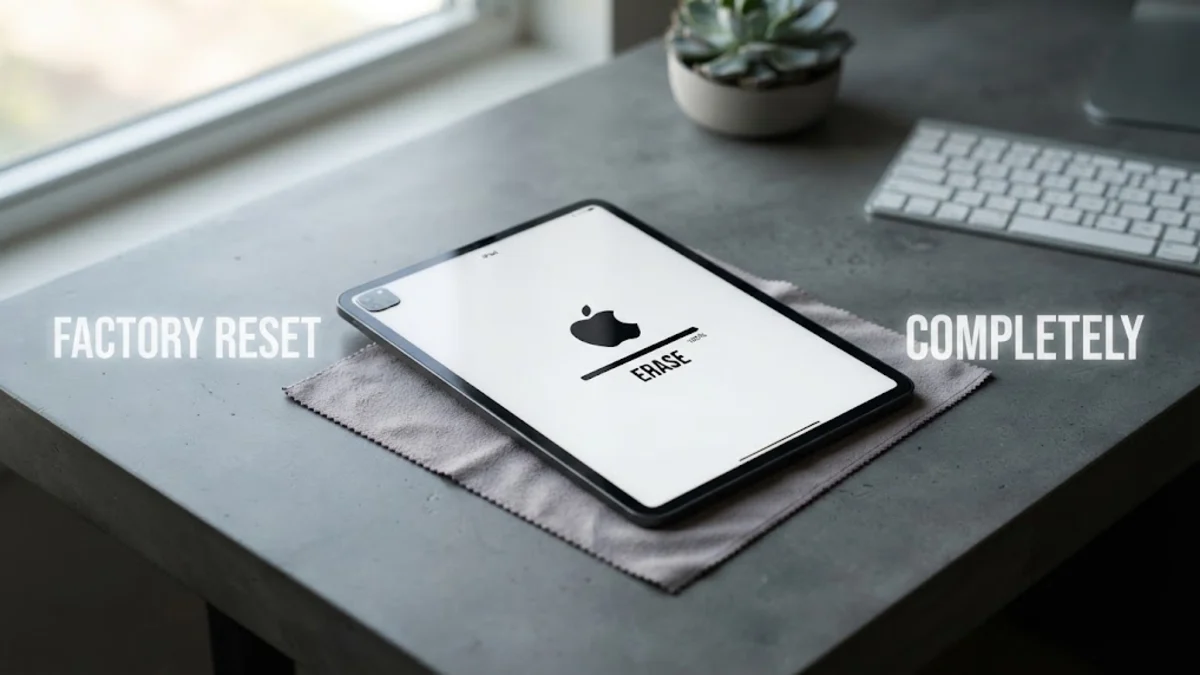
Learning how to factory reset an iPad is essential if you plan to sell, trade in, or give away your device, or if you are troubleshooting deep system performance issues. A complete factory reset wipes all personal data, apps, and settings, returning the tablet to the exact state it was in when it left the factory.
Before you begin the process, it is critical to understand that this action is irreversible unless you have a recent backup. Taking a few minutes to secure your personal data ensures a smooth transition whether you are starting fresh or preparing the device for a new owner.
Backing Up Your iPad Before a Reset
The single most important rule before performing a factory reset is to ensure your personal files, photos, and app data are safely backed up. If you skip this step, all of your precious memories, document files, and game saves will be permanently lost when the system storage is erased. You can back up your iPad using either iCloud or a trusted computer, depending on your available storage space and preferences.
To back up your device using iCloud, navigate to Settings > [Your Name] > iCloud > iCloud Backup, and tap Back Up Now. Ensure your device is connected to a reliable Wi-Fi network and a power source while the upload completes. Alternatively, you can connect your iPad to a Mac or Windows PC using a USB cable, open Finder or iTunes, select your device summary page, and choose the option to back up all local data directly to your computer storage.
Disabling Find My iPad and Signing Out of iCloud
Apple builds robust security features into iPadOS to protect your hardware against theft and unauthorized access. One of these primary security layers is Activation Lock, which ties your Apple ID directly to the physical hardware. If you attempt to wipe the device without first disabling this feature, the iPad will remain locked to your account, rendering it completely useless to anyone else who tries to set it up.
To turn off this security feature safely, go to Settings > [Your Name] > Find My > Find My iPad and toggle the switch to the off position. You will be prompted to enter your Apple ID password to confirm your identity. Once Find My is successfully disabled, scroll to the bottom of the main Apple ID menu page and tap Sign Out. This action unlinks your personal cloud services and prepares the operating system for a clean wipe.
Using the Settings App to Factory Reset Your iPad
Using the built-in Settings application is by far the easiest and most convenient method to factory reset your iPad when the device is fully functional and responsive. This method performs an internal cryptographic wipe, securely scrambling your data keys and making all stored personal information completely unrecoverable before the operating system reinstalls itself.
To initiate the wipe directly from your device menu, open Settings > General > Transfer or Reset iPad. Tap on the option labeled Erase All Content and Settings. A confirmation panel will appear detailing everything that will be removed from the system. Tap Continue, enter your device passcode or screen time passcode when prompted, and confirm your choice by tapping Erase iPad. The Apple logo and a progress bar will appear while the system completes the erasure.
Using a Computer to Reset a Frozen or Locked iPad
If your iPad is completely frozen, stuck in a boot loop, or you have forgotten your lock screen passcode, you will not be able to use the standard settings menu to wipe it. In these specific scenarios, you must connect the hardware to a computer and put the device into recovery mode to force a complete factory restoration.
Connect your iPad to a Mac running macOS Catalina or later, or a Windows PC with iTunes installed, using an official cable. Press and quickly release the Volume Up button, press and quickly release the Volume Down button, and then press and hold the Top power button until you see the computer and cable recovery icon appear on the screen. Open Finder or iTunes on your connected computer, locate your device in the sidebar, and click the Restore iPad button to download and install fresh system software.
Setting Up Your iPad After the Reset
Once the factory reset process finishes completely, your iPad will restart and display the traditional Hello greeting screen in multiple languages. If you are keeping the device for yourself, you can follow the on-screen setup prompts to connect to your Wi-Fi network, sign in with your Apple ID, and choose whether to restore your personal data from a recent iCloud or computer backup.
If you intend to sell, donate, or trade in the iPad, you should stop right at the Hello setup screen and press the power button to turn the device off. This leaves the tablet in a pristine, unconfigured state, allowing the next owner to unbox and configure the hardware as if it were brand new out of the retail packaging.
The bottom line
Performing a factory reset is a straightforward process when you remember to back up your critical files and disable security locks beforehand. Whether you are troubleshooting software glitches or preparing to pass your tablet on to someone else, following these exact steps guarantees a secure and complete erasure.
Frequently asked questions
Will a factory reset delete my Apple ID account?
No, a factory reset only erases the data stored locally on that specific iPad hardware. Your Apple ID account, cloud storage, purchases, and subscriptions remain active and accessible when you sign in on another device.
Can I factory reset my iPad without knowing the passcode?
Yes, but you will need to connect the iPad to a computer and put it into recovery mode as outlined in the troubleshooting section. You may still be asked to enter your Apple ID password afterward due to Activation Lock.
How long does an iPad factory reset take?
The resetting process typically takes between five and fifteen minutes, depending on the specific iPad model, the amount of storage capacity being wiped, and whether system software needs to be re-downloaded via a computer.
Does a factory reset remove the latest iPadOS update?
No, a factory reset erases your personal data and settings, but it keeps the device running on the latest version of iPadOS that was installed on the system.
What should I do if my iPad gets stuck on the Apple logo during a reset?
If the progress bar freezes or gets stuck, force restart the device by pressing the volume buttons and power button combination, or reconnect it to a computer in recovery mode to reinstall the software cleanly.