Why Is a Password Manager Used and How to Set One Up
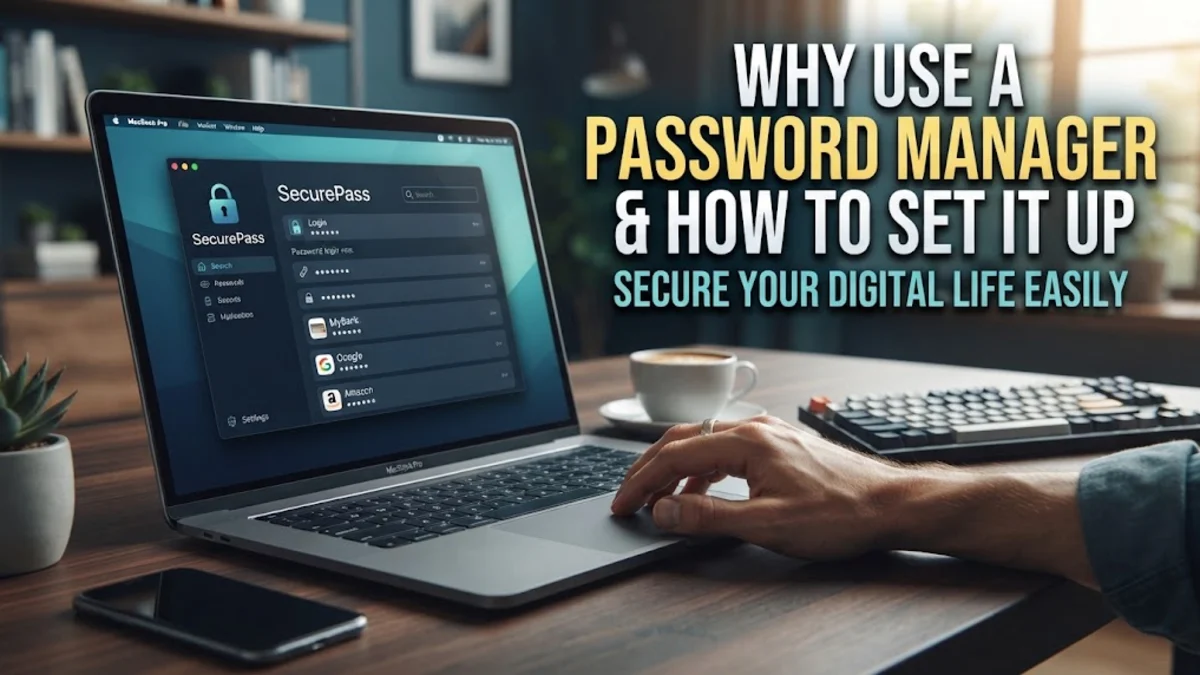
A password manager is used to create, store, and organize your login credentials in a highly secure, encrypted digital vault. Instead of relying on your memory or unsecure methods like sticky notes and spreadsheets, these tools allow you to use unique, complex passwords for every single account you own without ever having to type them manually. In 2026, where digital identity theft is more sophisticated than ever, a password manager acts as your first line of defense against data breaches and unauthorized access.
By centralizing your security, a password manager solves the problem of password fatigue and eliminates the dangerous habit of reusing the same password across multiple sites. It ensures that even if one service you use is compromised, your other accounts remain safe because they each have a different, randomized password. This article explains the technical and practical reasons why these tools are necessary and provides a clear path for setting one up to protect your digital life.
Eliminating Password Reuse and Strengthening Security
The primary reason why a password manager is used is to solve the inherent security flaw of human memory. Most people tend to use short, memorable passwords like names or birthdays, and worse, they often use the same password for their email, banking, and social media accounts. If a hacker gains access to just one of these services, they can use those credentials to unlock every other account you own in a process known as credential stuffing. A password manager eliminates this risk by generating and storing long strings of random characters—such as f8!29#LzQp0mR92v—that are nearly impossible for modern computers to crack using brute-force methods.
In 2026, security experts recommend that every password be at least 16 to 20 characters long and include a mix of uppercase letters, lowercase letters, numbers, and symbols. Managing dozens of these complex strings manually is impossible for most users. The password manager handles this complexity for you, automatically filling in these credentials when you visit a website or open an app. This ensures that every account has a unique 'key,' significantly narrowing the window of opportunity for cybercriminals. If one site suffers a data breach, your exposure is limited to that single account, which you can then update with a new random password in seconds.
Protection Against Modern Phishing and Spoofing Attacks
A sophisticated benefit of using a password manager is its ability to identify and block phishing attempts. Phishing occurs when a malicious actor creates a fake website that looks identical to a legitimate one—such as your bank or an e-commerce store—in hopes that you will enter your login details. While these fake sites can fool the human eye by using lookalike URLs like 'g00gle.com' instead of 'google.com,' they cannot fool a password manager. Because the manager stores credentials tied to a specific, verified domain, it will refuse to autofill your username and password on a site that doesn't match the exact record in your vault.
This 'hard' protection is one of the most effective ways to prevent account takeovers. When you arrive at a login page and notice the password manager isn't suggesting a login, it serves as an immediate red flag that you might be on a fraudulent site. In 2026, as AI-generated phishing sites become more convincing, this automated verification step is critical. Furthermore, many modern managers now support passkeys, which are even more secure than passwords. By using a password manager to store these passkeys, you benefit from hardware-level security that is virtually immune to traditional phishing techniques.
Encryption and Zero-Knowledge Architecture
Many users wonder if putting all their passwords in one place is safe. The answer lies in how these applications are built, specifically using 'Zero-Knowledge Architecture.' When you use a reputable password manager, your data is encrypted locally on your device before it is ever sent to the provider's servers. The 'master password' you create is the only key that can decrypt the data. The service provider does not know your master password, and they do not have the technical ability to see the contents of your vault. This means even if the password manager's own servers were hacked, the attackers would only find useless, encrypted gibberish.
Most managers in 2026 use AES-256 bit encryption, which is the same standard used by governments and financial institutions to protect top-secret data. To ensure maximum security, these tools also utilize PBKDF2 or Argon2 hashing algorithms, which make it computationally expensive and time-consuming for hackers to attempt to guess your master password. As long as you choose a strong, unique master password and enable two-factor authentication (2FA) for your vault, your credentials are significantly safer inside the manager than they would be in a browser or a physical notebook.
Enhanced Productivity Through Cross-Platform Syncing
Beyond security, a password manager is used to drastically improve your digital workflow. Modern life requires us to switch between laptops, smartphones, and tablets constantly. A cloud-based password manager ensures that when you update a password on your desktop browser, it is instantly available on your phone. This synchronization eliminates the 'forgot password' loop that many people experience, saving hours of frustration and preventing the need to reset accounts frequently. Most managers offer browser extensions for Chrome, Edge, and Firefox, along with dedicated apps for Android and iOS, ensuring your data is always at your fingertips.
The productivity benefits extend to more than just passwords. You can use these tools to store secure notes, credit card information, and identity documents like driver's licenses. When you are checking out at an online store, the manager can autofill your shipping address and payment details securely. This is much safer than allowing your browser to store this sensitive information, as browser-based storage is often less secure and lacks the advanced encryption features of a dedicated security app. By using a single source of truth for your digital identity, you simplify your life while tightening your security posture.
How to Set Up Your First Password Manager
Starting with a password manager is a straightforward process, but it requires a few intentional steps to ensure you are protected. First, you must choose a reputable service. In 2026, Bitwarden and 1Password remain top choices for their transparency and security audits. Once you have selected a service, you will need to create your 'Master Password.' This is the only password you will ever need to remember, so it must be strong—ideally a passphrase of four or five random words that is easy for you to visualize but hard for a computer to guess. Do not write this down in an unsecure place; if you lose it, you may lose access to your entire vault.
After creating your account, install the browser extension on your computer and the app on your mobile device. Most managers will offer to import your existing passwords from your browser (like Chrome or Safari). Follow the path Settings > Import Data within the app to bring your old credentials in. Once imported, it is a best practice to go into your browser settings and disable the built-in password saving feature to avoid conflicts. From this point on, every time you log into a site, the manager will ask if you want to save the credentials. Over time, you should use the manager's 'Security Audit' or 'Watchtower' feature to identify weak or reused passwords and change them to strong, random ones.
Advanced Features: 2FA Management and Emergency Access
Modern password managers in 2026 do more than just store strings of text; they often act as an authenticator for two-factor authentication (2FA). Instead of using a separate app or waiting for an insecure SMS code, your manager can store the TOTP (Time-based One-Time Password) seeds and generate the six-digit codes automatically. This means that when you log in, the manager fills in both your password and your 2FA code, streamlining the login process while maintaining a very high level of security. This 'all-in-one' approach reduces the friction that often leads people to disable 2FA entirely.
Another critical feature to look for is 'Emergency Access.' This allows you to designate a trusted person, such as a spouse or family member, who can request access to your vault in the event of an emergency. You can set a waiting period (for example, 7 days) during which you can deny the request if it was made in error. This ensures that your digital legacy and important financial accounts aren't permanently locked away if something happens to you. Setting this up is usually found under Account Settings > Security > Emergency Access and is a vital step for long-term digital planning.
Common Mistakes to Avoid When Using a Manager
While password managers are powerful, their effectiveness depends on how you use them. The biggest mistake users make is choosing a weak master password. Since this password is the key to everything else, it should never be reused from any other account. Another common error is failing to enable two-factor authentication for the password manager itself. You should use a hardware security key or an authenticator app to protect your vault, ensuring that even if someone steals your master password, they still cannot get inside. This 'double-locking' of your vault is the gold standard for personal security in 2026.
Finally, avoid the temptation to share your master password with anyone. Most password managers offer a 'Collection' or 'Family Sharing' feature that allows you to share specific passwords with family members securely without revealing your master credentials. If you need to share a streaming service or a utility bill login, use the built-in sharing tools rather than sending the password via text message or email. By following these protocols, you ensure that your password manager remains a secure fortress rather than a single point of failure.
The bottom line
A password manager is no longer a luxury for tech-savvy individuals; it is a necessity for anyone who uses the internet in 2026. By automating the creation of complex passwords, providing protection against phishing, and simplifying your digital life through syncing, these tools offer the best balance of security and convenience. Taking the time to set up a vault today will protect you from the devastating consequences of account takeovers and data breaches for years to come.
Frequently asked questions
Is it safe to store all my passwords in one app?
Yes, because of Zero-Knowledge encryption. Your passwords are encrypted on your device using your master password before they are sent to the cloud. The company providing the service cannot see your passwords, and even if their servers are breached, the data remains unreadable without your master key.
What happens if I forget my master password?
Because of the secure nature of these apps, most providers cannot reset your master password for you. It is crucial to use a recovery kit or designate emergency access contacts during setup. Some managers allow biometric recovery (FaceID or Fingerprint) if enabled beforehand on a mobile device.
Are browser-based password managers good enough?
While better than nothing, browser managers (like those in Chrome or Safari) are generally less secure and less flexible than dedicated apps. Dedicated managers offer cross-browser syncing, better 2FA integration, and more robust encryption protocols that are independent of your operating system's login.
Should I use a free or paid password manager?
Many excellent managers like Bitwarden offer a free tier that is sufficient for most individuals. Paid versions usually add features like advanced 2FA options, file storage, and family sharing. For basic security, a free, reputable manager is significantly better than not using one at all.