Best ChatGPT Prompts for Image Editing
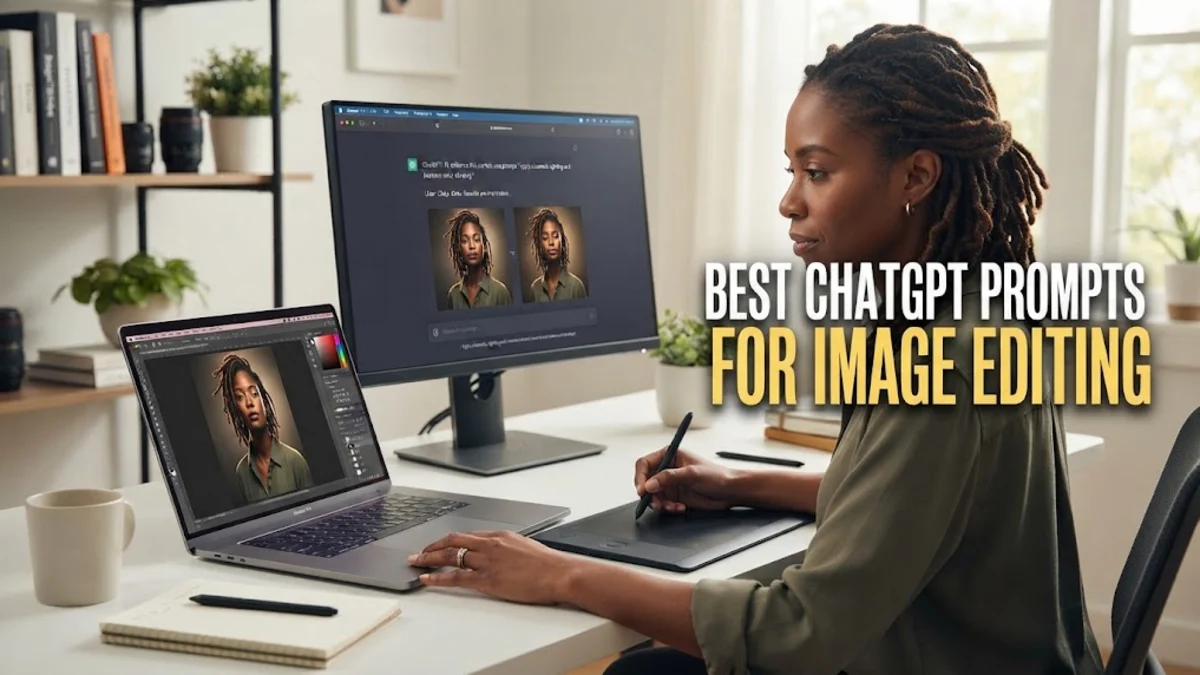
Using ChatGPT prompts for image editing has transformed from simple text-based requests into a precise, interactive design experience. With the integration of advanced DALL-E models in 2026, you can now modify specific portions of an image, adjust lighting, and swap objects without needing to regenerate the entire file from scratch. This workflow is essential for professionals who need high-quality visuals but lack the time for manual retouching in traditional software. In this guide, you will learn the most effective prompt structures to achieve professional-grade results directly within the ChatGPT interface. Whether you are correcting a small detail or overhauling an entire composition, the right prompt makes the difference between a generic AI look and a polished, intentional design. We will explore how to leverage the latest selection tools and conversational commands to give you total control over your digital assets.
Mastering the Selection Tool and Editor Interface
To get the best results with ChatGPT prompts for image editing, you must first understand the interface mechanics available in 2026. When you click on an image generated by ChatGPT, you will see a toolbar at the top of the screen. The most important tool here is the **Selection Tool** (represented by a brush icon). This tool allows you to highlight the specific area you want to change, which tells the AI exactly where to focus its processing power. Common mistakes include trying to describe the whole image again when you only want to change one small part. Instead, use the brush to highlight a shirt, a background tree, or a facial feature before typing your prompt. Once the area is selected, your prompt should be concise and action-oriented. For example, instead of saying "I would like it if the person was wearing a blue shirt instead of a red one," you should simply type "Change the shirt color to navy blue with a silk texture." This directness helps the model understand the priority. If you are not using the selection tool, ChatGPT will attempt to regenerate the entire image based on your feedback, which often leads to losing the parts of the original image you actually liked. Always start by clicking the **Edit** icon in the top right of the image preview window to enter this specialized mode.
Prompts for Adding and Removing Objects
Adding or removing elements is one of the most common tasks in image editing. To remove an object, select it with the brush tool and use a prompt like "Remove this object and blend the background seamlessly." It is crucial to specify what should be in its place if the background is complex. For instance, "Remove the coffee cup and extend the mahogany wood grain of the table." When adding objects, focus on the interaction between the new item and the existing environment. A common error is failing to mention lighting or shadows. To fix this, use prompts such as "Add a silver laptop on the desk, ensuring the shadows match the overhead light source." This level of detail prevents the added object from looking like a flat sticker. You can also use prompts to change the environment entirely while keeping the subject. By selecting the entire background around a person, you can use a prompt like "Replace the office background with a blurred Tokyo street scene at night with neon lights." The 2026 version of DALL-E is remarkably good at maintaining the subject's edges, but if you notice a 'halo' effect, try a follow-up prompt like "Refine the edges of the subject to blend naturally with the new background."
Stylistic Enhancements and Color Grading
ChatGPT prompts for image editing are highly effective for changing the 'vibe' or aesthetic of a visual. If your initial generation looks too 'AI-like' or saturated, you can apply global style edits. You do not always need the selection tool for this; you can simply type a command in the chat box. Effective prompts for this include "Apply a cinematic color grade with teal and orange tones" or "Convert this image into a high-contrast black and white photograph with film grain." For professional work, you might need to match a brand's specific color palette. In this case, use prompts like "Shift the primary colors to hex codes #2A4B8D and #F4A261." If the image feels too flat, try "Increase the depth of field by blurring the background further" or "Add a soft glow to the light sources to create a dreamlike atmosphere." These prompts work best when you use descriptive adjectives that refer to photography techniques. Using terms like 'ISO,' 'aperture,' 'exposure,' and 'saturation' helps the AI understand that you are looking for a technical adjustment rather than a creative reimagining. If a change is too subtle, don't be afraid to use 'aggressive' language, such as "Significantly increase the contrast and darken the shadows for a noir effect."
Technical Fixes for Faces and Textures
Even in 2026, AI can occasionally struggle with fine details like eyes, hands, or specific fabric textures. If you have an image that is perfect except for a weirdly rendered hand, use the selection tool to highlight only the hand and use the prompt: "Fix the anatomy of the hand to show five fingers in a natural resting position." For facial expressions, small tweaks are better than large ones. Try selecting the mouth and prompting "Change the expression to a subtle, professional smile" or selecting the eyes and prompting "Ensure both eyes are looking directly at the camera with clear reflections." Texture is another area where ChatGPT excels if prompted correctly. If a surface looks like plastic but should be metal, select the area and type "Change the texture to brushed aluminum with realistic metallic reflections." This is particularly useful for product mockups. If you are working on a portrait and the skin looks too smooth or 'plastic,' use a prompt like "Add realistic skin texture with subtle pores and remove the airbrushed look." These micro-edits are what separate amateur AI generations from professional-grade assets.
Compositional Adjustments and Outpainting
Sometimes the subject is perfect, but the framing is wrong. While ChatGPT does not have a dedicated 'crop' tool in the traditional sense, you can use prompts to change the composition. To move an object, you can select it and then select the area where you want it to go, using a prompt like "Move the mountain peak further to the left to follow the rule of thirds." For outpainting, which involves expanding the borders of an image, you can use the prompt "Expand the canvas to a 16:9 aspect ratio and fill the new space with a continuation of the landscape." This is incredibly helpful when you have a square image that needs to be a website hero banner. If the AI adds unwanted elements during the expansion, immediately use the selection tool on those areas and prompt "Clear this area and keep it as simple sky" or "Extend the clouds naturally without adding new buildings." Remember that the model has a 'memory' of the current session, so if you've made several edits, you can refer to them by saying "Revert the last color change but keep the new object." This keeps your workflow fluid and prevents you from getting stuck in a loop of unwanted variations.
Best Practices for Prompt Chaining
The bottom line
Mastering ChatGPT prompts for image editing is about the balance between precise selection and descriptive language. By treating the AI as a collaborative digital artist rather than a simple search engine, you can refine images to meet exact professional standards. Remember to use the selection tool for localized changes, apply technical photography terms for stylistic shifts, and utilize prompt chaining for complex projects. As AI models continue to evolve in 2026, these prompting skills will remain the primary way to bridge the gap between a raw AI generation and a final, usable piece of content.
Frequently asked questions
Can I edit images I uploaded to ChatGPT, or only ones it generated?
As of 2026, you can use ChatGPT prompts for image editing on both AI-generated images and your own uploaded photos. When you upload a photo, you can use the same selection brush to highlight areas and issue commands like 'Change the color of my jacket' or 'Remove the person in the background.'
Why does ChatGPT sometimes change parts of the image I didn't select?
This usually happens if your prompt is too broad or if the AI feels it needs to adjust the surrounding areas to make the edit look 'natural' (e.g., changing shadows around a new object). To prevent this, use very specific selection strokes and explicitly tell the AI 'Do not modify any areas outside of the selection.'
What is the best way to fix distorted text in an image?
Select the distorted text with the brush tool and use a prompt like 'Replace this text with the word [YourWord] in a clean, sans-serif font.' ChatGPT is now much better at rendering text, but it works best when you provide the specific font style and the exact characters required.
Is there a limit to how many edits I can make on one image?
While there is no hard limit, the image quality can start to degrade after 10-15 successive edits due to 'AI fatigue' or cumulative artifacts. If you find the image getting 'muddy,' it is often better to take your best version and start a fresh edit session or use an external upscaler.